Customize the account page
This guide explains how to configure the account items of an organization. Account items are the fields on the account page and the user edit page of every member of the organization. For each field, you decide whether it is visible, who can view it, and who can edit it.
Learning outcomes
- Show or hide fields of the account page.
- Restrict who can view and edit a field.
- Group fields into tabs and choose the layout of the tabs.
What you need
- Administrator access to the organization in the Casdoor admin console
About account items
Each account item has the following settings:
| Column | Values | Beschreibung |
|---|---|---|
| Name | A field from the list of account items | The field |
| Sichtbar | On or off | Whether the field appears on the account page |
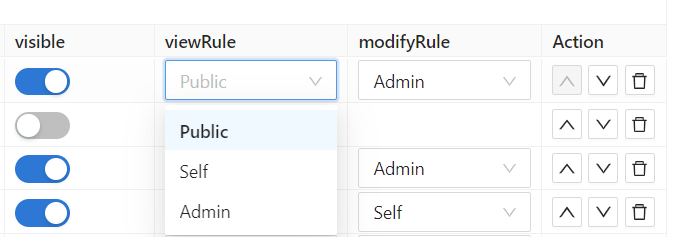
| View rule | Public, Self, Admin | Who can see the value of the field |
| Modify rule | Self, Admin, Immutable | Who can change the value of the field |
| Registerkarte | Text | Tab under which the field appears on the user edit page |
The rules have the following meaning:
| Rule | Who can view or change the field |
|---|---|
Public | View rule only. Everyone can see the field of any user |
Self | Each user, for their own account only. Casdoor matches by user ID, or by organization and username if the ID is missing |
Admin | Administrators of the organization only |
Immutable | Modify rule only. Nobody can change the field on the account page |
View rules and modify rules apply to single fields of a user profile. They are separate from permissions, which control access to applications and resources.
Configure the account items
-
In the Casdoor admin console, go to User Management > Organizations and open the organization.
-
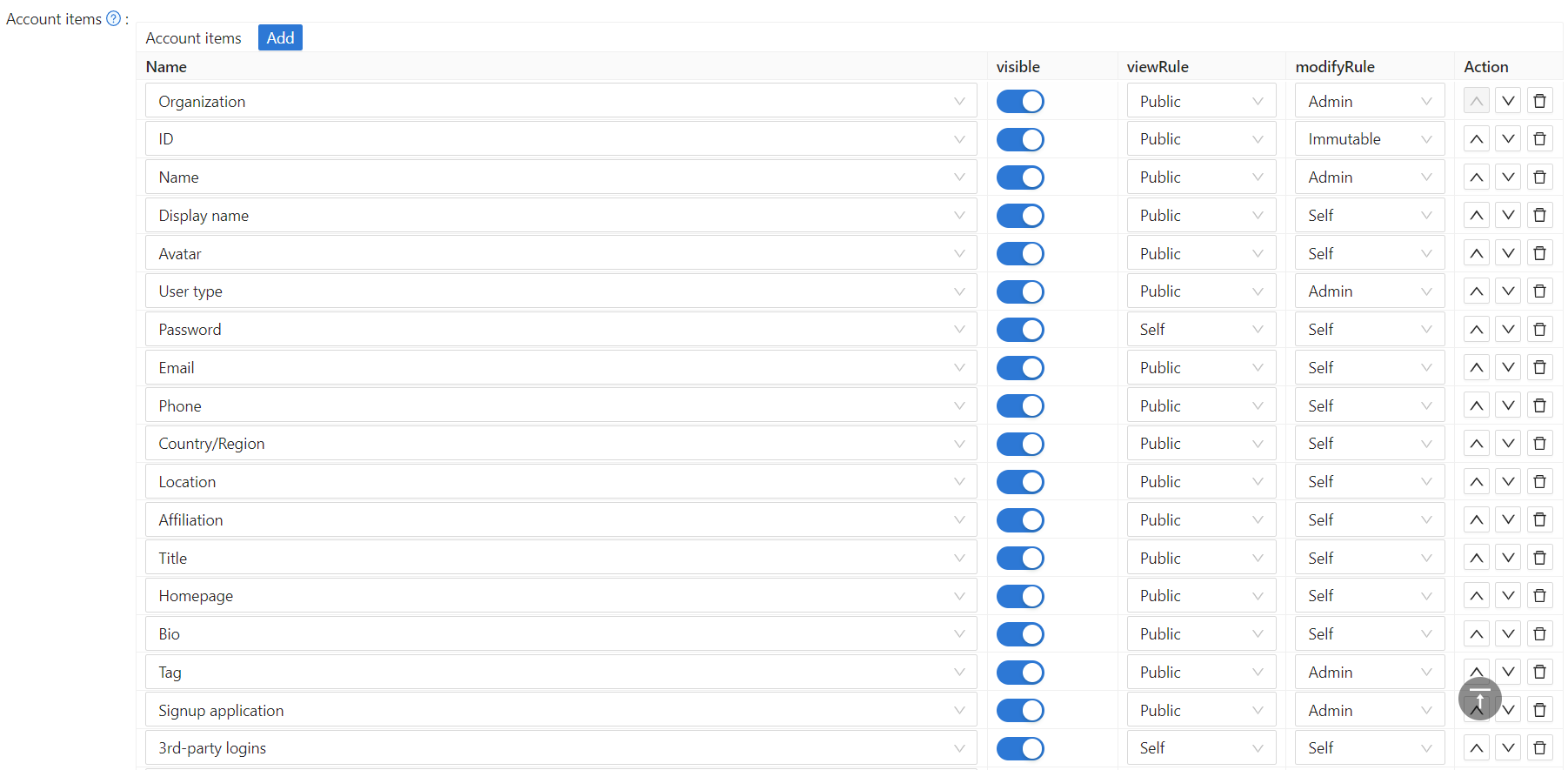
Scroll to Account items.
-
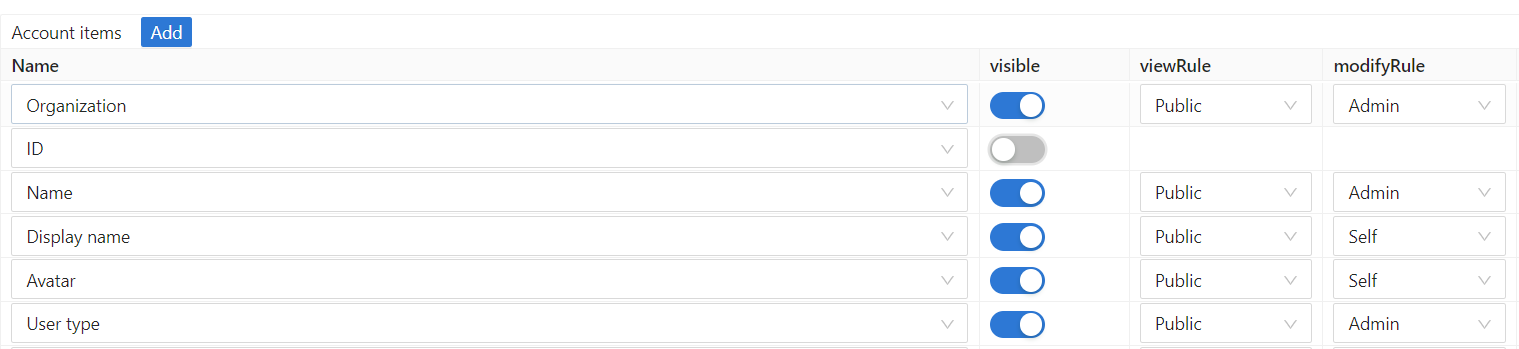
To show or hide a field, switch Visible.
-
To restrict a field, select a View rule and a Modify rule.
-
Save the organization.
Common patterns
| Feld | View Rule | Modify Rule | Use Case |
|---|---|---|---|
| Name | Public | Self | Everyone can see names, but users can only change their own |
| Self | Self | Users can only see and change their own email | |
| Phone | Admin | Admin | Only admins can see and change phone numbers (for privacy) |
| Display name | Public | Self | Public profile name visible to all |
| Password | Self | Self | Users can only change their own password |
Use the Admin rule for sensitive fields that only administrators should manage, such as phone numbers, addresses, and internal identifiers.
Group fields into tabs
Items with the same Tab value appear together under one tab of the user edit page. Items without a tab value appear first, outside the tabs.
For example, to create a Contact tab with the email address, the phone number, and the location:
- Open the organization and scroll to Account items.
- Set Tab to
Contactin the rows Email, Phone, and Location. - Save the organization. The user edit page now has a
Contacttab with the three fields.
Choose the tab layout
Account menu on the organization edit page sets how the tabs are shown:
| Option | Layout |
|---|---|
| Horizontal (default) | Tabs across the top of the page |
| Vertical | A menu on the left side of the page. Use it for organizations with many tabs |
List of account items
| Field | Beschreibung |
|---|---|
Organisation | The organization this user belongs to. |
ID | The user's globally unique identifier (UUID). |
Bezeichnung | The user's unique login username within the organization. |
Anzeigename | The name shown publicly on the user's profile. |
Vorname | The user's given name. |
Nachname | The user's family name. |
Avatar | The user's profile picture. |
Benutzertyp | The category of the user account (e.g. normal user, service account). |
Passwort | The user's login password. |
E-Mail | The user's email address, used for login and notifications. |
Telefon | The user's phone number, used for login and SMS verification. |
Ländercode | The phone country/calling code (e.g. +1 for the US), used together with Phone. |
Land/Region | The user's country or region. |
Standort | The user's city or address. |
Zugehörigkeit | The user's company, school, or other organizational affiliation. |
Titel | The user's job title or position. |
Ausweistyp | The type of government-issued identity document (e.g. passport, national ID card, driver's license). |
Ausweis | The document number of the user's identity document. |
Ausweisinfo | Additional identity document details (e.g. issue date, expiry). Only visible to the user themselves. |
Echter Name | The user's verified legal name. Locked and cannot be changed after identity verification is completed. |
Identitätsprüfung | Controls visibility of and access to the Verify identity button on the profile page. |
Homepage | The URL of the user's personal website or online profile. |
Bio | A short biography or personal description. |
Tag | One or more custom labels attached to the user, used for filtering or grouping. |
Anmeldeanwendung | The application the user originally signed up through. |
Registrierungstyp | The method used to register the account (e.g. email, phone, OAuth). |
Registrierungsquelle | The channel or provider through which the user registered (e.g. Google, GitHub, invite link). |
Rollen | The roles assigned to this user, which determine access within Casdoor. |
Berechtigungen | The permissions explicitly granted to this user. |
Gruppen | The user groups this user belongs to. |
Drittanbieter-Logins | Linked third-party OAuth accounts (e.g. Google, GitHub, WeChat) used for social login. |
Eigenschaften | Custom key-value pairs for storing additional application-specific data about the user. |
Guthaben | The user's account balance, used for built-in payment or credit features. |
Guthaben (Credits) | Minimum balance floor for the user's account. Must be ≤ 0. Set to 0 (default) to prevent the balance from going negative. Set to a negative value (e.g. -50) to allow the balance to drop as low as that amount before transactions are blocked. |
Guthabenwährung | The currency unit for the user's balance (e.g. USD, CNY). |
Warenkorb | Items added to the user's shopping cart (for e-commerce integrations). |
Punktzahl | A point score assigned to the user, typically by application logic. |
Karma-Punkte | A reputation score reflecting the user's activity or community standing. |
Rang | The user's rank among all users, derived from score or other metrics. |
Sprache | The user's preferred display language for the Casdoor UI. |
Ist Admin | Whether the user has organization administrator privileges. |
Ist gesperrt | Whether the user account is banned; forbidden users cannot log in. |
Ist gelöscht | Whether the user account has been soft-deleted (marked as deleted but retained in the database). |
Mehrfaktorauthentifizierung | The user's MFA settings and enrolled second-factor methods (e.g. TOTP app, SMS). |
MFA-Elemente | The list of individual MFA methods enrolled by the user. |
WebAuthn-Anmeldeinformationen | Registered passkeys or hardware security keys (WebAuthn/FIDO2) for passwordless login. |
Letzte Passwortänderung | Timestamp of the user's most recent password change. Admin-only. |
Verwaltete Konten | Sub-accounts or delegated accounts that this user can manage on behalf of others. |
Gesichtserkennung | Enrolled face recognition data used for biometric login. |
MFA-Konten | External accounts linked specifically for multi-factor authentication purposes. |
Passwort-Update erforderlich | Whether the user is required to change their password at next login. Admin-only. When set, the user is redirected to their Account page after sign-in and cannot navigate elsewhere until the password is updated. |
IP-Whitelist | IP addresses or CIDR ranges from which this user is allowed to sign in. Admin-only. |