Add providers to an application
This guide explains how to add providers to an application, so that users can sign in with an external identity provider and receive codes by email or SMS, and how to choose when Casdoor uses each provider.
Learning outcomes
- Add a provider to an application.
- Choose the rule that decides when Casdoor uses an email or SMS provider.
What you need
- An application
- One or more providers that you have created in Casdoor
Add a provider
-
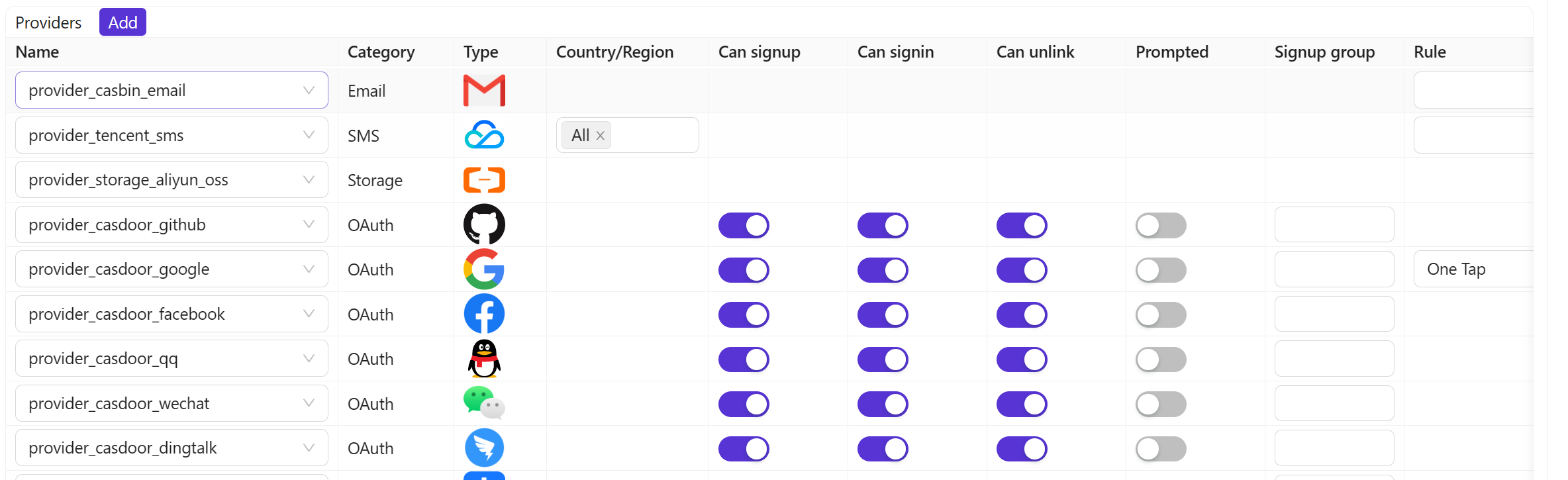
In the Casdoor admin console, open the edit page of the application and go to the Providers tab.
-
Add a row and select the provider.
-
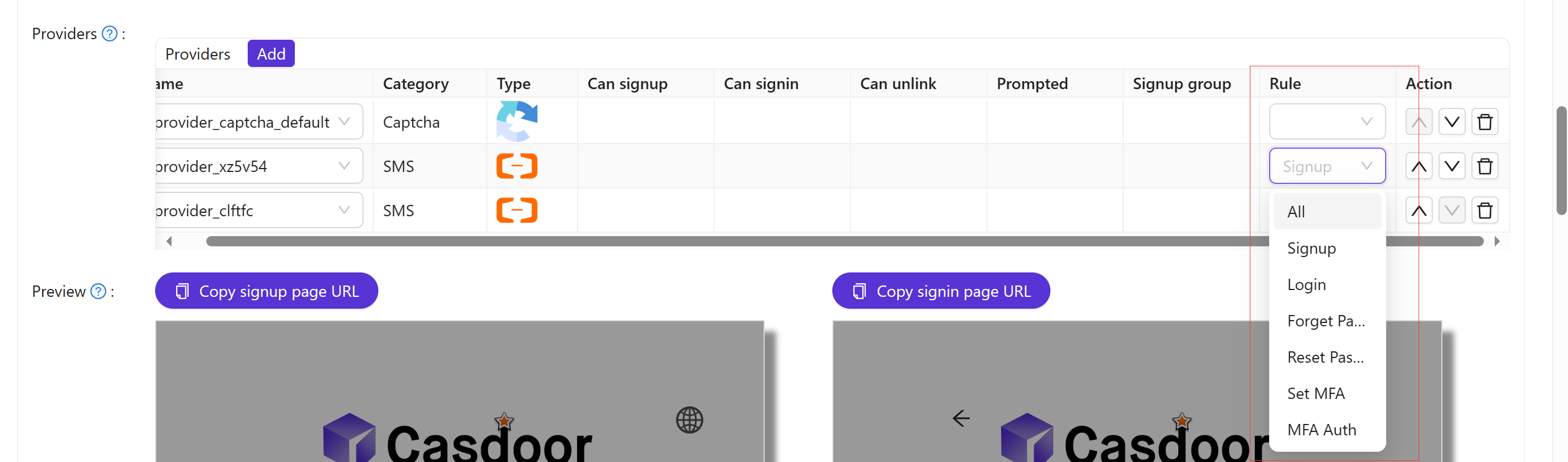
For an email or SMS provider, select the rule that decides when Casdoor uses it. See Provider rules.
-
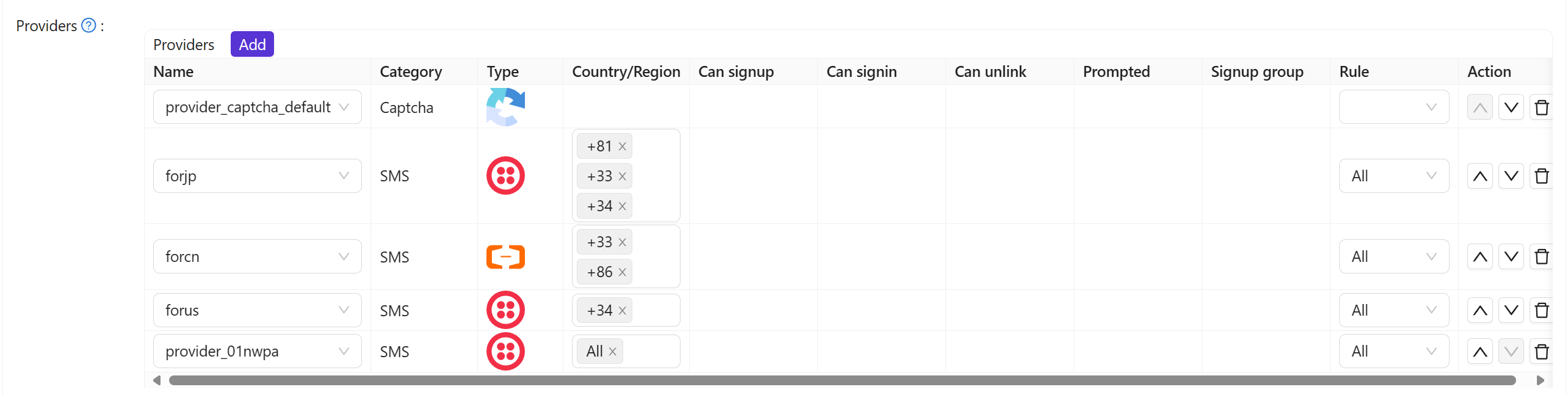
For an SMS provider, select the country codes that it serves.
-
Save the application.
For the other columns of the table, such as Can sign up and Binding rule, see the Application settings reference.
Provider rules
| Rule | Casdoor uses the provider to |
|---|---|
All | Do everything below |
Signup | Send the verification code during sign-up |
Login | Send the code for sign-in with a verification code |
Forget Password | Send the reset code or link on the forgot-password page. See Forgot-password flow. For reset links, see Password reset link |
Reset Password | Send the code when the user changes the password |
Set MFA | Send the code when the user sets up multi-factor authentication (MFA) |
MFA Auth | Send the code for the second factor at sign-in. See Multi-factor authentication |
Magic link | Send the sign-in link for sign-in with a magic link |
To use different providers in different situations, add each provider with its own rule. For example, one SMS provider for sign-in and another one for MFA.
Which provider Casdoor picks
When an application has several Email or SMS providers, Casdoor picks one for each message in this order:
- For SMS, Casdoor skips the rows whose Country codes don't include the country code of the phone number.
- The first row whose rule names the purpose, such as
LoginorMFA Auth, wins, wherever it is in the table. - Otherwise, the first row with the rule
Allwins.
A later row with the same rule as an earlier row is never used, and the Providers tab shows "Never used, an earlier row already carries this rule" on it.