Customize the sign-up form
This guide explains how to build the sign-up form of an application with the Signup items table.
Learning outcomes
- Add, remove, and order the fields of the sign-up form.
- Make fields required and validate them with regular expressions.
- Change the behavior of fields with rules.
- Ask users for missing fields after they sign in.
What you need
- An application with Enable signup turned on
About the sign-up items
Each row of Signup items is one field or element of the sign-up page. Applications that you create through the Casdoor SDK get default items: ID, Username, Display name, Password, Confirm password, Email, Phone, and Agreement.
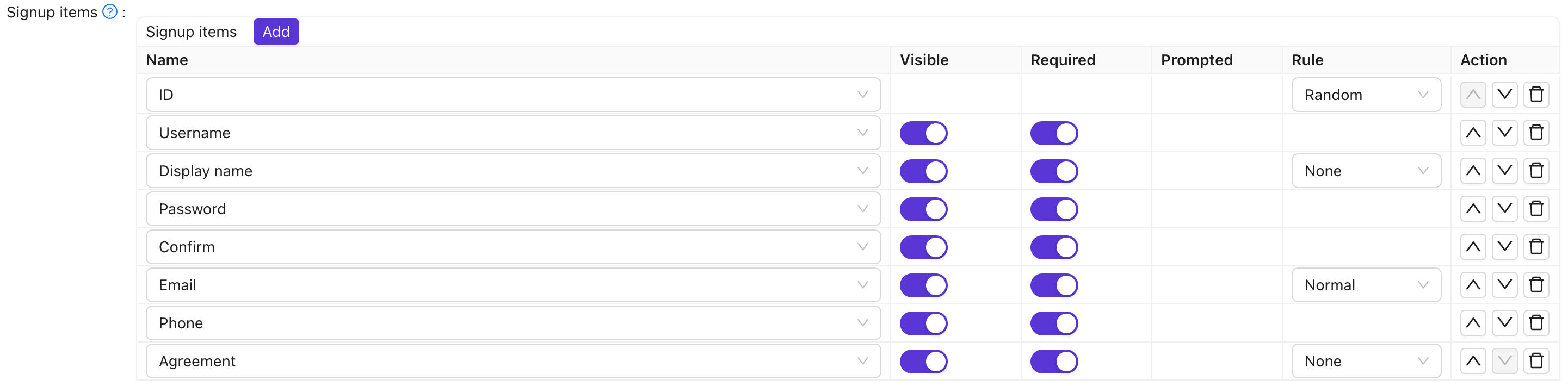
Columns
| Column | Values | Description |
|---|---|---|
| Name | — | Name of the signup item. |
| Visible | True / False | Show or hide on the sign-up page. /api/signup ignores the values of hidden items. See Hidden items. |
| Required | True / False | Whether the field is mandatory. |
| Prompted | True / False | Whether to ask for the field after sign-in if the account has no value for it. See Ask for missing fields after sign-in. |
| Regex | — | Optional regex for client-side validation. |
| Label | — | For items starting with Text, use HTML for the field; otherwise replaces the item label. |
| Custom CSS | — | CSS for this signup item. |
| Rule | Rule items | Rule that customizes this item (see table below). |
| Action | — | Move up, move down, or delete. |
Configure the form
- In the Casdoor admin console, open the edit page of the application.
- In Signup items, add, remove, and order the items, and set Visible and Required for each one.
- Set a rule for the items that support one. See Item rules.
- Save the application.
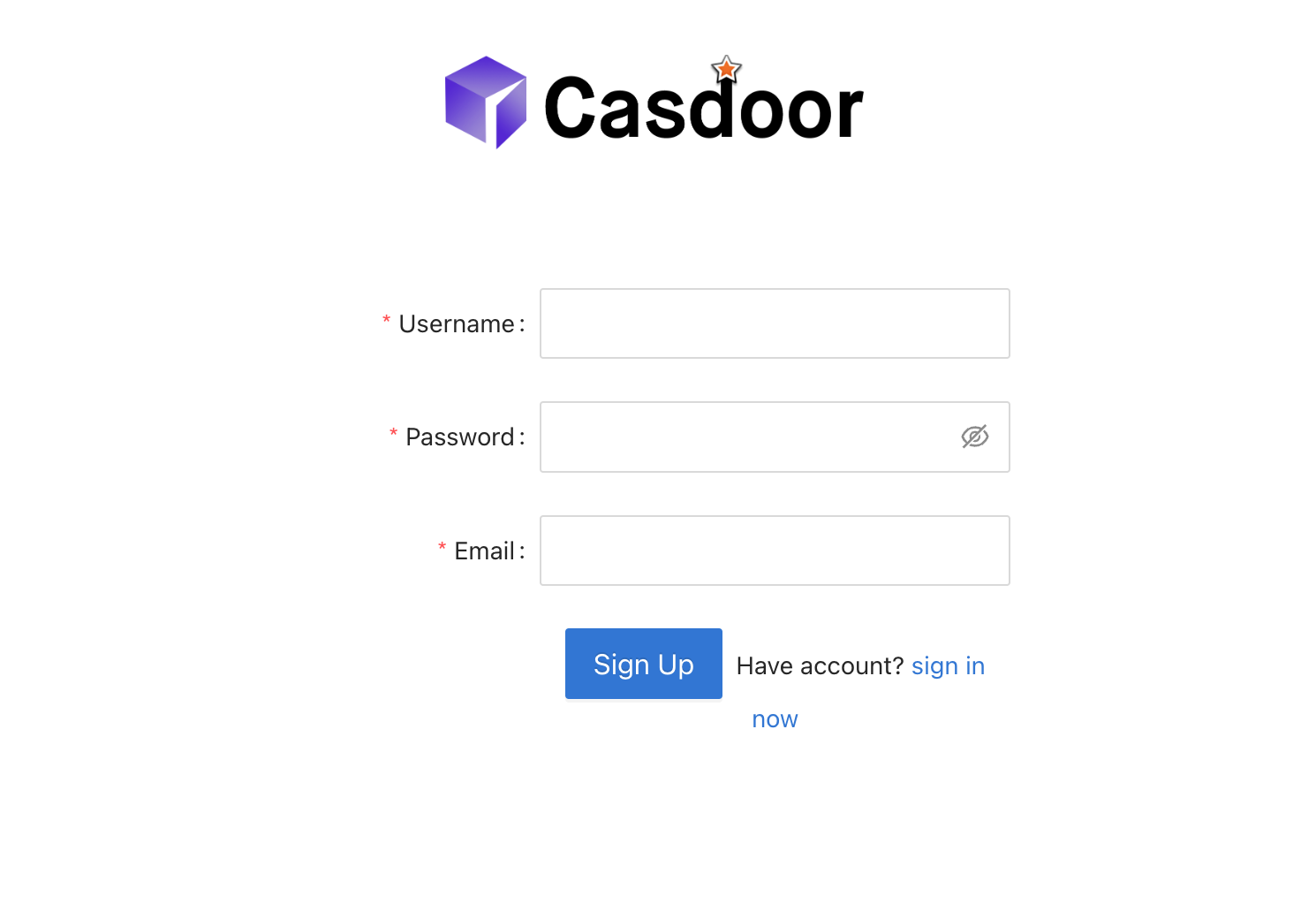
For example, to show an email field that doesn't need verification, add the Email item and set its rule to No verification.

The sign-up page then looks like this:
Item rules
| Item | Rules | Description |
|---|---|---|
| ID | Random / Incremental | User ID generation: random or incremental. |
| Display name | None / Real name / First, last | How to show the display name; First, last shows first and last name separately. |
Normal / No verification | Normal = require email verification; No verification = skip verification. | |
| Phone | Normal / No verification | Normal = require phone verification; No verification = skip verification. |
| Agreement | None (shown as Only signup) / Signin / Signin (Default True) | The checkbox for the terms of use always starts checked, whatever the rule. If the item is required and the user unchecks it, submitting the form or clicking a provider button shows "Please accept the agreement!". To show the terms of use on the sign-in page, use the Agreement sign-in item. |
| Languages | None / Label | Adds a language selector to the sign-up page. None = show the selector on its own; Label = show it with a text label. |
Let users choose a tag
The Tag item adds a list from which users pick their own tag at sign-up. It is hidden by default. Turn on Visible to show it.
- The options come from the Options of the item. If the item has no options, they come from the Tags of the application.
- A tag that the user selects takes precedence over the Default tag of the application, which applies only when the user selects none.
Validate input with a regular expression
- In the row of the item, set Regex to a pattern, for example
^[a-zA-Z0-9_]+$for usernames of letters, digits, and underscores. - Save the application.
The sign-up page shows an error before submission when the input doesn't match. Validation works for Username, Display name, First name, Last name, Affiliation, and custom fields.
Hidden items
Before it validates a sign-up request, POST /api/signup clears every field whose item is missing from Signup items or has Visible off. A client that calls the API can't set a field that the sign-up page of the application doesn't show.
| Item | Fields that Casdoor clears when the item is hidden |
|---|---|
| Username | username |
| Display name | name, firstName, lastName |
| First name | firstName |
| Last name | lastName |
| Password | password |
email, emailCode | |
| Phone | phone, countryCode, phoneCode |
| Email or Phone, Phone or Email | email, emailCode, phone, countryCode, phoneCode |
| Country/Region | region |
| ID card | idCard |
| Affiliation | affiliation |
| Bio | bio |
| Tag | tag |
| Education | education |
| Gender | gender |
| Languages | language |
A field that several items own, such as firstName, stays when any of these items is visible.
Ask for missing fields after sign-in
With Prompted, Casdoor asks users for a field that their account lacks, for example the phone number of users who signed up with a provider that doesn't return one.
- In the row of Display name, Email, Phone, or Country/Region, turn on Visible and Prompted.
- Save the application.
For Affiliation, the Prompted switch appears while Visible is off, and the prompt page asks for the affiliation whenever Prompted is on. In the Providers table, the Prompted column of a provider asks the user to link that provider in the same way.
When a user signs in to the application through the OAuth 2.0 authorization code flow, including a sign-in with a third-party provider, Casdoor checks the account before it redirects to the client. If a prompted field is empty, the user goes to the prompt page /prompt/<application> first. If every field has a value, the user goes straight to the redirect URL.
On the prompt page:
- A new or changed email address or phone number needs a verification code. Casdoor saves it only after the code is checked. The phone number uses the selected country code, which defaults to the first country code of the organization.
- Submit and complete stays disabled until every prompted field has a value and each changed email address or phone number has a code.
Use the email address as username
If the organization has Use Email as username turned on and the Username item is hidden, the email address of the user becomes the username. See Organizations.