Pulsar manager
Casdoor can easily connect to Pulsar Manager.
The code for connecting Casdoor has already been added to Pulsar Manager, so we just need to configure the application.properties file in the back-end and the Casdoor settings in the front-end.
Step 1: Deploy Casdoor
Deploy Casdoor. See Server installation. Ensure the server is running and you can sign in at the Casdoor login page as built-in/admin with the password that you set. See Sign in to the admin console.
Step 2: Configure Casdoor
Configure an organization and an application in Casdoor (see Application and Organization).
Step 2.1: Create an organization
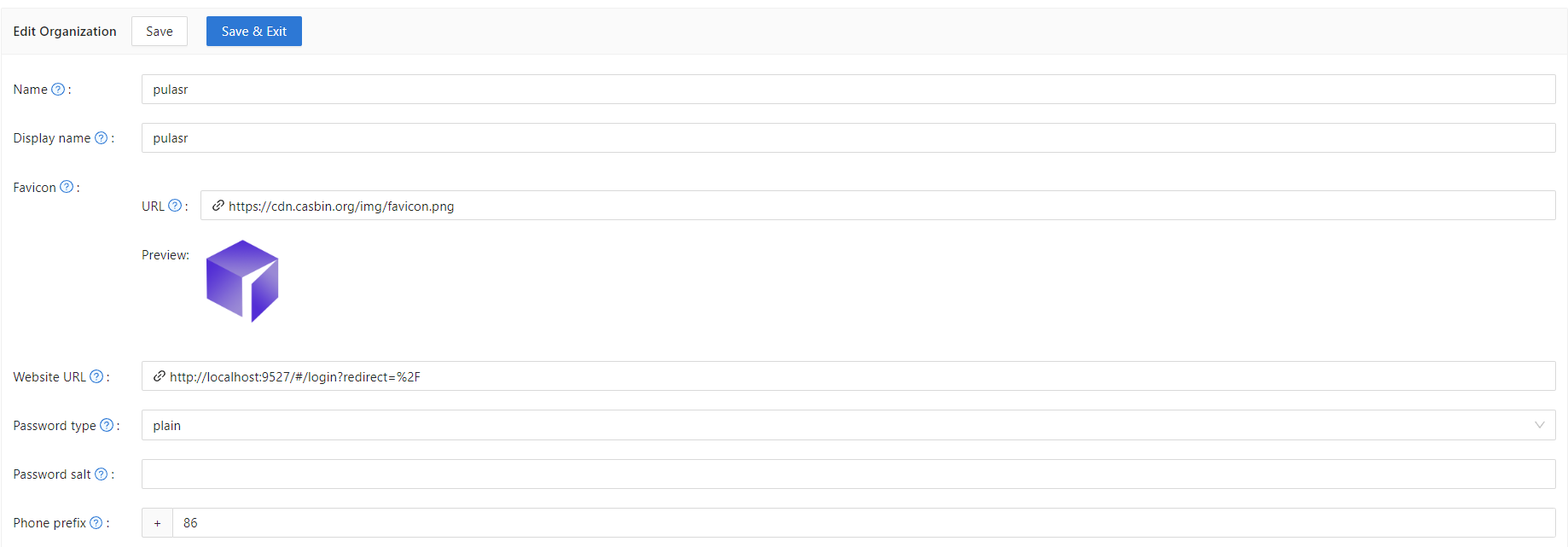
Step 2.2: Create an application
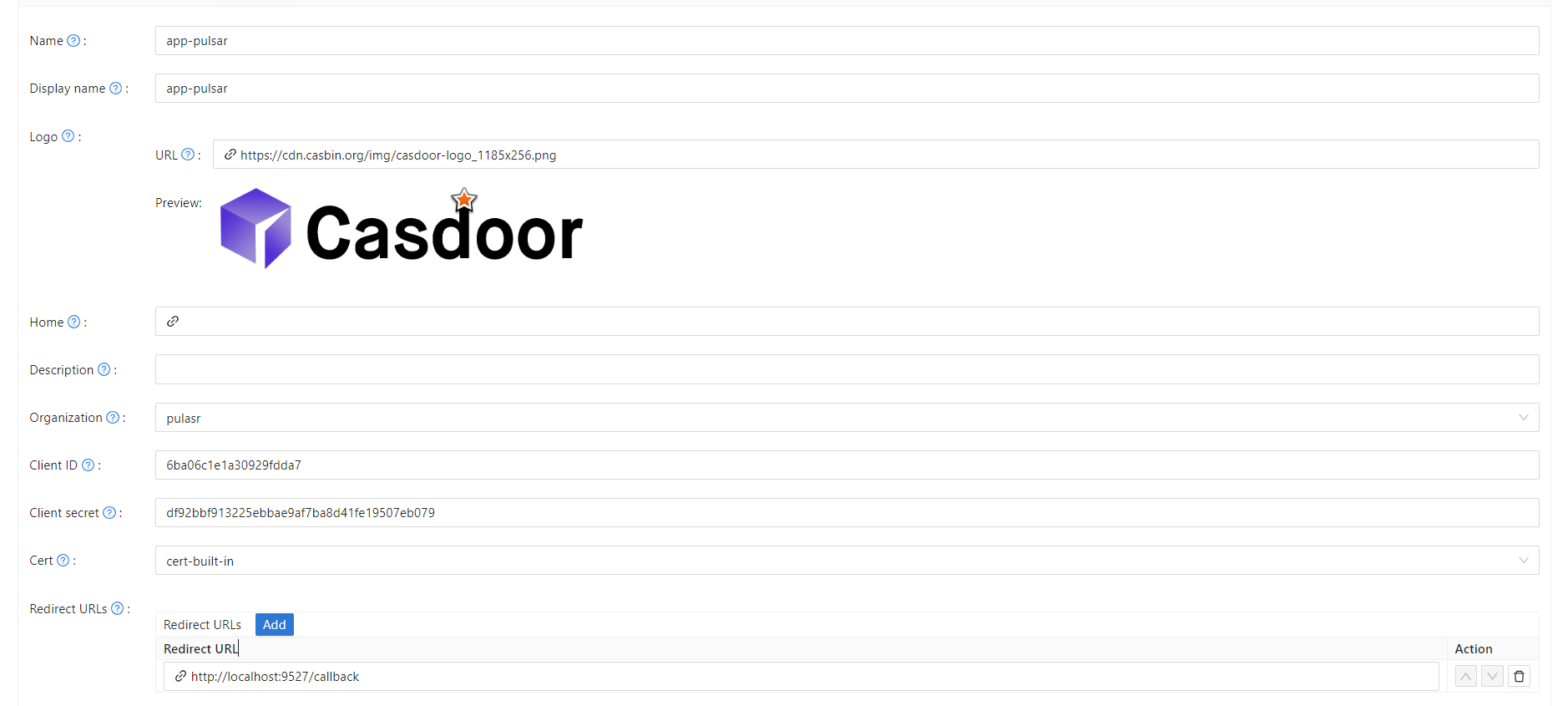
Step 3: Configure the Pulsar Manager front-end
The login page has a Login with casdoor button, which sends the code and state to the back-end after sign-in.
Configure the Casdoor settings in the config object of pulsar-manager/front-end/src/main.js.
const config = {
  serverUrl: "http://localhost:7001",
  clientId: "<client id from previous step>",
  organizationName: "pulsar",
  appName: "app-pulsar",
  redirectPath: "/#callback",
};
Step 4: Configure the back-end code
Configure Casdoor's settings in pulsar-manager/src/main/resources/application.properties.
casdoor.endpoint = http://localhost:8000
casdoor.clientId = <client id from previous step>
casdoor.clientSecret = <client secret from previous step>
casdoor.certificate = <client certificate from previous step>
casdoor.organizationName = pulsar
casdoor.applicationName = app-pulsar