Migrations
A migration moves another identity system into a Casdoor organization: its users with their IDs and password hashes, its groups, its roles, its applications with their client IDs and secrets, and its signing keys. Casdoor shows what would be added before it adds anything, and a migration can be applied again later to bring over what was added in the other system in the meantime, or undone.
Casdoor itself doesn't know how to read Auth0, Keycloak or any other system. Each source is an action of kind import that you install from the Marketplace: the action reads the other system, and Casdoor adds what it returns.
| Source | Action | Reads |
|---|---|---|
| Auth0 | Auth0 Migration | The Auth0 Management API, and the password hash export from Auth0 support |
| Keycloak | Keycloak Migration | The realm export of kc.sh export |
See Migrate from Auth0 and Migrate from Keycloak for the steps of each source.
What a migration keeps
The point of a migration is that the applications and the users don't notice the switch more than they have to. Casdoor keeps what the other system's tokens and sign-ins depend on:
| What | How Casdoor keeps it |
|---|---|
| User IDs | Casdoor saves the user with the ID of the other system. The sub claim of the tokens that Casdoor issues is that ID, so the data your applications keep per user still matches. |
| Passwords | Casdoor saves the password hash of the other system. Hashes Casdoor checks itself, such as bcrypt, are used as they are. Other hashes are checked by the action at sign-in. See Passwords. |
| Authenticator apps | Time-based one-time password (TOTP) secrets are saved with the user, when the other system exports them. |
| Social sign-in links | The user's ID at Google, GitHub and the other identity providers goes into the matching field of the Casdoor user, so the user who signs in with that provider in Casdoor is the same user. |
| Client IDs and secrets | The applications get the client ID and client secret they had, so the applications only change the issuer, not their credentials. |
| Signing keys | When the other system exports them, the key becomes a certificate with its original key ID, and the imported applications sign tokens with it. The kid of the tokens stays the same, and the tokens verify with the old public key. |
What an action can't import, such as the factors of a system that doesn't export them, is listed as a warning in the report.
Run a migration
You need an admin account of the organization that the users go to. The organization can't be built-in, because every user of built-in is a global admin.
-
In the Casdoor admin console, go to Identity > Marketplace and install the migration action of the source, such as Keycloak Migration, into the organization.
-
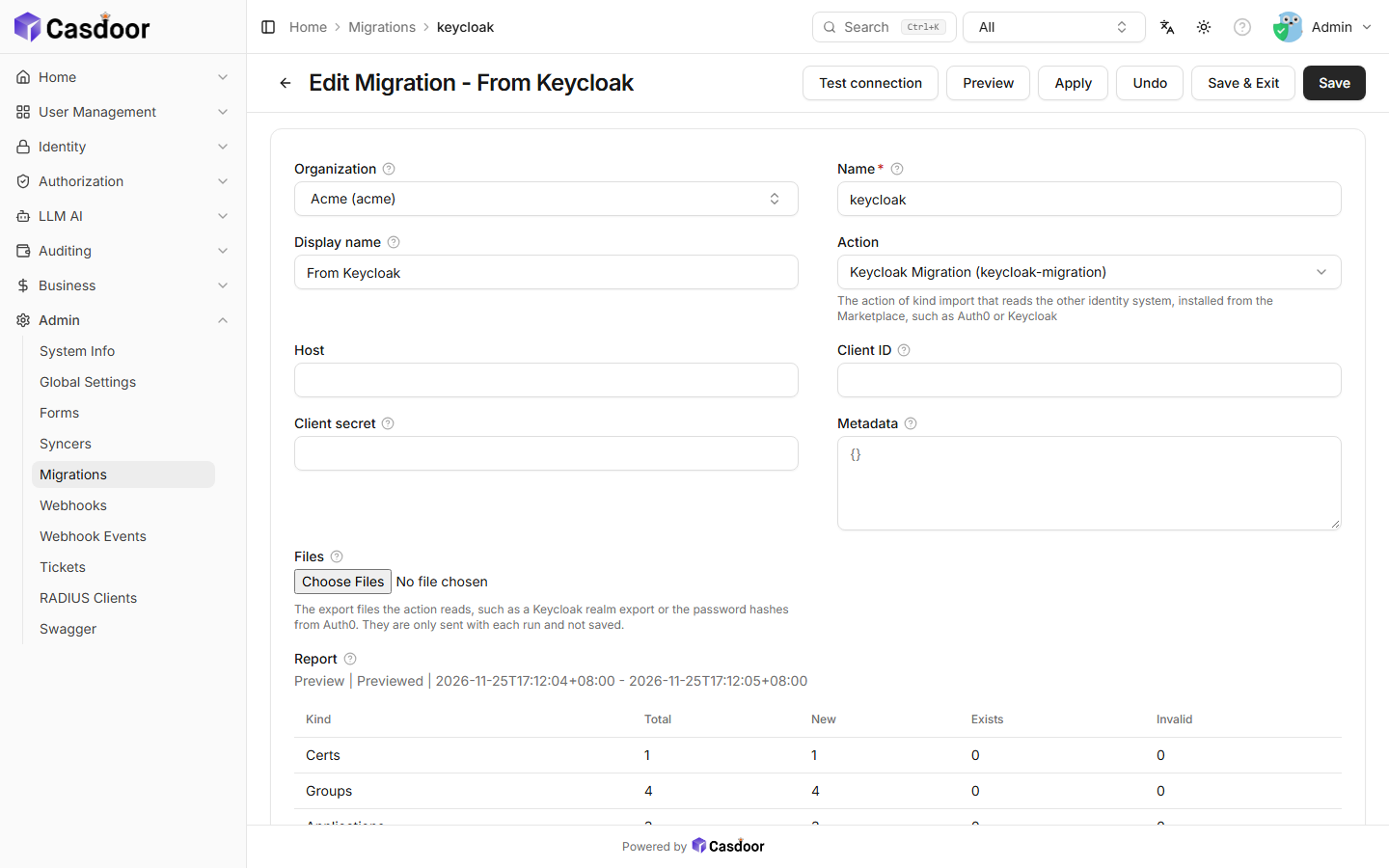
Go to Admin > Migrations and click Add.
-
Choose the Organization, enter a Name, and choose the installed action as the Action.
-
Fill in what the action needs: the Host, Client ID and Client secret of an API of the other system, the Metadata, or the export Files. The guide of each source lists them.
-
Click Test connection.
Casdoor saves the migration, and the action checks that it can read the other system or the files. An error shows in the Report.
-
Click Preview.
The migration runs in the background and the Report shows its progress. When it finishes, the report shows for each kind of object how many would be added, how many exist already, and which can't be imported and why. Nothing is changed.
-
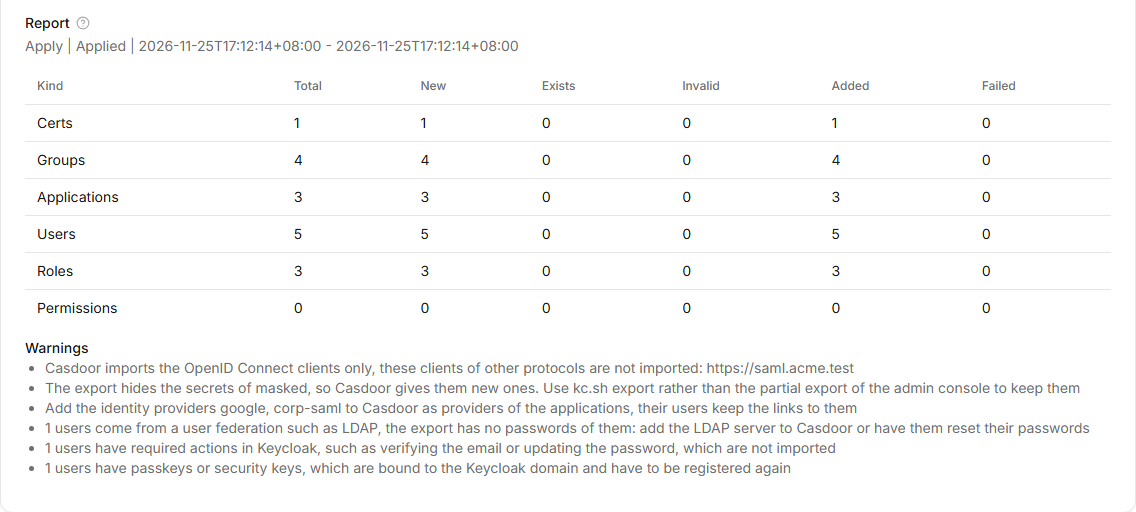
Check the report, then click Apply and confirm.
Casdoor adds the new objects in this order: certificates, groups, applications, users, roles and permissions.
The files you choose are sent with each run and are not saved, so choose them again before each Preview or Apply. Together they can be up to 45 MB. Split a larger export into several migrations.
Run a migration from an AI agent
An AI agent connected to the Casdoor MCP server, such as Claude Code, can run the same migration with the migration tools: plan_migration previews it and returns the report, and apply_migration applies it once you agree. Ask the agent, for example, to "move my Auth0 tenant to the organization acme of Casdoor". The import action has to be installed first, and actions that read export files, such as Keycloak Migration, run from the admin console only.
Apply again
A migration only adds objects whose names don't exist yet in the organization. It never changes or deletes an object that exists. You can apply the same migration again, for example right before you switch the applications, to bring over the users who signed up in the other system since the last run.
Undo a migration
Click Undo and confirm to delete every object that the migration added, in the reverse order: permissions, roles, users, applications, groups and certificates. Objects that existed before the migration are not touched.
Undo also deletes the imported users who have signed in to Casdoor since, with everything they changed. It can't be undone.
The report
| Column | Description |
|---|---|
| Kind | Certificates, groups, applications, users, roles or permissions. |
| Total | The objects the action returned. |
| New | The objects that don't exist yet and would be added. |
| Exists | The objects whose name is taken in the organization. They are left as they are. |
| Invalid | The objects that can't be imported, for example with no name or a name that appears twice. Each one is listed under Issues with the reason. |
| Added | After Apply: the objects that were added. |
| Failed | After Apply or Undo: the objects that couldn't be added or deleted. Each one is listed under Issues. |
| Deleted | After Undo: the objects that were deleted. |
Warnings lists what the action read but couldn't import, and what you have to do about it, such as adding the identity providers the users signed in with to Casdoor.
Passwords
An action returns each password hash with a password type:
- A type Casdoor checks itself, such as
bcryptorpbkdf2-salt: Casdoor saves the hash with that type, and the user signs in as before. plugin: a hash that only the action can check, such as Keycloak's PBKDF2 with SHA-512 or Argon2. Casdoor saves it with the password typeplugin:<action>. When the user signs in, Casdoor asks the action to check the password. After a successful sign-in, Casdoor saves the password again with the password type of the organization, so the action is not needed for that user anymore.
Don't uninstall the migration action while some users still have a password of type plugin:<action>. They can't sign in with their password until they reset it.
Users whose password the other system doesn't export, such as users from LDAP, have no password in Casdoor. They sign in another way, or reset their password.
Write an import action
To migrate from a system that has no action yet, write an action of kind import in Go with the SDK of casdoor/casdoor-integrations:
sdk.RegisterImportregisters a type with aListmethod. Casdoor calls it for each kind of object, one page at a time, with the cursor the previous page returned.Listreturns the objects in the JSON of Casdoor's own API.- A
Testmethod (sdk.ImportTester) checks the connection or the files for Test connection. - A
VerifyImportedPasswordmethod (sdk.ImportedPasswordVerifier) checks the passwords thatListreturned with the password typeplugin.
The migration's Host, Client ID, Client secret and Metadata reach the action in its configuration, and the files in each request. The action can only reach the hosts its manifest lists. The Auth0 and Keycloak actions in the repository are complete examples.
See also
- Migrate from Auth0
- Migrate from Keycloak
- Marketplace
- Syncers, to keep users in sync with a system that stays in use