Set password complexity rules
This guide explains how to enforce rules for the passwords of the users of an organization.
Learning outcomes
- Choose the password rules of an organization.
- Know where Casdoor checks the rules.
What you need
- Administrator access to the organization in the Casdoor admin console
Password rules
| Option | A password must |
|---|---|
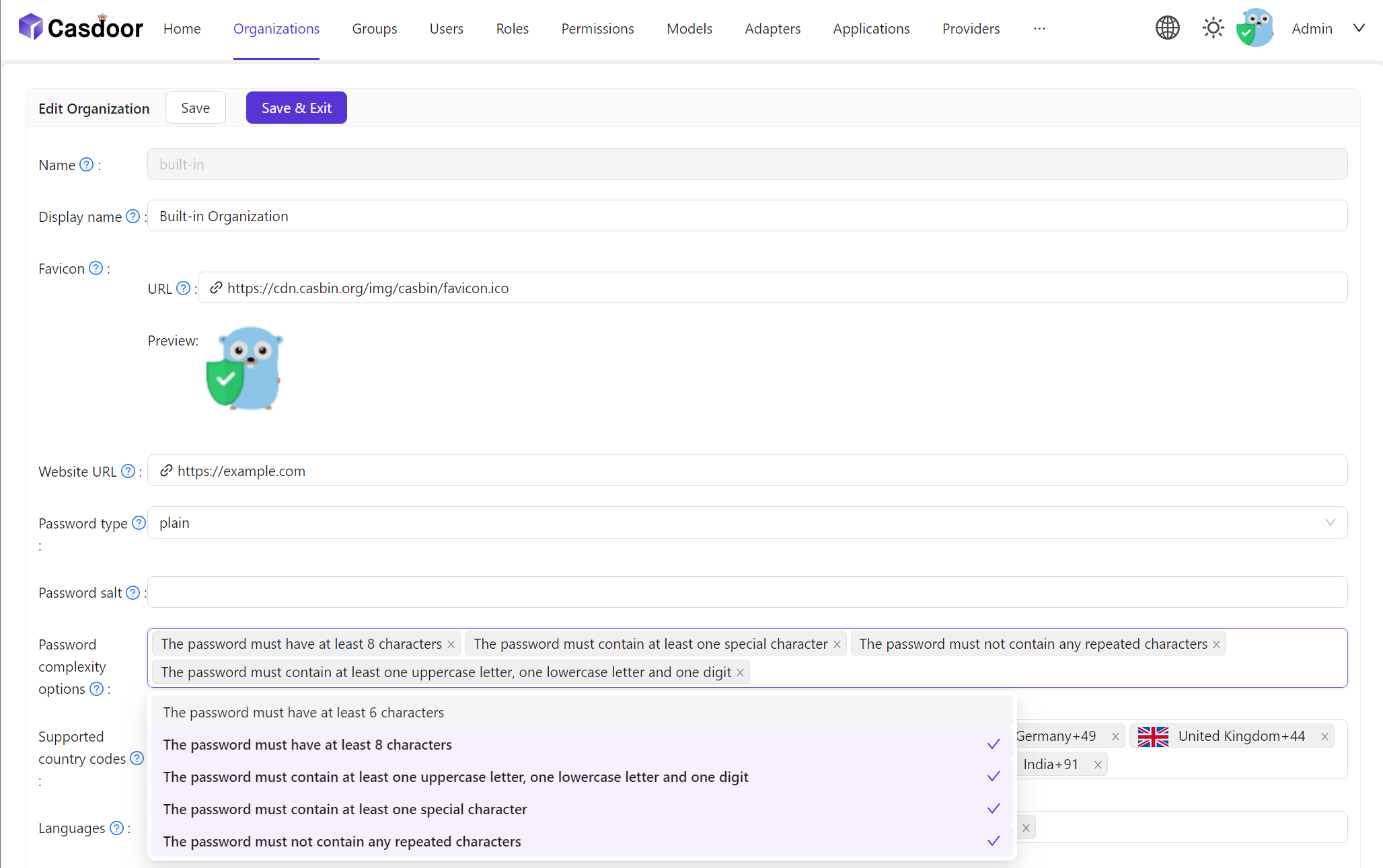
AtLeast6 | Have at least 6 characters |
AtLeast8 | Have at least 8 characters |
Aa123 | Contain at least one uppercase letter, one lowercase letter, and one digit |
SpecialChar | Contain at least one special character |
NoRepeat | Contain no repeated characters |
You can select several options. A password must then satisfy all of them.
Set the rules
-
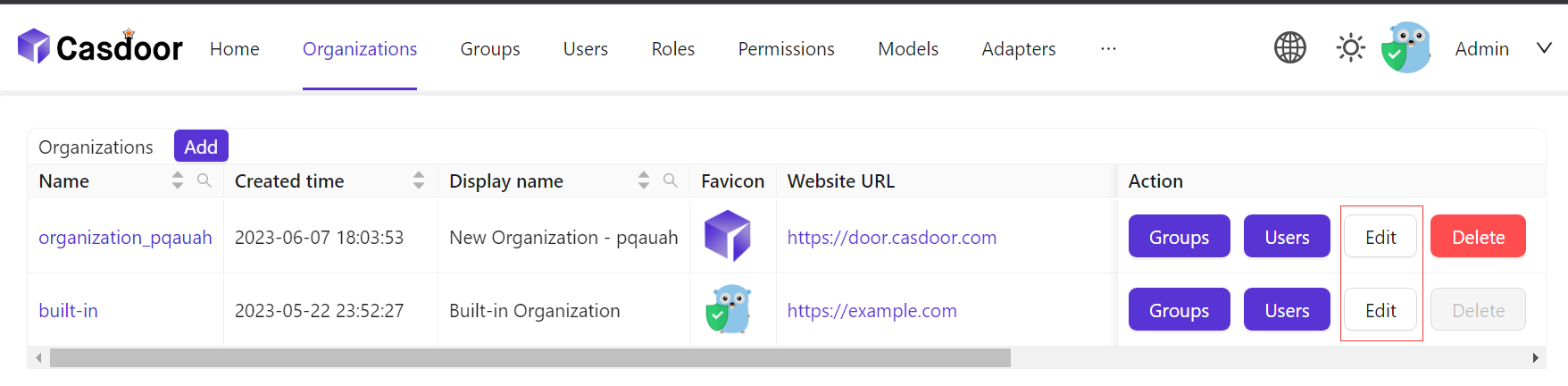
In the Casdoor admin console, go to User Management > Organizations and open the organization.
-
In Password complexity options, select the options.
-
Save the organization.
Verify the result
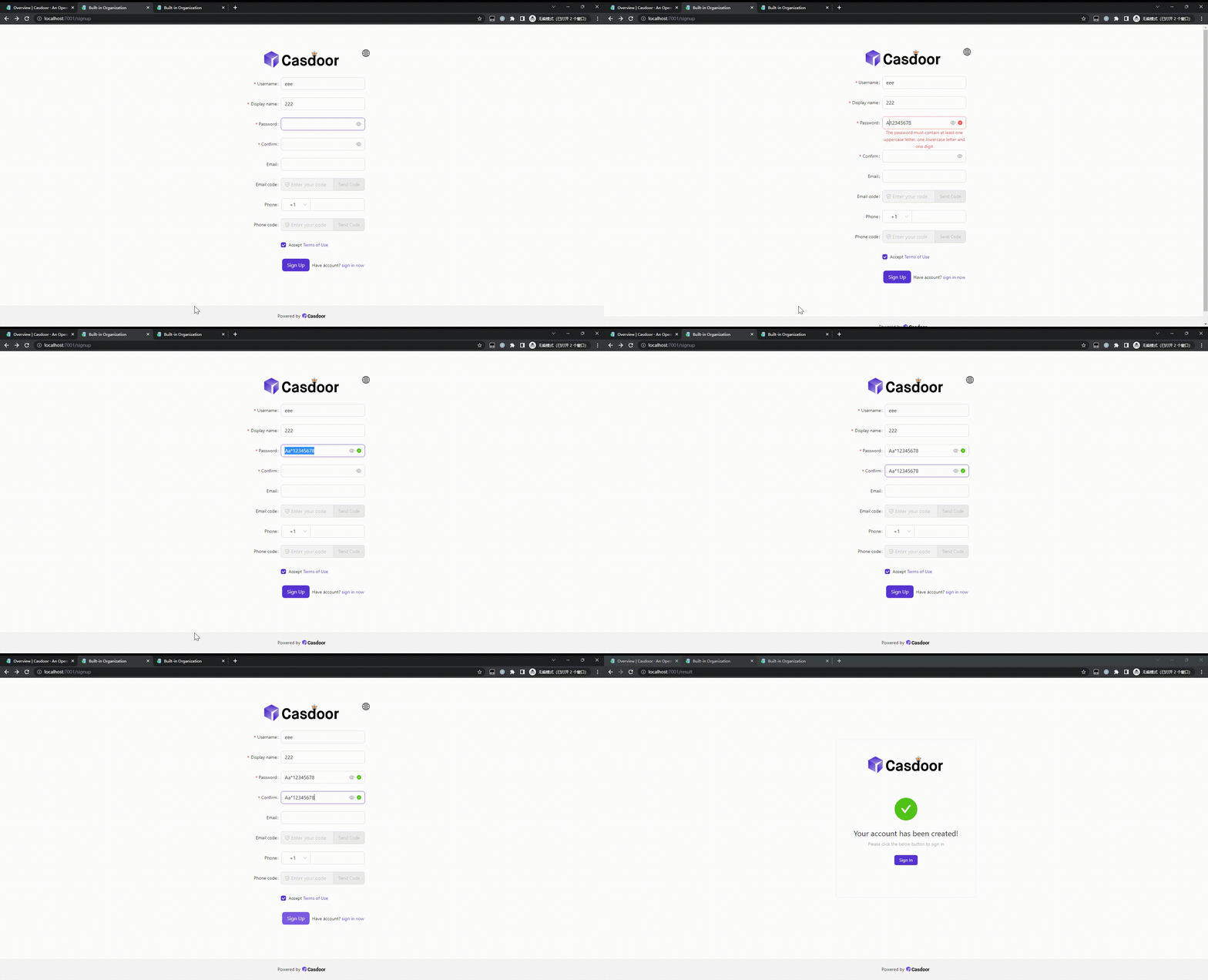
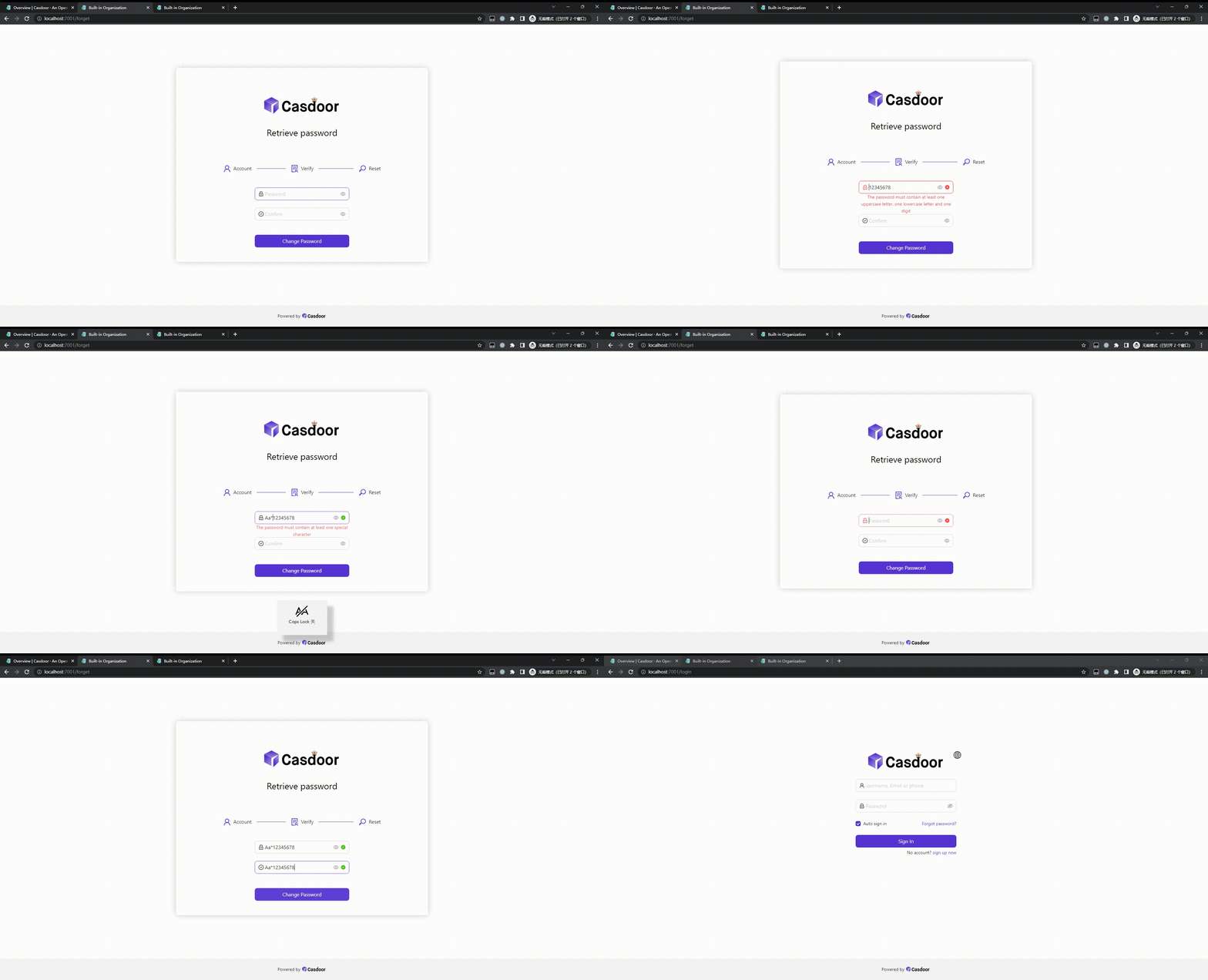
Casdoor checks new passwords against the rules in three places.
On the sign-up page:
On the forgot-password page:
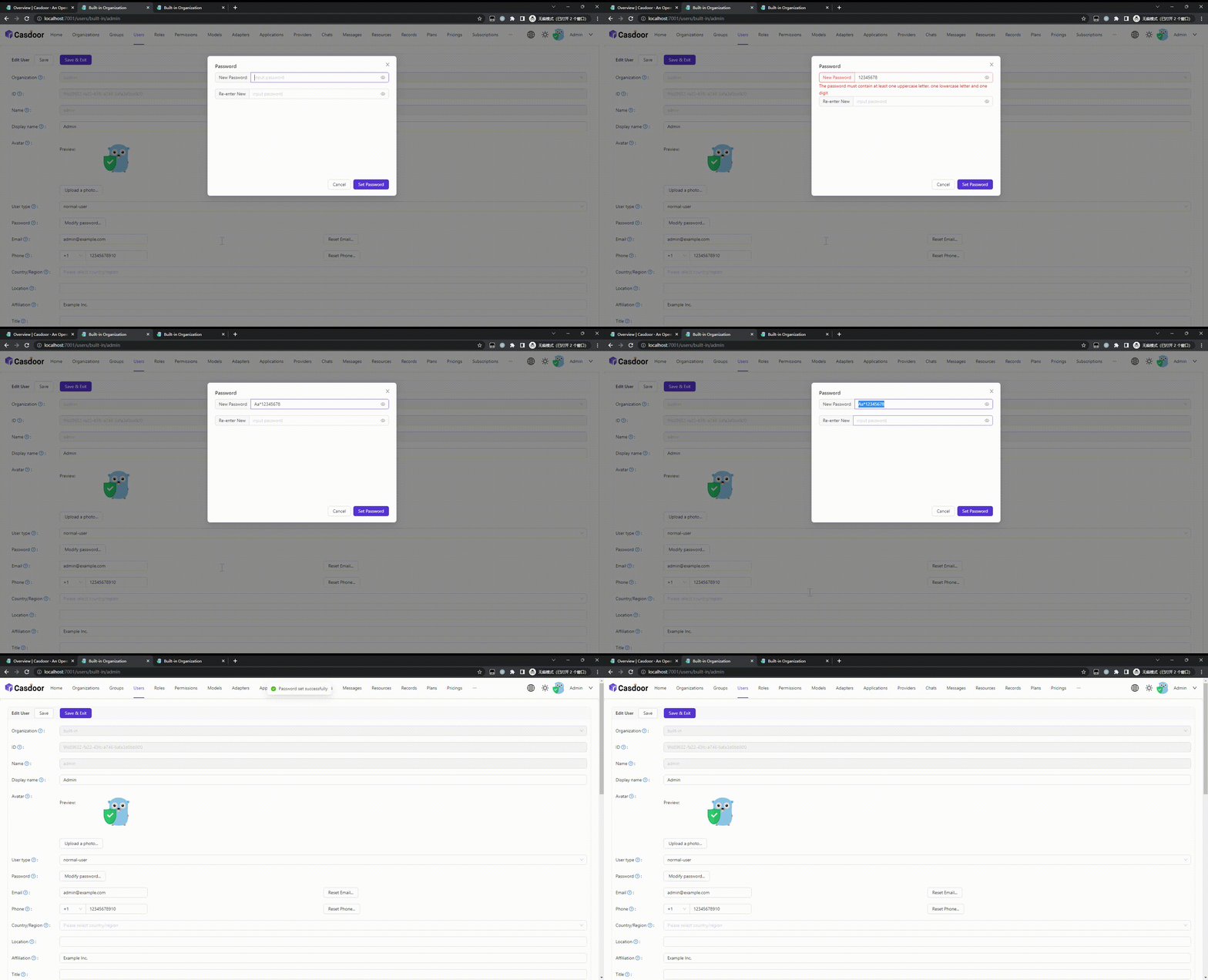
On the edit page of a user, when the password is changed:
Password history
Password history count (passwordHistoryCount) on the Password type tab of the organization sets how many of the most recent passwords a user can't reuse, the current password included. You can enter 0 to 24. New organizations use 0.
| Password history count | A new password must differ from |
|---|---|
| 0 or 1 | The current password |
| 2 to 24 | The current password and the previous passwords, up to the count in total |
Casdoor caps larger values at 24. When a password is reused, the change fails with one of these errors:
The new password must be different from your current passwordThe new password must be different from your last <count> passwords
Casdoor checks the history when a user changes the password through POST /api/set-password, which includes the account page and the forgot-password page, and when an administrator sets a password on the edit page of a user or through POST /api/update-user. The password complexity rules are checked first.
Casdoor keeps the previous password hashes in a separate password_history table, not on the user. Each entry keeps its own password type and salt, so the check still works after you change the Password type of the organization. When the count is 1 or less, Casdoor deletes the history of a user at the next password change.
Password expiry
Password expire days (passwordExpireDays) makes passwords expire after the given number of days, counted from the last password change, or from the creation of the user if the password never changed. 0 means that passwords never expire.
When the password of a user has expired, the sign-in with that password fails with Your password has expired. Please reset your password by clicking "Forgot password". The record of the failed sign-in gets the reason password-expired, see Sign-in failure classification. The check doesn't apply to users who sign in through LDAP.