Configure a permission
This page describes the fields of the permission edit page, on which you define the policies of an organization.
To open it, go to the Permissions page of the Casdoor admin console and add a permission or open an existing one.
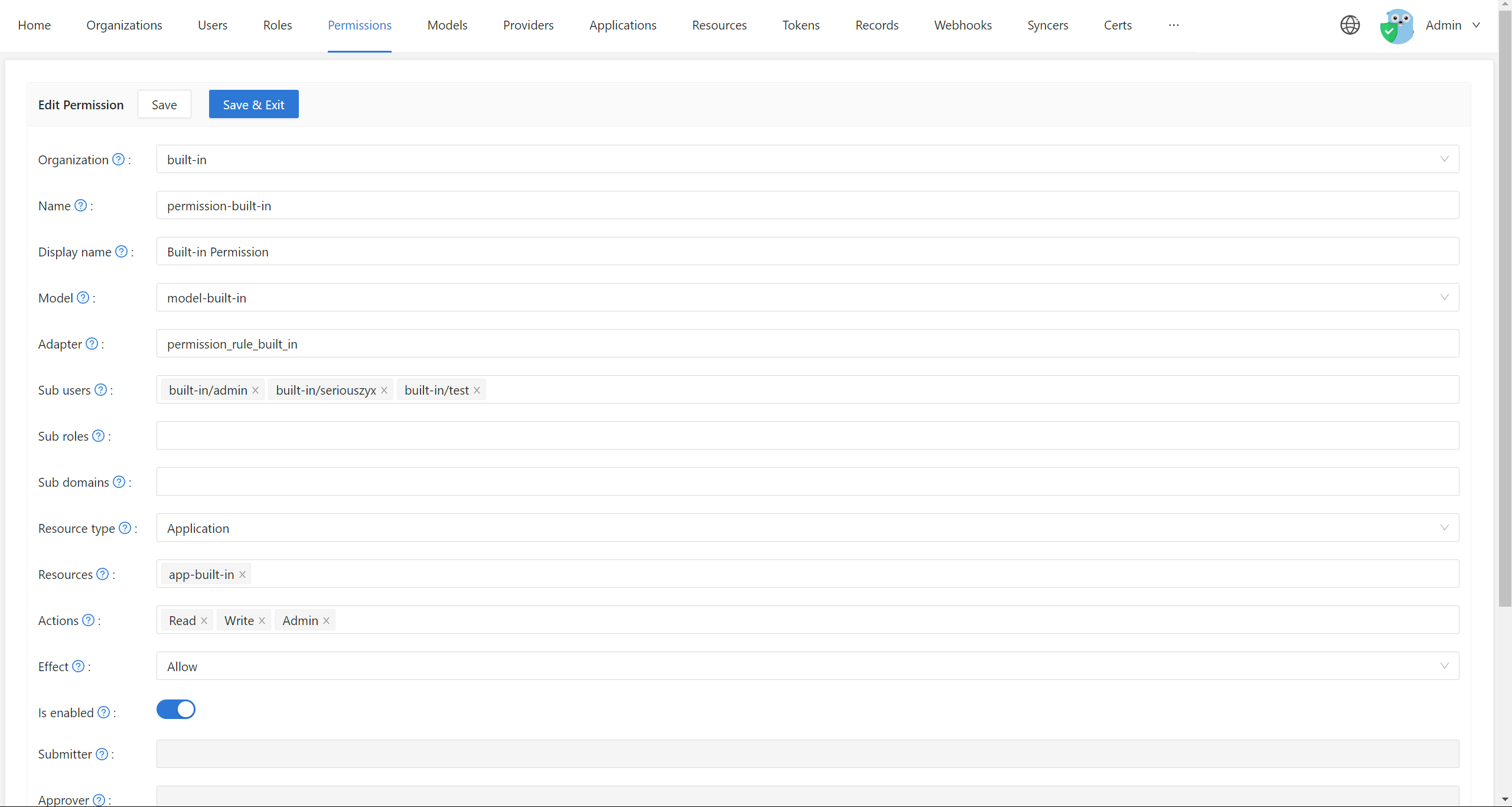
Basic fields
| Field | Description |
|---|---|
| Organization | The organization that owns the permission. An organization can have many permissions |
| Name | Unique name of the permission in the organization. The Casbin APIs refer to the permission by it |
| Display name | Name shown in the UI |
Model and adapter
| Field | Description |
|---|---|
| Model | The model that evaluates the permission, such as ACL, RBAC, or ABAC. You create models on the Models page. See supported models |
| Adapter | The database table in which Casdoor stores the policy rules of the permission. If empty, the rules go to the permission_rule table. If the table doesn't exist, Casdoor creates it |
Give each model its own adapter table. Models with different structures that share a table conflict when Casdoor loads the policies.
The model defines which features the permission has. If the RBAC fields, such as Sub users or Sub roles, are unavailable on the permission page, the selected model has no role_definition. Edit the model to support roles. See also Adapters.
Subjects
These fields define who the permission applies to.
| Field | Description |
|---|---|
| Sub users | Users that the permission applies to, for example alice and bob. Leave empty to not restrict by user |
| Sub roles | Roles that the permission applies to, for example admin and editor. Casdoor adds a rule such as g, user, role for each user of the roles |
| Sub groups | Groups that the permission applies to, for example dev-team. Every member inherits the permission. * matches all groups of the organization |
| Sub domains | Domains that the permission applies to, for multi-tenant models. Leave empty if your model has no domains |
The subjects add up: a user has the permission if the user is listed directly, or has one of the roles, or is a member of one of the groups. A role can contain groups, so a group can also grant a permission through a role.
Resources and actions
These fields define what the permission controls.
| Field | Description |
|---|---|
| Resource type | Application, TreeNode, Custom, or API. With Application, Casdoor itself uses the permission to decide who may sign in to the applications in Resources. See Restrict who can sign in to an application |
| Resources | What you protect. With Application, select applications, or All (*) for every application. With API, select paths of the Casdoor API. With Custom, enter any strings, such as URLs (/api/users), file names (document.pdf), or identifiers (project:123). These aren't the files on the Resources page of Casdoor |
| Actions | Any strings that name what users do, such as HTTP methods (GET, POST), operations (read, write), or your own verbs (approve, publish) |
Casdoor creates a rule for every combination of resource and action.
Casdoor converts actions to lowercase before it stores them, and applies every action to every resource. To allow an action on some resources only, express it in the model, or create separate permissions.
Effect
Effect applies only when Casdoor uses the permission to control access to its own applications. When your application calls the Casbin APIs, the field has no effect: express allow and deny in the model instead.
Restrict who can sign in to an application
A permission with Resource type Application controls who may sign in to the applications in its Resources. Casdoor checks these permissions at every sign-in and when it lists the applications on the Apps page of a user.
Casdoor considers a permission only when Is enabled is on and State is Approved. For each permission whose subjects include the user, Casdoor enforces the request (<user-id>, <application-name>, "Read"), and the same request for each matching role of the user. Then:
- If a permission with Effect
Denymatches, the sign-in is refused. - Otherwise, if a permission with Effect
Allowmatches, the sign-in is allowed. - Otherwise, if the application has only
Allowpermissions and none covers the user, the sign-in is refused. - Otherwise, for example when no permission targets the application, the sign-in is allowed.
A refused sign-in fails with Unauthorized operation.
For a shared application, Casdoor reads the permissions from the organization of the user who signs in, not from the organization of the application.
Users of the built-in organization and the administrators of an organization (users with Is admin on) always pass this check. This keeps administrators from locking themselves out.
Expiry
Expire time (expireTime) ends a permission automatically, for example to grant access for a few hours, or for time-limited access as required by ISO/IEC 27001 control 5.18. Pick a date and time, or click 1 hour, 1 day, 7 days, or 30 days to set it that far from now. Never clears it, so the permission never expires. Through the API, expireTime is an RFC 3339 timestamp, such as 2026-12-31T23:59:59+08:00.
Casdoor checks the permissions at startup and then every minute. For every enabled permission whose expire time has passed, it removes the Casbin policies of the permission and turns off Is enabled. An expired permission can therefore still apply for up to a minute.
To grant the access again, set a later expire time or clear it, and then turn Is enabled back on.
Casdoor ignores an expire time that isn't valid RFC 3339, so the permission never expires. Check the format, including the time zone offset.
Example
The following permission uses a model with (sub, obj, act) requests:
| Field | Value |
|---|---|
| Model | rbac_model |
| Sub roles | admin, editor |
| Resources | /api/users, /api/posts |
| Actions | read, write |
Users with the role admin or editor may read and write /api/users and /api/posts.