Send email with Brevo
This guide explains how to send the emails of Casdoor through the SMTP relay of Brevo, formerly Sendinblue.
Learning outcomes
- Get the SMTP settings and an SMTP key of a Brevo account.
- Add Brevo as an email provider in Casdoor and test it.
What you need
- A Brevo account
- Administrator access to the Casdoor admin console
Prepare Brevo
-
Authenticate your domain and create the sender that Casdoor sends from. See Send transactional emails using Brevo SMTP.
-
In the Brevo dashboard, go to Settings > SMTP & API and open the SMTP tab. Note the SMTP server,
smtp-relay.brevo.com, and the SMTP login. Depending on when your account was created, the login is your account email address or a generated address like<ID>@smtp-brevo.com.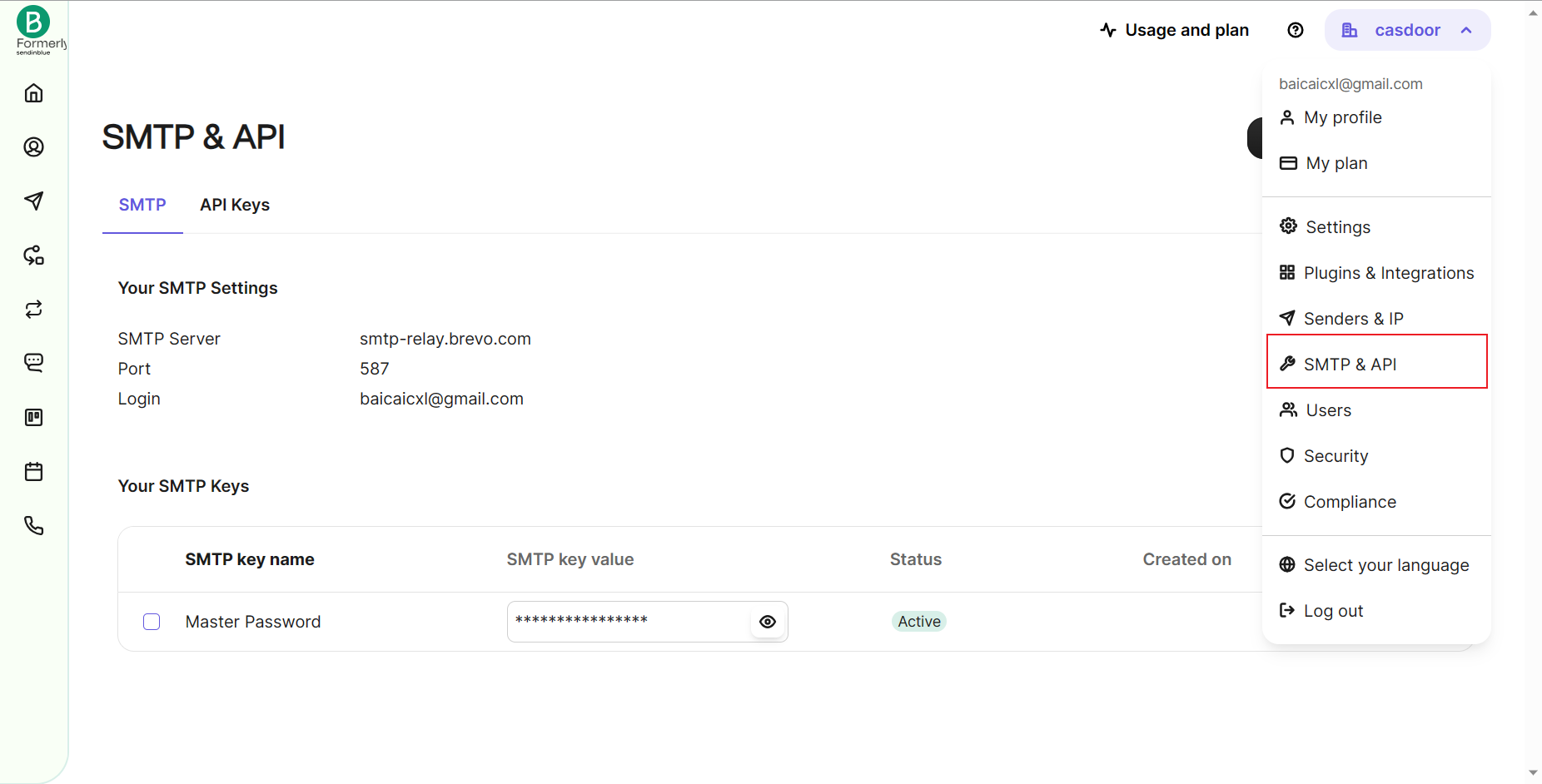
-
Click Generate a new SMTP key and copy the key. Brevo shows the full key only once. Use an SMTP key, not an API key. See Create and manage your SMTP keys.
Add the provider in Casdoor
-
In the Casdoor admin console, go to Identity > Providers and add a provider.
-
Set Category to
Emailand Type toDefault. -
Enter the SMTP server as the Host, the Port (
587, or465for implicit TLS), the SMTP login as the Username, and the SMTP key as the Password. Set From address to your verified sender.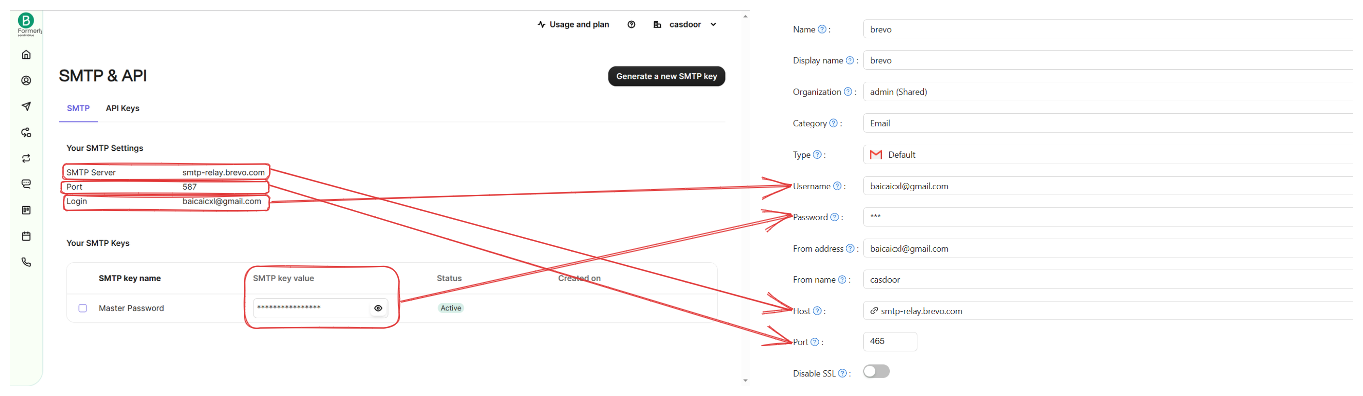
-
Save the provider.
Verify the result
- Click Test SMTP Connection. Casdoor reports
SMTP connected successfully. - Click Send Testing Email. Casdoor reports
Email sent successfully, and the message arrives at the Test Email address.