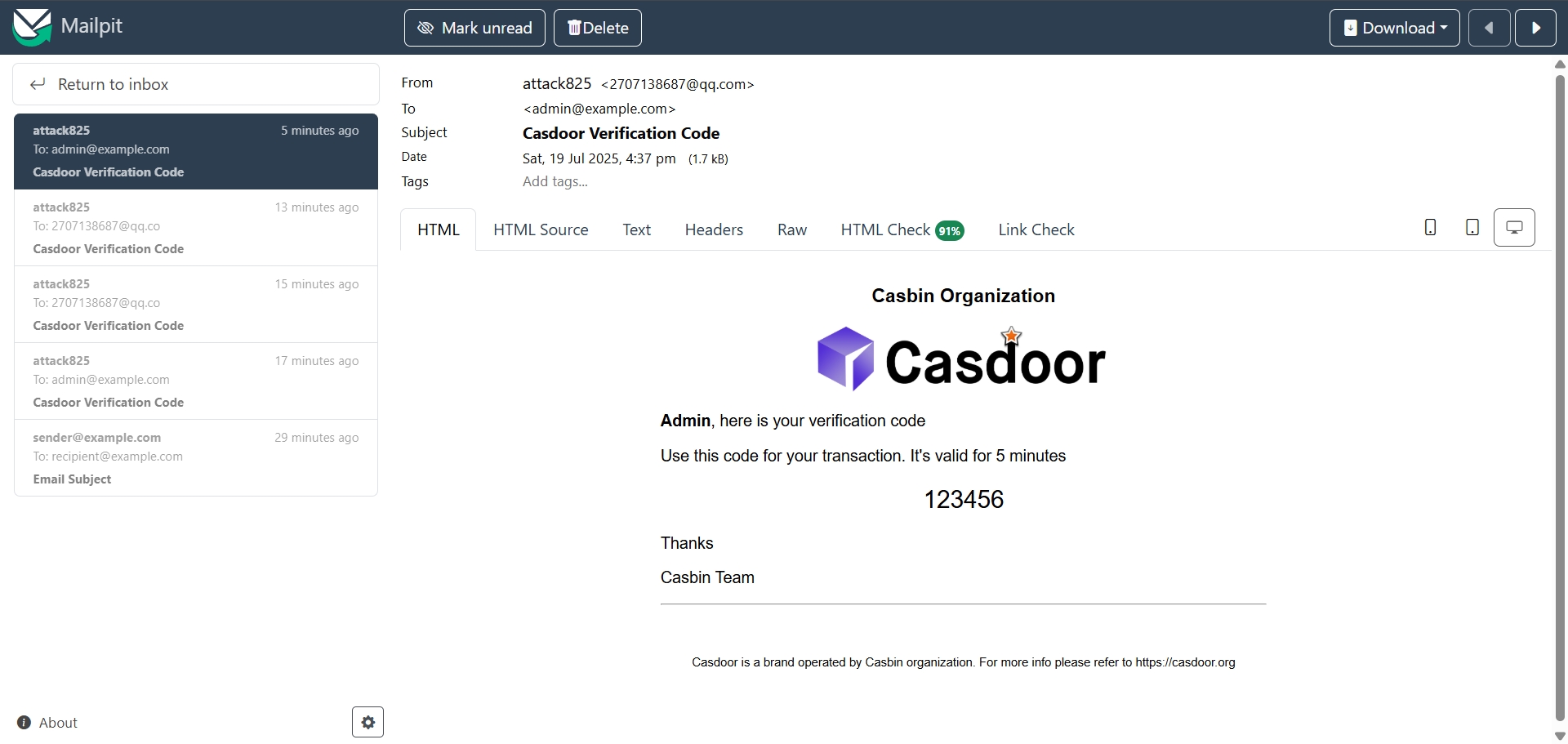
Test email with Mailpit
This guide explains how to send the emails of Casdoor to Mailpit, an SMTP server for testing that catches all messages and shows them in a web UI.
Learning outcomes
- Point an email provider at Mailpit.
- Send a test email and read it in Mailpit.
What you need
- Mailpit running where Casdoor can reach it. By default, the SMTP server of Mailpit listens on
0.0.0.0:1025, on all interfaces, without TLS or authentication, and the web UI on port8025. - Administrator access to the Casdoor admin console
Run Mailpit
Start Mailpit, so that its SMTP server is reachable on port 1025 of its host, or at the address that you set with --smtp.

Add the provider in Casdoor
-
In the Casdoor admin console, go to Identity > Providers and add a provider.
-
Set Category to
Emailand Type toDefault. -
Set Host and Port to the address of Mailpit, for example
127.0.0.1and1025. Leave Username and Password empty if Mailpit has no authentication.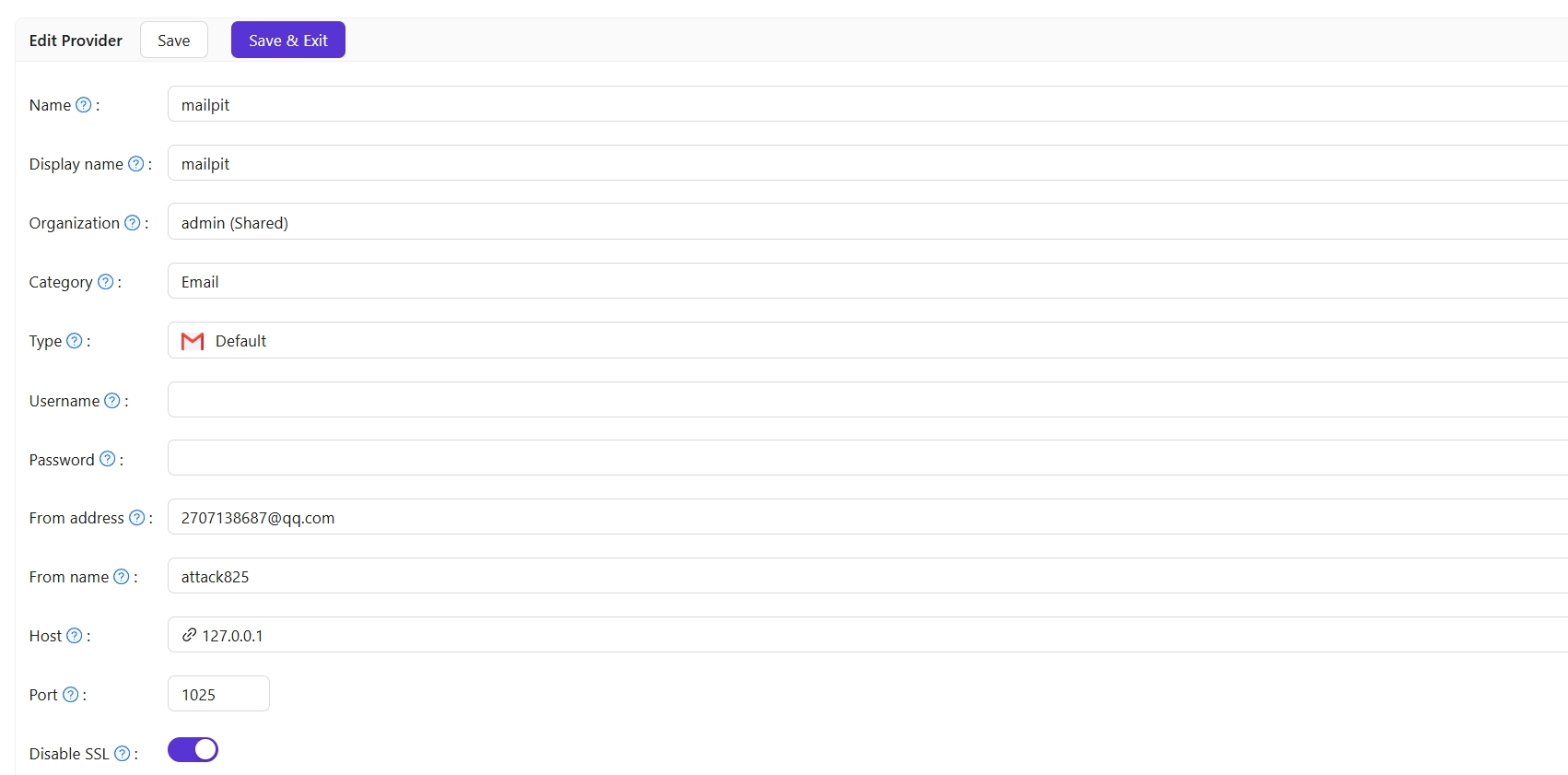
-
Save the provider.
Create the provider as a global administrator, in the admin or built-in organization, or in a trusted organization. A provider of another organization can reach only Internet addresses, so it can't connect to 127.0.0.1 or to another private address. See Which addresses a provider can reach.
Verify the result
-
Click Test SMTP Connection. Casdoor reports
SMTP connected successfully. -
Click Send Testing Email. Casdoor reports
Email sent successfully.
-
Open the web UI of Mailpit. The message is there.