Add DingTalk as an OAuth provider
This guide explains how to let users sign in to Casdoor with their DingTalk account.
Learning outcomes
- Configure a DingTalk application for Casdoor.
- Add DingTalk as an OAuth provider in Casdoor.
What you need
- An application on the DingTalk Open Platform
- Administrator access to the Casdoor admin console
Configure the DingTalk application
-
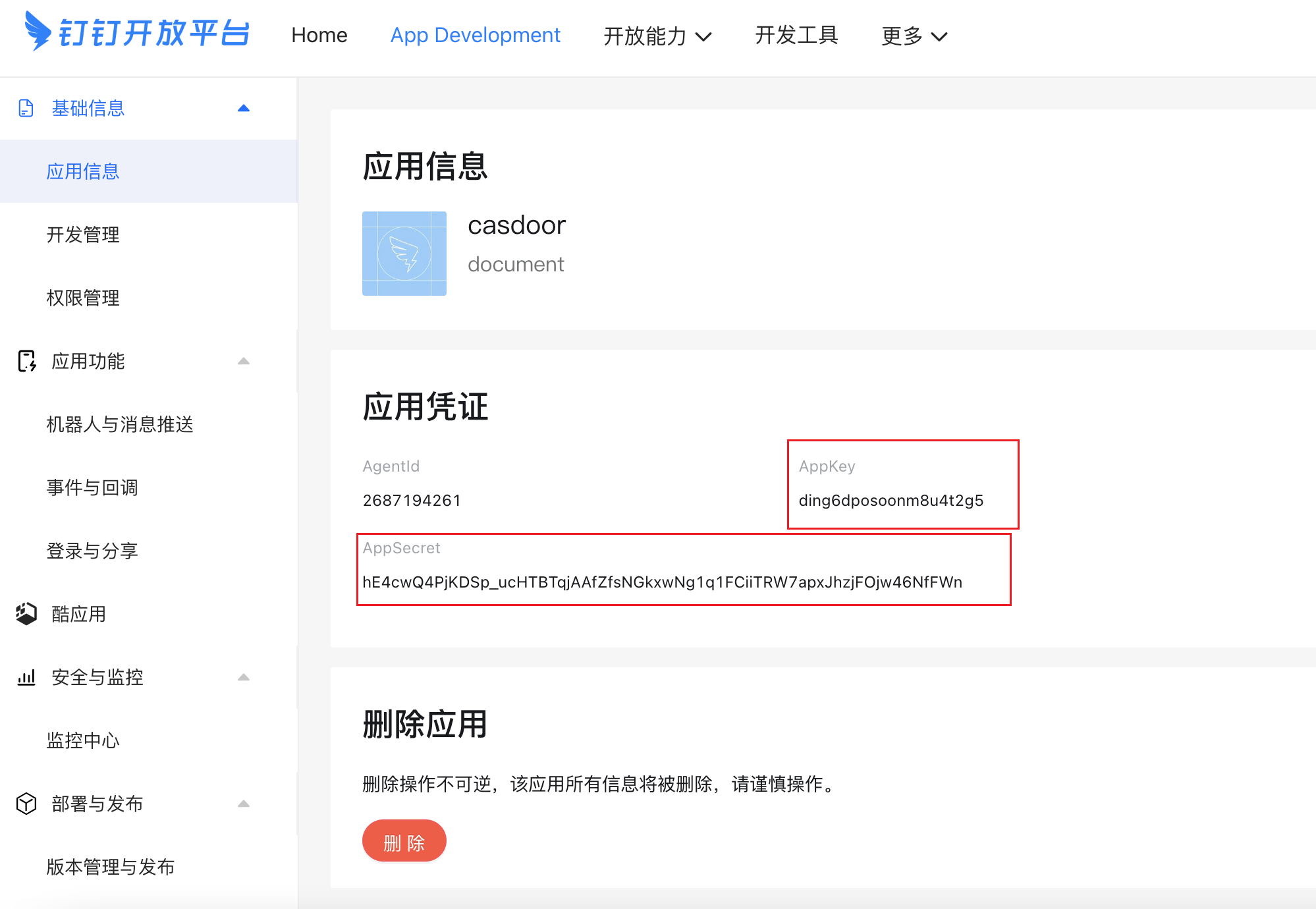
Open your application on the DingTalk Open Platform and note its AppKey and AppSecret.
-
Add the domain of Casdoor, for example
https://your-casdoor.com, as the redirect domain.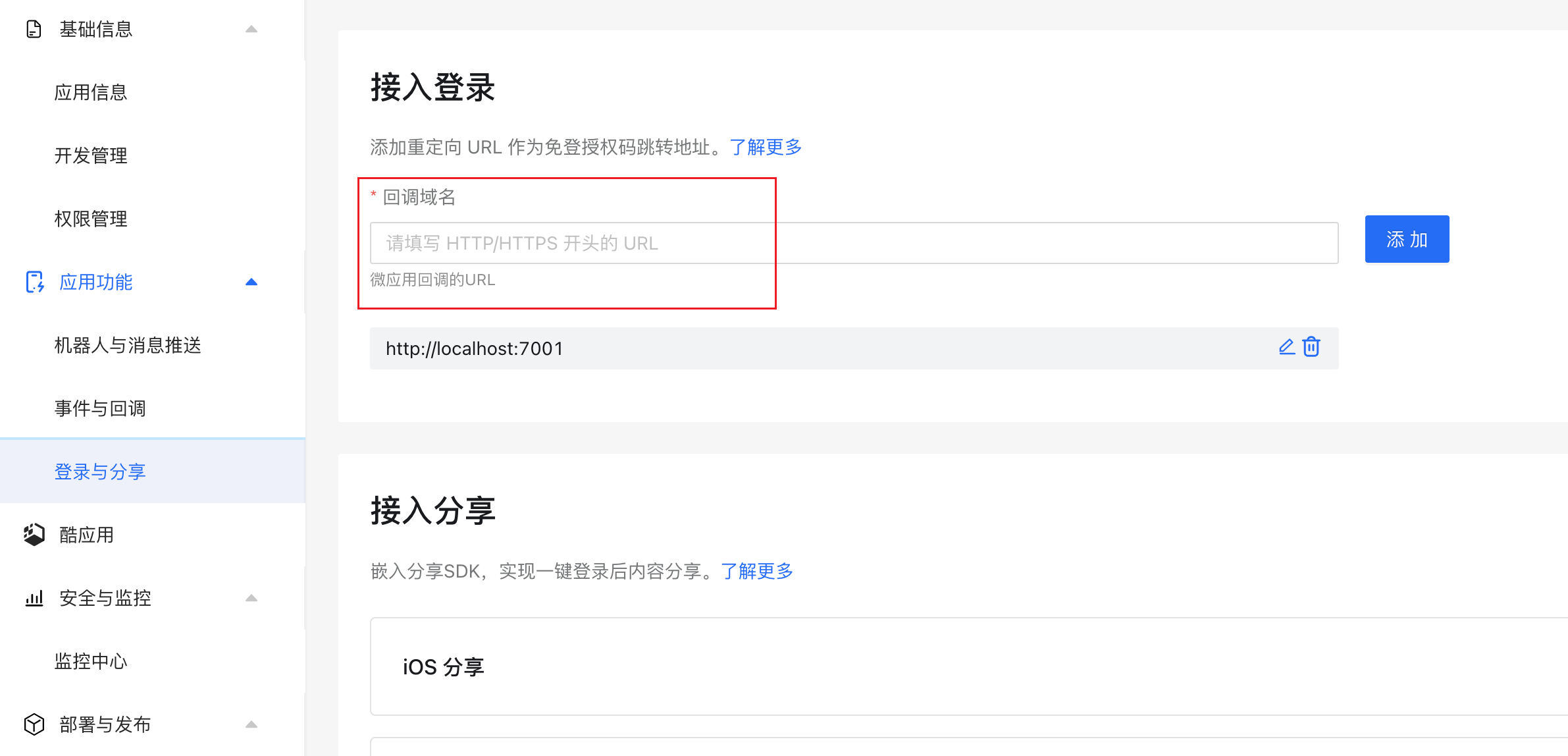
-
Under Permissions Management, turn on Contact.User.Read. Casdoor needs it to read the user from
/v1.0/contact/users/me. Without it, sign-in fails.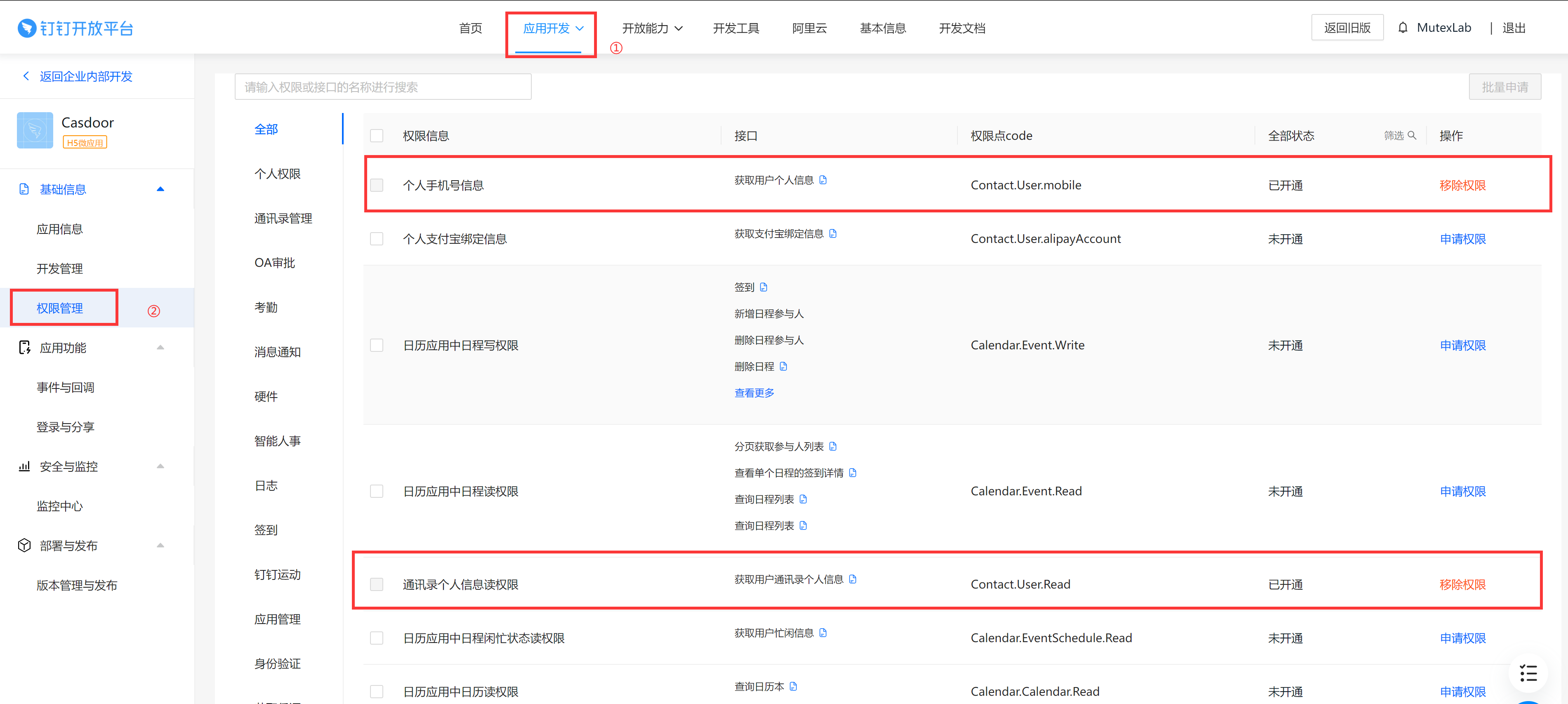
Add the provider in Casdoor
-
In the Casdoor admin console, go to Identity > Providers and add a provider.
-
Set Category to
OAuthand Type toDingTalk. -
Fill in the fields:
Casdoor DingTalk Client ID AppKey Client secret AppSecret 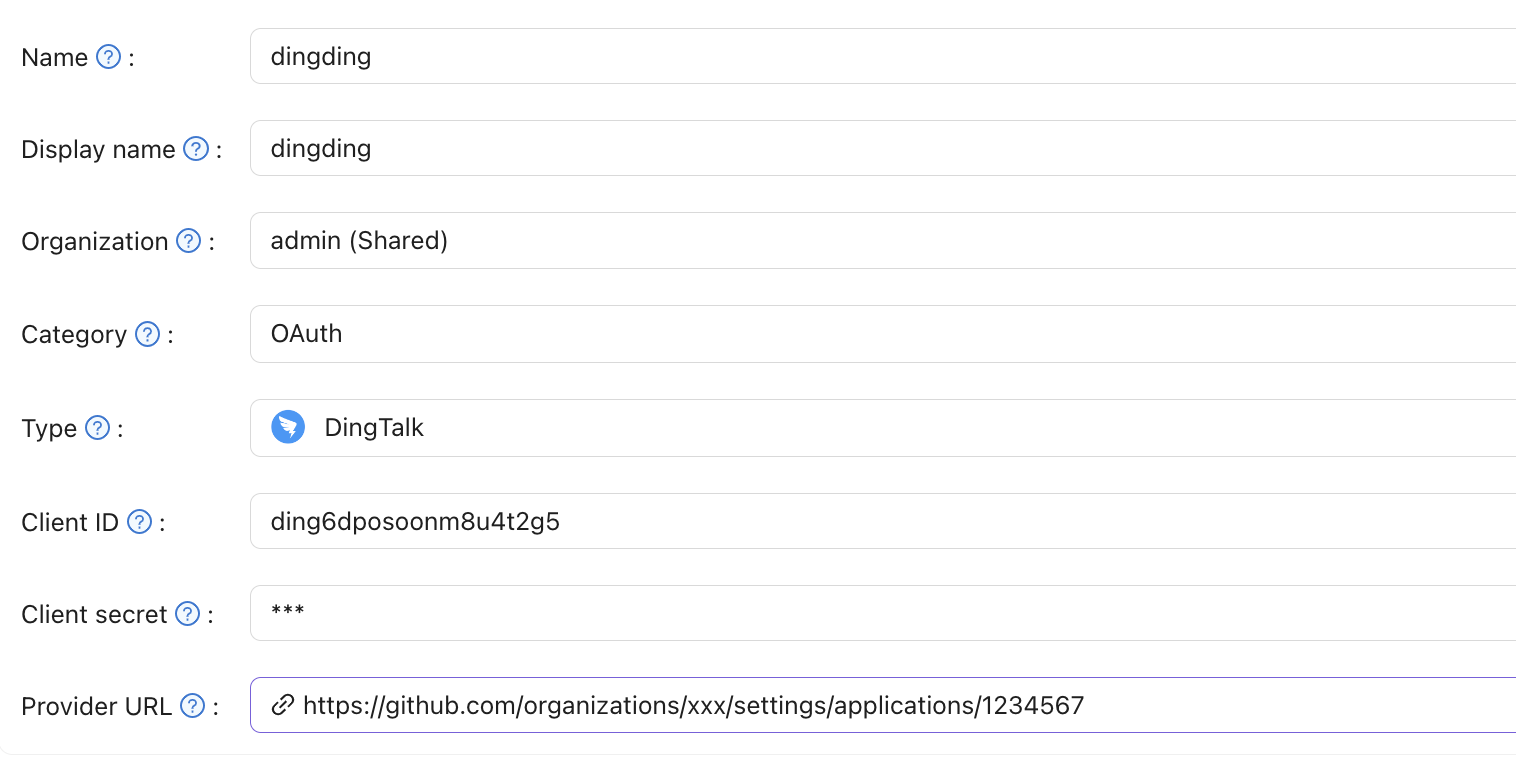
-
Save the provider.
User information
Casdoor reads the user from /v1.0/contact/users/me, and then looks up the user in the corporate directory of the application with topapi/user/getbyunionid. If the user isn't a member of the organization of the DingTalk application, the sign-in fails.
Casdoor then reads the user details from topapi/v2/user/get. If this call succeeds:
- The
unionidof DingTalk becomes the username, so that a user keeps the same account when other details change. - The phone number and the email address of the corporate directory replace those of the personal account.
- The job title of the user,
title, is passed on as an extra claim. Casdoor stores it in the user propertyoauth_DingTalk_extra, as JSON, for example{"title":"Engineer"}.
Casdoor counts the email address and the phone number that DingTalk returns as verified, so the Binding rule can link the sign-in to an existing user with the same email address or phone number. See How Casdoor links accounts.
The provider edit page has no User mapping for DingTalk, so the job title doesn't fill the Title of the user on its own. To fill it, set the userMapping of the provider to {"title": "title"} through the API. See Map OAuth claims to user fields.
Next steps
Add the provider to an application. See Add providers to an application.
See also
- OAuth providers
- DingTalk syncer
- Obtain user personal information in the DingTalk documentation