Providers
A provider connects Casdoor to an external service, such as an identity provider for sign-in, an email service, or a cloud storage. You create a provider once and then add it to the applications that use it.
Provider categories
| Category | Purpose |
|---|---|
| Audit | Send the audit records of Casdoor to a Syslog server. See Syslog audit provider |
| Captcha | Protect sign-in and sign-up with a captcha. See Captcha providers |
| Send email, such as verification codes and notifications. See Email providers | |
| Face ID | Recognize faces for Face ID sign-in. See Face ID providers |
| ID Verification | Verify the identity of users from ID documents. See Identity verification providers |
| Log | Forward permission audit events to a logging backend, or store them as entries. See Log providers |
| MFA | Provide a second factor, such as RADIUS. See MFA providers |
| Notification | Send messages to chat services, such as Slack and Telegram. See Notification providers |
| OAuth | Let users sign in with external identity providers, such as GitHub and Google. See OAuth providers |
| Payment | Take payments for products and subscriptions. See Payment providers |
| SAML | Let users sign in with external SAML identity providers. See SAML providers |
| Scan | Scan servers for security issues and MCP endpoints. See Scan providers |
| SMS | Send SMS verification codes. See SMS providers |
| Storage | Store files on the local file system or in cloud object storage. See Storage providers |
Who can use a provider
Only administrators create providers. Where a provider is available depends on who created it:
| Created by | Available to |
|---|---|
A global administrator: a user of the built-in organization, or a user with IsGlobalAdmin | All applications |
An organization administrator: a user with IsAdmin | Applications of the same organization |
Log providers of the types System Log, SELinux Log, and Agent read the logs of the Casdoor server or accept data on its address, so only a global administrator can save them. An organization administrator who saves one gets Unauthorized operation.
Which addresses a provider can reach
A provider of an organization other than admin and built-in can connect only to Internet addresses. Casdoor refuses private, loopback, link-local, and unspecified addresses, and the shared address space 100.64.0.0/10. It checks the address that the host name resolves to. For HTTP requests, it checks every connection, including redirects. This stops an organization administrator from reaching the internal network of the Casdoor server, such as a database or a cloud metadata endpoint, through a provider.
The rule covers these connections:
| Category | Connection |
|---|---|
The SMTP server, or the endpoint of Custom HTTP Email | |
| SMS | The endpoint of Custom HTTP SMS |
| Notification | The endpoint of Custom HTTP |
| Storage | The endpoint of the storage service |
| OAuth | The token, user info, and logout endpoints of the provider, and the OIDC discovery that the Request button fetches. The types GitHub, Google, Facebook, LinkedIn, Steam, Line, Amazon, Instagram, TikTok, Twitter, Uber, and Yahoo always use the proxy instead |
To connect to a service on your internal network, such as a local SMTP server, create the provider as a global administrator. When an organization administrator clicks Request on an OIDC provider, Casdoor applies the same rule to the discovery fetch, whatever organization the provider belongs to.
Create a provider
- In the Casdoor admin console, go to Identity > Providers and add a provider.
- Select the Category and the Type. Casdoor fills in Name and Display name: the name follows the pattern
provider_<category>_<type>, and the display name is<Category> <Type>. Casdoor stops updating a field once you edit it yourself. - Fill in the fields of the type. The page of each provider type lists them.
- Save the provider.
Add a provider to an application
A provider takes effect only in the applications that you add it to.
-
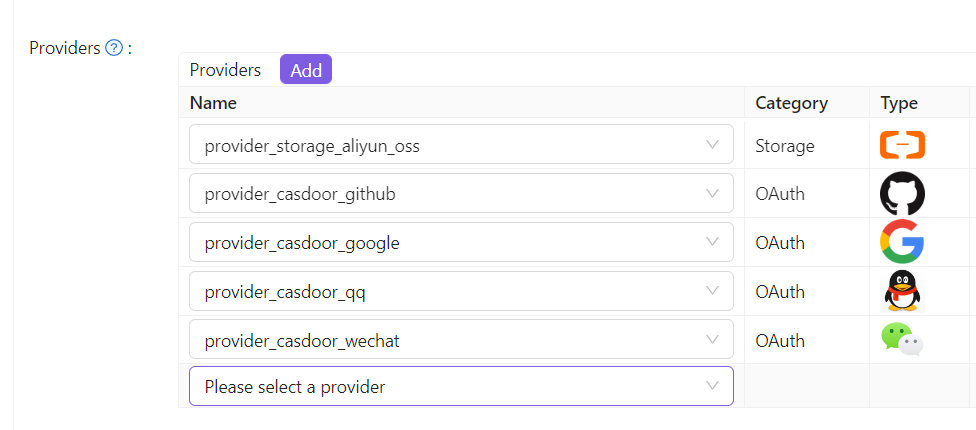
Open the edit page of the application, go to the Providers tab, and add a row.
-
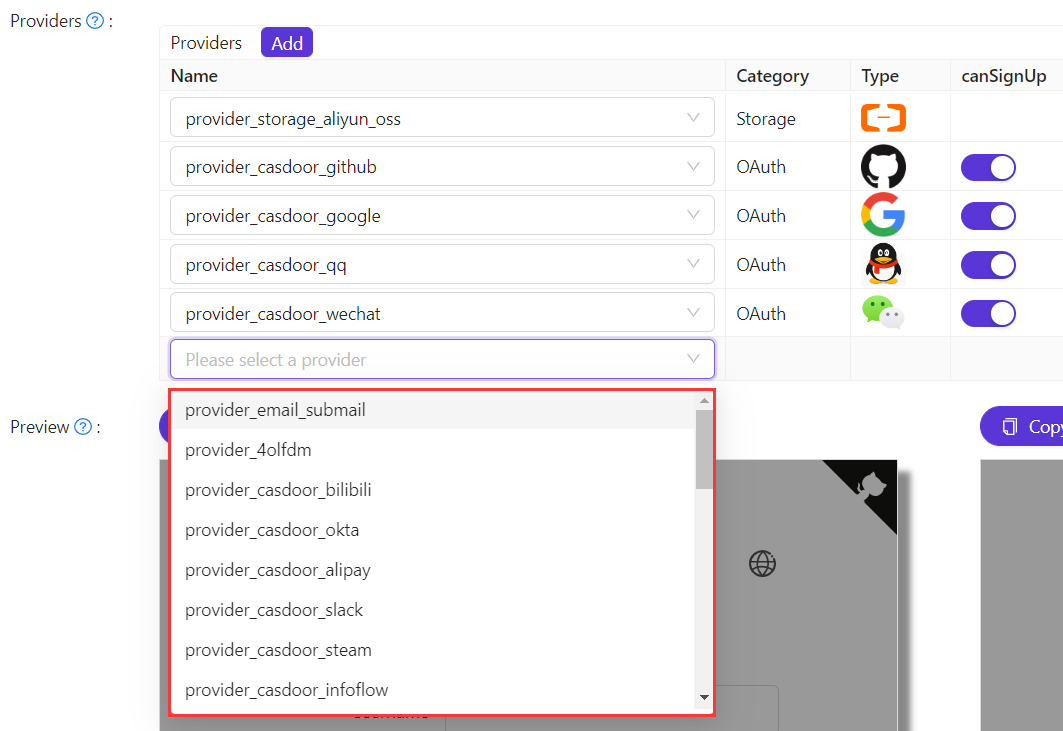
Select the provider. The list shows all providers that are available to the application.
-
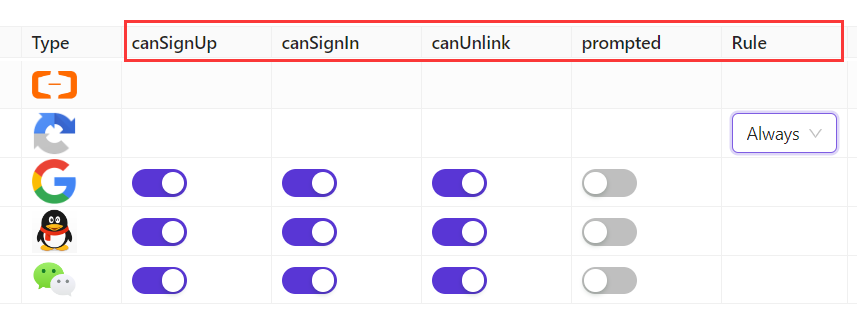
For OAuth and captcha providers, set how the application uses them. See Add providers to an application and Configure the default captcha.
-
Save the application.