WeCom syncer
The WeCom syncer imports users and departments from your WeCom organization into Casdoor. It uses the WeCom API to fetch users from all departments, syncs the departments as Casdoor groups, and keeps data in sync.
Configuration
Required fields:
- Organization: The Casdoor organization where users will be imported
- Name: A unique name for this syncer
- Type: Select "WeCom"
- Corp ID: Your WeCom organization's Corp ID
- Corp Secret: The secret for your WeCom application
Setup Steps
Step 1: Obtain WeCom Credentials
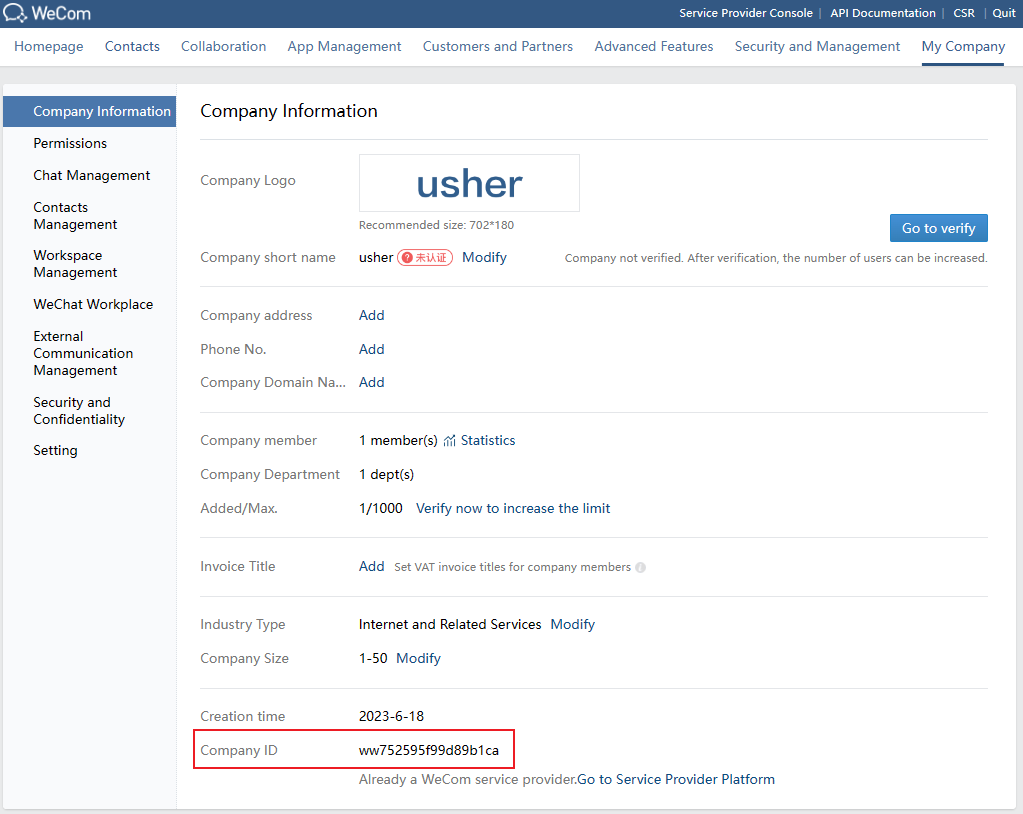
In your WeCom management platform, navigate to My Company, get Corp ID in Company Information.
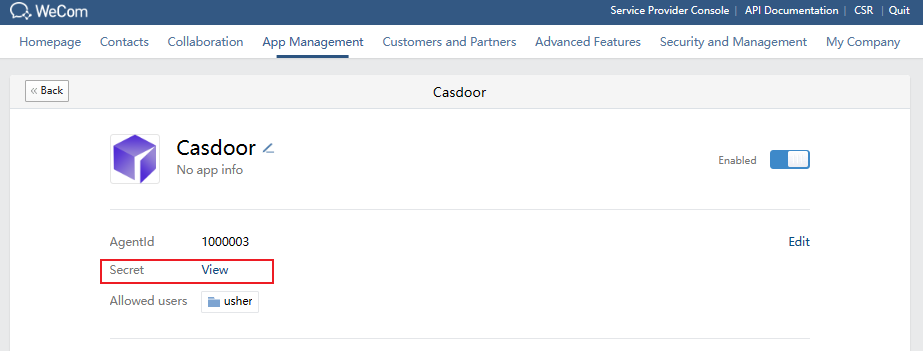
In your Self-build App, get App secret (Corp Secret).
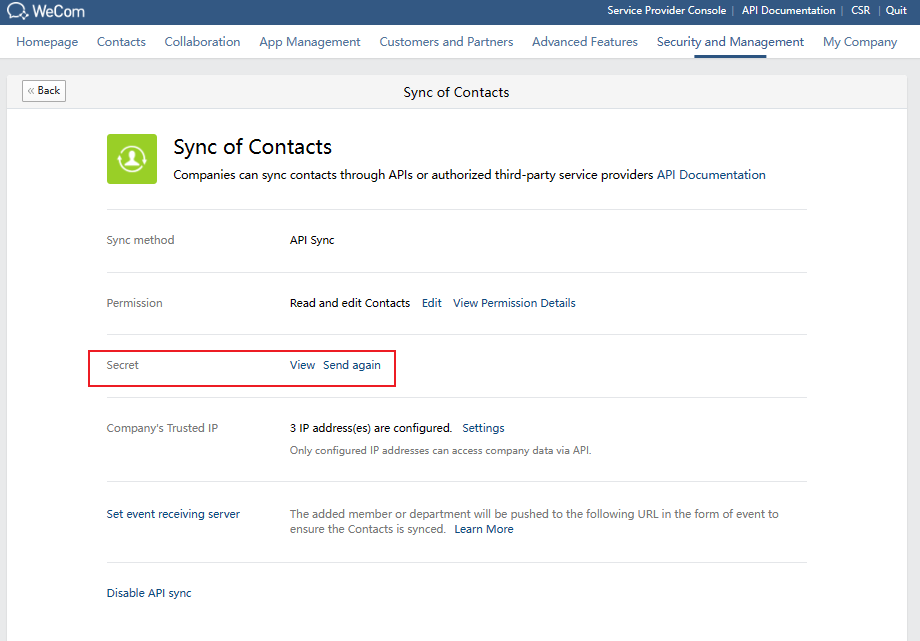
Optionally, in Sync of Contacts Management Tool, you can get Sync of Contacts secret for advanced configurations.
Step 2: Configure the Syncer in Casdoor
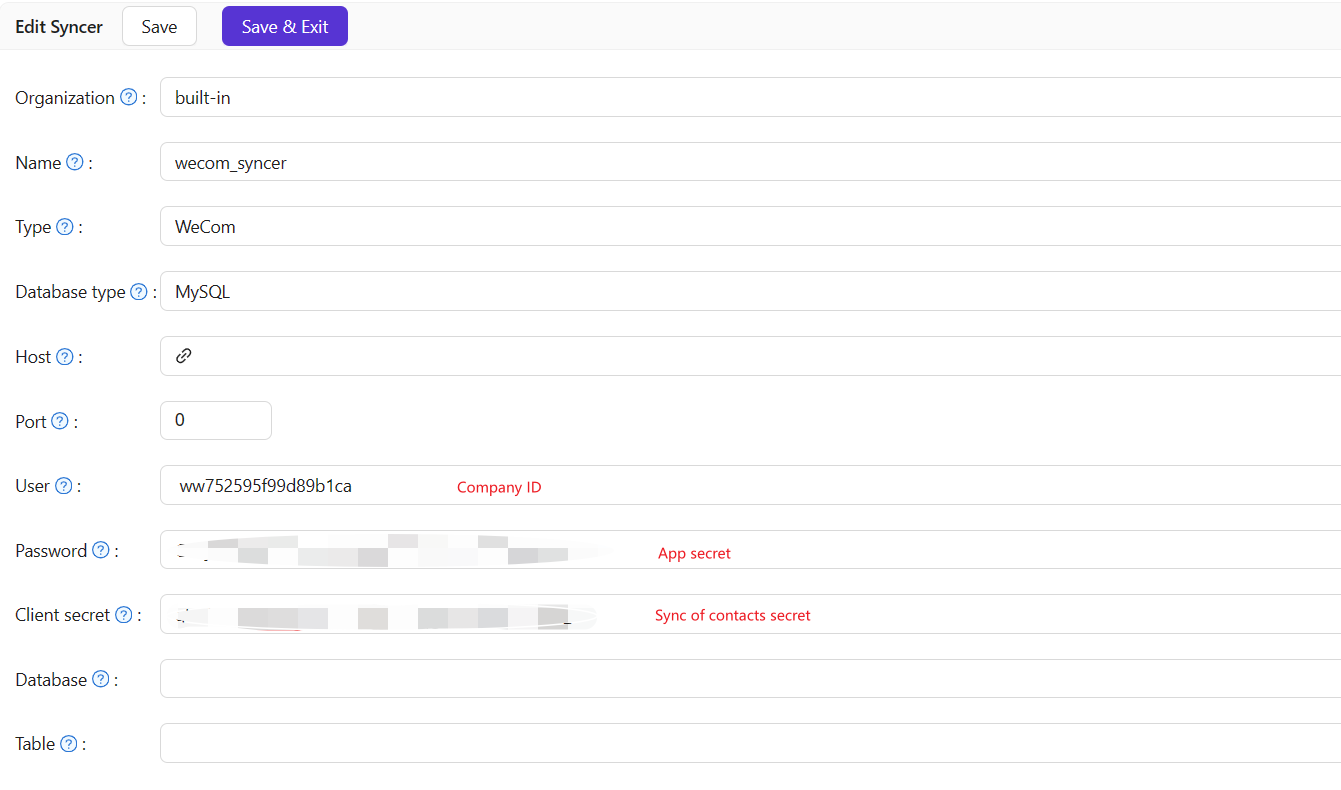
Go to Syncers tab, select WeCom type and fill in the required information:
- Enter your WeCom Corp ID in the Corp ID field
- Enter your application Secret (App secret) in the Corp Secret field
Then save the changes.
Click Test Connection to verify your credentials before enabling the syncer.
Field Mappings
The syncer automatically maps WeCom user fields to Casdoor user fields:
| WeCom Field | Casdoor Field | Description |
|---|---|---|
| userid | Id | User's unique identifier |
| name | DisplayName | User's display name |
| Email address | ||
| mobile | Phone | Phone number |
| avatar | Avatar | Profile picture URL |
| position | Title | Job title |
| gender | Gender | Gender (1=Male, 2=Female) |
| status/enable | IsForbidden | Account status |
| department | Groups | One group per department, as <organization>/<department-id> |
The syncer automatically handles user account status based on WeCom's status and enable fields:
- Activated users (status=1, enable=1): Normal Casdoor users
- Disabled, not activated, or quit users (status=2/4/5 or enable=0): Marked as forbidden in Casdoor
Departments
Each run syncs the WeCom departments as Casdoor groups in the syncer's organization, before it syncs the users:
| Group field | Value |
|---|---|
| Name | The WeCom department ID. Department names aren't unique in WeCom, so the ID is used. |
| Display name | The department name, otherwise name_en, otherwise the department ID |
| Type | department |
| Parent | The group of the WeCom parentid. A department whose parent is outside the application's visible scope becomes a top-level group. |
When a department's name or parent changes in WeCom, the next run updates the group. Groups whose department was removed from WeCom stay in Casdoor.
Each synced user is added to the groups of all the departments the user belongs to.
Permissions and newer WeCom apps
WeCom self-built apps created after 2022-08-15 can't call department/list or user/list. The syncer then falls back to calls that every app can make:
- Departments:
department/simplelist, thendepartment/getfor each department. - Users:
user/list_id, thenuser/getfor each user. A user who belongs to several departments is synced once.
To get department names, the departments must be inside the app's visible scope, and the app needs the contacts permission. Without them, the groups are still synced, with the department ID as display name, and the syncer appends a line to its Error text that names those departments.
OAuth login binding
When a user is synced from WeCom, their WeCom userid is stored in the wecom field on the Casdoor user. This means synced users can sign in directly through the WeCom OAuth provider without needing a separate account link step—the provider ID set during sync is used to match the OAuth identity at login.
Running the Syncer
After configuration, you can:
- Enable Is enabled to allow automatic synchronization on schedule
- Use the Sync button to manually trigger a synchronization
- The syncer will fetch users from all departments and deduplicate them automatically
Department sync errors, and any error of a scheduled run, are appended to the syncer's Error text field. A failed department sync doesn't stop the user sync.