User impersonation
Impersonation lets admins act as another user temporarily—useful for support, testing permissions, and debugging.
Casdoor supports two methods:
- Session-based — One-click from the Users page (no password).
- Master password — Sign in with an org-wide master password as any user.
Both give you the same access as the impersonated user.
Session-based impersonation
- In the Casdoor admin console, go to User Management > Users.
- In the row of the user, open the row actions and select Impersonate. The Casdoor admin console reloads at
/as that user, with the user's view and permissions.
The Impersonate action appears only for administrators, and not in the row of your own account.
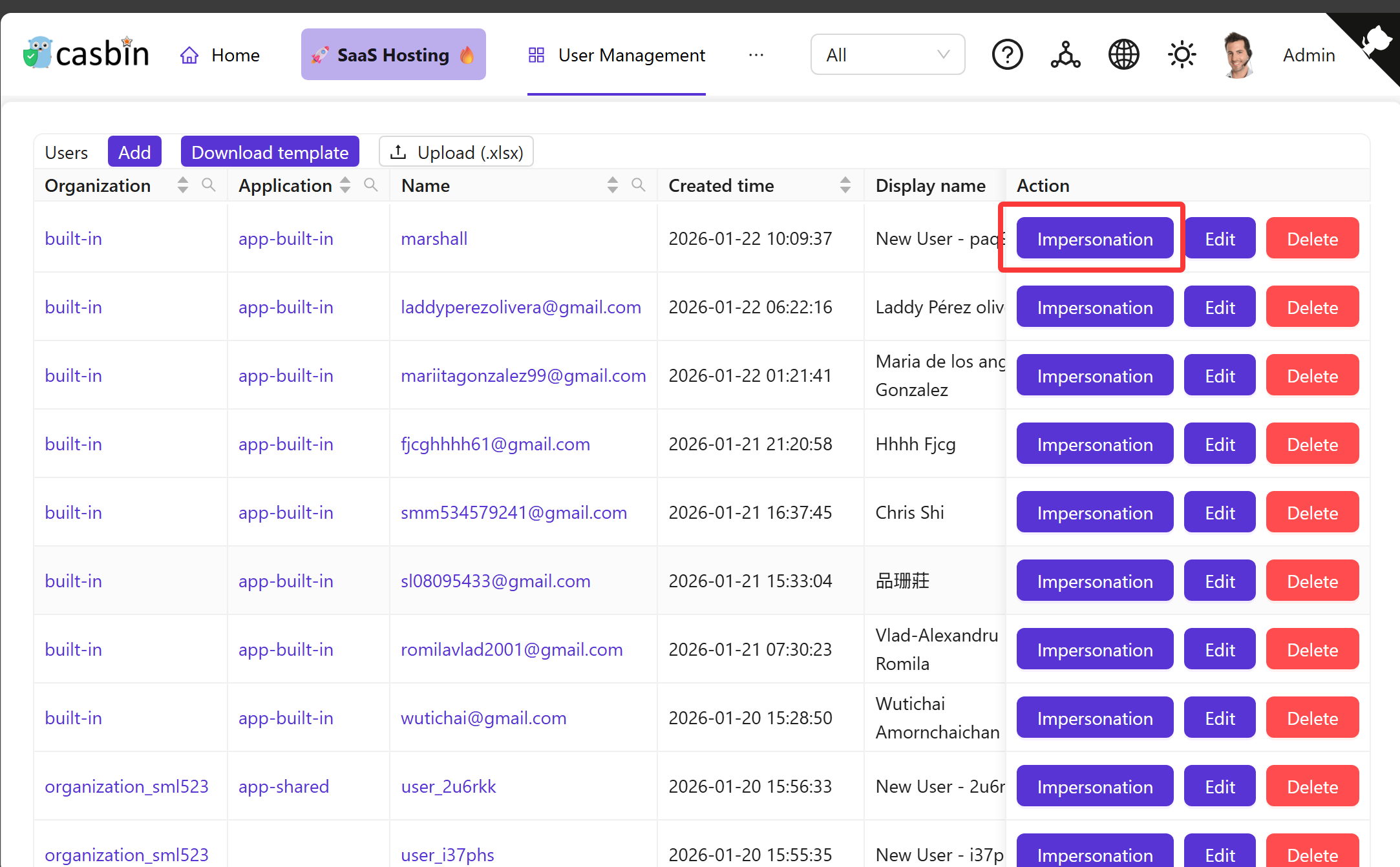
You stay in the impersonated user’s context until you exit. Casdoor tracks that you’re impersonating so it can restore your admin session.
Exiting
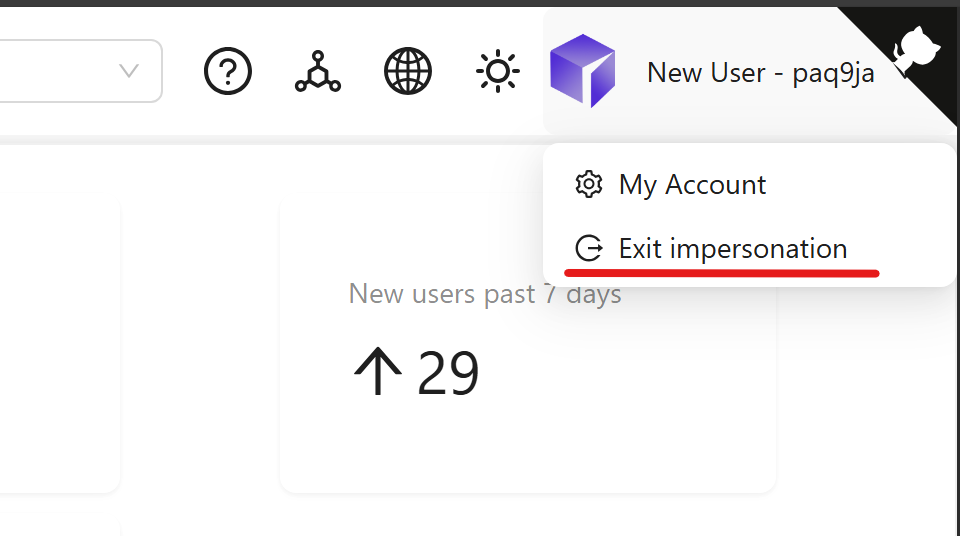
Open the user menu at the top right and select Exit impersonation. It replaces Logout while you impersonate a user. Casdoor returns you to your own session.
How it works
The console calls two endpoints:
| Endpoint | Description |
|---|---|
POST /api/impersonate-user | Starts impersonation. Takes the form fields owner and name of the target user. Sets the session key impersonateUser and the cookie impersonateUser=<owner>/<name> (path /) |
POST /api/exit-impersonate-user | Ends impersonation and clears the session key and the cookie. Returns Unauthorized operation when you aren't impersonating anyone |
POST /api/impersonate-user requires administrator rights. An organization administrator can impersonate only users of their own organization. A global administrator, that is, a user of the built-in organization, can impersonate any user. Missing fields return Missing parameter, and an unknown user returns The user: <owner>/<name> doesn't exist.
curl -X POST 'http://localhost:8000/api/impersonate-user' \
  -b 'casdoor_session_id=<session-id>' \
  -d 'owner=built-in&name=alice'
Replace <session-id> with the session cookie of your signed-in administrator account. Send the impersonateUser cookie that the response sets together with the session cookie in the later requests.
While both the session key and the cookie are present, and you are a global administrator or an administrator of the target user's organization, Casdoor authorizes and runs every API request as the target user. The only exception is /api/exit-impersonate-user, which runs as you. Your session itself stays yours: the session list and the records of the requests show your account.
The Swagger descriptions name the endpoints /impersonation-user and /exit-impersonation-user. The actual routes are /api/impersonate-user and /api/exit-impersonate-user.
Master password
Impersonation is also available at login: set an organization master password; admins can then sign in as any user in that org by entering the master password instead of the user’s password.
Behavior
On login, Casdoor checks the organization’s master password first, then the user’s password. If the master password matches, login succeeds for that user without their real password.
Setting up master password
To configure this feature, open your Organization settings and locate the Master Password field. Enter a strong password and save. From then on, use this password at the login screen with any username in that organization to sign in as that user.
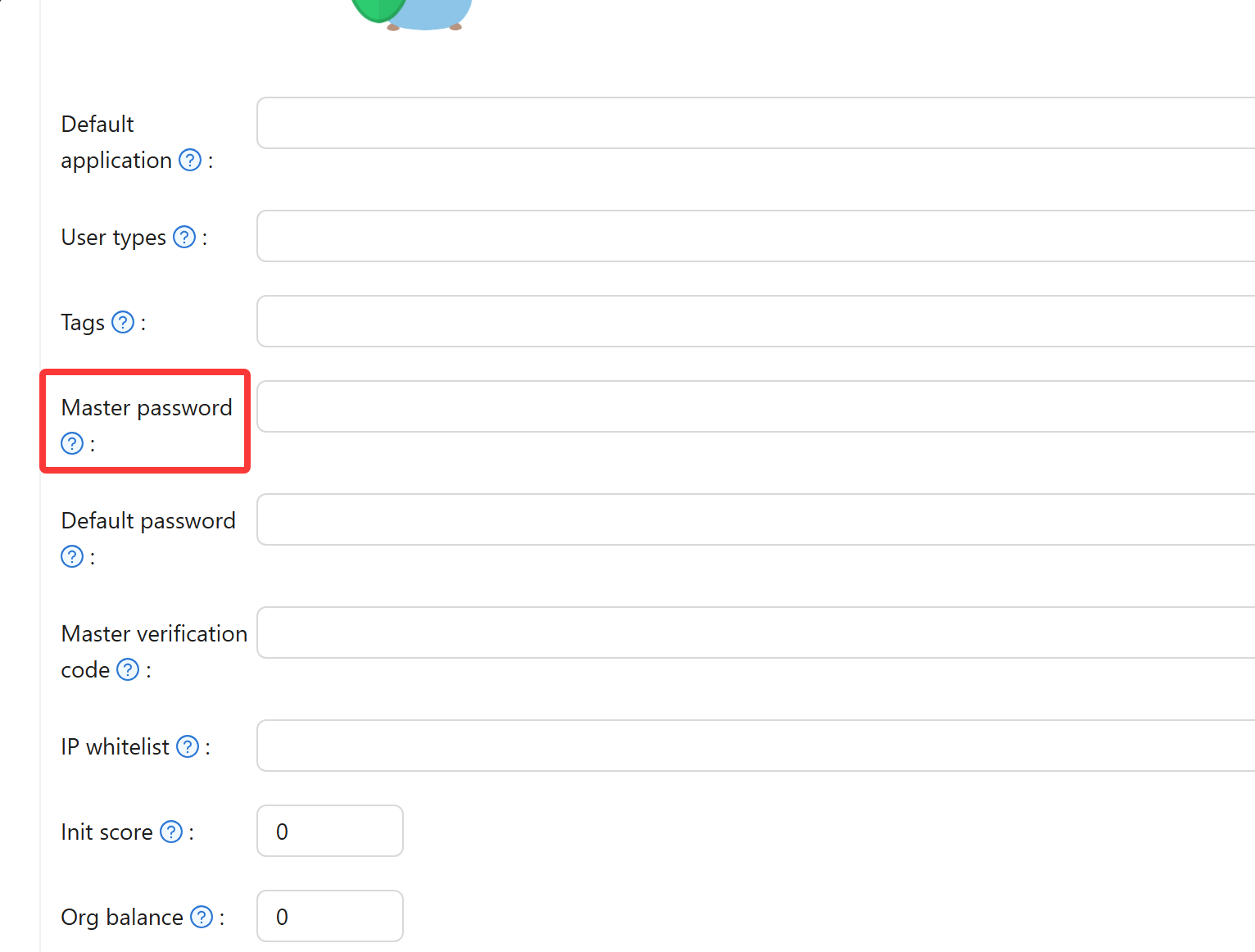
The master password grants access to any account in your organization. Treat it like a master key - share it only with trusted administrators, store it securely in a password manager, and rotate it immediately if you suspect it's been compromised.
Using master password
Navigate to your organization's login page at /login/<organization_name>. Enter the target user's username and the master password instead of their personal password. Casdoor authenticates you as that user, giving you their exact permissions and view of the system.
For an organization called "my-company", visit https://your-casdoor-domain.com/login/my-company, enter the username you want to impersonate, and use the master password.
When to use impersonation
Impersonation becomes valuable when you need to see the system through a user's eyes. Support teams often use it to reproduce reported issues - seeing exactly what the user sees makes debugging much faster. Testing permission configurations also benefits from impersonation, letting you verify access controls work correctly for different roles without creating test accounts.
Emergency situations sometimes require immediate access to a user's data when they're unavailable. Similarly, investigating security concerns or unusual account activity becomes more effective when navigating the system in that user's context.
Security considerations
Session-based impersonation requires admin privileges. The records of the requests that you make while impersonating name your own account, so the audit log shows who acted.
Master password authentication doesn't distinguish between administrator impersonation and regular login in basic audit logs, since it uses the standard authentication flow. This makes session-based impersonation preferable for most scenarios.
Sign-in with the master password goes through the normal sign-in flow, so it respects multi-factor authentication settings: if the user has MFA enabled, you complete those verification steps. Session-based impersonation doesn't sign in again, so it asks for no second factor.
Disabling master password
To remove the master password option, clear the Master Password field in your Organization settings and save. This only affects password-based impersonation - the session-based method remains available to administrators regardless of master password configuration.
Related configuration
Organizations can set a default password assigned to newly created users, which differs from the master password used for impersonation. Password complexity rules apply to all passwords including the master password, helping maintain security standards across your organization.