Multi-factor authentication (MFA / 2FA)
About multi-factor authentication
MFA (multi-factor authentication) requires users to provide two or more factors to prove who they are when signing in or performing sensitive operations: something they know, such as a password, plus something they have, such as a phone with an authenticator app. 2FA (two-factor authentication) is the common case of MFA with exactly two factors, and in Casdoor the two terms describe the same feature: a password, passkey or social sign-in followed by a second factor.
Casdoor supports these second factors:
| Method | What the user enters |
|---|---|
| TOTP authenticator app (Google Authenticator, Microsoft Authenticator and other apps) | A six-digit code that changes every 30 seconds |
| SMS | A code sent to the user's phone number |
| A code sent to the user's email address | |
| RADIUS | The password of the user's account on an external RADIUS server |
Every method also gives the user recovery codes for when the second factor is lost. Administrators can make MFA optional or required for an organization with MFA items. Applications can also ask a signed-in user for a fresh code before a sensitive action with step-up MFA.
Once you enable MFA, Casdoor requires an authentication code every time someone attempts to sign in to your account. The only way someone can sign in to your account is if they know both your password and have access to the authentication code.
Configuring MFA
-
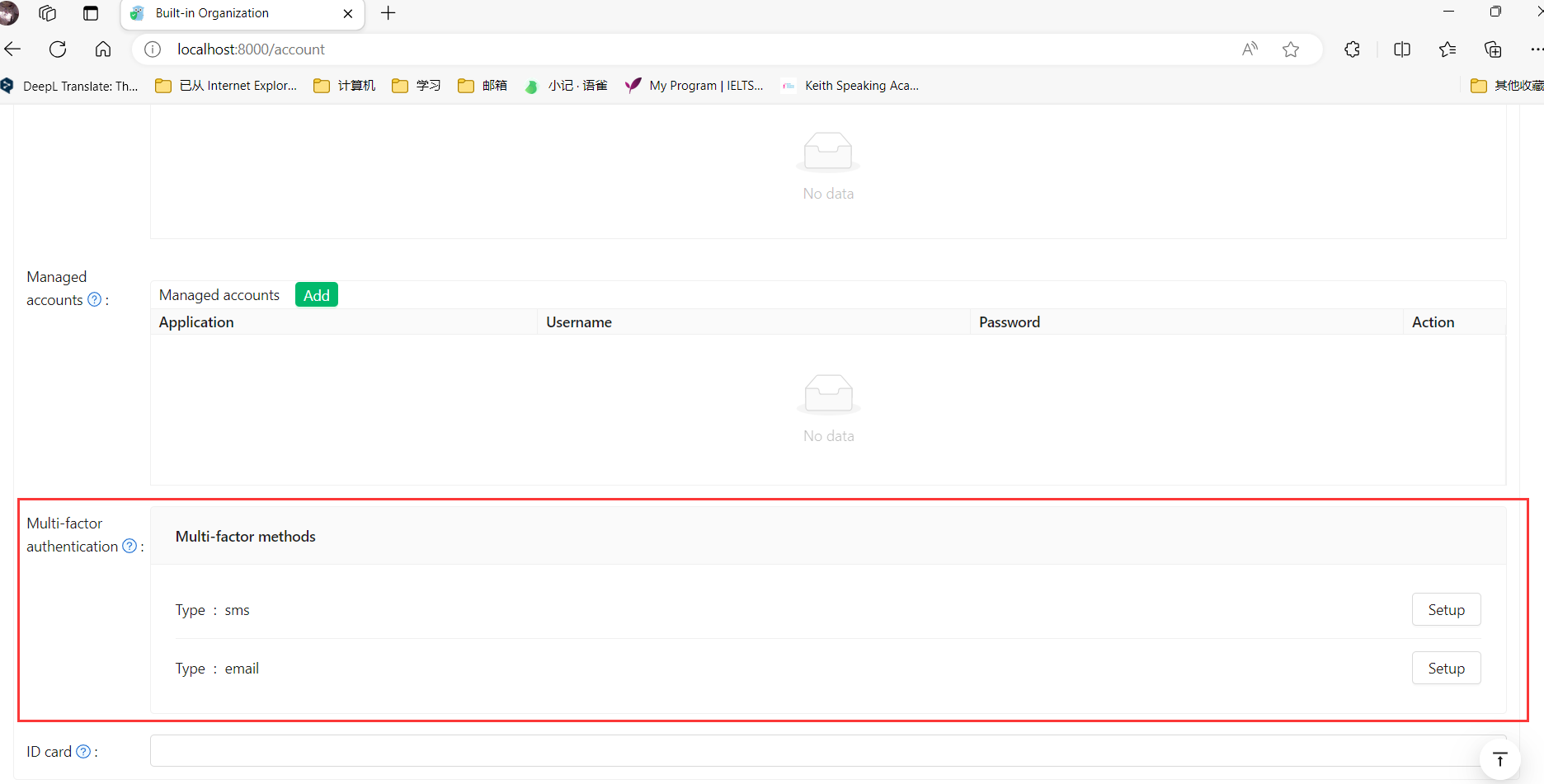
On the user profile page, open the multi-factor authentication section. If it is missing, ensure the organization has added the MFA item in the account items table.
-
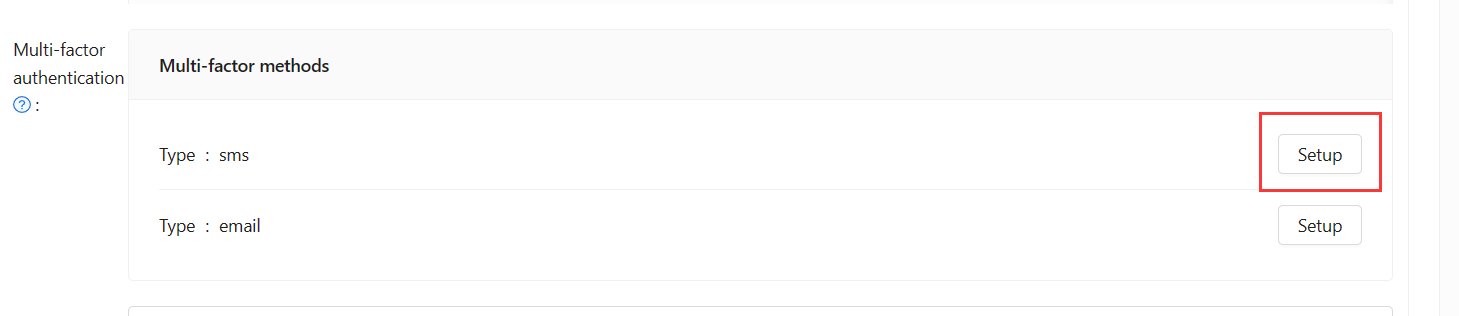
Click the "setup" button.
-
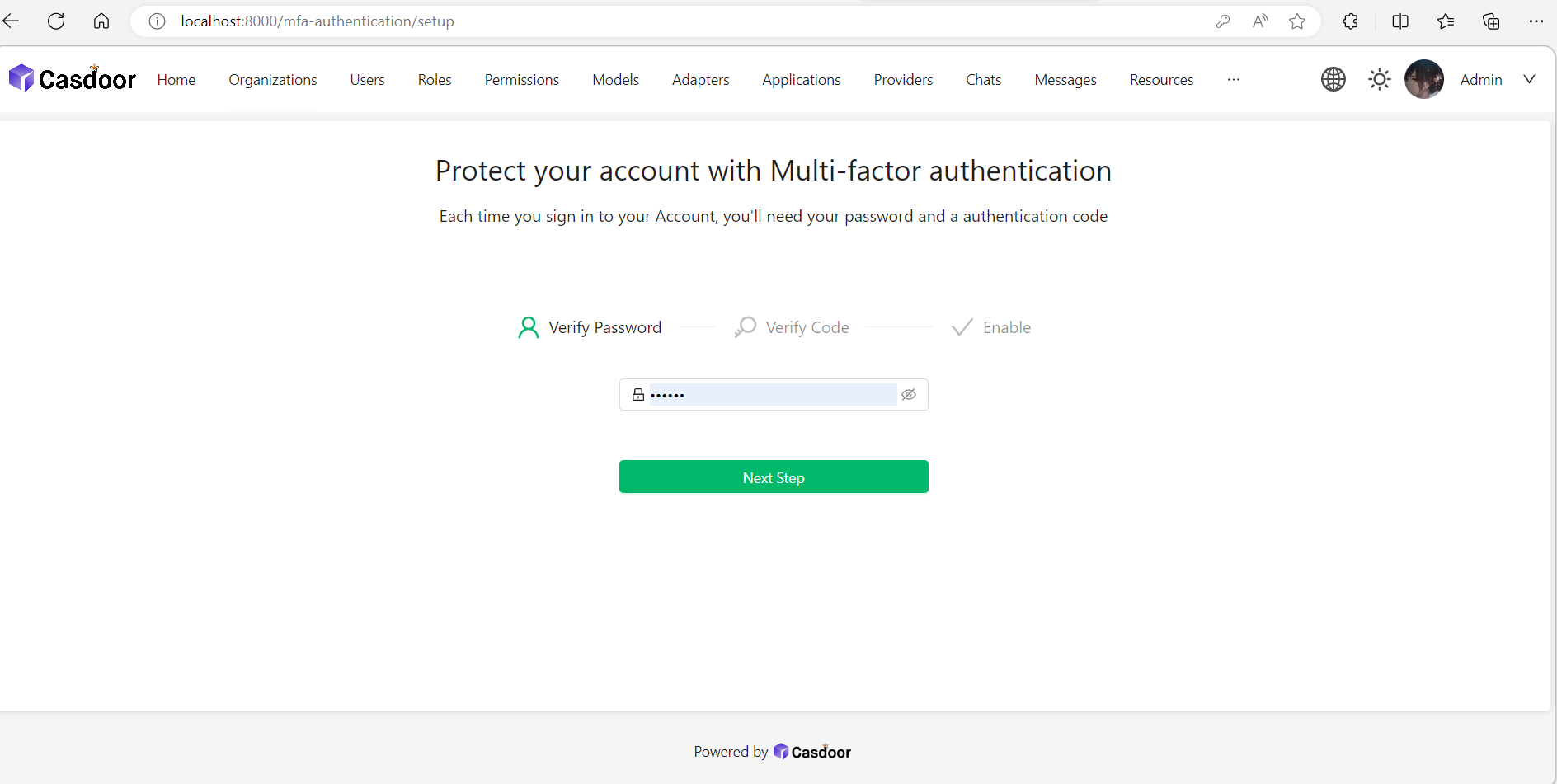
Type your password and click "Next Step".
Configuring multi-factor authentication using a TOTP mobile app
A time-based one-time password (TOTP) application automatically generates an authentication code that changes after a certain period of time. We recommend using:
To configure authentication via TOTP on multiple devices, during setup, scan the QR code using each device at the same time. If 2FA is already enabled, and you want to add another device, you must reconfigure your TOTP app from the user profile page.
When you add your account to an authenticator app, the account name will show the organization's display name (or organization name if no display name is set). This helps you identify which organization the TOTP code belongs to when managing multiple accounts.
-
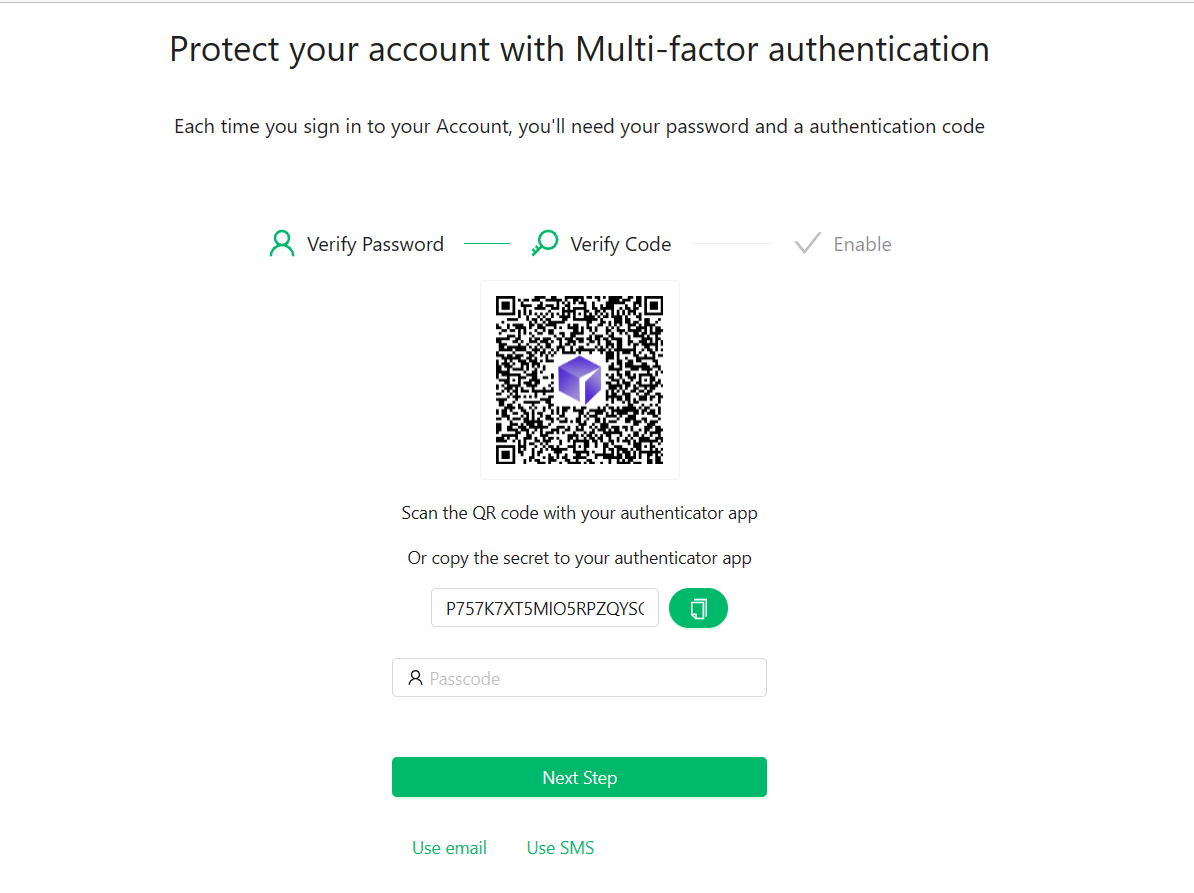
In the "Verify Code" step, do one of the following:
- Scan the QR code with your mobile device's app. After scanning, the app displays a six-digit code that you can enter on Casdoor.
- If the QR code cannot be scanned, copy the secret and enter it manually in the TOTP app.
-
The TOTP mobile application saves your account on Casdoor and generates a new authentication code every few seconds. On Casdoor, type the code into the "Passcode" field and click "Next Step".
-
Above the "Enable" button, copy your recovery codes and save them to your device. Save them to a secure location because your recovery codes can help you regain access to your account if you lose access.
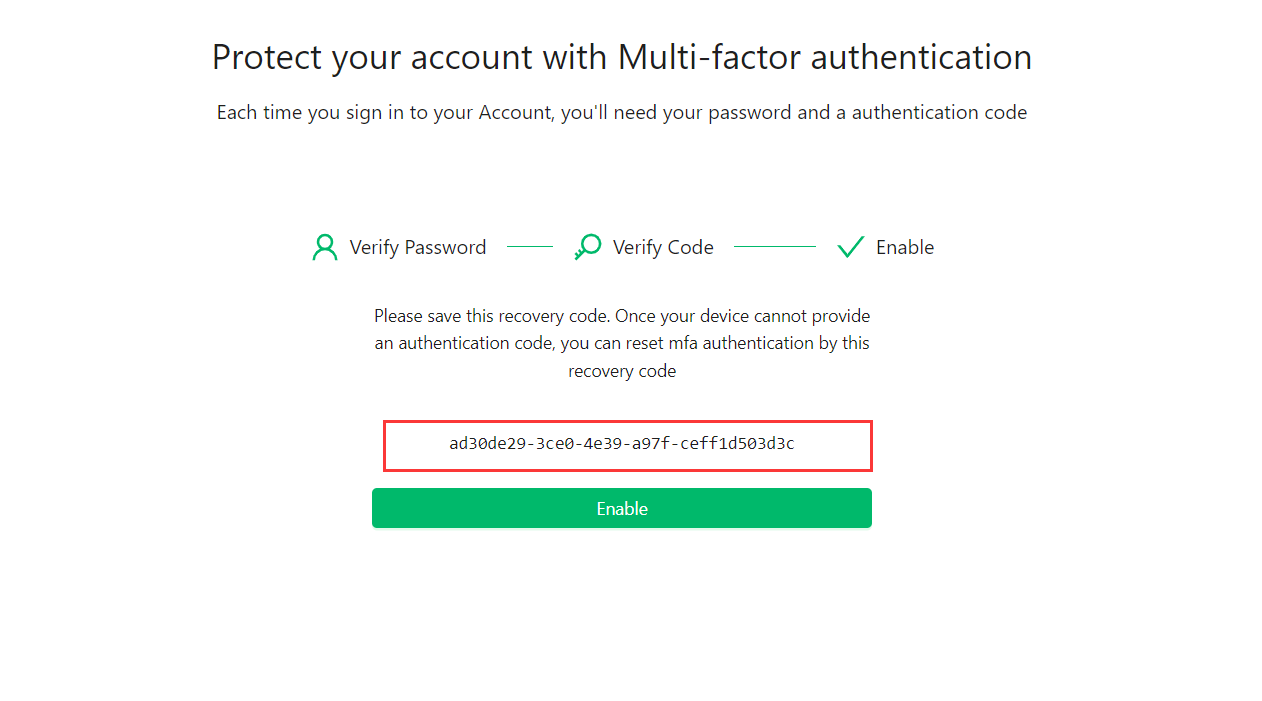
Each recovery code can only be used once. If you use a recovery code to sign in, it will become invalid.
Configuring multi-factor authentication using text messages
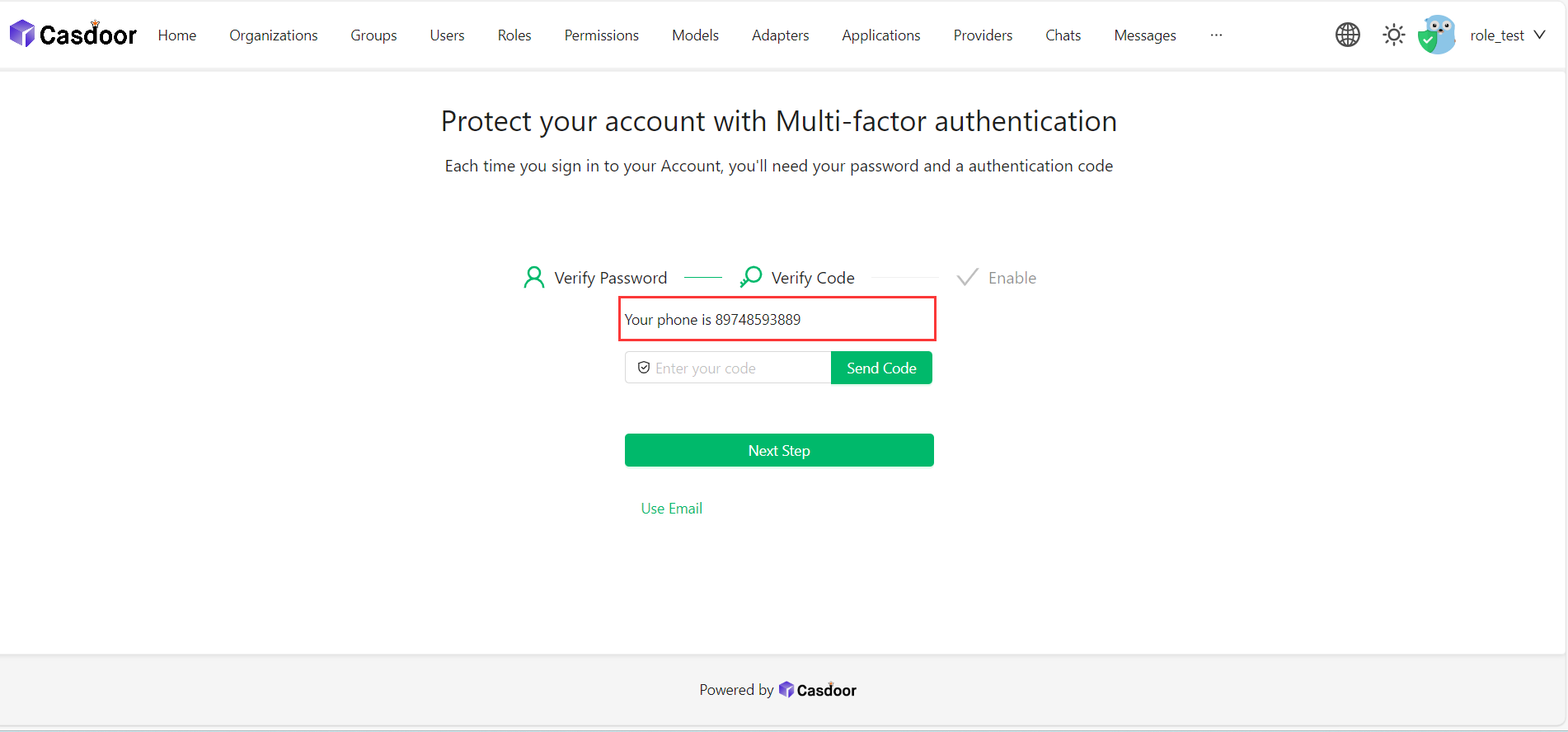
If you have added your mobile phone number, Casdoor will use it to send you a text message.
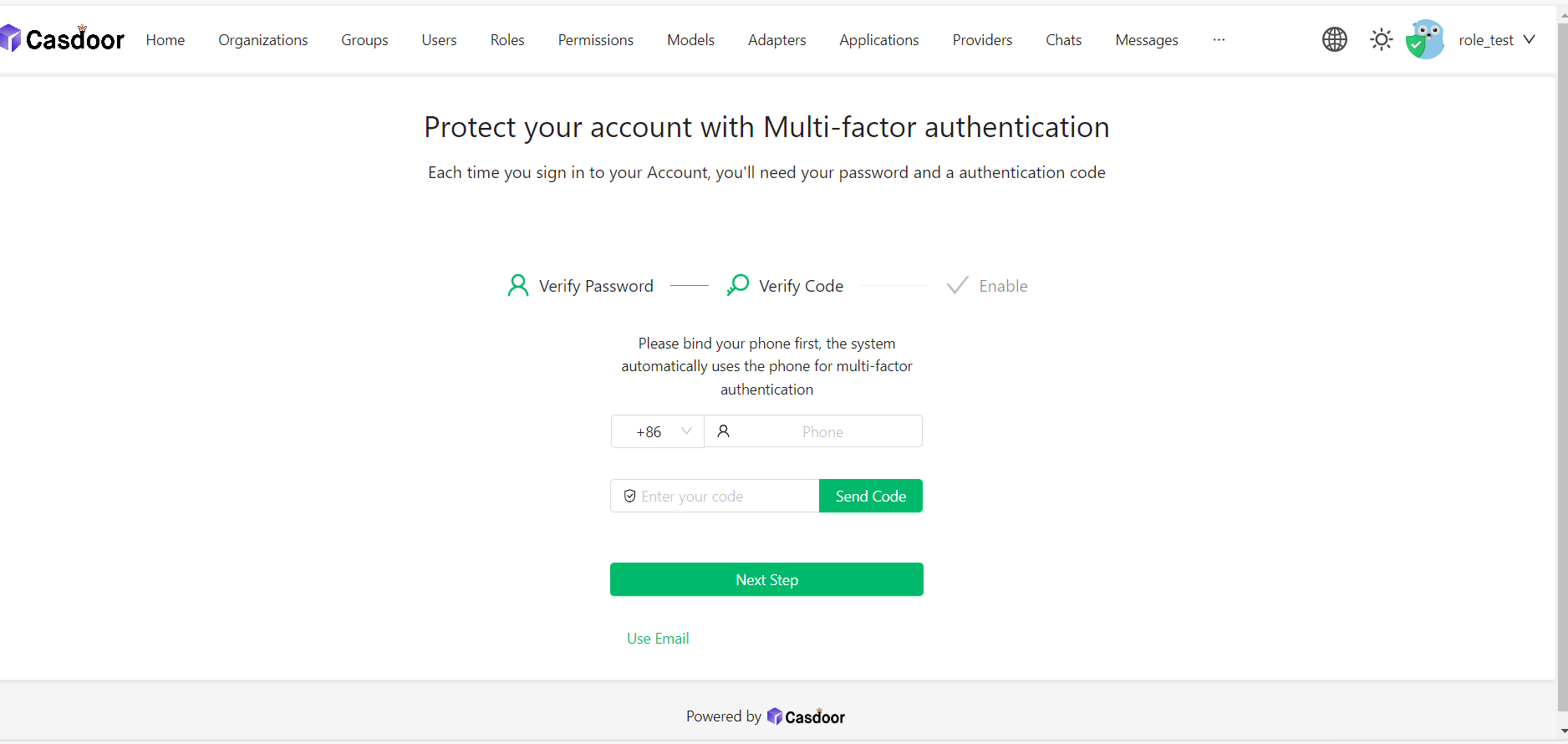
If you have not added your mobile phone number, add it in your account first.
-
Select your country code and enter your mobile phone number.
-
Check if your information is correct and click "Send Code".
-
Enter the security code from the text message in Enter your code and click Next Step.
-
Above the "Enable" button, copy your recovery codes and save them to your device. Save them to a secure location because your recovery codes can help you regain access to your account if you lose access.
Configuring multi-factor authentication using email
Configuring email as your multi-factor authentication method is similar to using text messages.
-
Use your current email or enter your email address and click "Send Code".
-
Then enter the code into the "Enter your code" field and click "Next Step".
-
Above the "Enable" button, copy your recovery codes and save them to your device. Save them to a secure location because your recovery codes can help you regain access to your account if you lose access.
Configuring multi-factor authentication using RADIUS
RADIUS MFA allows you to authenticate against an external RADIUS server for the second authentication factor. This is useful when integrating with existing authentication infrastructure.
Before using RADIUS MFA, your administrator must configure a RADIUS provider in the application. Once configured:
-
Enter your RADIUS username when prompted during setup.
-
Enter your RADIUS password to verify the setup. This password will be verified against the configured RADIUS server. During subsequent logins, you'll enter this same RADIUS password as your second factor.
-
Above the "Enable" button, copy your recovery codes and save them to your device. Save them to a secure location because your recovery codes can help you regain access to your account if you lose access.
The RADIUS authentication communicates with the external RADIUS server configured by your administrator. Make sure you have the correct username and password for your RADIUS account.
Where MFA applies
Casdoor asks for the second factor, or for the MFA setup when the organization requires MFA (see MFA items), on every sign-in path that can show a page:
- Sign-in with a password, a verification code, or a social provider on the sign-in page.
- Sign-in with a passkey (WebAuthn).
- Sign-in with Kerberos.
The paths that send only a password can't ask for a second factor. They refuse users with MFA enabled:
| Path | Result for a user with MFA enabled |
|---|---|
| Bind to the built-in LDAP server | invalidCredentials with the user has MFA enabled and cannot bind with a password |
Sign-in with ?username=<owner>/<name>&password=<password> in the URL | the user: <owner>/<name> has MFA enabled and cannot sign in with a password in the URL |
| OAuth 2.0 password grant, and the implicit token request with a password (OAuth 2.0) | invalid_grant with the user has MFA enabled and cannot sign in with a password grant, please use the authorization code flow |
These paths also refuse a user when the organization has Disable signin on, or when the user must still update the password or set up a required MFA method. The user finishes the password change or the MFA setup on the sign-in page first. The URL sign-in additionally checks the IP restrictions of the organization.
Limit on wrong codes
Wrong MFA passcodes and wrong recovery codes count against Failed signin limit and Failed signin frozen time of the user's application: the application the user signed up with, or the default application of the organization. The defaults are 5 attempts and 15 minutes. After too many wrong codes, Casdoor refuses further codes until the frozen time has passed.
A TOTP code is accepted only once: after a code has been used, the same code, or one from an earlier 30-second step, is refused until the authenticator app shows a new one.
Casdoor counts wrong MFA codes separately from wrong passwords. The limit also applies to the passcode check during MFA setup, and to the time-based one-time password (TOTP) check of the built-in RADIUS server.
Changing your preferred MFA method
Multiple MFA methods can be added; only the preferred one is used at sign-in.
If you want to set a preferred MFA method, click the "Set preferred" button.

A "Preferred" label will be displayed on your preferred method.
Disabling multi-factor authentication
If you want to disable multi-factor authentication, click the "Disable" button. All your multi-factor authentication settings will be deleted.
