Overview
User properties
Casdoor manages user accounts. Each user has the following properties:
Owner: The organization that owns the userName: The unique username for the user (must be unique within the organization)CreatedTime: Timestamp when the user account was createdUpdatedTime: Timestamp when the user account was last updatedId: Unique identifier (UUID) for each userType: The type of user account (e.g., normal-user, guest-user)Password: The user's encrypted passwordPasswordSalt: Salt value used for password hashingPasswordOptions: Password complexity optionsDisplayName: The user's display name shown in the user interfaceFirstName: The user's first name (given name)LastName: The user's last name (family name)Avatar: URL or link to the user's current avatar imagePermanentAvatar: URL to the user's permanently stored avatar (not affected by provider changes)Email: The user's email address (automatically normalized to lowercase)Phone: The user's phone number, stored as the national number in digits only. See Phone numbersCountryCode: The region of the phone number, such asPLorUSLocation: The user's geographical locationAddress: An array of strings containing the user's address information (e.g., street address, city, state, postal code)Affiliation: The user's organization or institutional affiliationTitle: The user's professional title or job positionIdCardType: The type of ID card used for identity verification (e.g., passport, driver's license)IdCard: The ID card number (becomes read-only after verification)RealName: The user's verified real name (becomes read-only after identity verification)IsVerified: Indicates whether the user has completed identity verification through an ID Verification providerHomepage: URL to the user's personal homepage or websiteBio: A short biography or description of the userTag: Tags for categorizing users (can be multiple tags separated by commas)Region: The user's geographical region or areaLanguage: The user's preferred language for the interfaceGender: The user's genderBirthday: The user's date of birthEducation: The user's education level or backgroundBalance: The user's account balance (for applications with payment features)Score: Numerical score associated with the user (application-defined)Karma: Karma or reputation points for the userRanking: The user's ranking position (application-defined)IsDefaultAvatar: Indicates whether the user is using the default avatarIsOnline: Indicates whether the user is currently onlineIsAdmin: Indicates whether the user is an administrator of their organizationIsGlobalAdmin: Indicates whether the user has permission to manage CasdoorIsForbidden: Indicates whether the user account has been banned or restricted. Turning it on ends the user's access at once. See Forbid or delete a userIsDeleted: When a user is soft-deleted (IsDeleted = true), they cannot sign in through any authentication method, including OAuth providers. This prevents deleted users from re-registering via third-party login.SignupApplication: The application through which the user signed upHash: Hash value used for internal authentication mechanismsPreHash: Previous hash value (used during password migration)CreatedIp: The IP address from which the user account was createdLastSigninTime: Timestamp of the user's last successful sign-in (Last signin time). See Last sign-in time and IP addressLastSigninIp: The IP address of the user's last successful sign-in (Last signin IP)Roles: An array of the user's roles (extended field, read-only via User API)Permissions: An array of the user's permissions (extended field, read-only via User API)OriginalRefreshToken: The refresh token from the most recent social login (legacy single-provider field, kept for backward compatibility). Masked as***in API responses.Properties["oauth_<ProviderType>_accessToken"]/Properties["oauth_<ProviderType>_refreshToken"]: Per-provider OAuth tokens stored in thePropertiesmap. When a user signs in via multiple OAuth providers, each provider's tokens are stored independently under its own key (e.g.oauth_GitHub_accessToken). Both fields are masked as***in API responses and left out of the user claims of the defaultJWTtoken format.Addresses: A list of structured address entries. Each address has a Tag (Home, Work, Other), Line 1, Line 2, City, State, Zip code, and Region. Users can manage their addresses from the account profile page.
Unique IDs for social platform logins:
Github: User's unique identifier from GitHub OAuth loginGoogle: User's unique identifier from Google OAuth loginQQ: User's unique identifier from QQ OAuth loginWeChat: User's unique identifier from WeChat OAuth loginFacebook: User's unique identifier from Facebook OAuth loginDingTalk: User's unique identifier from DingTalk OAuth loginWeibo: User's unique identifier from Weibo OAuth loginGitee: User's unique identifier from Gitee OAuth loginLinkedIn: User's unique identifier from LinkedIn OAuth loginWecom: User's unique identifier from WeCom (WeChat Work) OAuth loginLark: User's unique identifier from Lark (Feishu) OAuth loginGitlab: User's unique identifier from GitLab OAuth loginAdfs: User's unique identifier from ADFS authenticationBaidu: User's unique identifier from Baidu OAuth loginCasdoor: User's unique identifier from another Casdoor instance OAuth loginInfoflow: User's unique identifier from Infoflow OAuth loginApple: User's unique identifier from Apple OAuth loginAzure AD: User's unique identifier from Azure Active Directory OAuth loginAzure AD B2C: User's unique identifier from Azure AD B2C OAuth loginSlack: User's unique identifier from Slack OAuth loginSteam: User's unique identifier from Steam OAuth loginLdap: User's unique identifier from LDAP authenticationTelegram: User's unique identifier from Telegram OAuth login
Organization admin privileges
Users with IsAdmin enabled are administrators of their organization:
- Full access to manage users, applications, and resources within their organization
- Access to verification code records sent to users in their organization
- Ability to configure organization-level settings and policies
Organization admins have elevated permissions but are scoped to their organization only. Global admins (built-in organization users) have full access across all organizations in the Casdoor instance.
User tags
The Tag field categorizes users. Use a single tag or several comma-separated tags (e.g. "developer,qa,reviewer"). Application access checks evaluate each tag separately.
Reserved tag values:
normal-user: Standard users with full authentication capabilitiesguest-user: Temporary users created through guest authentication without initial credentials- Automatically upgrade to
normal-userwhen they set a proper username or password - Cannot sign in directly until they upgrade their account
- Automatically upgrade to
Custom tags can restrict application access. See Application Tags.
Identity verification
Casdoor supports identity verification via ID Verification providers. Users can verify their identity by submitting their ID card information and real name, which gets validated through third-party services like Jumio.
When a user completes identity verification:
- The
IsVerifiedfield is set totrue - The
RealName,IdCardType,IdCard, and related identity fields become read-only - The verified status is included in JWT tokens and OIDC userinfo responses
- A verification badge appears on the user's profile
This feature is useful for applications that require KYC (Know Your Customer) compliance or need to ensure user identity authenticity. See ID Verification Providers for more information on configuring identity verification.
Email normalization
Casdoor normalizes all email addresses to lowercase for uniqueness and to avoid duplicate accounts. This means that user@example.com, User@Example.com, and USER@EXAMPLE.COM are treated as the same email address, complying with RFC 5321 standards.
This normalization happens automatically during:
- User signup and account creation
- User login and authentication
- Email duplicate checking
Phone numbers
Casdoor parses and validates a phone number together with its country code when a user signs up, when the user is updated in the Casdoor admin console or through POST /api/update-user, and when the user changes the phone number with a verification code. An invalid number is rejected with Phone number is invalid, or Phone number is invalid in your region <country-code> on a phone change.
Casdoor stores the national number in digits only in phone, and the region in countryCode. For example, +48 666 666 666 is stored as 666666666 with PL. Casdoor takes the region from the number only when the number starts with + or when no country code is given. A calling code that several countries share, such as +1, doesn't replace the country that the user selected.
The check for Phone already exists compares the normalized values. At sign-in, Casdoor also looks up a national number in each of the Supported country codes of the organization.
Last sign-in time and IP address
Casdoor updates lastSigninTime and lastSigninIp after every successful sign-in through /api/login, which covers the sign-in page and the sign-in with social providers.
The OAuth 2.0 password grant (grant_type=password) updates lastSigninTime only, and leaves lastSigninIp unchanged. Casdoor records this sign-in after it generates the token, so the lastSigninTime and lastSigninIp claims in that token hold the previous sign-in. The time of the current sign-in is the iat claim of the token.
Forbid or delete a user
When an update turns on isForbidden or isDeleted (with soft deletion), Casdoor ends the user's access at once:
- Sends OpenID Connect (OIDC) back-channel logout and SAML logout for the user's tokens.
- Expires all tokens of the user in every application.
- Deletes all sessions of the user in every application.
- Sends the SSO logout notifications. These are best effort: the access is already revoked when they are sent.
Deleting a user does the same.
Afterwards, Casdoor treats every token of a forbidden, deleted, or removed user as inactive:
/api/login/oauth/introspectreturnsactive: false.- API calls with such an access token fail with
The user is forbidden to sign in, please contact the administrator. - The MCP endpoint of Casdoor rejects the token.
Tokens of the client_credentials grant belong to no user and stay active.
Partial updates with the columns parameter
/api/update-user accepts an optional columns query parameter to perform a partial update: only the listed fields are written, and every other field on the user is left untouched. Omit it (or leave it empty) to update the full user object.
Field names in columns may be written in either camelCase or snake_case — both are accepted and map to the same underlying column. For example, columns=displayName,avatar and columns=display_name,avatar are equivalent.
Set a password through update-user
An administrator can set a user's password with POST /api/update-user by sending a new password that is neither empty nor ***. Casdoor hashes it with the Password type of the organization. Before it saves the password, Casdoor checks that:
- The password contains no spaces.
- The password satisfies the password complexity of the organization.
- The password isn't reused, see Password history.
Casdoor then records the old password in the password history, sets lastChangePasswordTime, and writes the columns password, password_salt, password_type, and last_change_password_time even if columns doesn't list them.
Only administrators can do this, and users with the tag guest-user for their own account. Any other user, and every request for an LDAP user, fails with Please use the set-password API to change the password.
To import a password that is already hashed, include password and password_type in columns, and send the hash in password and its algorithm in passwordType. Casdoor then stores the password as given, without hashing or checking it.
Roles and permissions (extended fields)
The Roles and Permissions fields on the User object are extended: they are filled when user data is fetched, not stored on the User table. They are built from the Roles and Permissions resources via ExtendUserWithRolesAndPermissions().
Important: You cannot change roles or permissions with /api/update-user (including via the columns parameter). Use the Roles and Permissions APIs and their management pages (e.g. Roles and Permissions in the sidebar) to assign and manage them.
Using the Properties field
The Properties field is a key-value map (map[string]string) for custom user attributes not covered by the built-in schema. Use it to:
- Store organization-specific user attributes
- Add custom metadata that doesn't fit into standard fields
- Extend user profiles without modifying the core schema
Importing users from XLSX
Add or update users by uploading an XLSX file.
Getting started
On the Users page in the admin console you’ll see:
- Download template: Generates an XLSX template with all available user fields and their localized column headers
- Upload (.xlsx): Opens the upload dialog to import users from your XLSX file
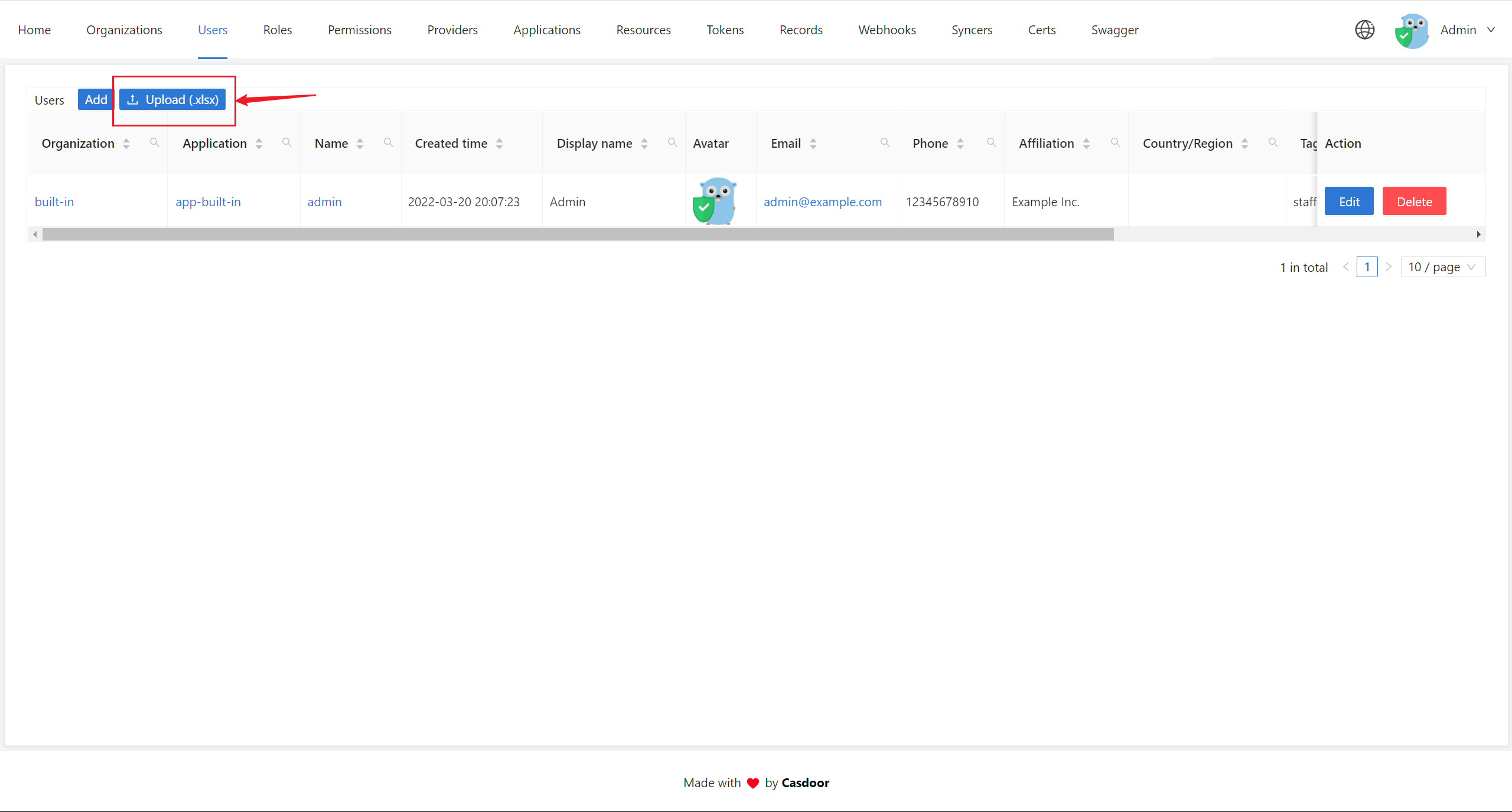
The template file includes headers in the format Display Name#field_name (e.g., Organization#owner), where the display name is localized to your language and the field name after # is used for import mapping. The comment prefix (everything before #) is automatically removed during import.
Upload process
After you choose an XLSX file, Casdoor shows a preview of the data. Review it and confirm to start the import. A sample file (xlsx/user_test.xlsx) with 5 test users is available for reference.
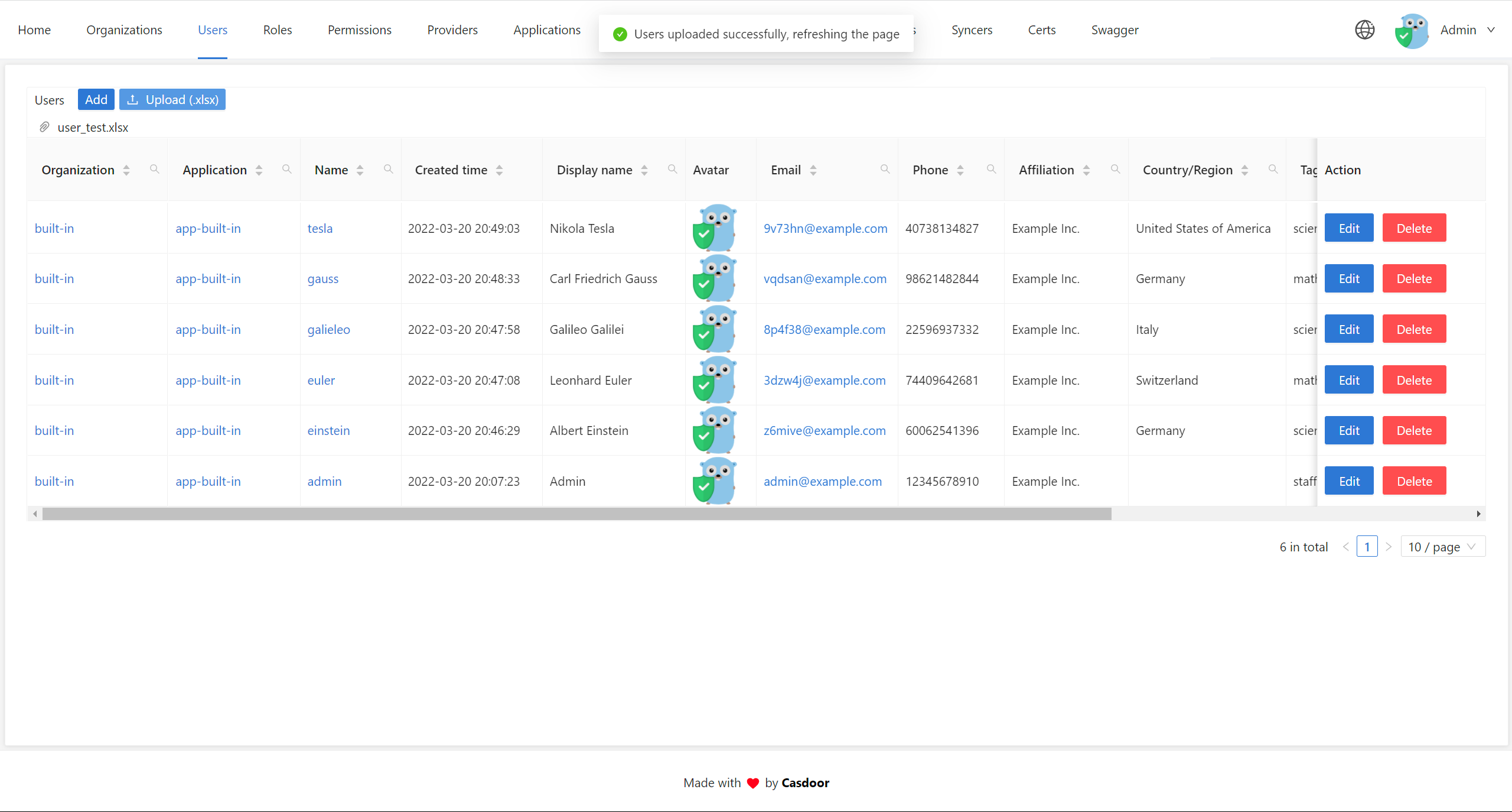
Upload permissions
Who can upload depends on your role:
- Global admins (users in the
built-inorganization withIsGlobalAdminset to true) can upload users to any organization. The target organization is determined by theOwnerfield in the XLSX file. - Organization admins (users with
IsAdminset to true) can only upload users to their own organization. The system ensures that duplicate checking and user creation are scoped to the correct organization.
Bypassing password encryption on import
When migrating users from another system, you may need to preserve existing password hashes instead of re-hashing with the organization’s default password type. Use the passwordType field during user import to tell Casdoor the format of the stored password.
Example POST body for /api/add-user:
{
  "owner": "organization",
    "signupApplication": "first-app",
    "email":"dev@dev.com",
    "name": "dev",
    "displayName": "developper",
    "password": "$2a$10$.o/iVyDE9Xk8ioywHDnQRu72RviOi6FPa1ujhusbSCZeg7VOa6MY6",
    "passwordType":"bcrypt",
}
The password is already bcrypt-hashed, so passwordType is set to "bcrypt" so Casdoor does not hash it again.