Send email with Brevo
This guide explains how to send the emails of Casdoor through the SMTP relay of Brevo, formerly Sendinblue.
Learning outcomes
- Turn on SMTP for a Brevo account and get the SMTP settings.
- Add Brevo as an email provider in Casdoor and test it.
What you need
- A Brevo account
- Administrator access to the Casdoor admin console
Prepare Brevo
-
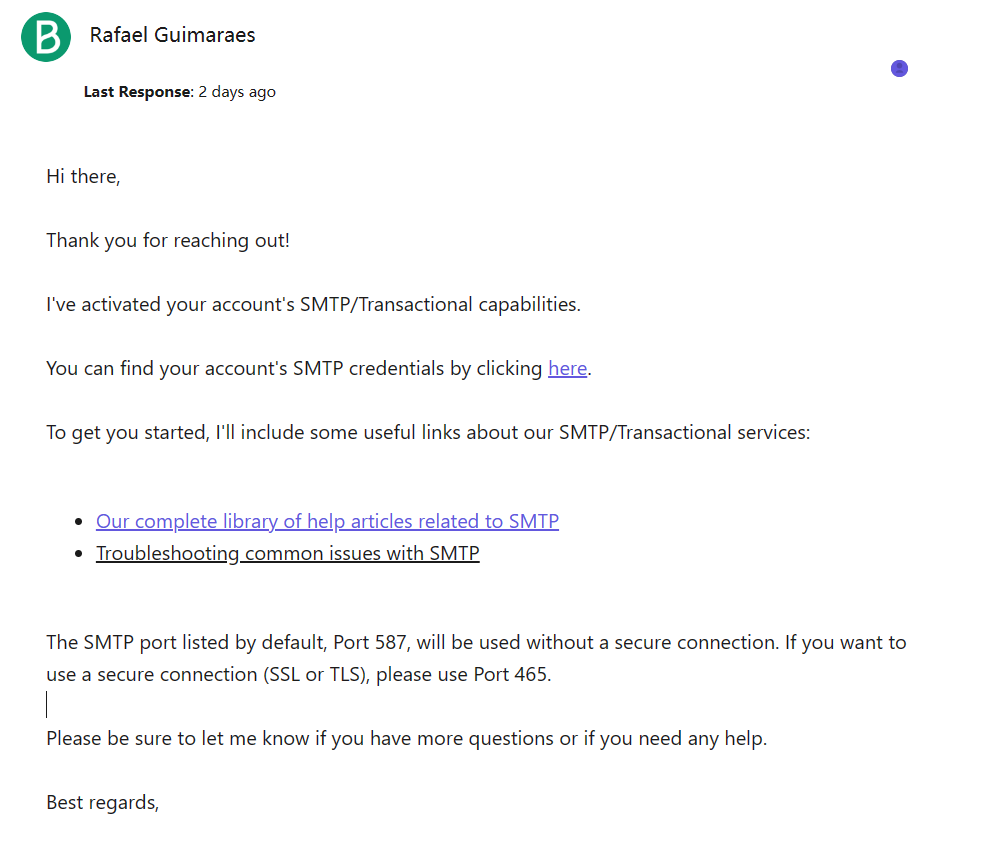
Activate SMTP for your Brevo account. See Send transactional emails using Brevo SMTP. You may have to ask the Brevo support to activate it.
-
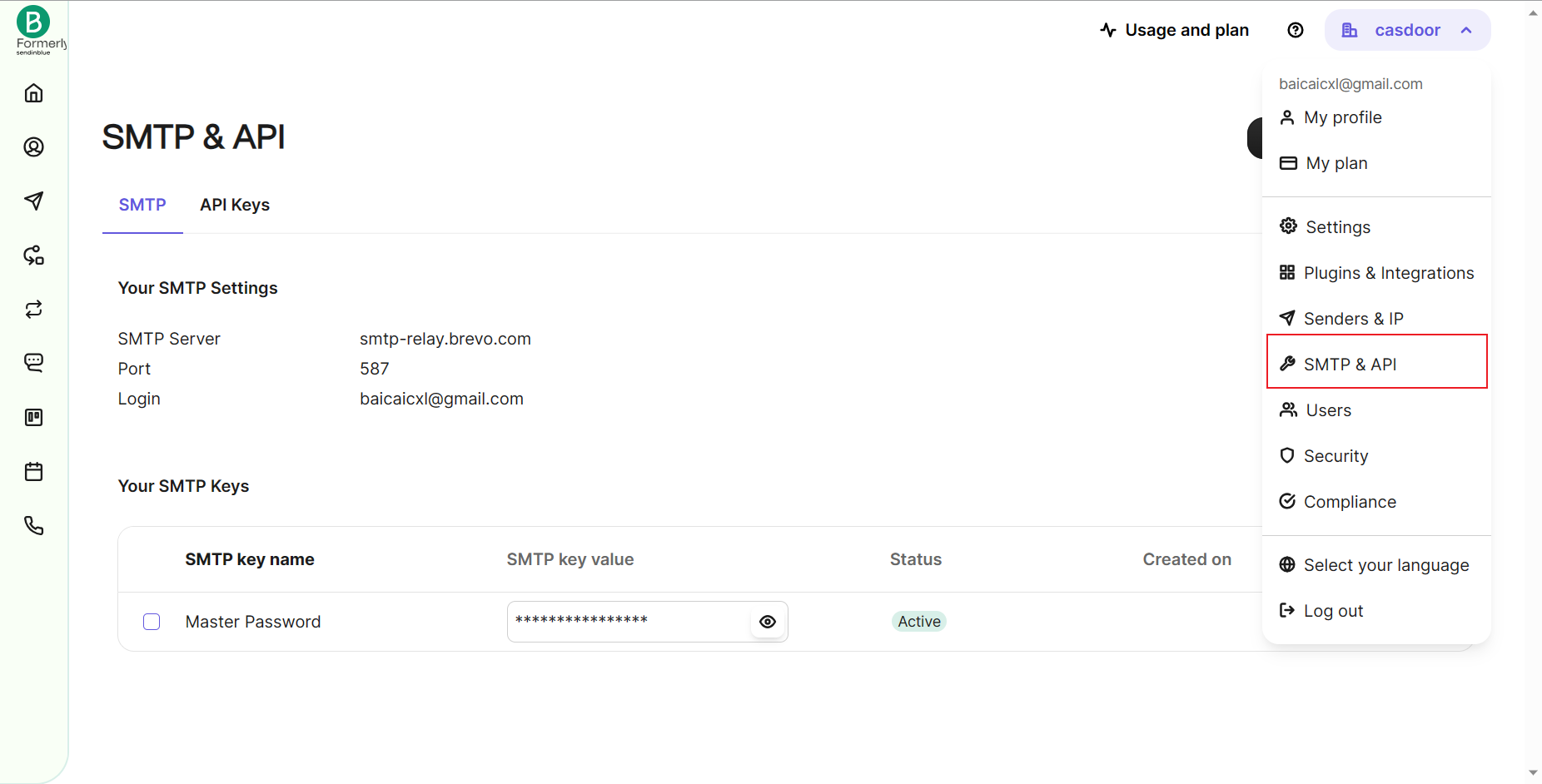
In the Brevo dashboard, open SMTP & API and note the SMTP server, the port, the login, and the SMTP key.
Add the provider in Casdoor
-
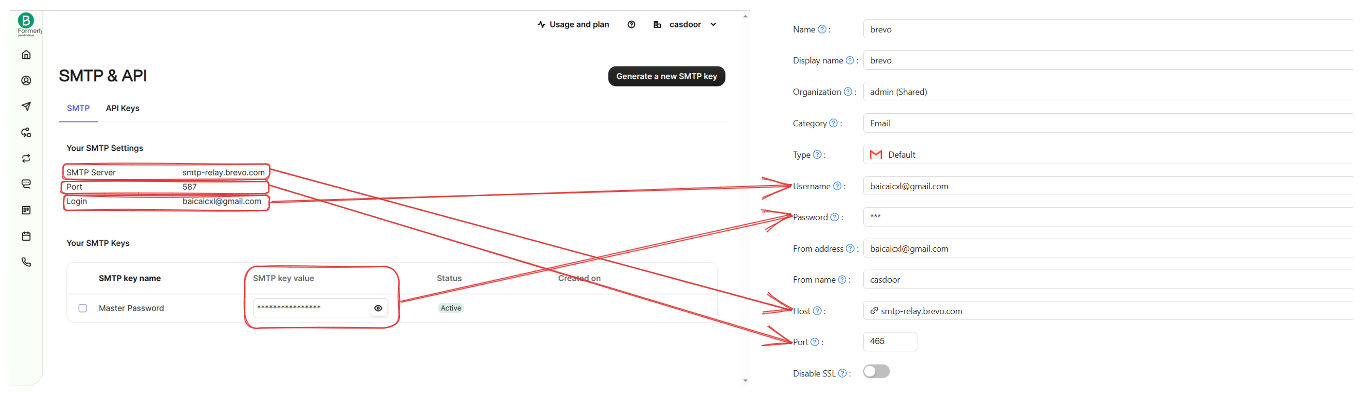
In the Casdoor admin console, go to Identity > Providers and add a provider.
-
Set Category to
Emailand Type toDefault. -
Enter the SMTP server as the Host, the Port, the login as the Username, and the SMTP key as the Password. Set From address to your verified sender.
-
Save the provider.
Verify the result
- Click Test SMTP Connection. Casdoor reports
SMTP connected successfully. - Click Send Testing Email. Casdoor reports
Email sent successfully, and the message arrives at the Test Email address.