WeCom syncer
The WeCom syncer imports users from your WeCom organization into Casdoor. It uses the WeCom API to fetch users from all departments and keeps data in sync.
Configuración
Campos requeridos:
- Organization: The Casdoor organization where users will be imported
- Name: A unique name for this syncer
- Type: Selecciona "WeCom"
- Corp ID: Your WeCom organization's Corp ID
- Corp Secret: The secret for your WeCom application
Setup Steps
Step 1: Obtain WeCom Credentials
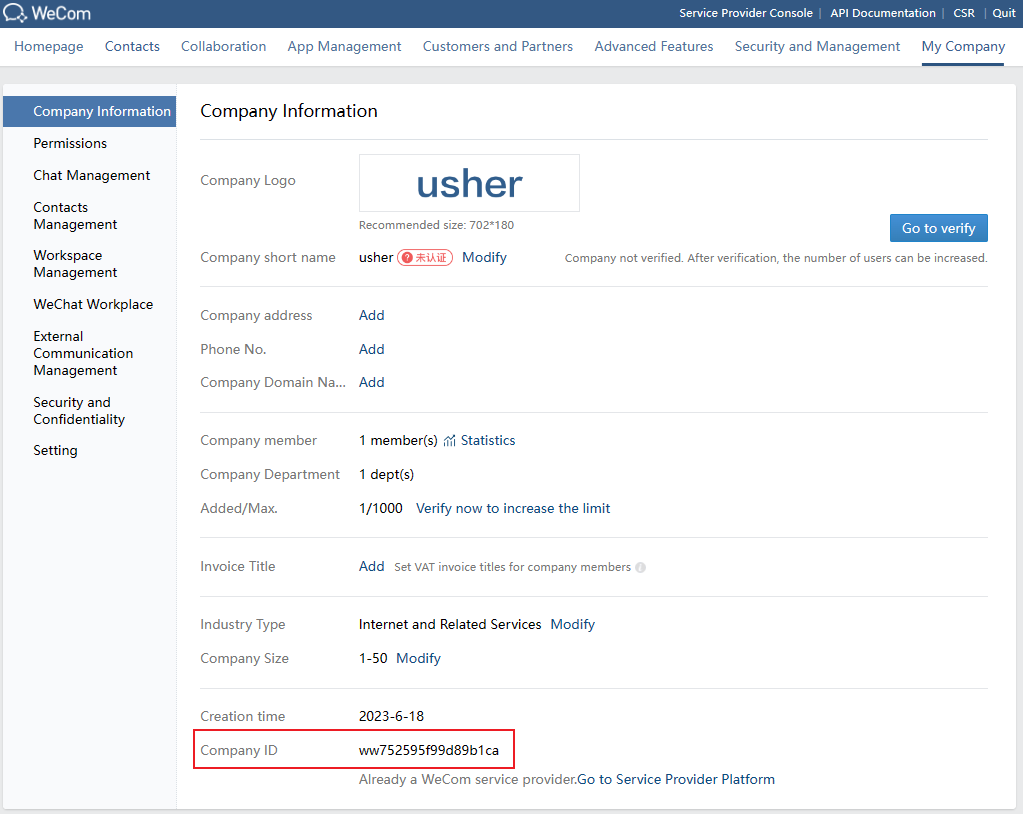
In your WeCom management platform, navigate to My Company, get Corp ID in Company Information.
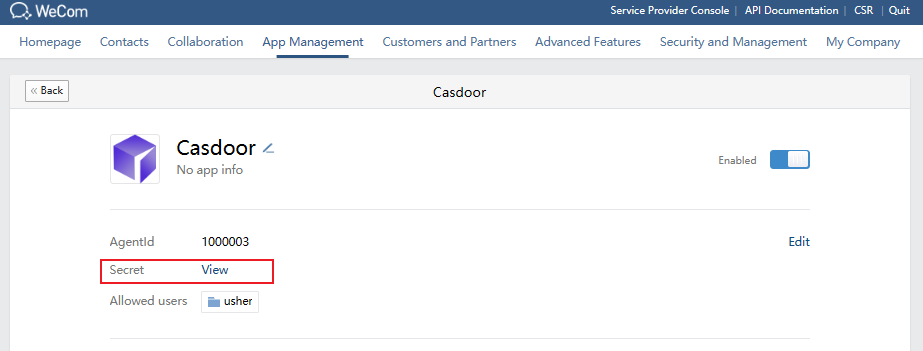
In your Self-build App, get App secret (Corp Secret).
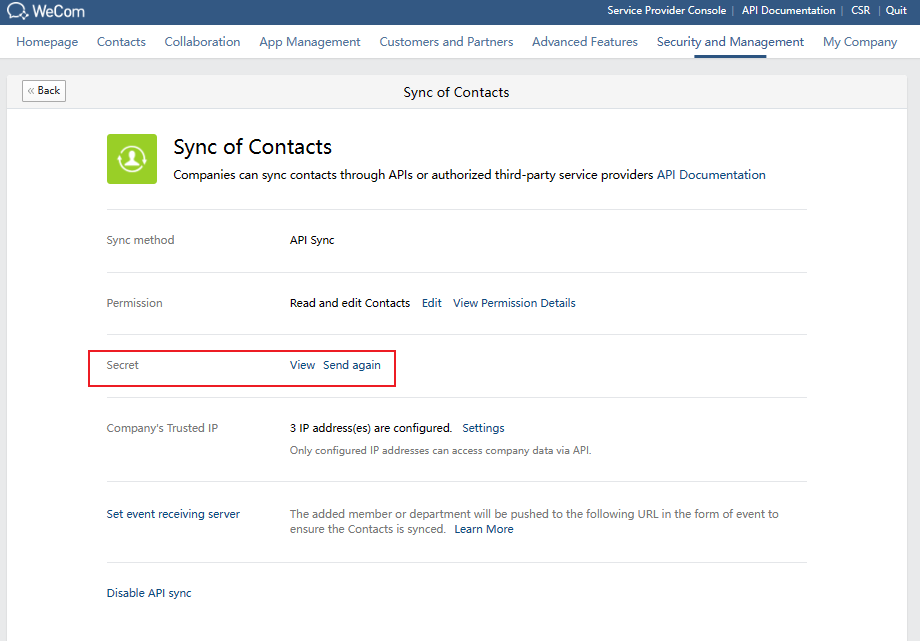
Optionally, in Sync of Contacts Management Tool, you can get Sync of Contacts secret for advanced configurations.
Step 2: Configure the Syncer in Casdoor
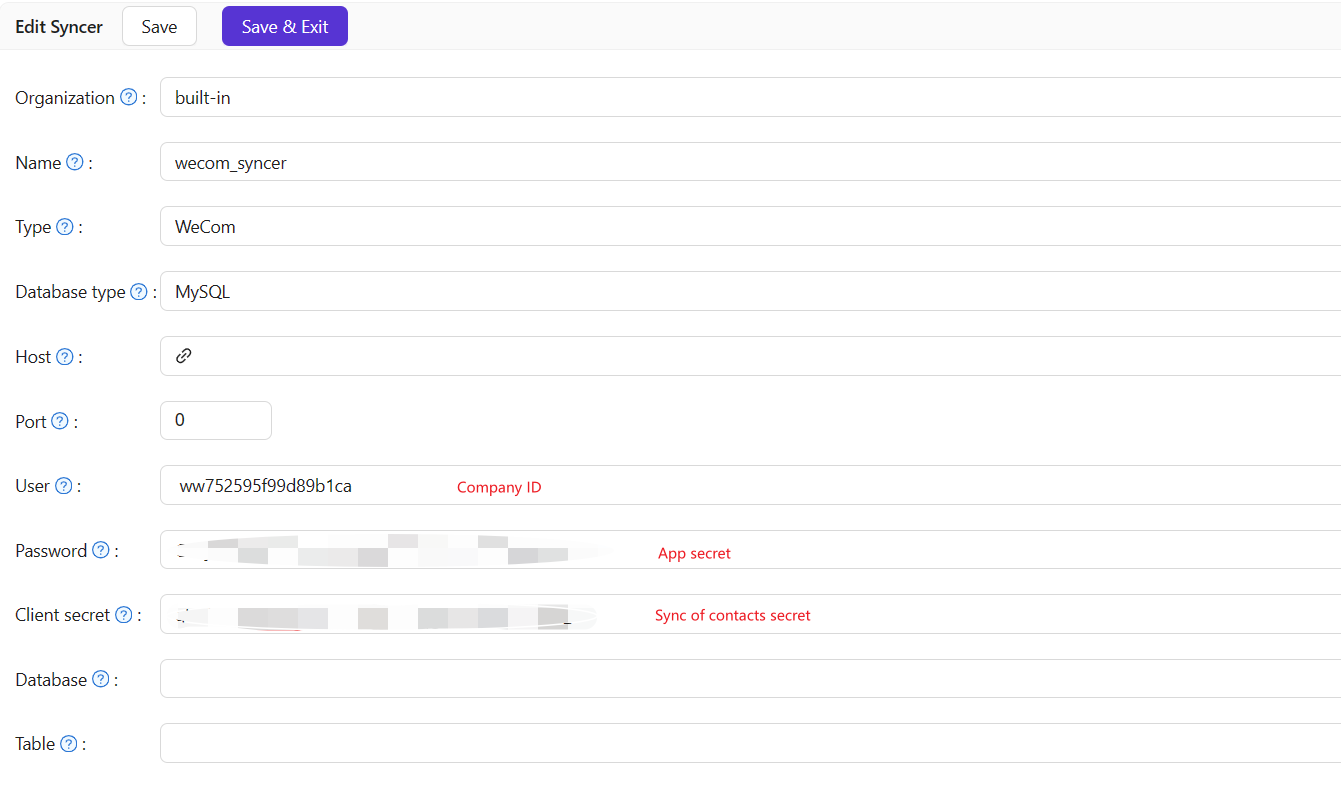
Go to Syncers tab, select WeCom type and fill in the required information:
- Enter your WeCom Corp ID in the Corp ID field
- Enter your application Secret (App secret) in the Corp Secret field
Then save the changes.
Click Test Connection to verify your credentials before enabling the syncer.
Field Mappings
The syncer automatically maps WeCom user fields to Casdoor user fields:
| WeCom Field | Casdoor Field | Descripción |
|---|---|---|
| userid | Id | User's unique identifier |
| name | Nombre para mostrar | User's display name |
| correo electrónico | Email - Tooltip | |
| móvil | Teléfono | Número de teléfono |
| imagen de perfil | Imagen de perfil | Profile picture URL |
| position | Título | Job title |
| género | Género | Gender (1=Male, 2=Female) |
| status/enable | IsForbidden | Account status |
The syncer automatically handles user account status based on WeCom's status and enable fields:
- Activated users (status=1, enable=1): Normal Casdoor users
- Disabled, not activated, or quit users (status=2/4/5 or enable=0): Marked as forbidden in Casdoor
OAuth login binding
When a user is synced from WeCom, their WeCom userid is stored in the wecom field on the Casdoor user. This means synced users can sign in directly through the WeCom OAuth provider without needing a separate account link step—the provider ID set during sync is used to match the OAuth identity at login.
Running the Syncer
After configuration, you can:
- Enable Is enabled to allow automatic synchronization on schedule
- Use the Sync button to manually trigger a synchronization
- The syncer will fetch users from all departments and deduplicate them automatically