Connecter des utilisateurs à une application .NET MAUI
Ce guide explique comment ajouter la connexion Casdoor à une application .NET MAUI avec la bibliothèque Casdoor.MauiOidcClient, qui connecte les utilisateurs via OpenID Connect (OIDC).
Objectifs d'apprentissage
- Enregistrer le client Casdoor dans une application MAUI.
- Ajouter la connexion et la déconnexion à la page principale.
- Recevoir le callback sur Android.
Prérequis
- .NET 7 SDK
- Les workloads MAUI pour vos plateformes cibles. Voir Créer votre première application MAUI.
- Optionnellement, Visual Studio 2022 version 17.3 ou ultérieure sous Windows, ou version 17.4 ou ultérieure sur macOS
- Une application dans Casdoor
Code d'exemple
- casdoor-dotnet-maui-example : Une application MAUI et la bibliothèque
Casdoor.MauiOidcClient
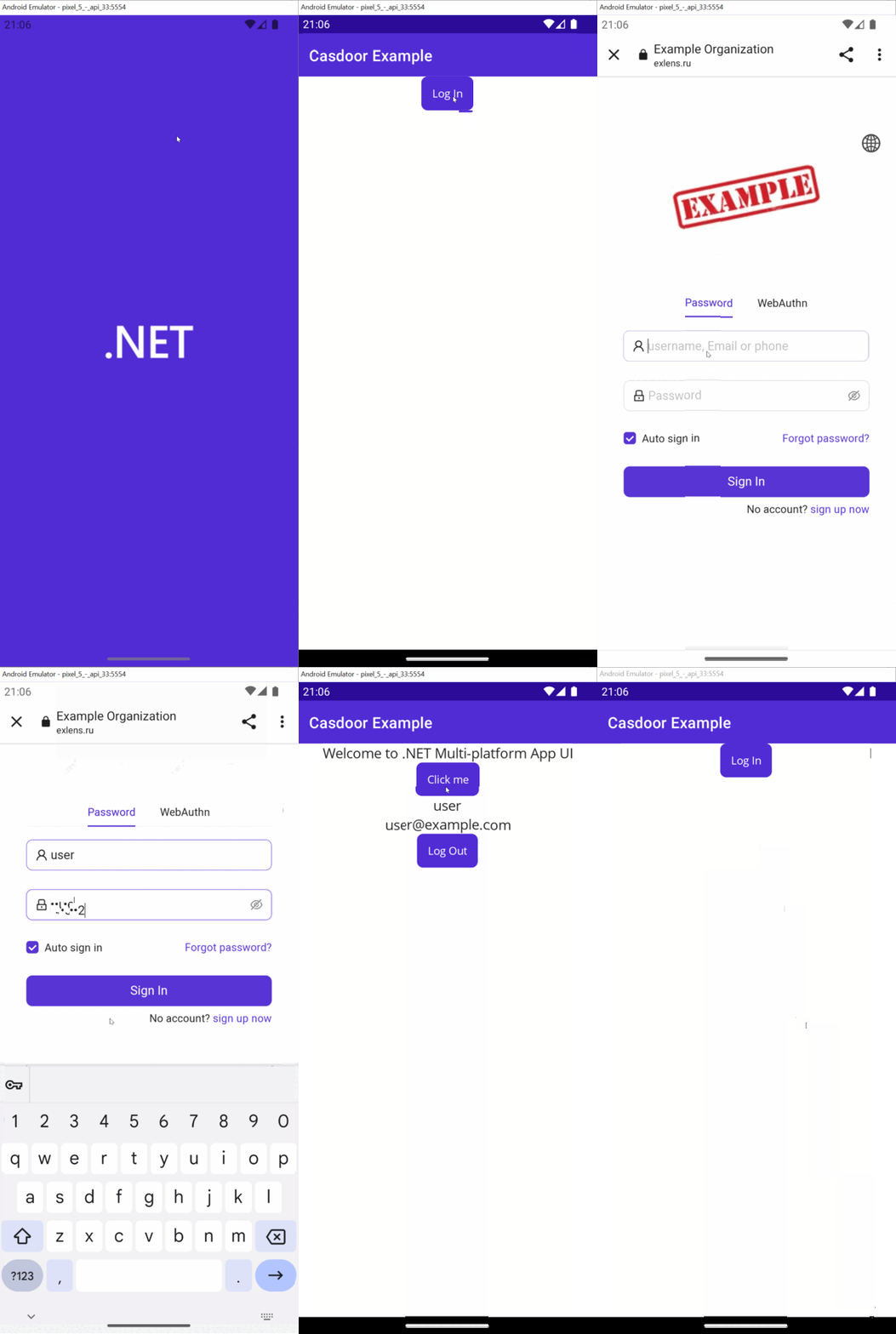
Aperçu
Sur Android :
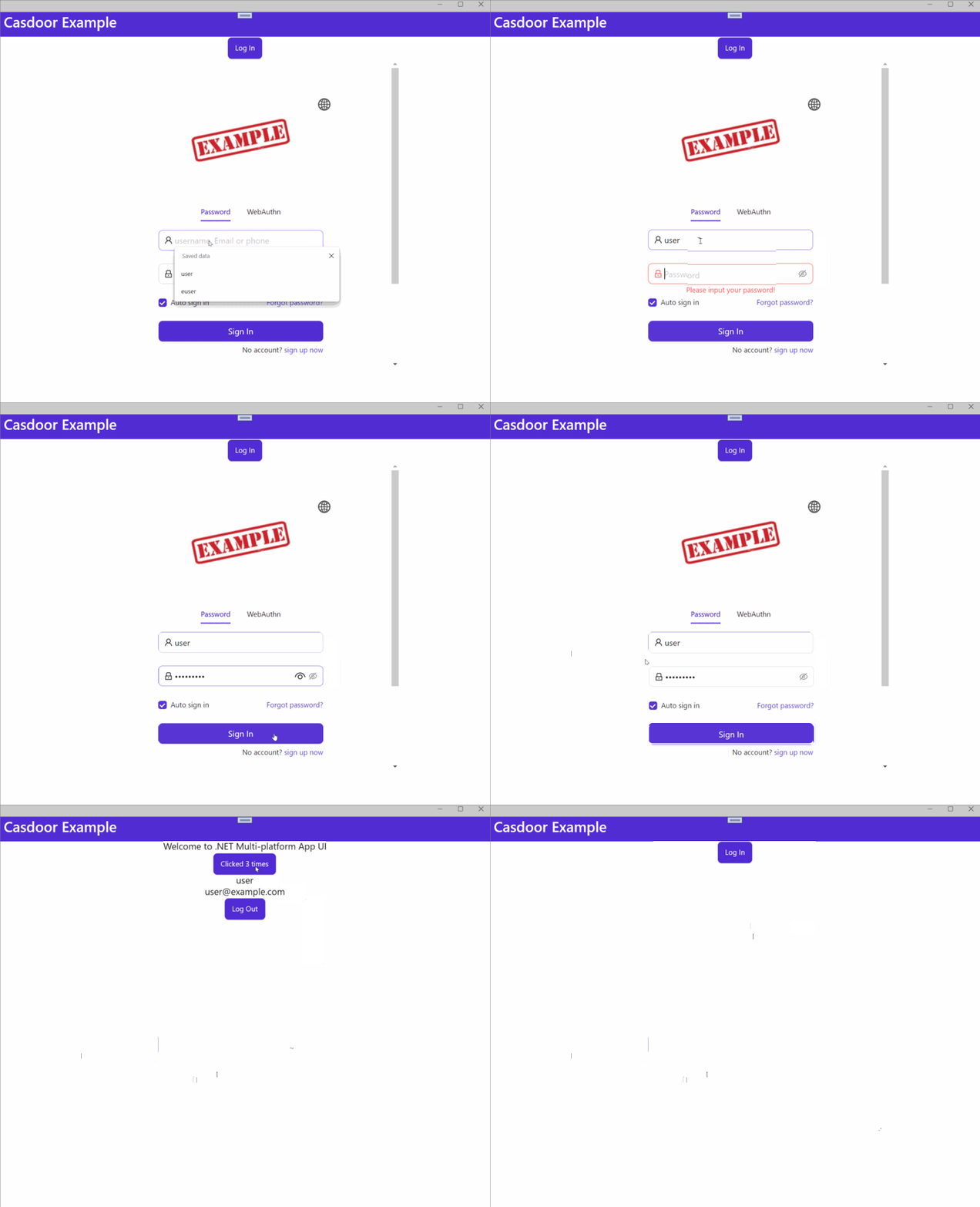
Sous Windows :
Ajouter une connexion à une application MAUI
-
Créez une application MAUI.
-
Ajoutez une référence à
Casdoor.MauiOidcClient. -
Enregistrez
CasdoorClientcomme service singleton :builder.Services.AddSingleton(new CasdoorClient(new()
{
Domain = "<your domain>",
ClientId = "<your client>",
Scope = "openid profile email",
#if WINDOWS
RedirectUri = "http://localhost/callback"
#else
RedirectUri = "casdoor://callback"
#endif
})); -
Ajoutez les boutons de connexion et de déconnexion dans
MainPage.xaml:<?xml version="1.0" encoding="utf-8" ?>
<ContentPage xmlns="http://schemas.microsoft.com/dotnet/2021/maui"
xmlns:x="http://schemas.microsoft.com/winfx/2009/xaml"
x:Class="Casdoor.MauiOidcClient.Example.MainPage">
<ScrollView>
<VerticalStackLayout>
<StackLayout
x:Name="LoginView">
<Button
x:Name="LoginBtn"
Text="Log In"
SemanticProperties.Hint="Click to log in"
Clicked="OnLoginClicked"
HorizontalOptions="Center" />
<WebView x:Name="WebViewInstance" />
</StackLayout>
<StackLayout
x:Name="HomeView"
IsVisible="false">
<Label
Text="Welcome to .NET Multi-platform App UI"
SemanticProperties.HeadingLevel="Level2"
SemanticProperties.Description="Welcome to dot net Multi-platform App UI"
FontSize="18"
HorizontalOptions="Center" />
<Button
x:Name="CounterBtn"
Text="Click me"
SemanticProperties.Hint="Counts the number of times you click"
Clicked="OnCounterClicked"
HorizontalOptions="Center" />
<Label
x:Name="NameLabel"
Text=""
SemanticProperties.HeadingLevel="Level2"
SemanticProperties.Description="User's name"
FontSize="18"
HorizontalOptions="Center" />
<Label
x:Name="EmailLabel"
Text=""
SemanticProperties.HeadingLevel="Level2"
SemanticProperties.Description="User's email"
FontSize="18"
HorizontalOptions="Center" />
<Button
x:Name="LogoutBtn"
Text="Log Out"
SemanticProperties.Hint="Click to log out"
Clicked="OnLogoutClicked"
HorizontalOptions="Center" />
</StackLayout>
</VerticalStackLayout>
</ScrollView>
</ContentPage> -
Gérez les boutons dans
MainPage.cs:namespace Casdoor.MauiOidcClient.Example
{
public partial class MainPage : ContentPage
{
int count = 0;
private readonly CasdoorClient client;
private string accessToken;
public MainPage(CasdoorClient client)
{
InitializeComponent();
this.client = client;
#if WINDOWS
client.Browser = new WebViewBrowserAuthenticator(WebViewInstance);
#endif
}
private void OnCounterClicked(object sender, EventArgs e)
{
count++;
if (count == 1)
CounterBtn.Text = $"Clicked {count} time";
else
CounterBtn.Text = $"Clicked {count} times";
SemanticScreenReader.Announce(CounterBtn.Text);
}
private async void OnLoginClicked(object sender, EventArgs e)
{
var loginResult = await client.LoginAsync();
accessToken = loginResult.AccessToken;
if (!loginResult.IsError)
{
NameLabel.Text = loginResult.User.Identity.Name;
EmailLabel.Text = loginResult.User.Claims.FirstOrDefault(c => c.Type == "email")?.Value;
LoginView.IsVisible = false;
HomeView.IsVisible = true;
}
else
{
await DisplayAlert("Error", loginResult.ErrorDescription, "OK");
}
}
private async void OnLogoutClicked(object sender, EventArgs e)
{
var logoutResult = await client.LogoutAsync(accessToken);
if (!logoutResult.IsError)
{
HomeView.IsVisible = false;
LoginView.IsVisible = true;
this.Focus();
}
else
{
await DisplayAlert("Error", logoutResult.ErrorDescription, "OK");
}
}
}
} -
Pour Android, déclarez l'activité de rappel dans
AndroidManifest.xml:<?xml version="1.0" encoding="utf-8"?>
<manifest xmlns:android="http://schemas.android.com/apk/res/android">
<application android:allowBackup="true" android:icon="@mipmap/appicon" android:roundIcon="@mipmap/appicon_round" android:supportsRtl="true"></application>
<uses-permission android:name="android.permission.ACCESS_NETWORK_STATE" />
<uses-permission android:name="android.permission.INTERNET" />
<queries>
<intent>
<action android:name="android.support.customtabs.action.CustomTabsService" />
</intent>
</queries>
</manifest> -
Démarrez l'application. Dans Visual Studio, appuyez sur
Ctrl + F5.