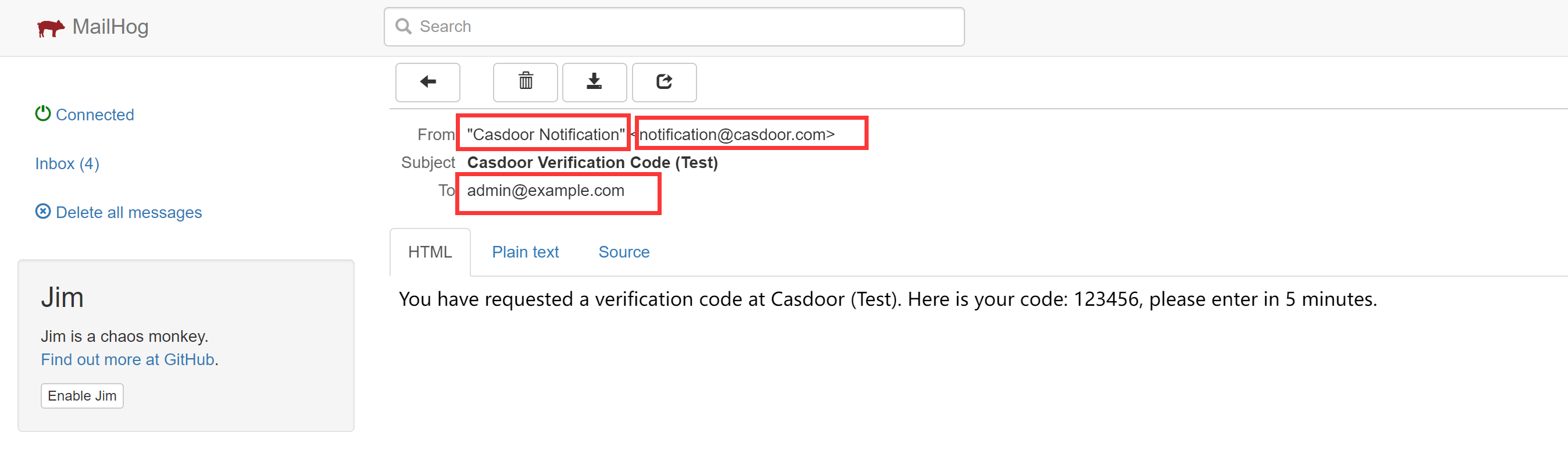
Test email with MailHog
This guide explains how to send the emails of Casdoor to MailHog, an SMTP server for testing that catches all messages and shows them in a web UI.
Learning outcomes
- Point an email provider at MailHog.
- Send a test email and read it in MailHog.
What you need
- MailHog running where Casdoor can reach it
- Administrator access to the Casdoor admin console
Run MailHog
Start MailHog, so that its SMTP server is reachable from Casdoor. This guide uses the host 192.168.24.128 and the port 1025.
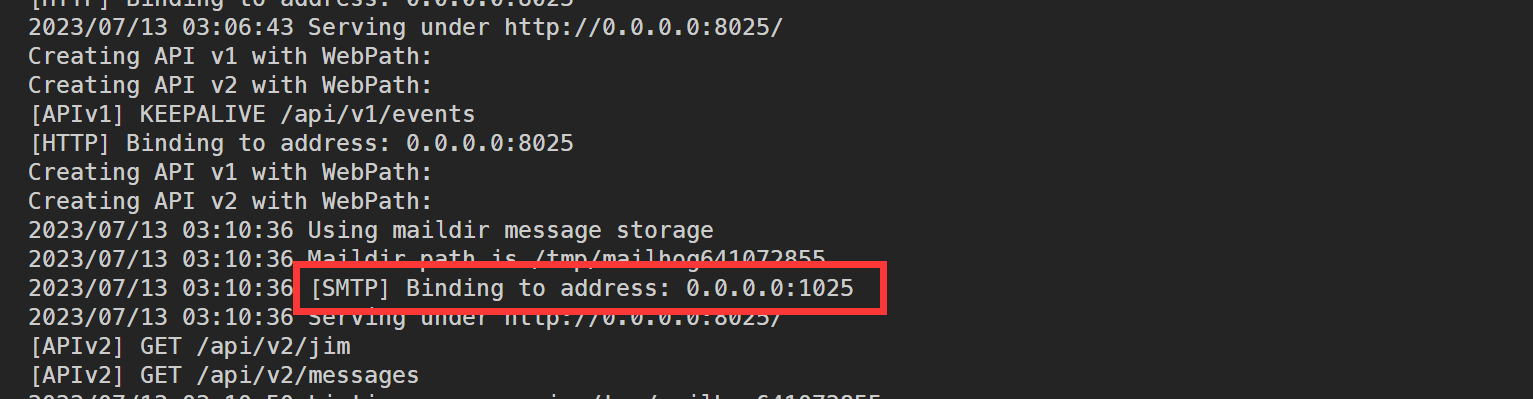
Add the provider in Casdoor
-
In the Casdoor admin console, go to Identity > Providers and add a provider.
-
Set Category to
Emailand Type toDefault. -
Set Host and Port to the address of MailHog. MailHog needs no authentication by default.
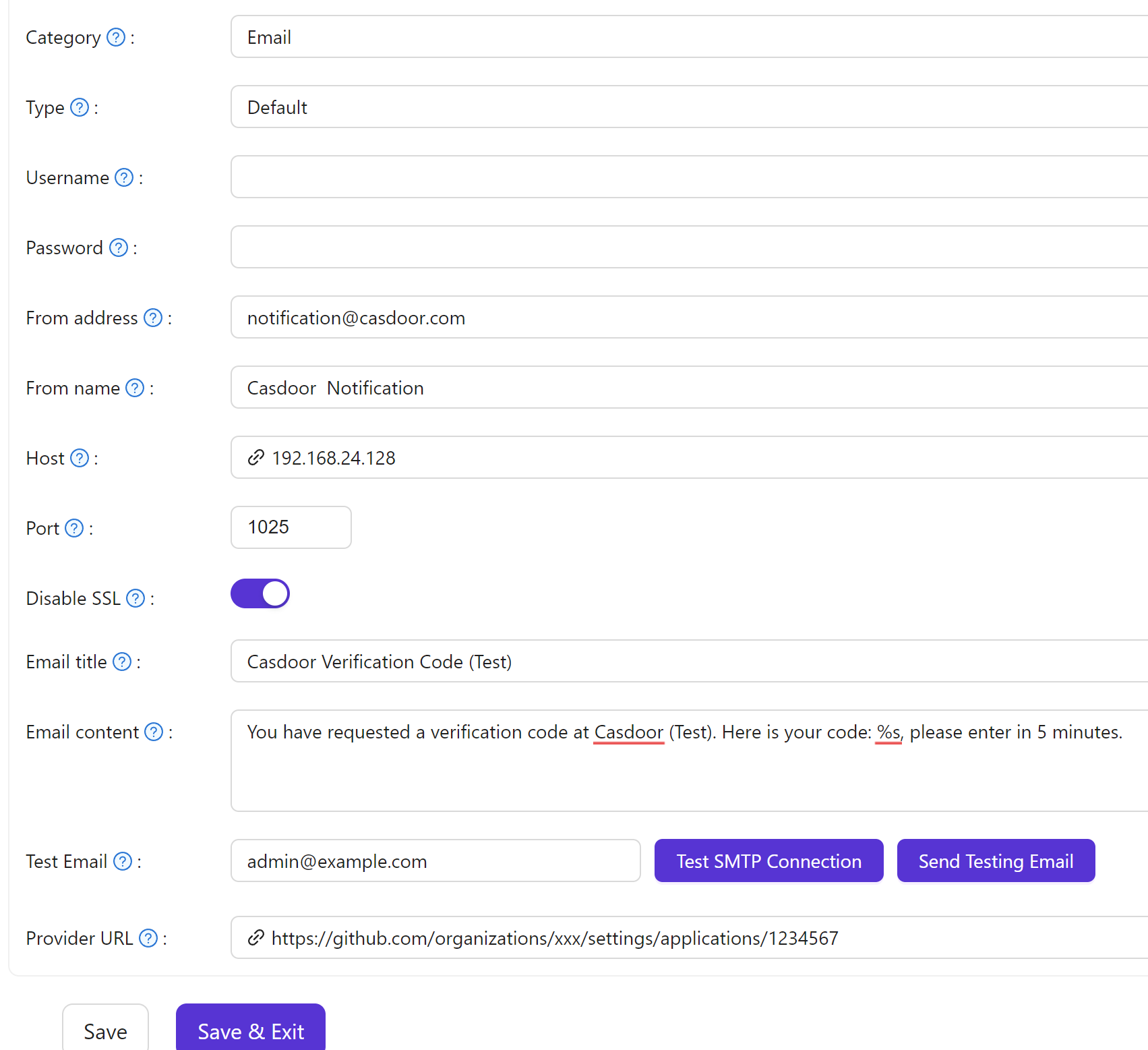
-
Save the provider.
Verify the result
-
Click Test SMTP Connection. Casdoor reports
SMTP connected successfully. -
Click Send Testing Email. Casdoor reports
Email sent successfully.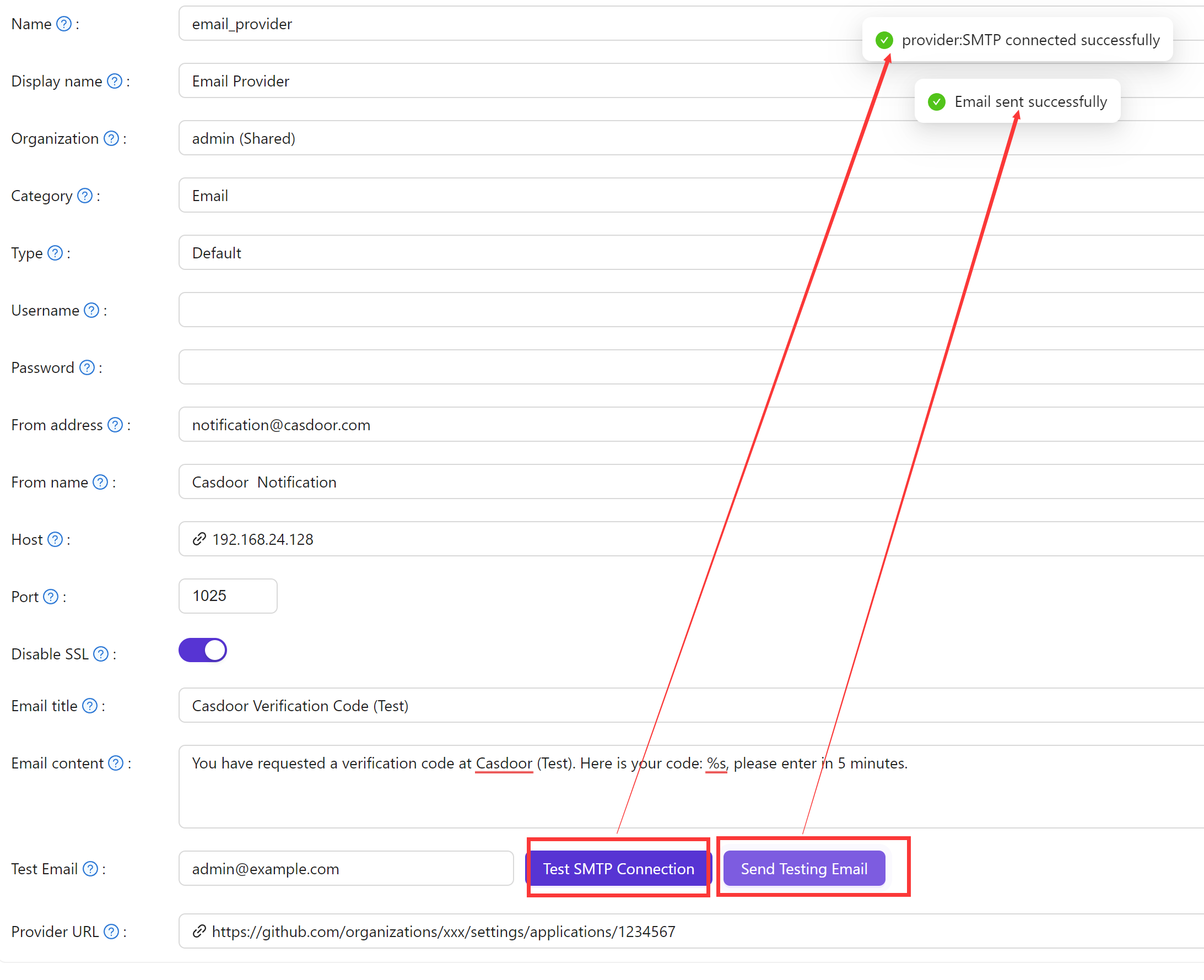
-
Open the web UI of MailHog. The message is there.