テーマのカスタマイズ
This guide explains how to match the Casdoor pages to your brand by setting the style, the primary color, the border radius, and the compact mode.
学習目標
- テーマの3つのレベルを理解する。
- 組織のテーマを設定する。
- 個別のアプリケーションのテーマを設定する。
前提条件
- Casdoor 管理コンソールへの管理者アクセス権
テーマレベル
| Level | Where you set it | Where it applies |
|---|---|---|
| Global | In the source code only, in web/src/Conf.ts | Every organization that has no theme of its own |
| 組織 | Edit page of the organization | All pages of the admin console for members of the organization, and the entry pages (sign-in, sign-up, forgot password, and so on) of the applications that follow the organization theme |
| アプリケーション - ツールチップ | Edit page of the application | The entry pages of that application only |
テーマ設定
| Setting | Description |
|---|---|
| Theme | ページのスタイル。Default は訪問者が選択したライトモードまたはダークモードに従います。Dark は常にダークモードを表示し、境界半径を 2 に設定します。Document はプライマリカラーを緑色に、境界半径を 4 に設定します。Blossom はプライマリカラーをピンク色に、境界半径を 16 に設定します。スタイルを選択した後、プライマリカラーと境界半径を変更できます |
| Primary color | ボタン、リンク、その他の強調表示要素の色。プリセットを選択するか、任意の色を入力します |
| Border radius | 角の丸み(ピクセル単位) |
| Is compact | より小さいテキストとより密な間隔でページを表示します |
組織のテーマを設定する
- Casdoor 管理コンソールで、組織の編集ページを開きます。
- Advanced タブの Customize theme で、Follow global theme をオフにし、テーマ設定 を行います。
- 組織を保存します。
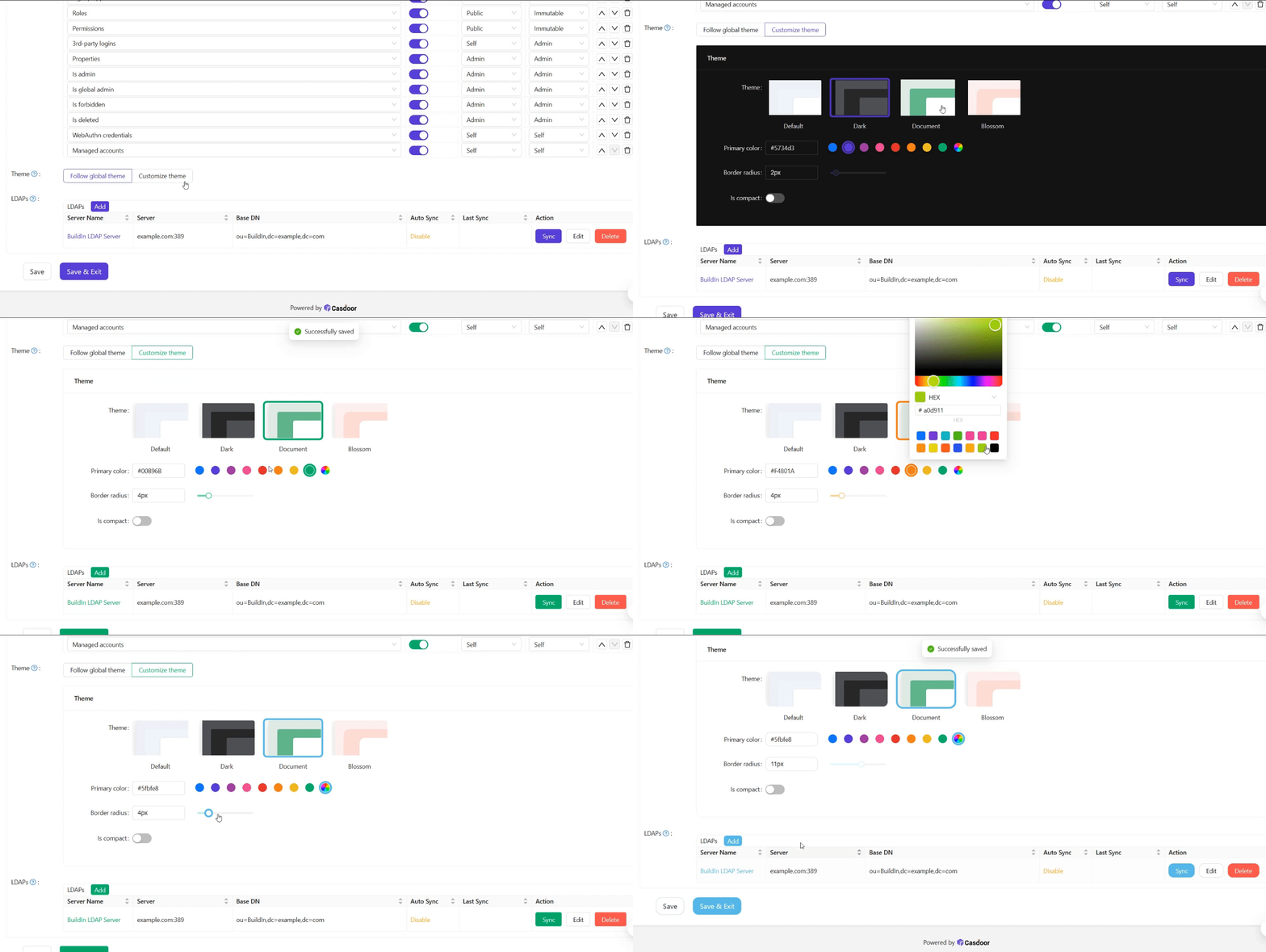
サインインしている組織を編集した場合、変更はすぐに反映されます。それ以外の場合は、その組織にサインインしてテーマを確認してください。
アプリケーションのテーマを設定する
-
アプリケーションの編集ページを開きます。
-
Follow organization theme をオフにし、テーマエディタで テーマ設定 を行います。
-
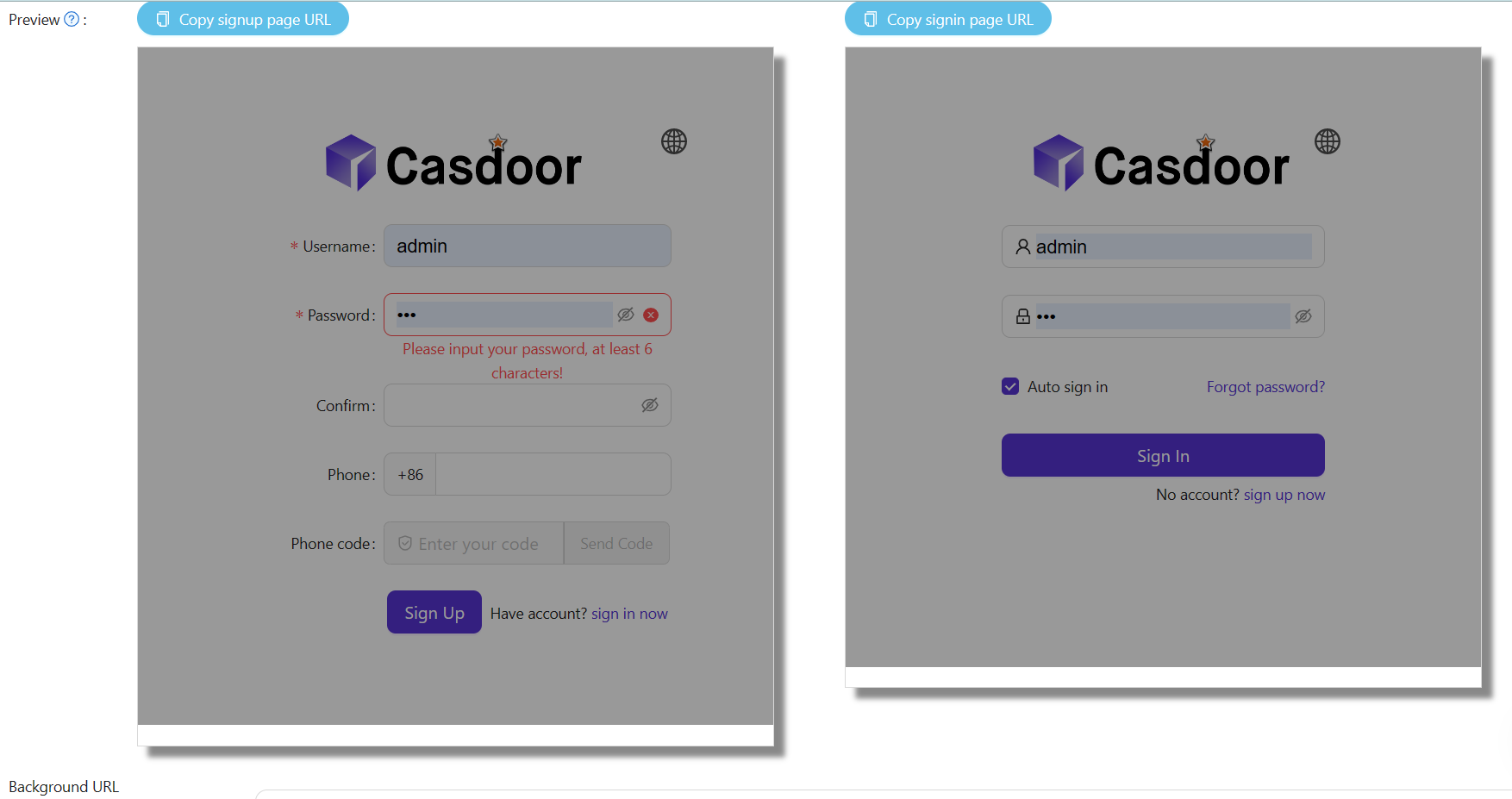
アプリケーションのプレビューパネルで結果を確認します。
-
アプリケーションを保存します。