Use Cloudflare Turnstile
This guide explains how to use Cloudflare Turnstile as the captcha of Casdoor.
Learning outcomes
- Create a Turnstile widget.
- Add Cloudflare Turnstile as a captcha provider in Casdoor.
What you need
- A Cloudflare account
- Administrator access to the Casdoor admin console
Create a widget
-
In the Cloudflare dashboard, open the Turnstile tab.
-
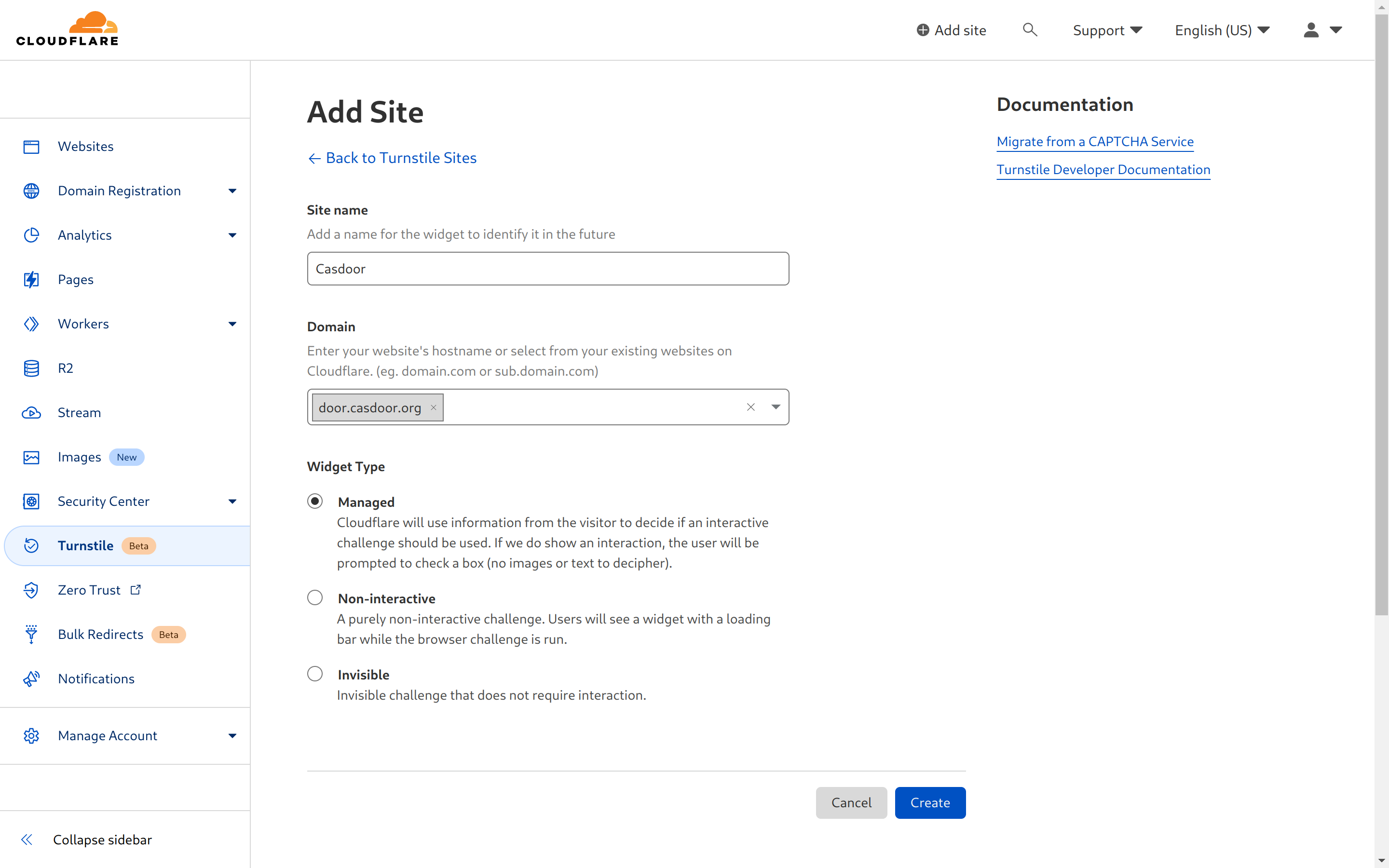
Add a widget: enter a name and the host name of Casdoor, select a widget type, for example Managed, and click Create.
-
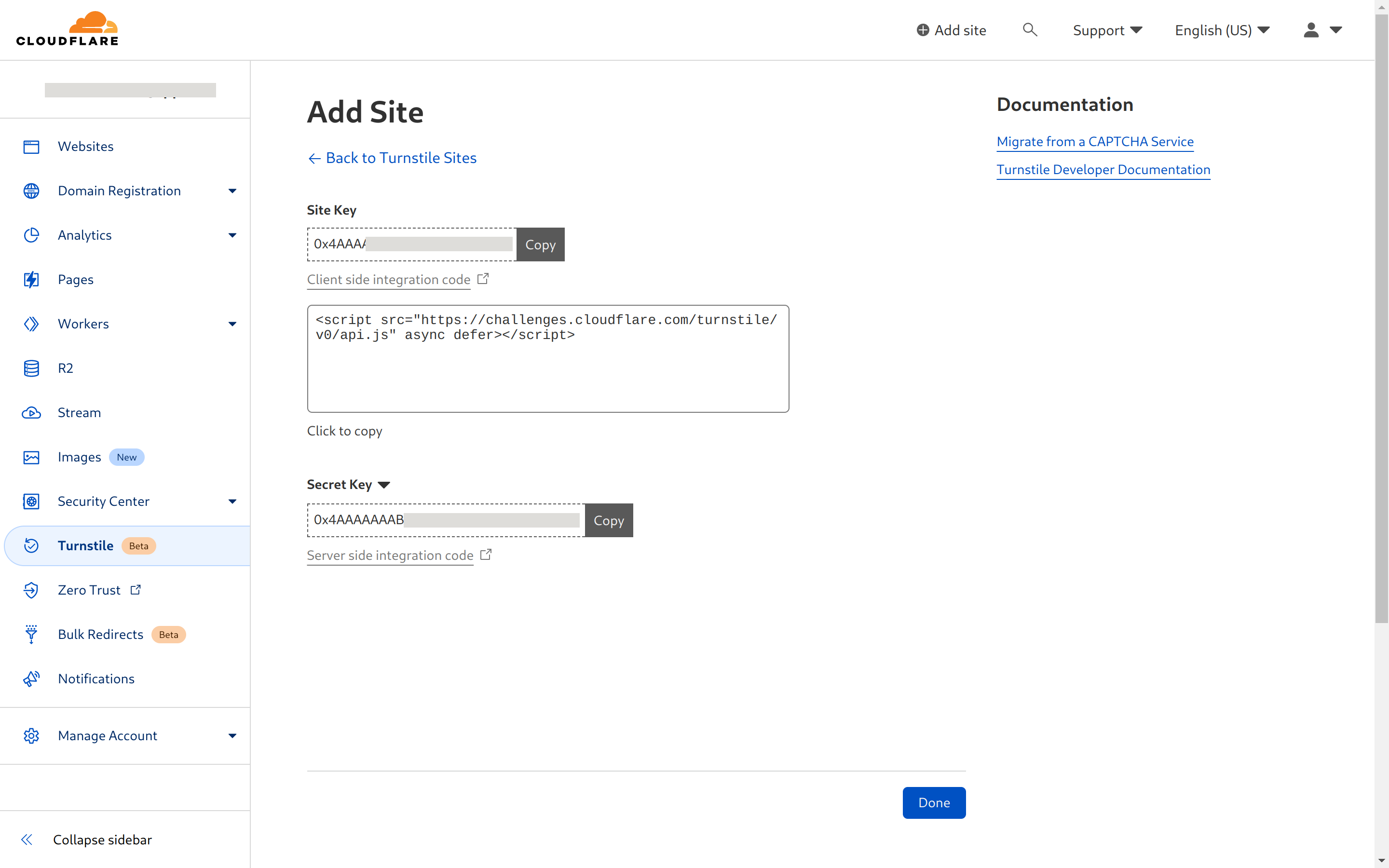
Copy the Site Key and the Secret Key.
Add the provider in Casdoor
-
In the Casdoor admin console, go to Identity > Providers and add a provider.
-
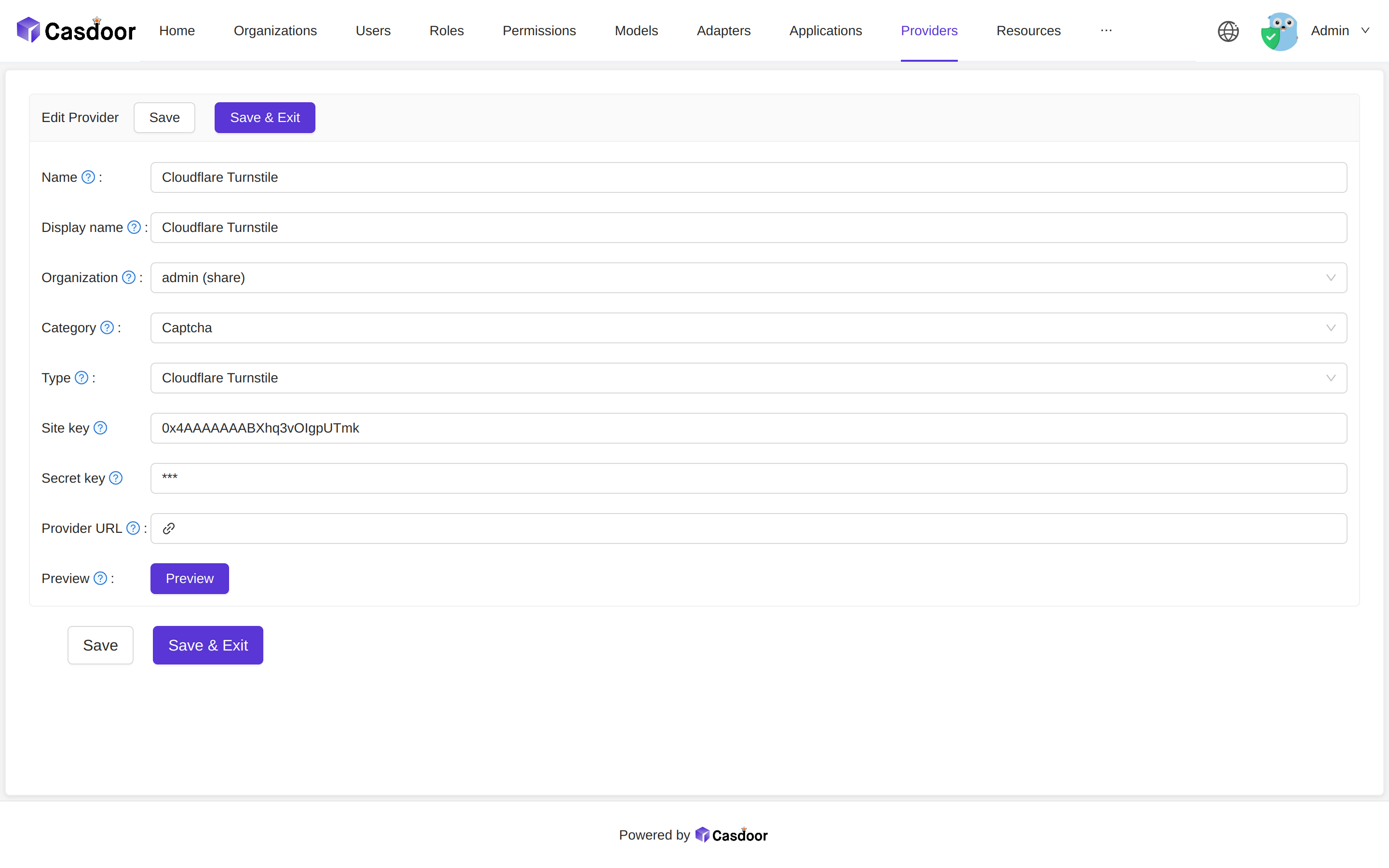
Set Category to
Captchaand Type toCloudflare Turnstile. -
Enter the Site key and the Secret key.
-
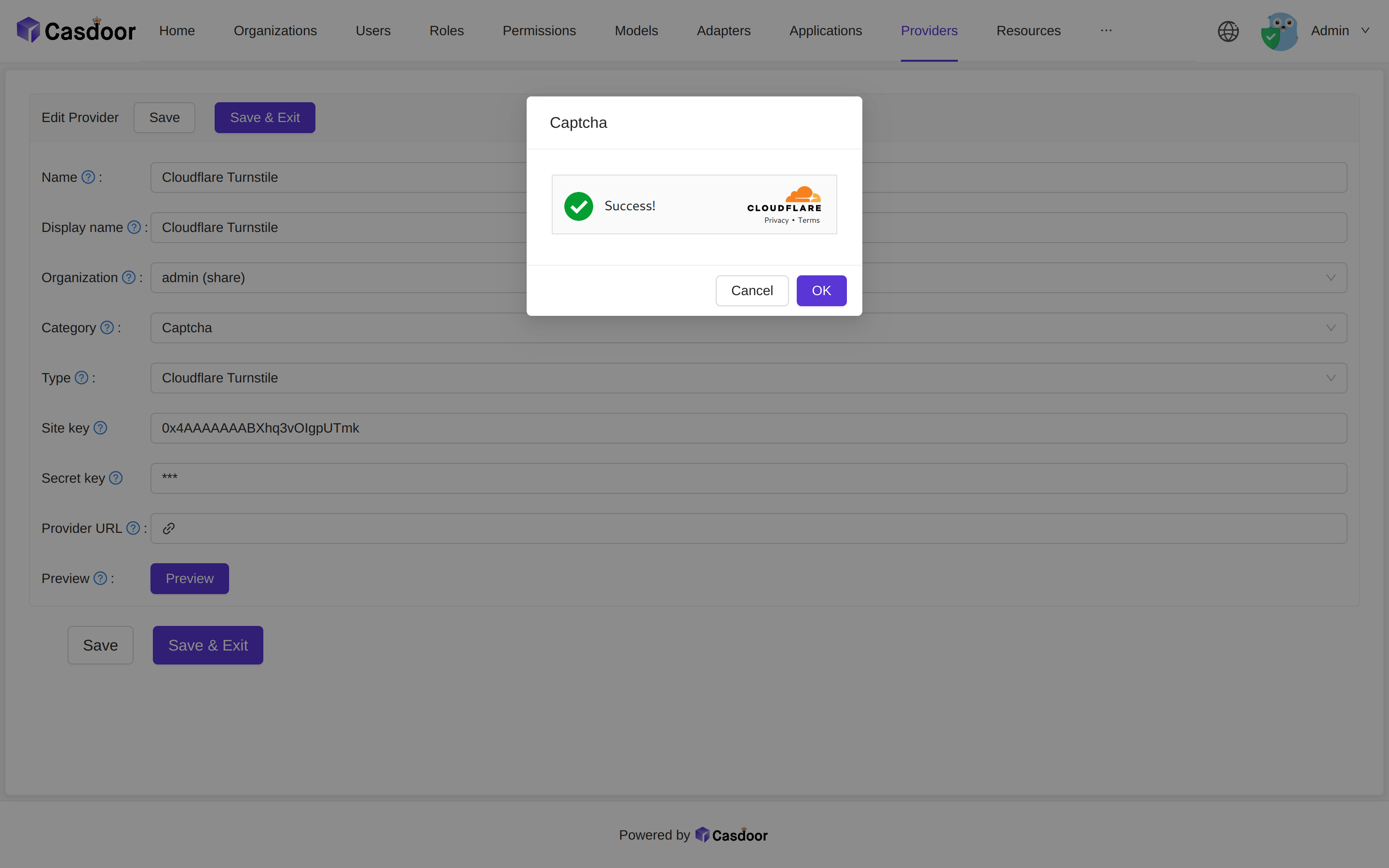
Click Preview to check the captcha.
-
Save the provider.
Add the captcha to an application
Open the edit page of the application, add the provider on the Providers tab, and save. See Add the captcha to an application.
