Add LinkedIn as an OAuth provider
This guide explains how to let users sign in to Casdoor with their LinkedIn account.
Learning outcomes
- Create and verify a LinkedIn app.
- Add LinkedIn as an OAuth provider in Casdoor.
What you need
- A LinkedIn company page and an administrator of that page, who verifies the app
- Administrator access to the Casdoor admin console
Create a LinkedIn app
-
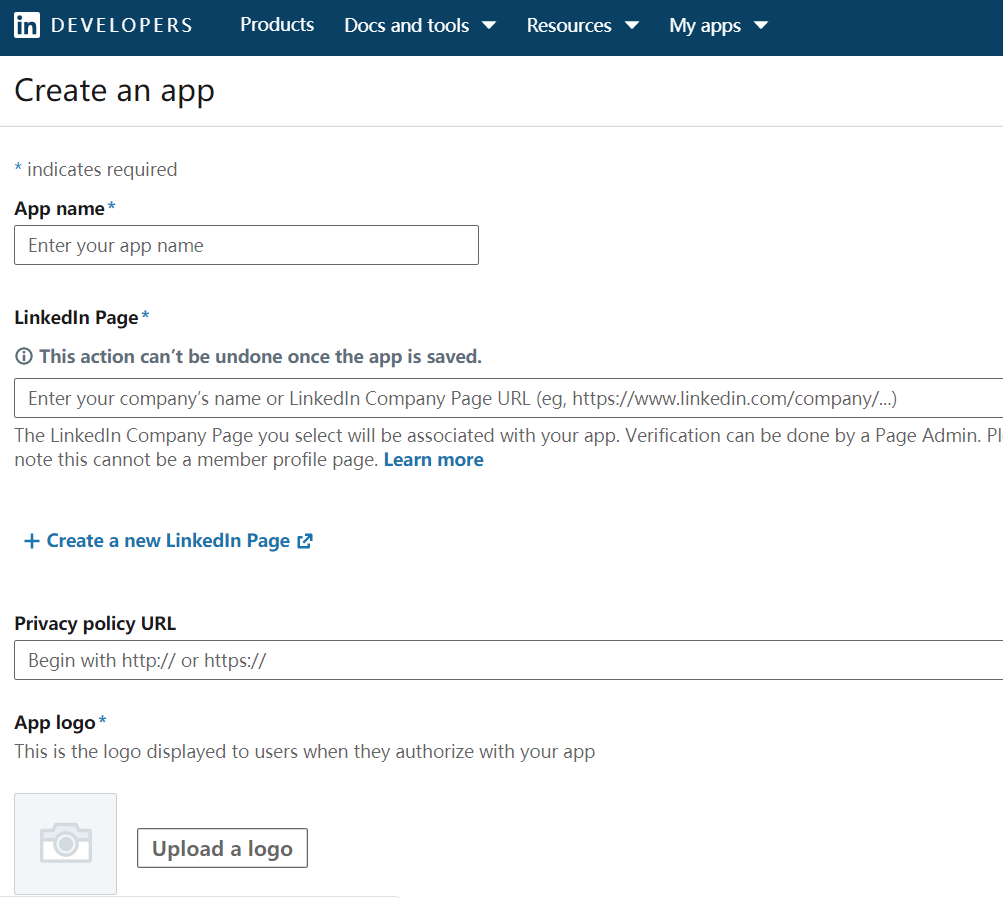
Create an app on LinkedIn Developers.
-
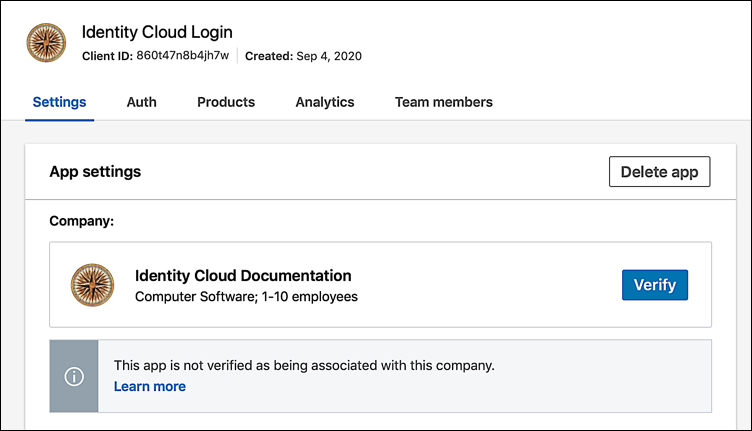
Verify the company page that is linked to the app. Only an administrator of the company page can verify it and grant permissions.
-
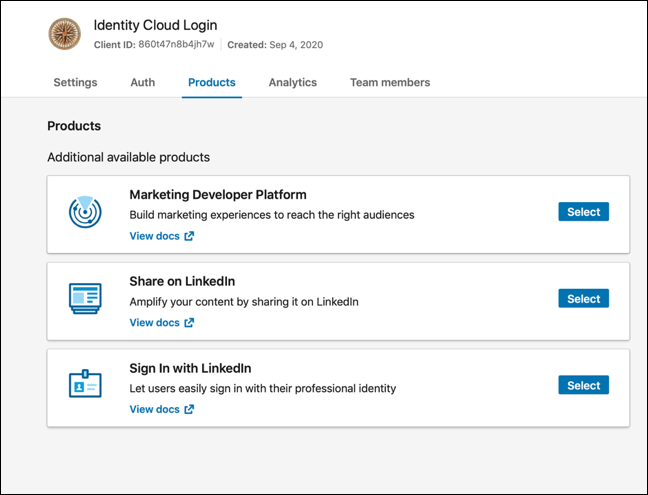
In the app, turn on Sign In with LinkedIn.
-
Add the callback URL of Casdoor,
https://<your-casdoor-host>/callback, to Authorized redirect URLs. See Redirect URL and callback URL.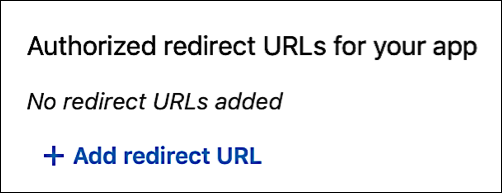
-
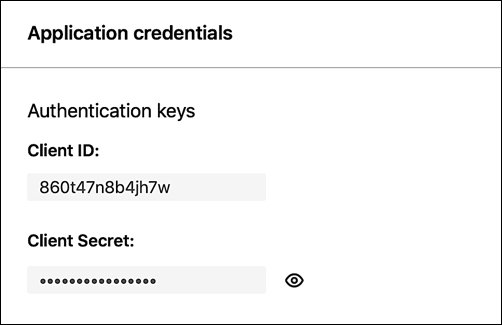
Copy the Client ID and the Client Secret.
Add the provider in Casdoor
-
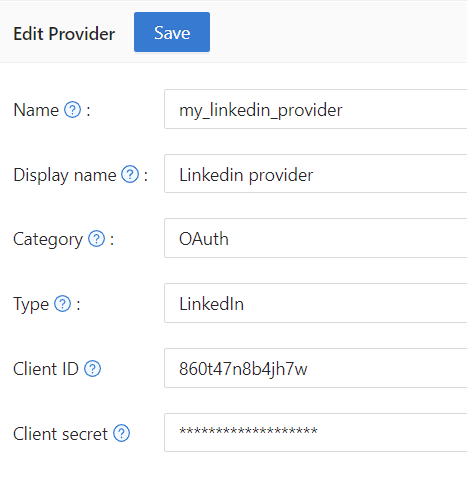
In the Casdoor admin console, go to Identity > Providers and add a provider.
-
Set Category to
OAuthand Type toLinkedIn. -
Enter the Client ID and the Client secret.
-
Save the provider.
Next steps
Add the provider to an application. See Add providers to an application.