Customize the look of the sign-in page
This guide explains how to change the look of the sign-in page of an application: the background image, the style of the sign-in form, its position, and an optional side panel.
Learning outcomes
- Set a background image.
- Style the sign-in form with CSS.
- Position the form and add a side panel.
- Move the design to the same application on another Casdoor instance.
What you need
- An application
All settings on this page are on the UI Customization tab of the application edit page. The preview on the tab updates as you change them. This is the result of the steps below:
Set a background image
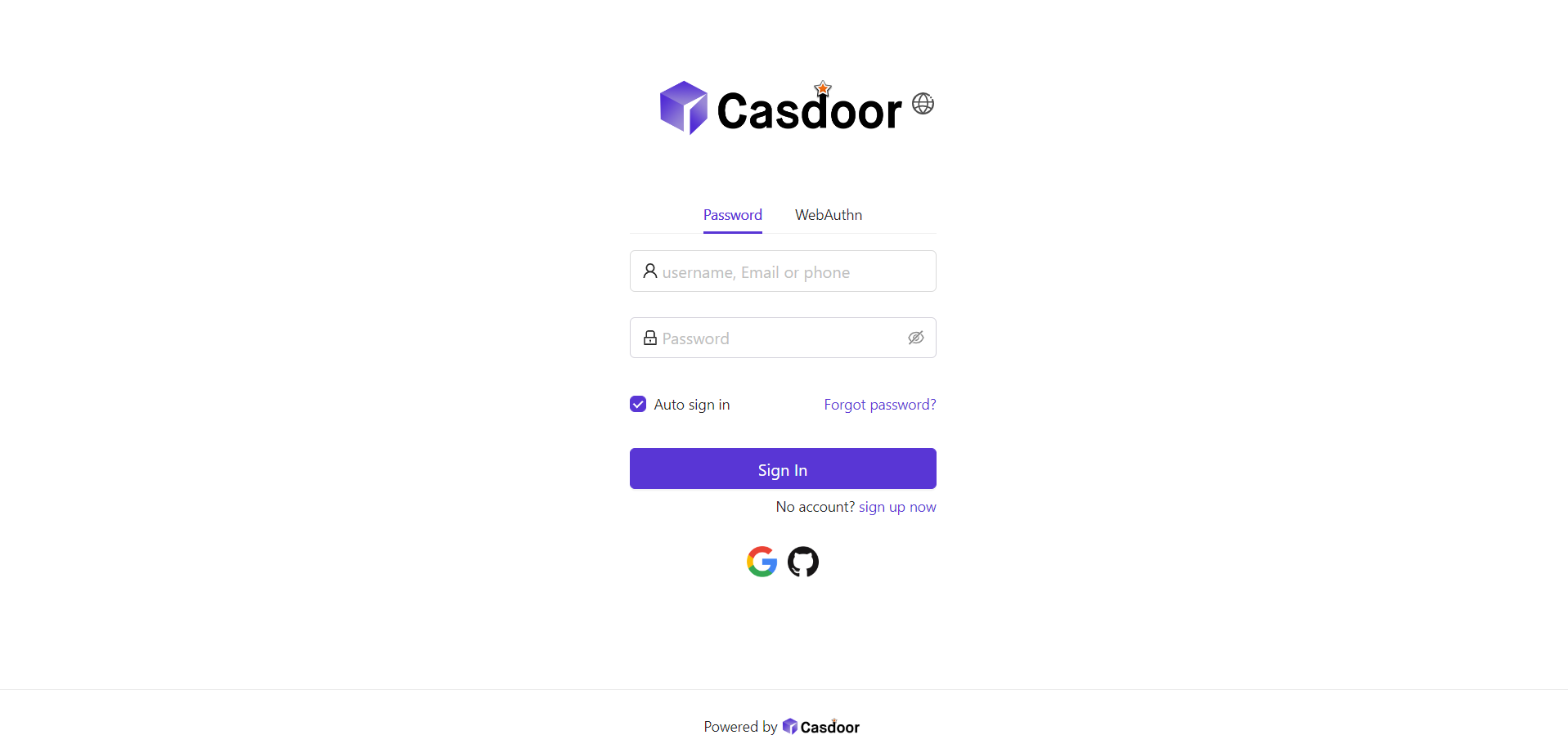
The default background is white.
-
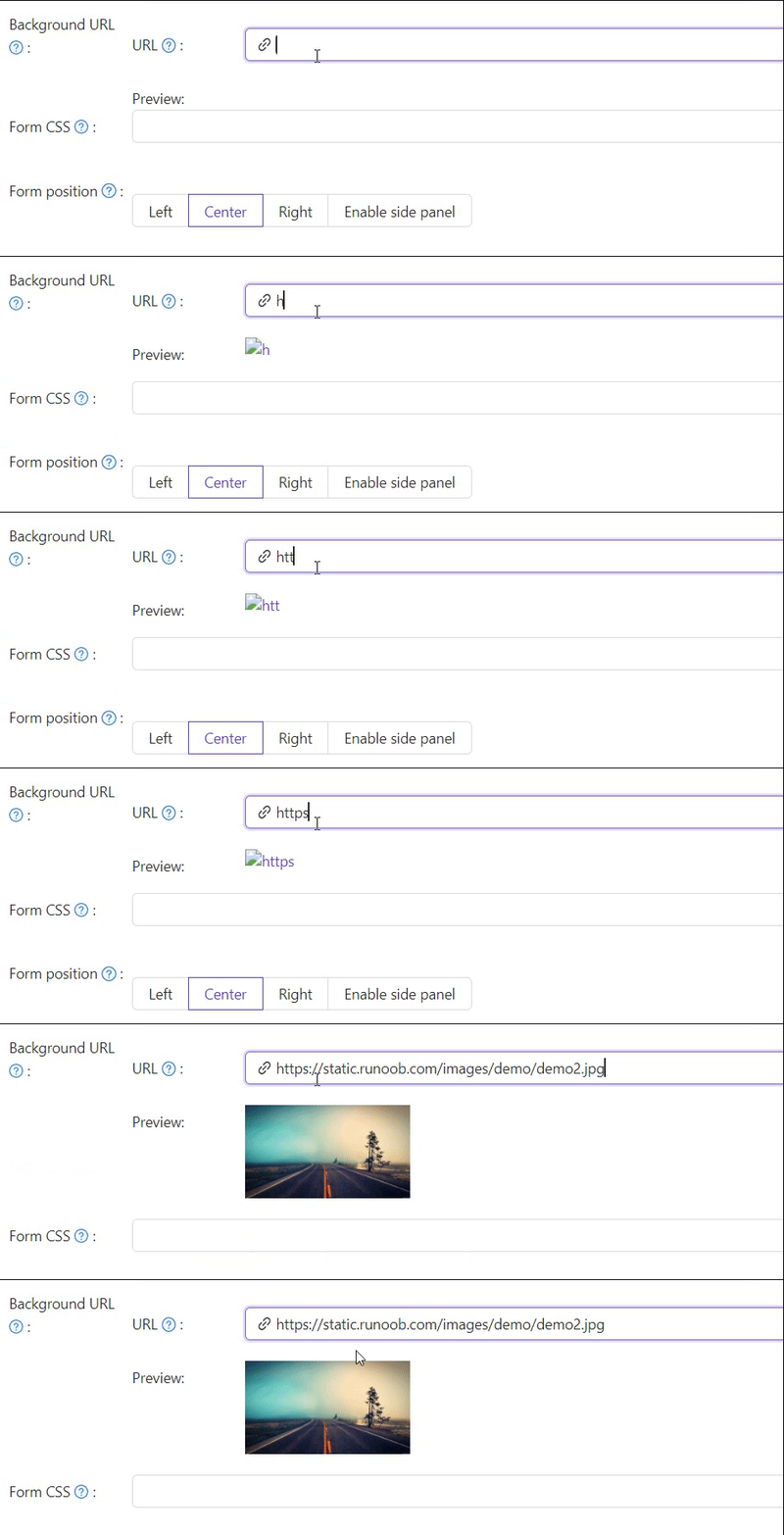
Set Background URL to the URL of an image. The preview updates when the URL is valid.
-
To use another image on phones, set Background URL Mobile.
Style the sign-in form
-
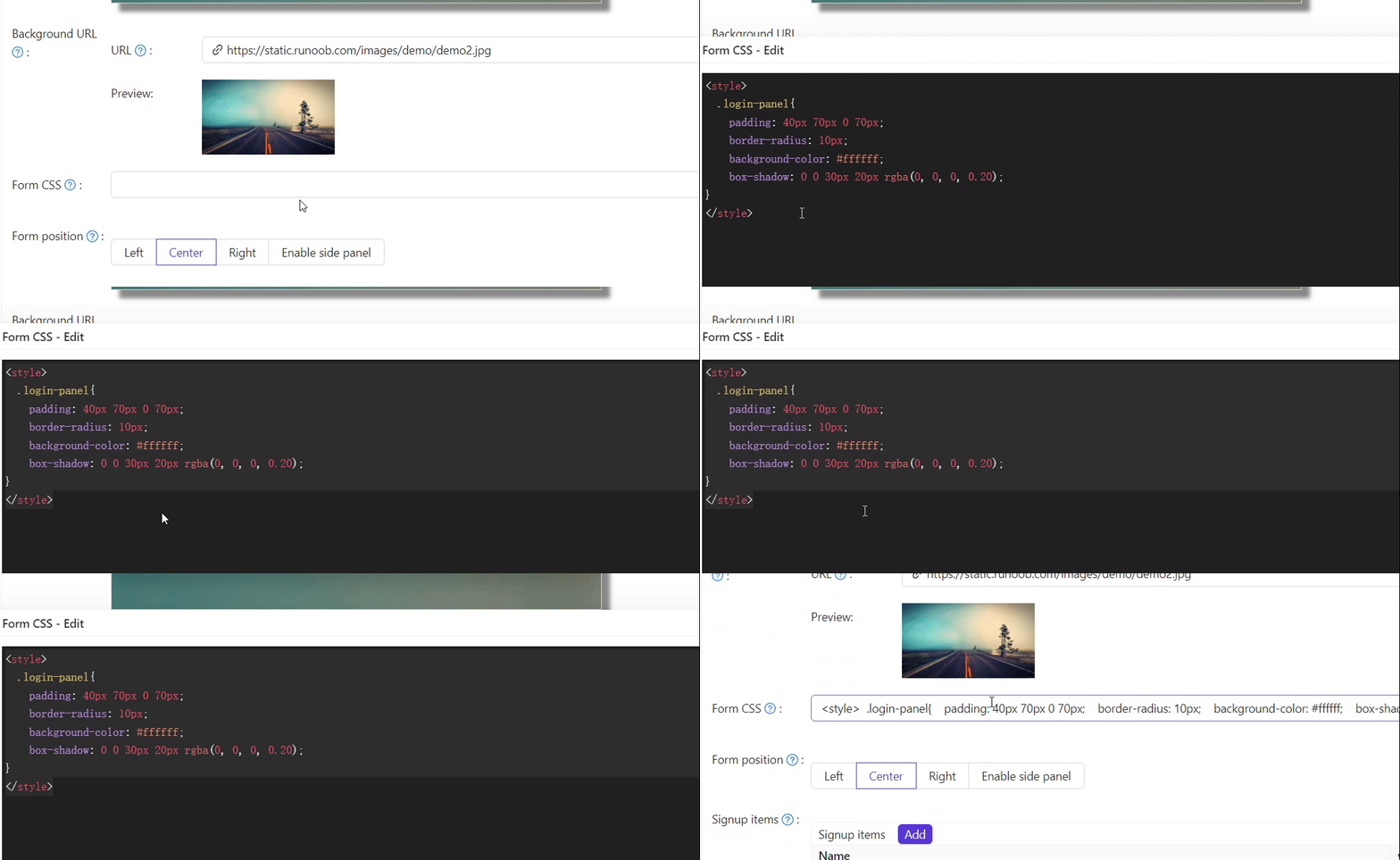
Enter CSS rules in Custom CSS, for example:
.login-panel{
    padding: 40px 30px 0 30px;
    border-radius: 10px;
    background-color: #ffffff;
    box-shadow: 0 0 30px 20px rgba(0, 0, 0, 0.20);
}
-
To use other rules on phones, set Custom CSS Mobile.
Enter plain CSS rules only. Casdoor puts the content of Custom CSS and Custom CSS Mobile into a <style> element itself, so a <style> wrapper of your own breaks the rules.
If Custom CSS is empty, the editor can show a default. To start from it, copy it into the field and save.
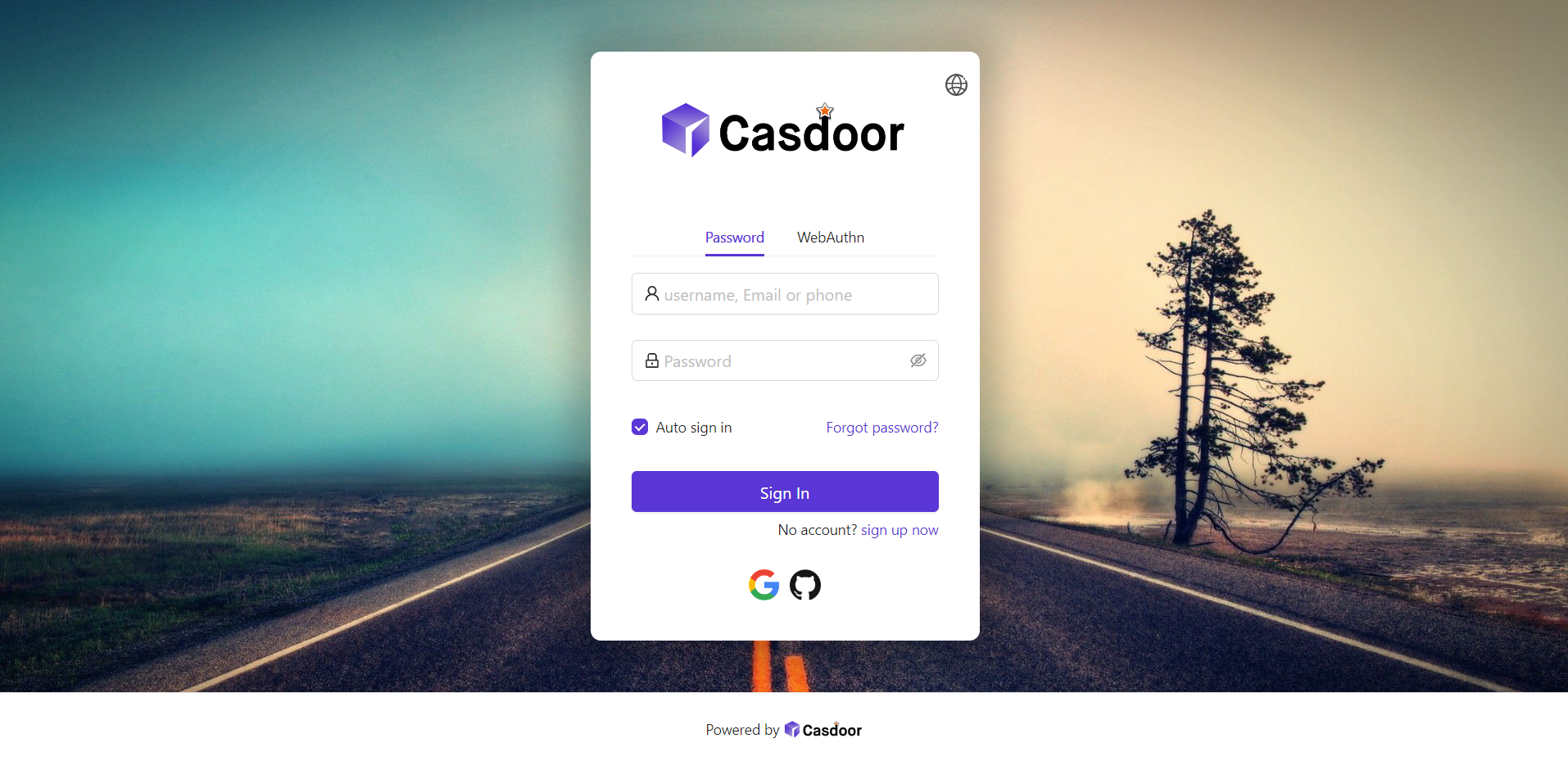
The main containers of the form are .login-panel and .login-form. Target them for further changes.
Position the form
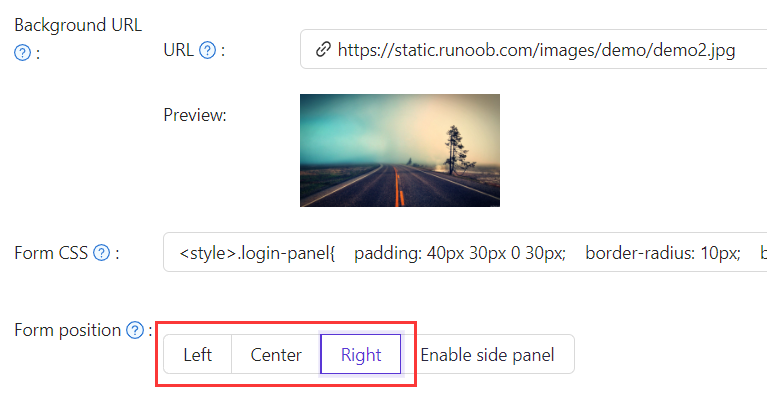
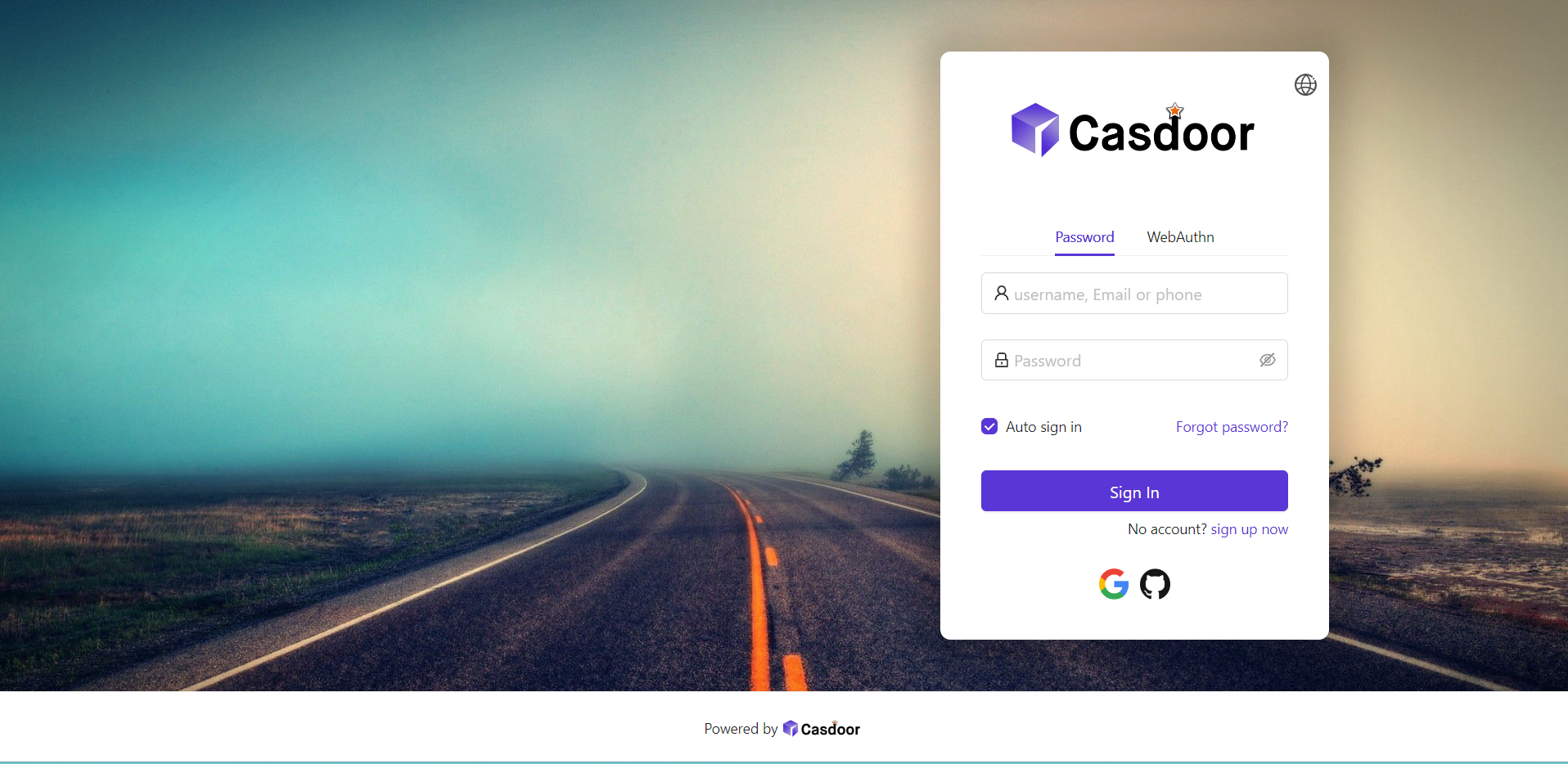
In Form position, select Left, Center, or Right.
Add a side panel
-
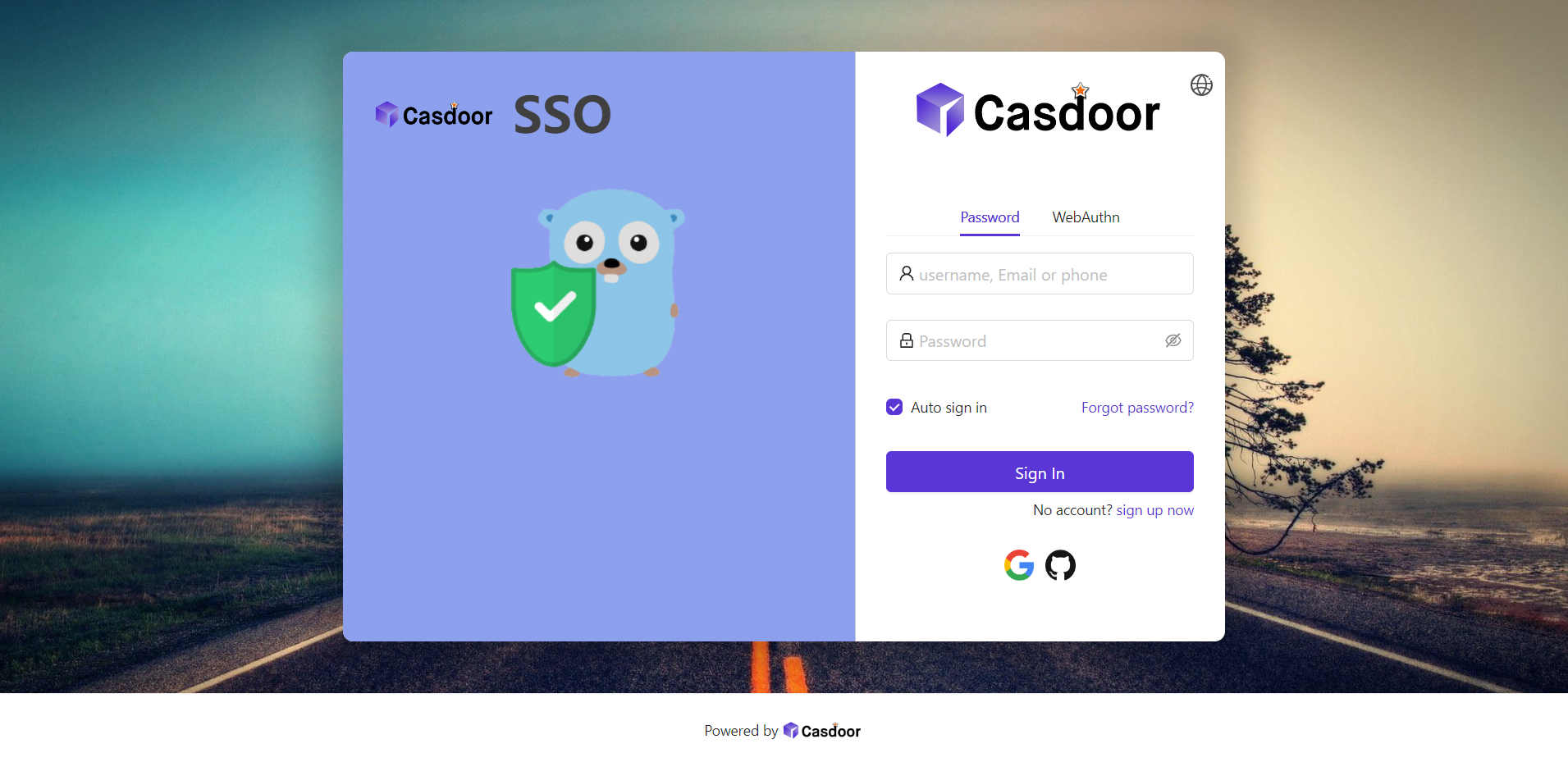
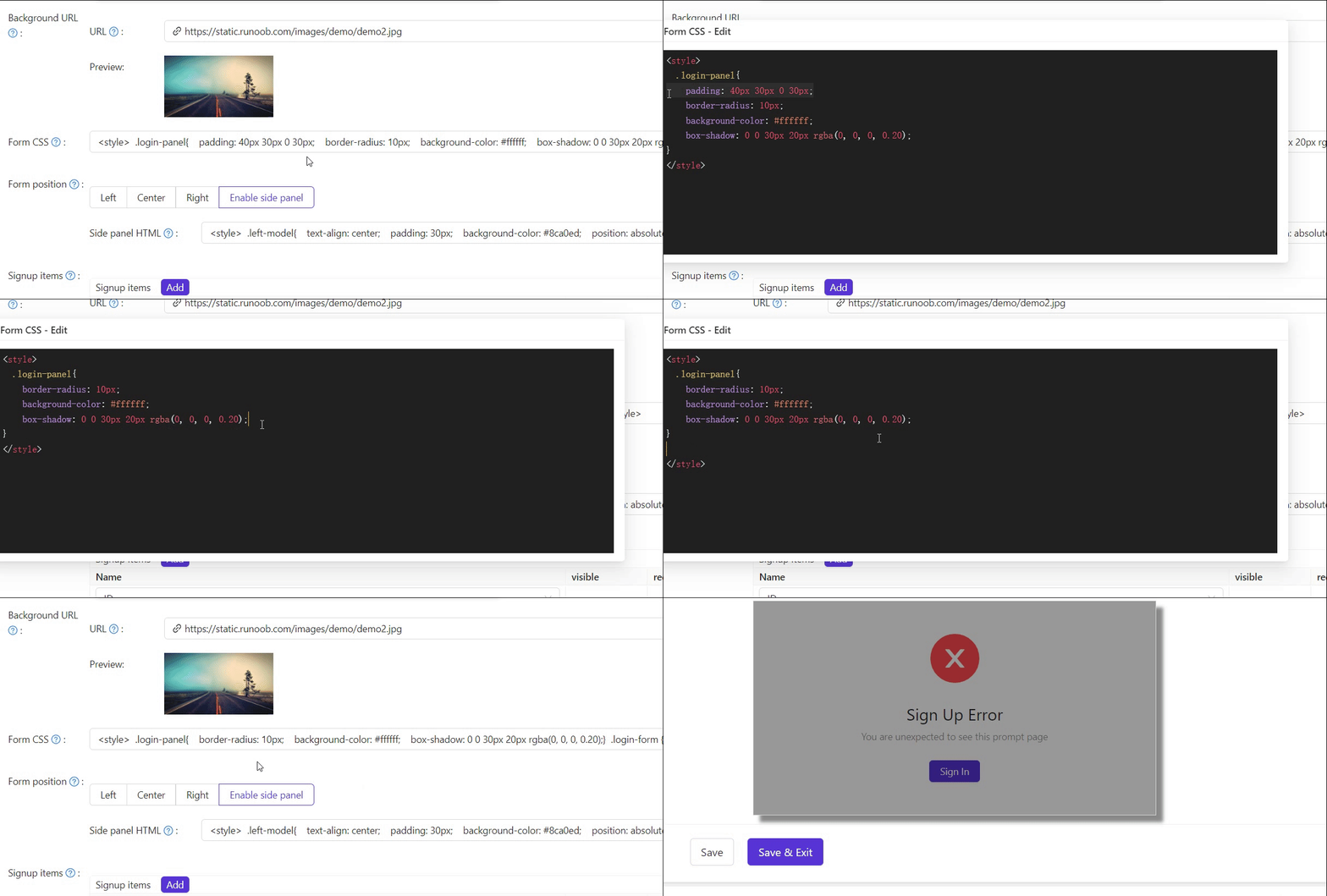
In Form position, select Enable side panel. The form moves to the center, with a panel beside it.

-
Enter the content of the panel in Side panel HTML. Start from the default template or write your own. Unlike Custom CSS, this field takes HTML, so a
<style>element inside it is fine:<style>
.left-model{
text-align: center;
padding: 30px;
background-color: #8ca0ed;
position: absolute;
transform: none;
width: 100%;
height: 100%;
}
.side-logo{
display: flex;
align-items: center;
}
.side-logo span {
font-family: Montserrat, sans-serif;
font-weight: 900;
font-size: 2.4rem;
line-height: 1.3;
margin-left: 16px;
color: #404040;
}
.img{
max-width: none;
margin: 41px 0 13px;
}
</style>
<div class="left-model">
<span class="side-logo"> <img src="https://cdn.casbin.org/img/casdoor-logo_1185x256.png" alt="Casdoor" style="width: 120px">
<span>SSO</span>
</span>
<div class="img">
<img src="https://cdn.casbin.org/img/casbin.svg" alt="Casdoor"/>
</div>
</div> -
Adjust the form in Custom CSS. Again, enter rules without a
<style>wrapper:.login-panel{
border-radius: 10px;
background-color: #ffffff;
box-shadow: 0 0 30px 20px rgba(0, 0, 0, 0.20);
}
.login-form {
padding: 30px;
}
Move the design to another instance
To move the design of an application to the same application on another Casdoor instance, for example from staging to production, use Export JSON and Import JSON at the bottom of the application edit page. The buttons appear when you edit an existing application.
- On the source instance, click Export JSON. Casdoor copies a JSON document to the clipboard.
- On the target instance, open the same application and click Import JSON.
- Paste the JSON and click OK. Casdoor fills in the fields.
- Click Save.
The JSON contains the name and the organization of the application and the following fields: Logo, Favicon, Background URL and its mobile variant, Custom CSS and its mobile variant, the position and offset of the form, Side panel HTML, the theme, and the header, footer, sign-up, and sign-in HTML. It contains no secrets, providers, or other settings.
The name and the organization in the JSON must match the target application. Otherwise, Casdoor rejects the import. The import moves a design between instances, not between different applications.