Довіра до пристроїв
Device trust ties sign-ins to the computers of your users. Each computer runs the Casdoor device agent, which holds a key that never leaves the computer, reports whether the disk is encrypted, the firewall is on and the screen locks, and proves to the sign-in page that a sign-in comes from it.
With device trust you can:
- Let only trusted computers sign in, to all applications or to some of them.
- Require disk encryption, a firewall and a screen lock, checked at every sign-in.
- Let a trusted computer sign in without a password.
- Count a trusted computer as the second factor of a password.
- Count an untrusted computer as a risk of adaptive risk.
Результати навчання
- Turn on device trust for an organization.
- Enroll a computer and trust it.
- Sign in from a trusted computer.
Що потрібно
- An admin account of the organization.
- The Casdoor device agent on the computers of the users.
Як це працює
- A user enrolls the computer with the device agent. The agent creates a key pair, sends the public key to Casdoor and shows a code, and the user enters the code in Casdoor while signed in. The computer is then bound to that user.
- The agent reports the posture of the computer every 15 minutes.
- When the sign-in page of the organization loads, it asks the agent on
127.0.0.1:47630whether the computer is enrolled. At each sign-in it gets a one-time challenge from Casdoor, and the agent signs it together with the address of the page and the posture checked right then. - Casdoor checks the signature, that the challenge is fresh and unused, that the page is its own, that the computer belongs to the user and is trusted, and that the posture meets the requirements.
The agent answers only the pages of the Casdoor it enrolled with, so other sites can't use it.
Turn on device trust
- In the Casdoor admin console, go to User Management > Organizations and edit the organization.
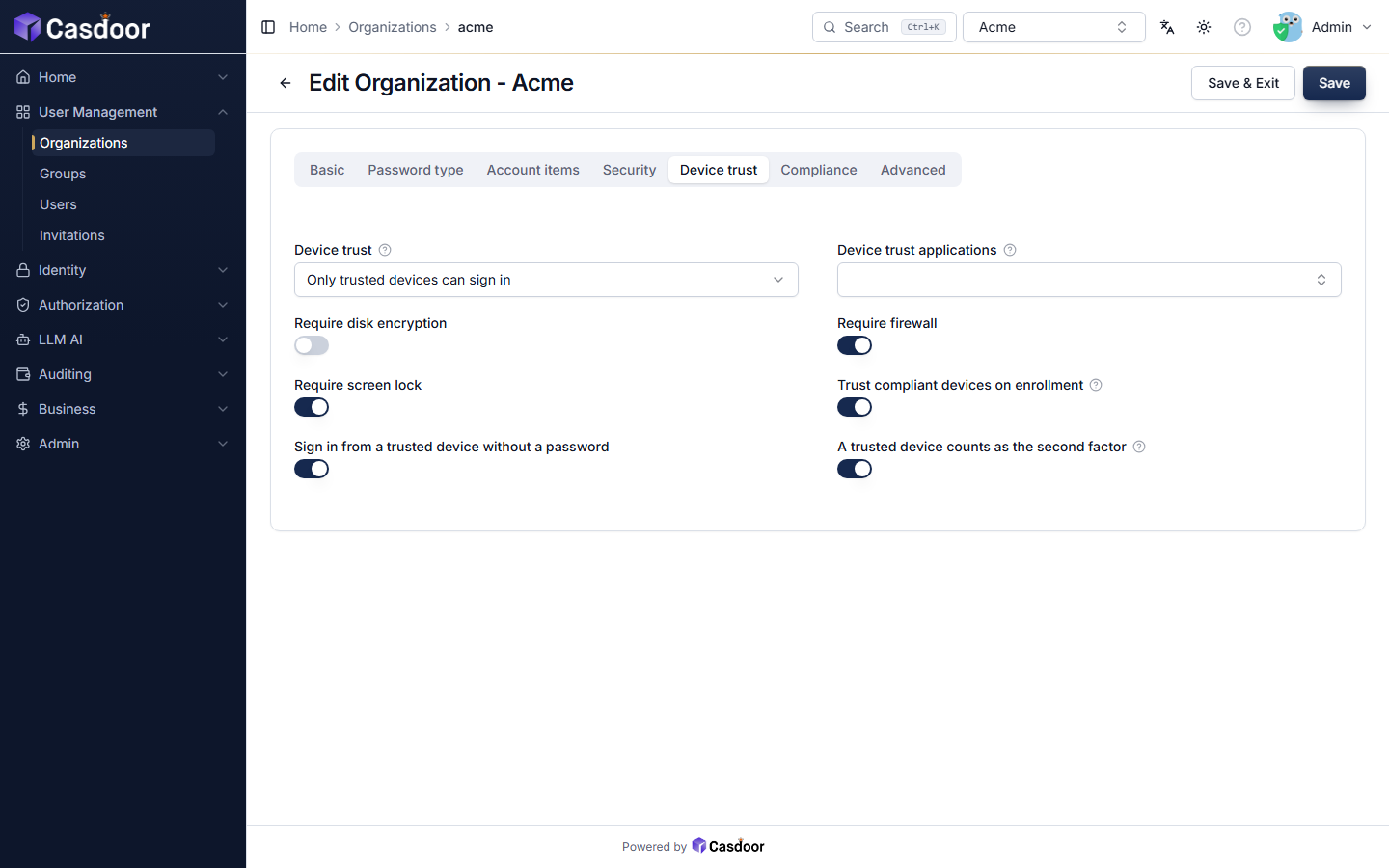
- Open the Device trust tab, choose the mode in Device trust, set the fields below, and click Save.
| Поле | Опис |
|---|---|
| Device trust | Untrusted devices add risk: a sign-in from another computer gets the Untrusted device signal of adaptive risk, which needs the commercial edition. Only trusted devices can sign in: a sign-in from another computer is refused. |
| Device trust applications | The applications that device trust applies to. Empty means every application. |
| Require disk encryption, Require firewall, Require screen lock | The posture a computer must have to count as trusted. |
| Trust compliant devices on enrollment | A computer that meets the posture requirements is trusted as soon as its user enrolls it. Otherwise an admin trusts each computer. |
| Sign in from a trusted device without a password | The sign-in page offers Sign in with this device on a trusted computer. |
| A trusted device counts as the second factor | A password sign-in from a trusted computer doesn't ask for the user's MFA. MFA that adaptive risk or a flow asks for is still asked. |
With Only trusted devices can sign in, the users can't sign in until their computers are enrolled and trusted. Roll it out with Untrusted devices add risk or with a few applications in Device trust applications first. The admins of the organization are never refused, their sign-ins from other computers count as a risk instead.
Enroll a computer
-
On the computer, run the agent with the address of Casdoor and the organization:
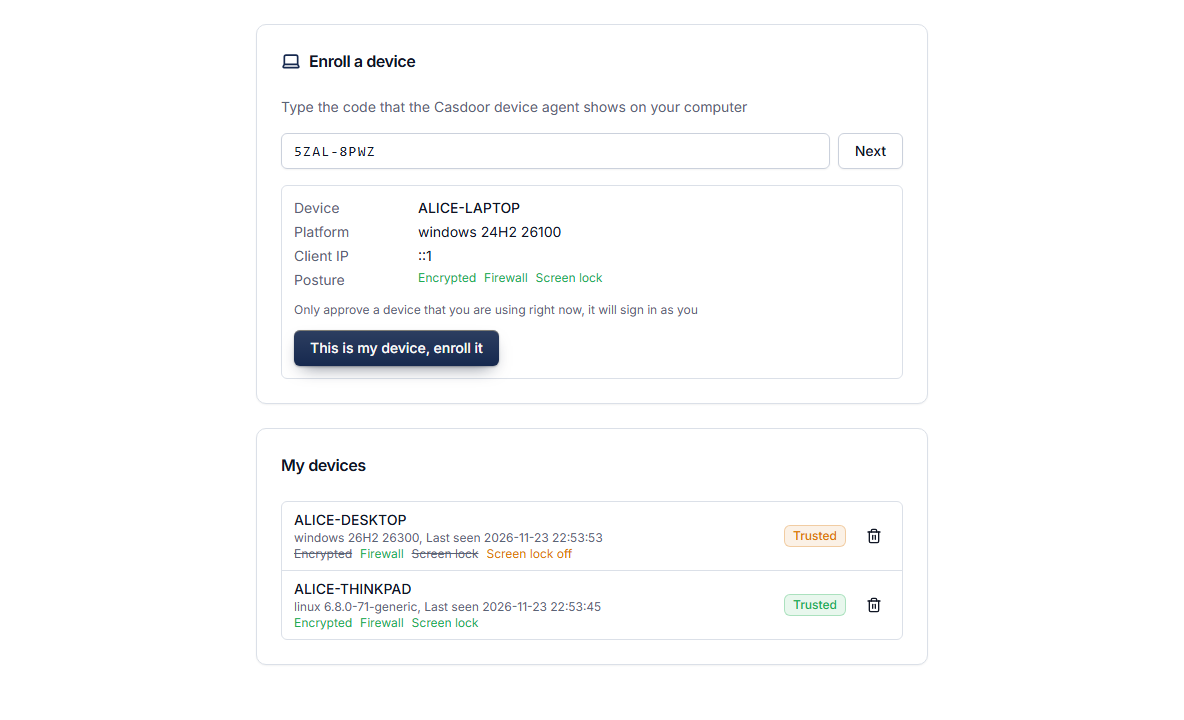
casdoor-device-agent enroll --server https://door.casdoor.com --organization built-inThe agent prints a code such as
5ZAL-8PWZand opens the enrollment page in the browser. -
Sign in to Casdoor as the user of the computer. On the enrollment page, check the name, the platform and the posture of the computer, and click This is my device, enroll it.
-
Back on the computer, the agent prints whether the computer is trusted or waits for an admin. Run
casdoor-device-agent installto start it at sign-in.
Users find this page again under Home > My devices, where they also see and remove their computers.
Trust and block computers
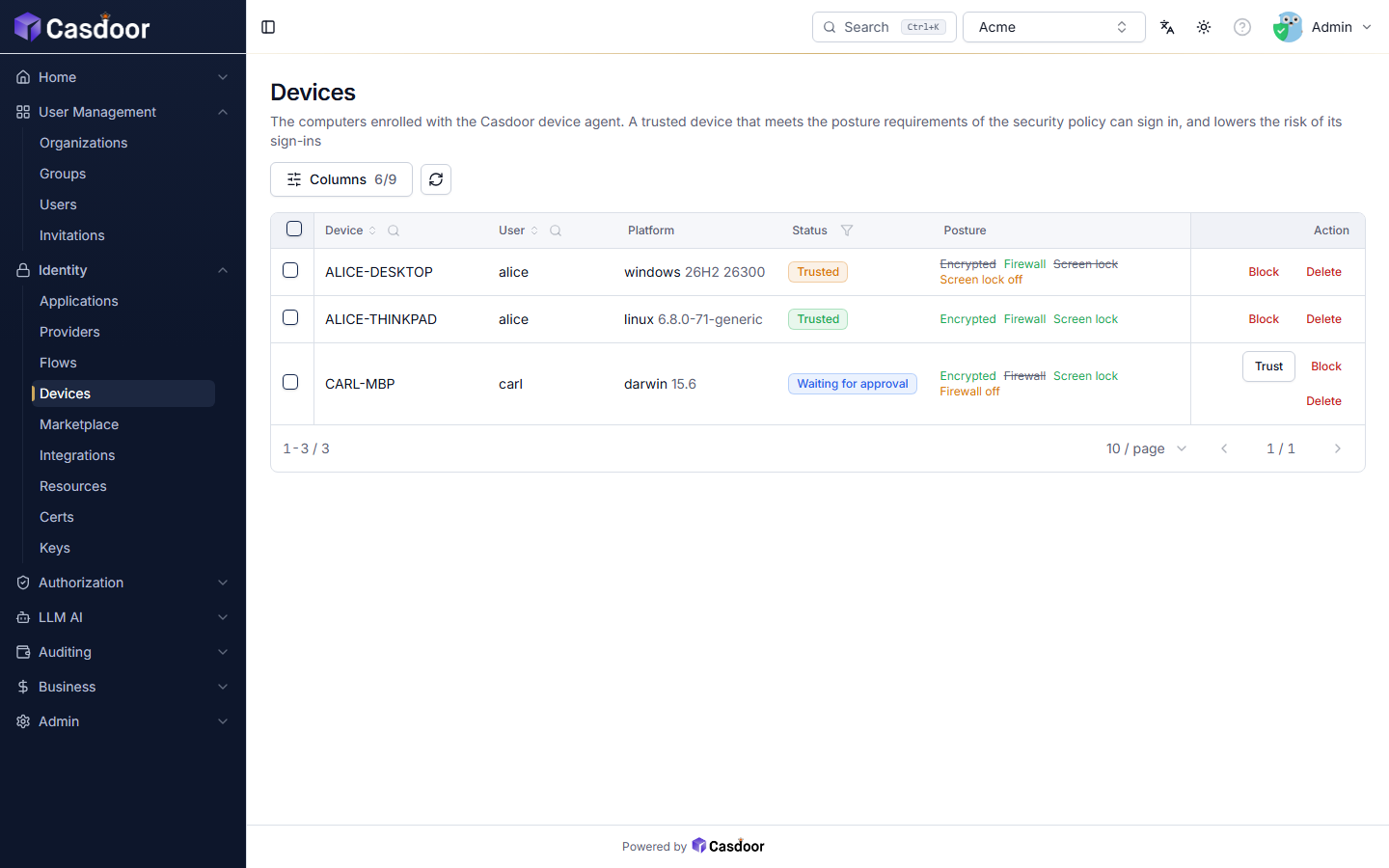
In the Casdoor admin console, go to Identity > Devices. The page lists the enrolled computers with their user, platform, status and posture.
| Status | Meaning |
|---|---|
| Waiting for approval | The user enrolled the computer, an admin hasn't trusted it yet. Click Trust. |
| Trusted | The computer can sign in as its user. A trusted computer that misses a posture requirement shows the badge in orange and the missing items, and doesn't count as trusted until it meets them again. |
| Blocked | The computer can't sign in. Click Block for a lost or stolen computer. |
Deleting a computer removes its key: it has to be enrolled again.
Sign in from a trusted computer
With Sign in from a trusted device without a password on, the sign-in page of the organization shows who the computer belongs to and a Sign in with this device button. The sign-in method is Trusted device. The user's own MFA is still asked, because the computer is the only factor of this sign-in.
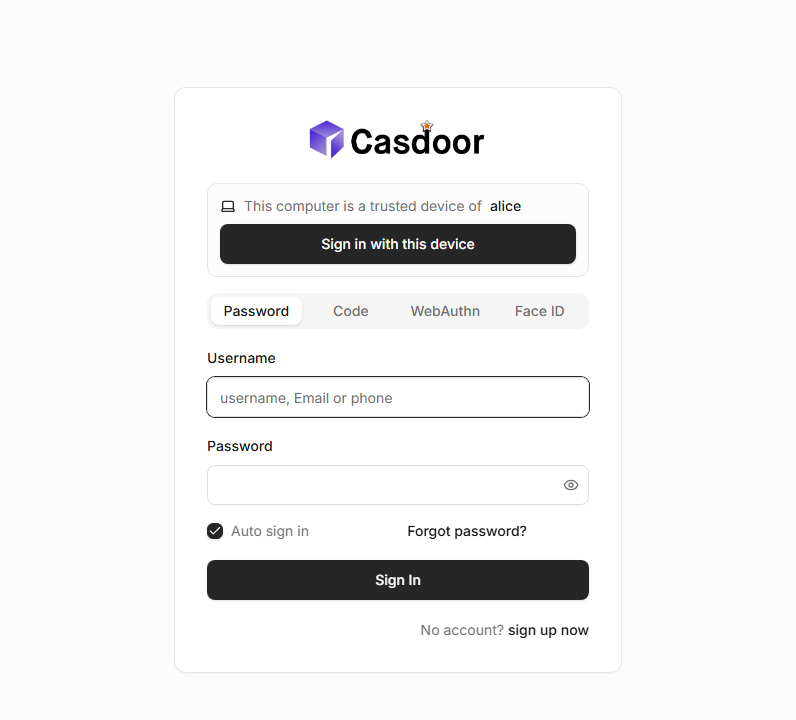
A password sign-in from a trusted computer works as usual and also proves the computer, which is what Only trusted devices can sign in and A trusted device counts as the second factor look at.
Перевірте результат
- Sign in from an enrolled and trusted computer. The sign-in goes through.
- Sign in from another computer, or from a browser without the agent. With Only trusted devices can sign in, Casdoor refuses it with "This application can only be signed in to from a trusted device, install the Casdoor device agent and enroll this device".
Усунення несправностей
- The sign-in page doesn't offer Sign in with this device: check that the agent runs (
casdoor-device-agent status), that it was enrolled with the address shown in the browser's address bar, and that the browser allowed the page to reach devices on the local network. - A trusted computer is refused: open Identity > Devices and check the posture of the computer, a requirement may have been turned on after it was trusted.