Customize the sign-in page
This guide explains how to choose the elements of the sign-in page of an application with the Signin items table.
Learning outcomes
- Show, hide, and order the elements of the sign-in page.
- Turn off the forgot-password feature.
- Change how the language selector and the captcha appear.
What you need
- An application
About the sign-in items
Each row of Signin items is one element of the sign-in page.
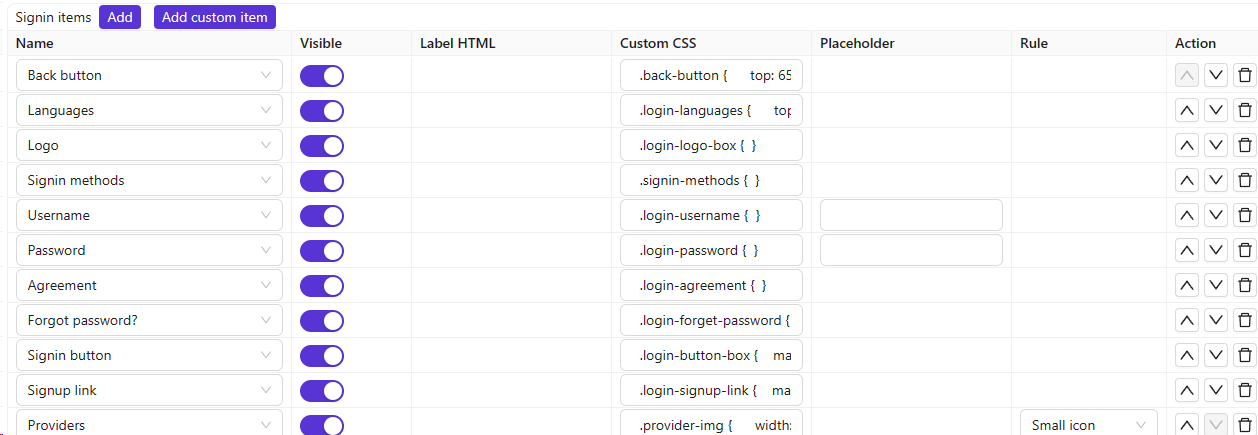
Columns
| 列 | 值 | 描述 |
|---|---|---|
| 名称 | — | 登录项的名称。 |
| Visible | True / False | 在登录页面上显示或隐藏。 |
| Label HTML | — | 对于自定义项,使用HTML作为字段标签。 |
| Custom CSS | — | 此登录项目的 CSS。 |
| Placeholder | — | 该字段的占位符文本。 |
| Rule | 规则项目 | 自定义此项目的规则(见下文)。 |
| Action | — | 向上移动、向下移动或删除。 |
Configure the page
- In the Casdoor admin console, open the edit page of the application.
- In Signin items, add, remove, and order the items, and set Visible for each one.
- Set a rule for the items that support one.
- Save the application.
Turn off the forgot-password feature
Set Visible of the Forgot password? item to off. This turns off the feature in the UI and in the API: the /api/send-verification-code endpoint then rejects password reset requests, so that clients can't get around the hidden link by calling the API.
Change the language selector
The rule of the Languages item sets how the language selector appears on the sign-in and sign-up pages:
| 规则 | 描述 |
|---|---|
| (empty) | 地球图标下拉菜单(默认行为)。 |
| Label | 一个带标签的Select组件显示,而非图标下拉菜单。 |
Change the captcha
The rule of the Captcha item sets where the captcha appears:
| 规则 | 描述 |
|---|---|
| Normal | 发送验证码时,验证码会以模态框形式显示。 |
| Inline | 验证码直接显示在登录页面上。 |