Customize the sign-up form
This guide explains how to build the sign-up form of an application with the Signup items table.
Learning outcomes
- Add, remove, and order the fields of the sign-up form.
- Make fields required and validate them with regular expressions.
- Change the behavior of fields with rules.
What you need
- An application with Enable signup turned on
About the sign-up items
Each row of Signup items is one field or element of the sign-up page. Applications that you create through the Casdoor SDK get default items: ID, Username, Display name, Password, Confirm password, Email, Phone, and Agreement.
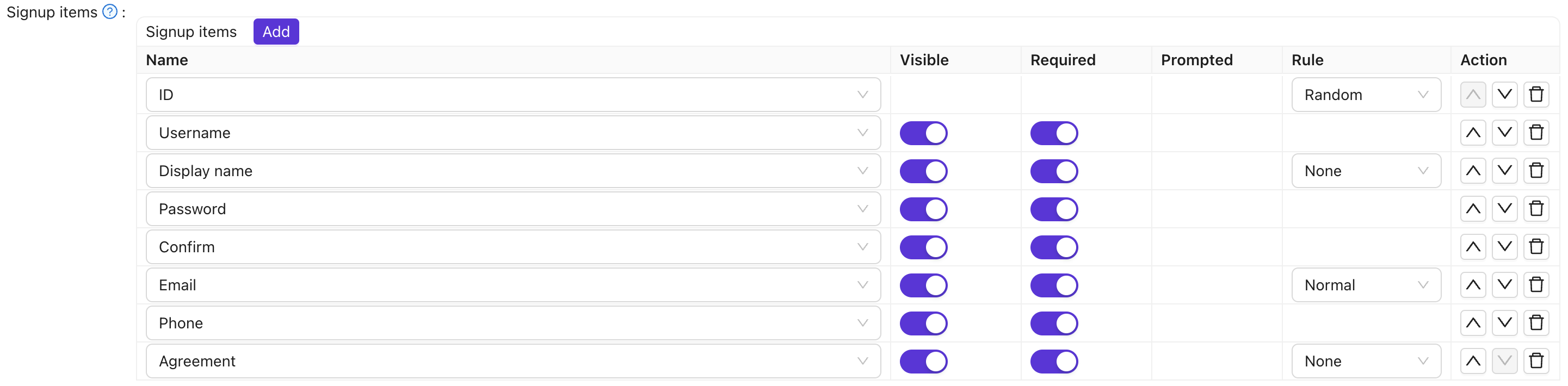
Columns
| 列 | 值 | 描述 |
|---|---|---|
| 名称 | — | 注册项的名称。 |
| 可见 | True / False | 在注册页面上显示或隐藏。 |
| 必填 | True / False | 该字段是否为必填。 |
| 提示 | True / False | 如果用户将其留空,是否提示用户。 |
| 正则表达式 | — | 用于客户端验证的可选正则表达式。 |
| 标签 | — | 对于以文本开头的项目,对该字段使用 HTML;否则替换项目标签。 |
| 自定义 CSS | — | 此注册项的CSS。 |
| 规则 | 规则项目 | 自定义此项目的规则(请参阅下表)。 |
| 操作 | — | 向上移动、向下移动或删除。 |
Configure the form
- In the Casdoor admin console, open the edit page of the application.
- In Signup items, add, remove, and order the items, and set Visible and Required for each one.
- Set a rule for the items that support one. See Item rules.
- Save the application.
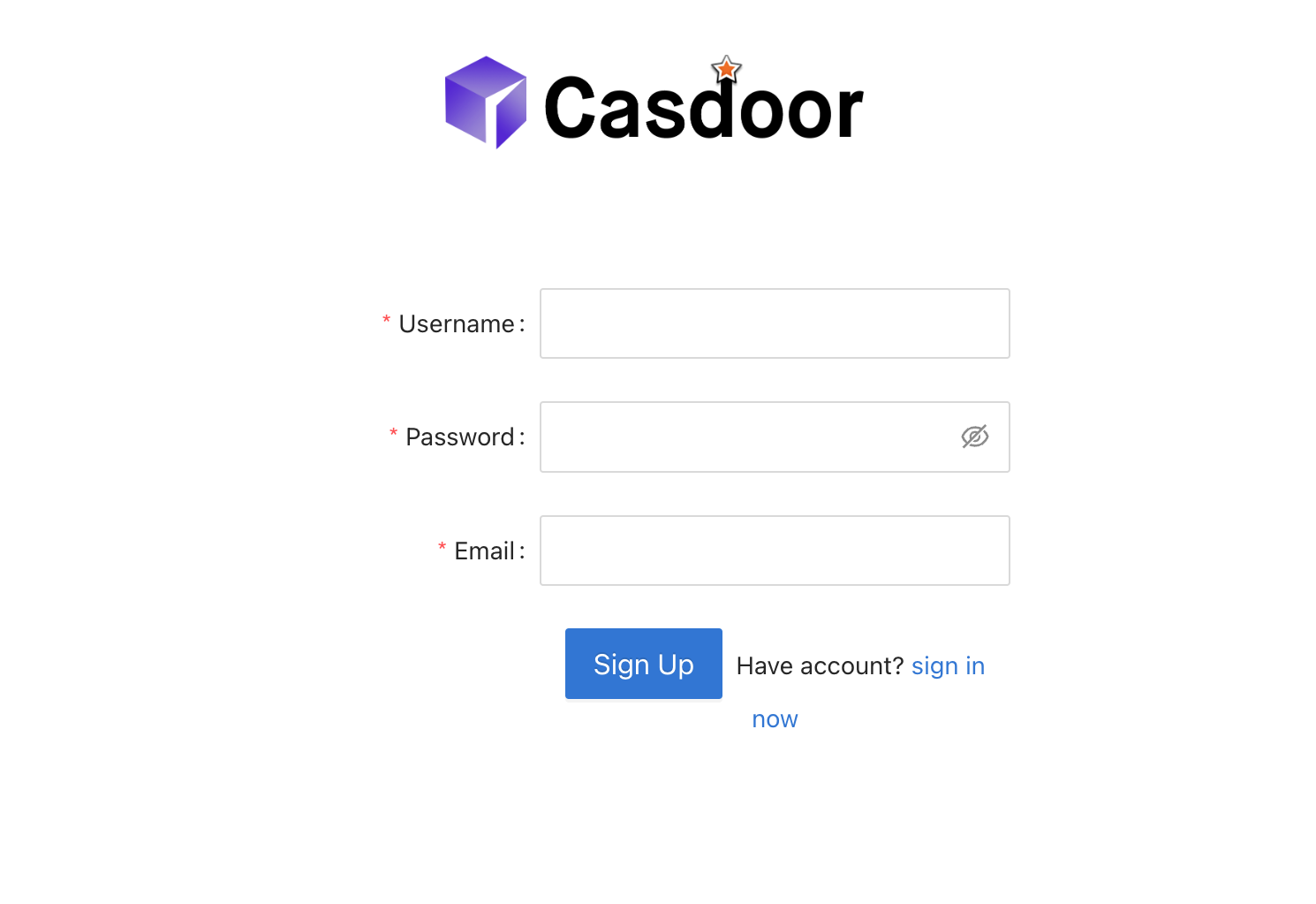
For example, to show an email field that doesn't need verification, add the Email item and set its rule to No verification.

The sign-up page then looks like this:
Item rules
| 项目 | 规则 | 描述 |
|---|---|---|
| ID | Random / Incremental | 用户ID生成:随机或递增。 |
| 显示名称 | 无 / 真实姓名 / 名,姓 | 如何显示显示名称;名、姓分别显示名和姓。 |
| 电子邮件 | 正常 / 无需验证 | 正常= 需要邮箱验证;无需验证= 跳过验证。 |
| 协议 | 无 / 登录 / 登录(默认为真) | 使用条款:无、需确认或默认已确认。 |
| 语言 | None / Label | 在注册页上添加语言选择器。 None = 单独显示选择器;Label = 带文字标签显示。 |
Let users choose a tag
The Tag item adds a list from which users pick their own tag at sign-up. It is hidden by default. Turn on Visible to show it.
- The options come from the Options of the item. If the item has no options, they come from the Tags of the application.
- A tag that the user selects takes precedence over the Default tag of the application, which applies only when the user selects none.
Validate input with a regular expression
- In the row of the item, set Regex to a pattern, for example
^[a-zA-Z0-9_]+$for usernames of letters, digits, and underscores. - Save the application.
The sign-up page shows an error before submission when the input doesn't match. Validation works for Username, Display name, First name, Last name, Affiliation, and custom fields.
Use the email address as username
If the organization has Use Email as username turned on and the Username item is hidden, the email address of the user becomes the username. See Organizations.