Connect DeepSeek Harness to Casdoor
This guide explains how to connect DeepSeek Harness (dsh), the open-source agent harness of DeepSeek, to Casdoor. dsh signs in to Casdoor as an AI agent, and the MCP servers of your organization in Casdoor become tools of dsh. Every tool call goes through the Casdoor MCP gateway as the agent acting for the signed-in user, so Casdoor decides which tools dsh may call and records each call.
Everything is set up from web pages: the Marketplace of Casdoor on one side, the plugin page and a Casdoor page inside dsh on the other. You don't edit cordis.patch.yml or any other configuration file.
DeepSeek Harness is a paid integration of the Marketplace. It needs a Casdoor Commercial or Enterprise edition license: without one, Casdoor doesn't install it or give out the plugin, the MCP gateway doesn't serve the tools, and the plugin removes the Casdoor MCP servers from dsh. See pricing.
学习目标
- Install DeepSeek Harness from the Marketplace, which creates its application and agent in Casdoor.
- Install the Casdoor plugin from the plugin page of dsh.
- Sign dsh in to Casdoor and choose the MCP servers it can use.
- Decide which tools dsh may call, and find each call in Casdoor.
前提条件
- A Casdoor instance with a Commercial or Enterprise edition license. Use HTTPS in production.
- An administrator of the organization whose users use dsh.
- At least one MCP server in LLM AI > MCP Servers of that organization, with its tools synced. See Put MCP servers behind the Casdoor MCP gateway.
- DeepSeek Harness 0.2, started with
dsh web(ornpx @deepseek-ai/dsh web), in a browser on the same computer.
工作原理
| Step | Where | What happens |
|---|---|---|
| Install | Casdoor Marketplace | Casdoor creates an application for dsh with the callback /casdoor/callback, and an agent of the same name whose OAuth client is that application. |
| Plugin | dsh Plugins page | The plugin adds a Casdoor page to dsh at /casdoor/. |
| Sign in | dsh Casdoor page | dsh signs the user in to Casdoor with the authorization code flow and PKCE. The tokens of the application carry the agent, so Casdoor treats each call as the agent acting for the user. The token is renewed by itself before it expires. |
| Tools | dsh Casdoor page | The plugin lists the MCP servers of the user's organization through the gateway, and each server turned on joins dsh, with tools named mcp__casdoor-<server>__<tool>. |
| Calls | Casdoor MCP gateway | The gateway checks the tool permissions of the user and the agent, records the call with a trace ID, and can send an identity token of the user and agent to the MCP server. |
Install DeepSeek Harness in Casdoor
-
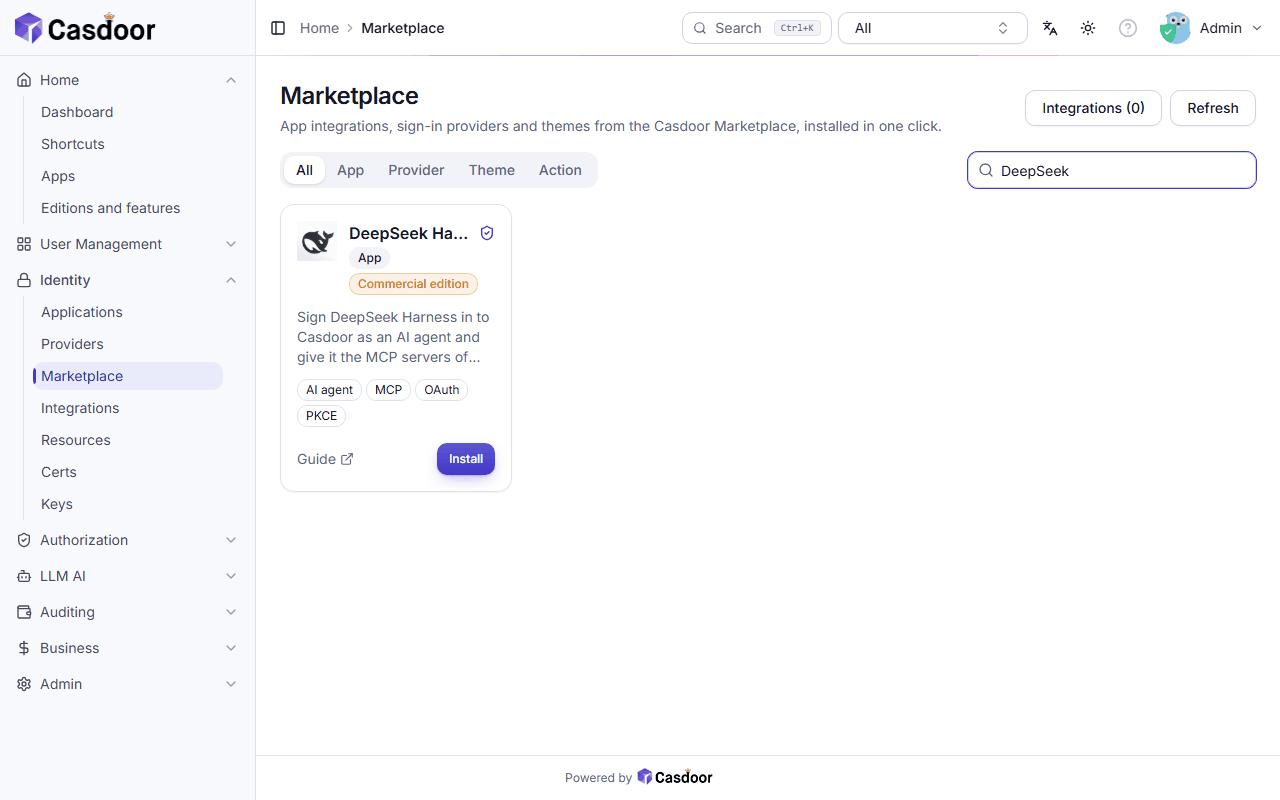
In the Casdoor admin console, go to Identity > Marketplace and search for DeepSeek Harness. The card is marked Commercial edition.
-
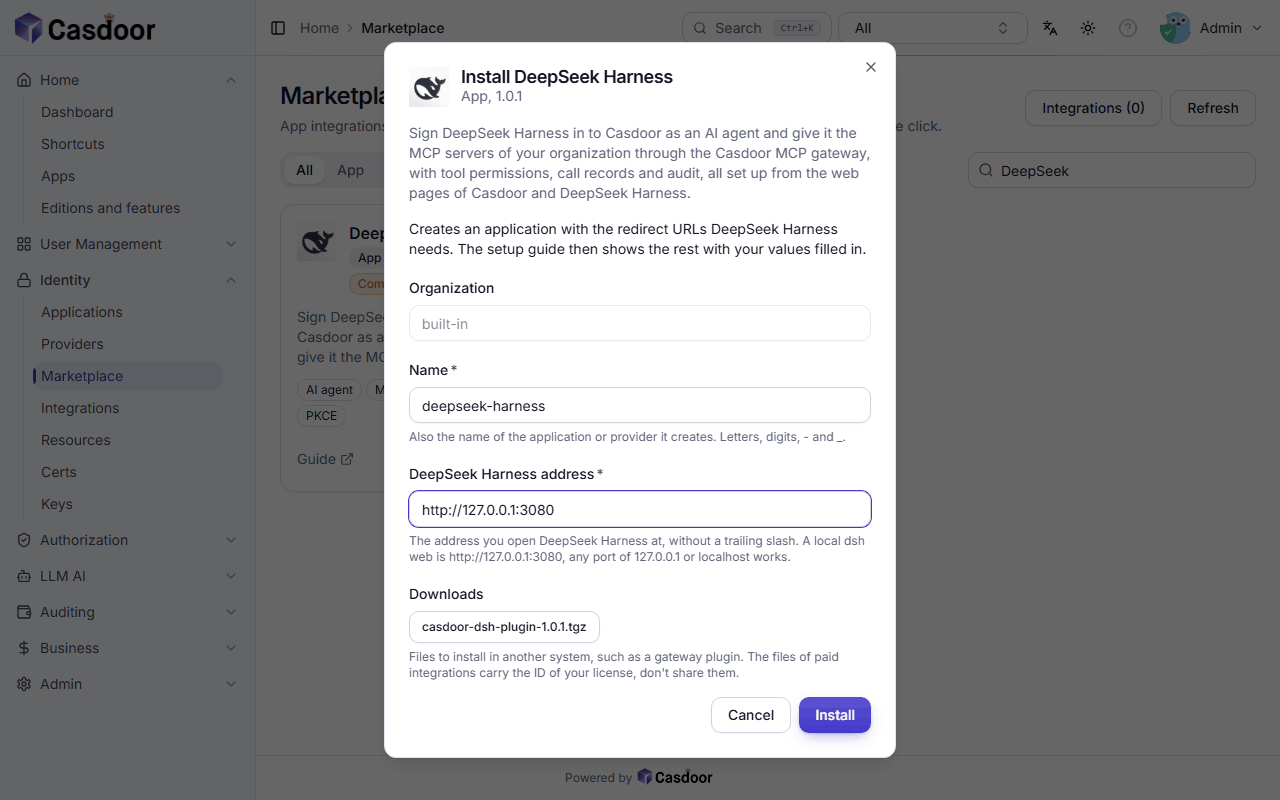
Click Install and fill in the form:
- Organization: the organization of the users who use dsh.
- Name: the name of the application and of the agent,
deepseek-harnessby default. - DeepSeek Harness address: the address you open dsh at, without a trailing slash. A local
dsh webishttp://127.0.0.1:3080; any port of127.0.0.1orlocalhostworks with it, so a dsh started with another--portsigns in too.
-
Click Install. Casdoor opens the installed integration under Identity > Integrations, with the application, the agent, the client ID, and the redirect URL
<address>/casdoor/callback.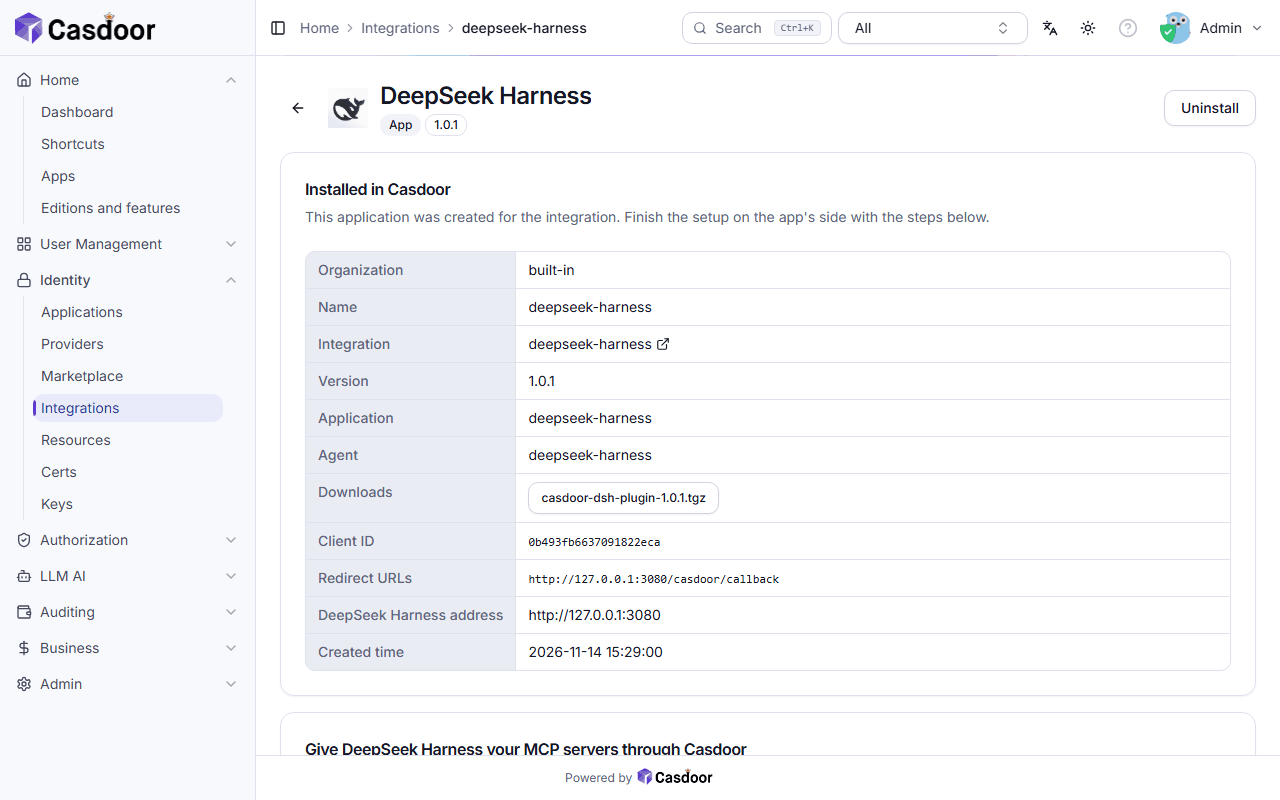
-
Under Downloads, download the plugin,
casdoor-dsh-plugin-1.0.1.tgz. It is for your own deployments; don't share it.
Install the plugin in DeepSeek Harness
-
In dsh, open Plugins in the sidebar and click Add plugin.
-
Enter the full path of the downloaded file, for example
C:\Users\me\Downloads\casdoor-dsh-plugin-1.0.1.tgzor/home/me/Downloads/casdoor-dsh-plugin-1.0.1.tgz, and click Install.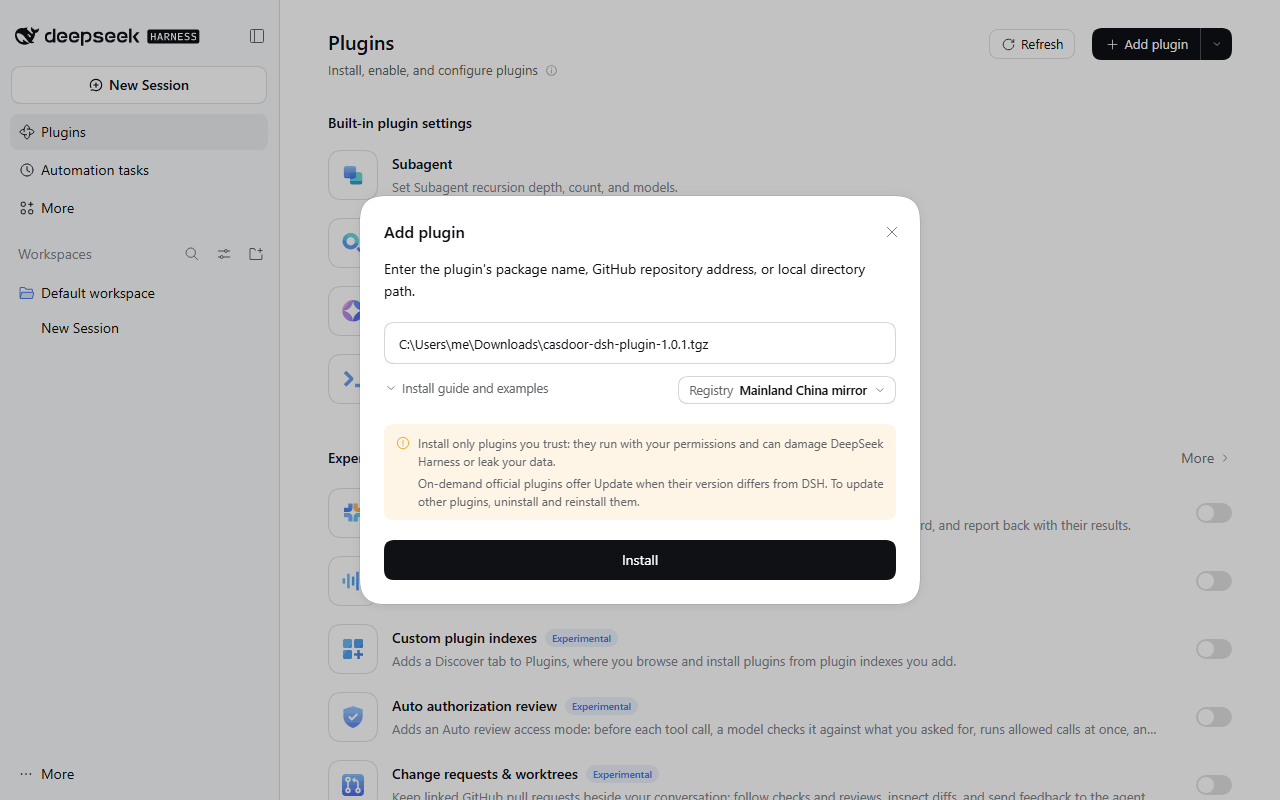
-
Click Enable now. Casdoor appears under Installed plugins and is turned on.
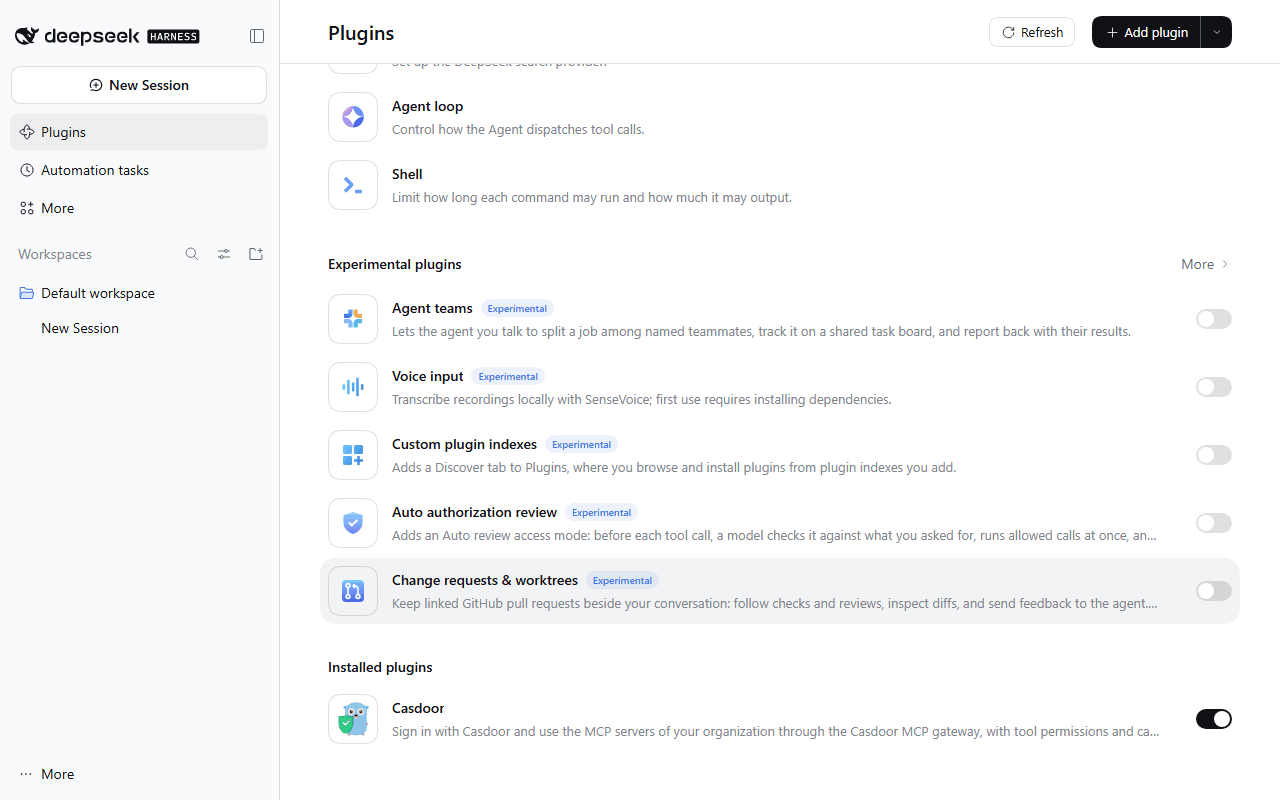
Without the web page, install it from a terminal and restart dsh web:
dsh plugin --profile web add /home/me/Downloads/casdoor-dsh-plugin-1.0.1.tgz
Connect dsh to Casdoor
-
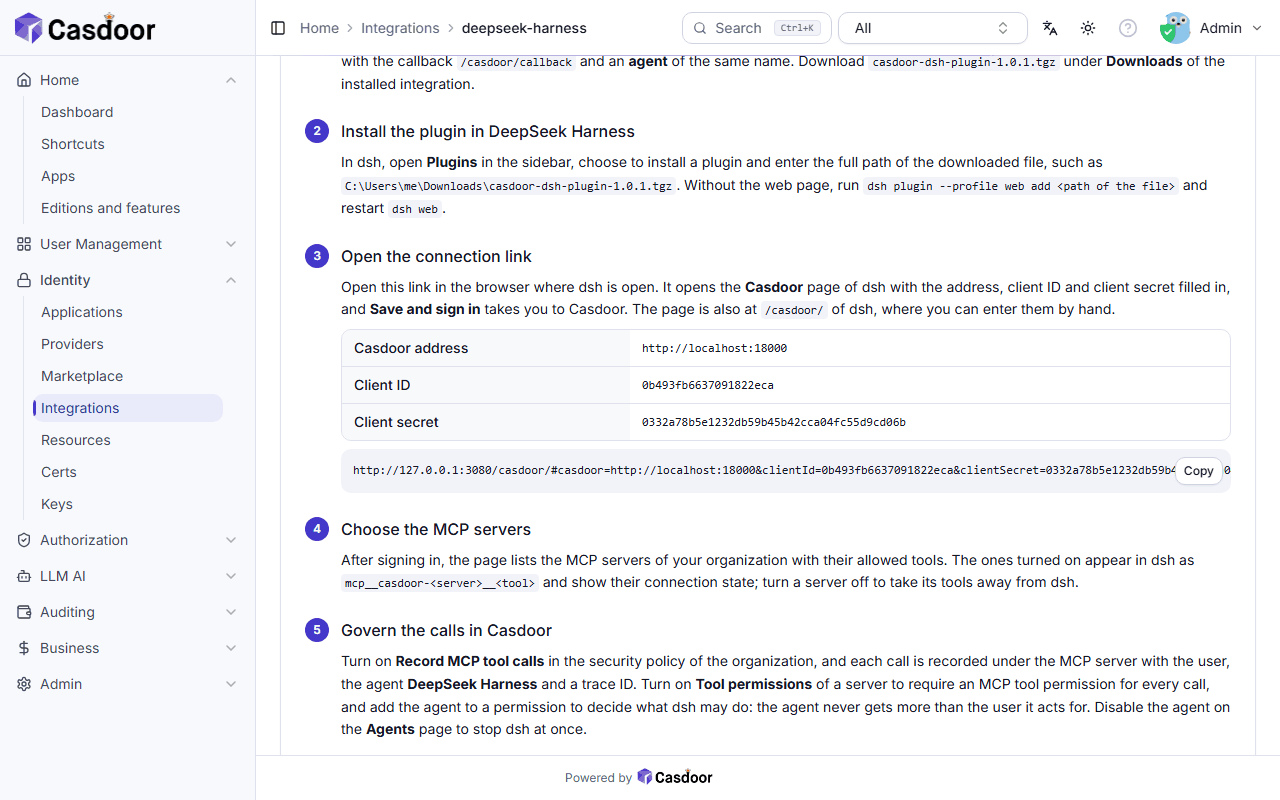
Back on the installed integration in Casdoor, scroll to Open the connection link. The step lists the Casdoor address, client ID and client secret, and a link that holds all three.
-
Copy the link and open it in the browser where dsh is open. If dsh runs on another port than the one you installed with, change the port at the start of the link. The Casdoor page of dsh opens with the fields filled in. You can also open
/casdoor/of dsh and enter them by hand.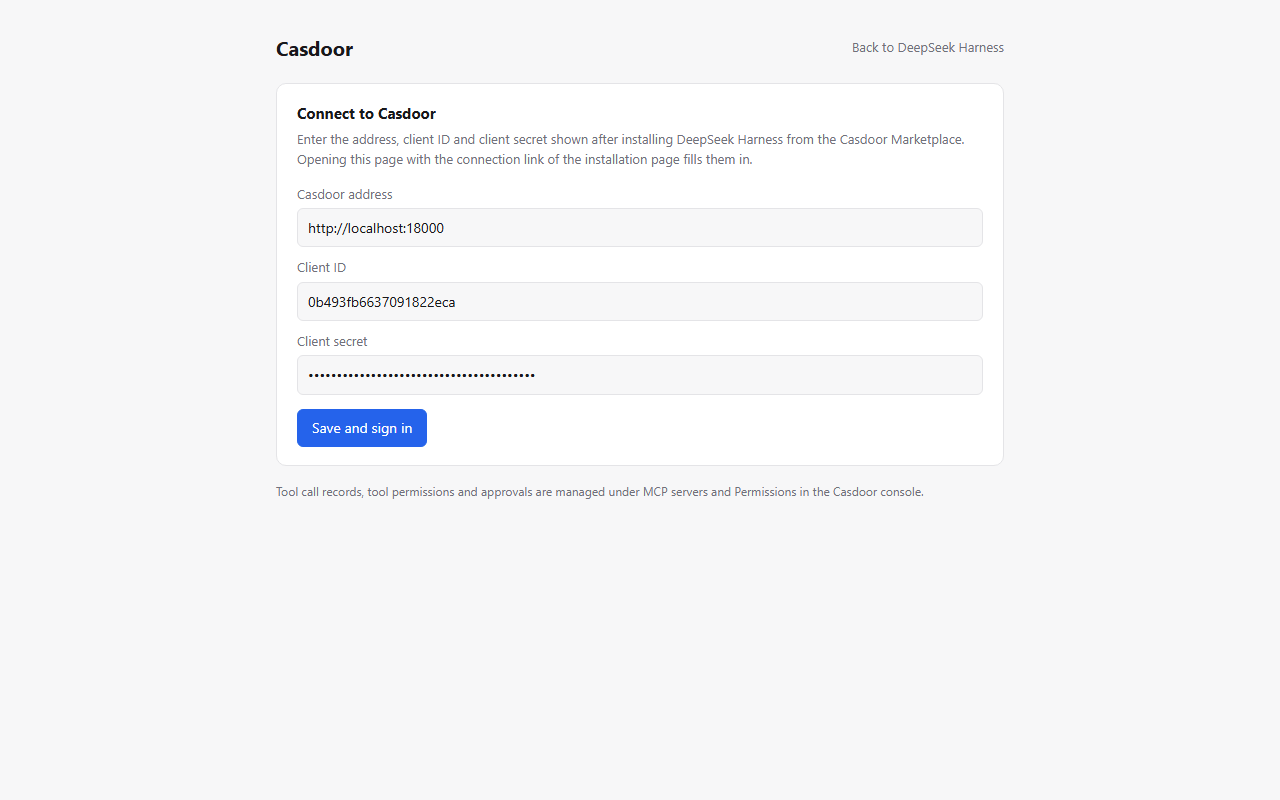
-
Click Save and sign in, and sign in to Casdoor with your account. Casdoor sends you back to dsh.
-
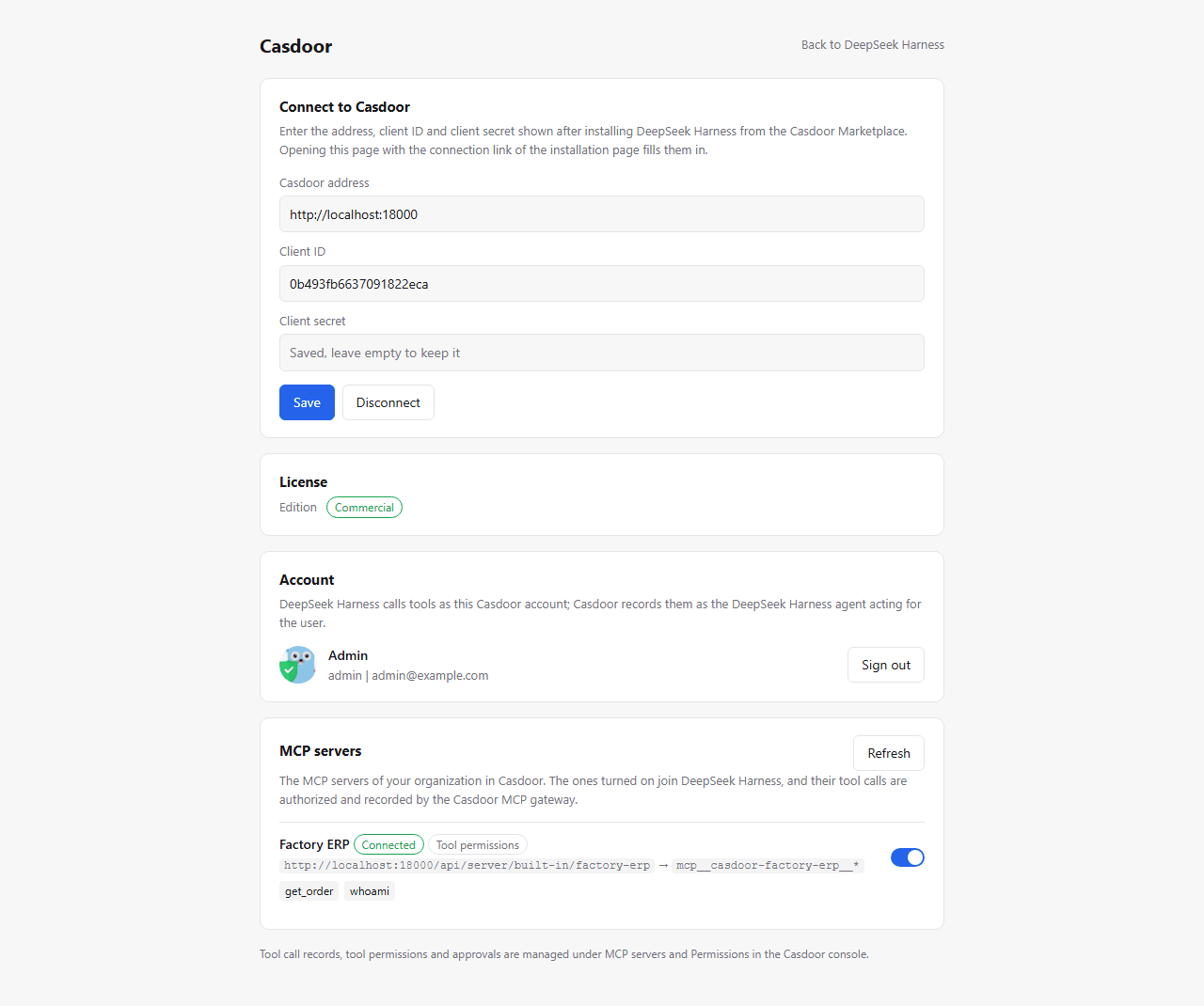
The page shows the edition of the license, the signed-in account, and the MCP servers of your organization with their allowed tools. A server that is turned on shows Connected once dsh has its tools; turn a server off to take its tools away from dsh.
Use the tools
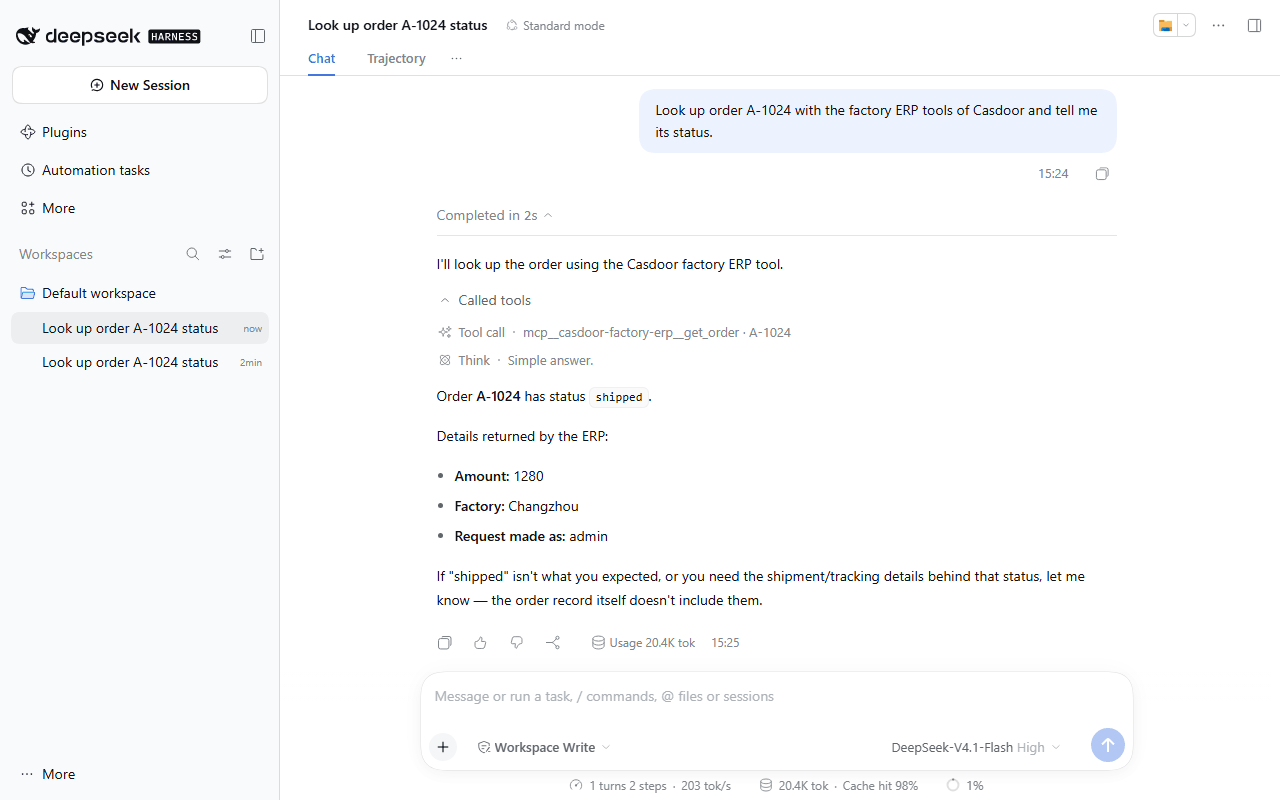
Ask dsh for something one of the tools does. The agent calls the tool through the Casdoor MCP gateway, and the call shows under Called tools with its name, such as mcp__casdoor-factory-erp__get_order.
Govern the calls in Casdoor
Decide which tools dsh may call
On the edit page of an MCP server, Is allowed of a tool blocks it for every client. For finer control, turn on Tool permissions of the server: every call then needs a permission whose Resource type is MCP tool.
- Go to Authorization > Permissions and add a permission.
- Set Resource type to MCP tool, and Resources to
<server>/<tool>,<server>/*or*. - Add the users, groups or roles who may call the tools, and add the agent DeepSeek Harness under Agents.
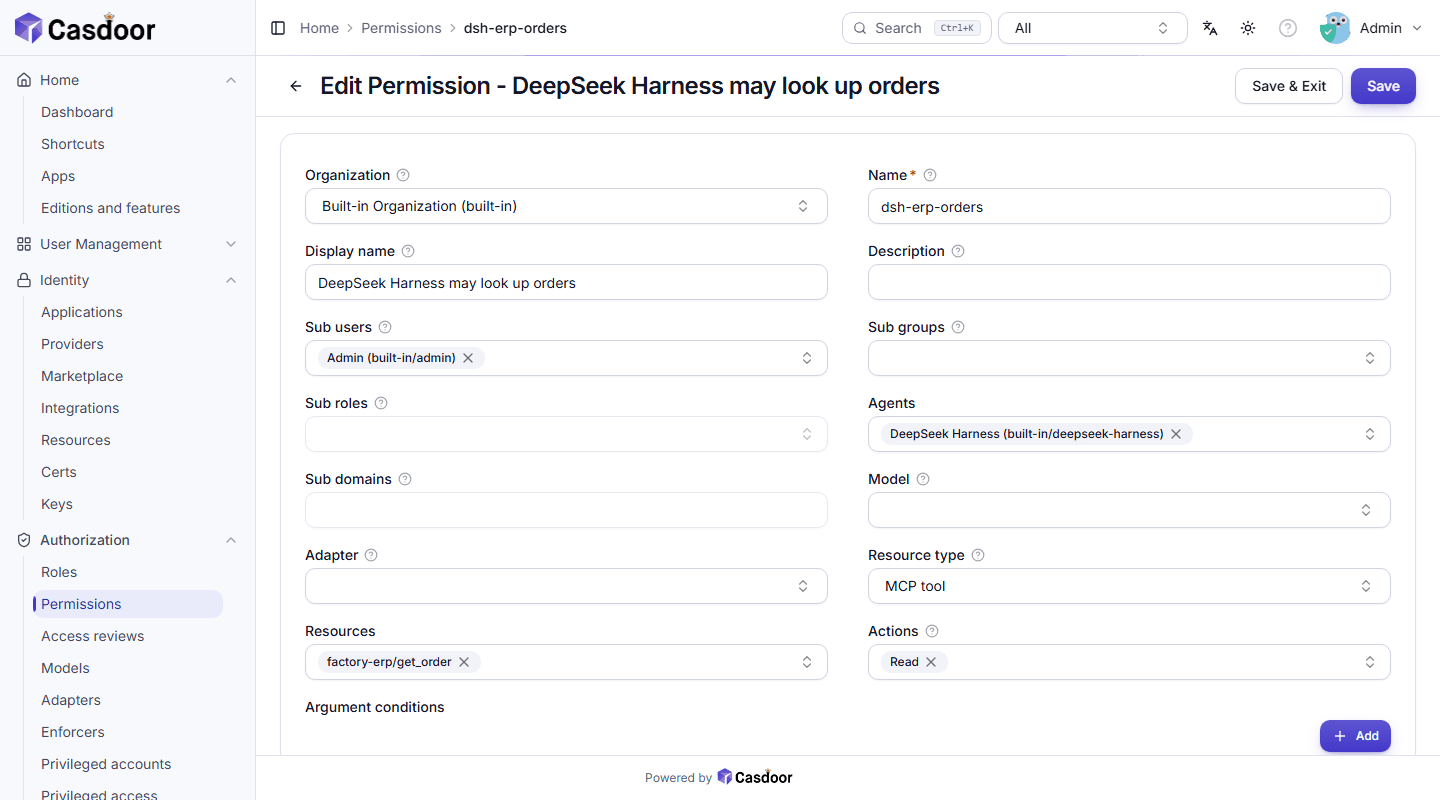
When dsh acts for a user, both the user and the agent need a permission for the tool, so dsh never gets more than the user it acts for. A Deny permission wins. dsh shows a refused call as a tool error, for example the user: built-in/admin has no permission to call the tool: whoami.
Find each call
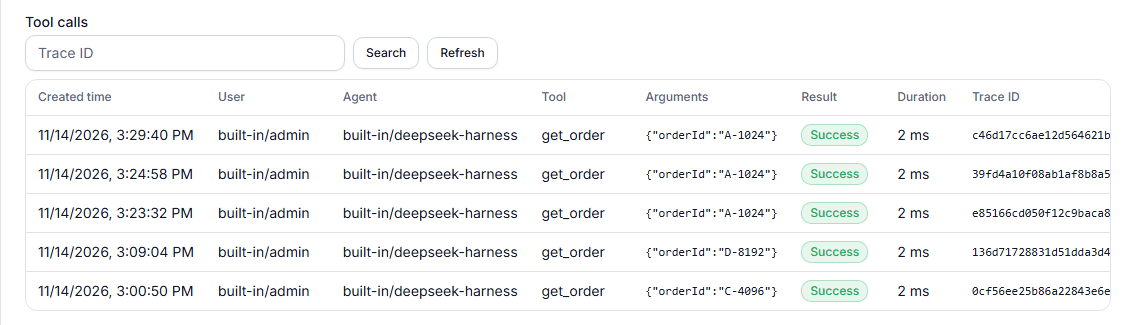
Turn on Record MCP tool calls on the Security tab of the organization. Each call then appears under Tool calls at the bottom of the MCP server's edit page, with the user, the agent, the tool, the arguments, the result and a trace ID. Search by trace ID to find one call.
Set Identity header of the MCP server, such as X-Casdoor-Identity, to send the MCP server a short-lived JWT that names the user, their groups and roles, the agent and the trace ID. The MCP server verifies it with the JWKS of Casdoor.
Stop dsh
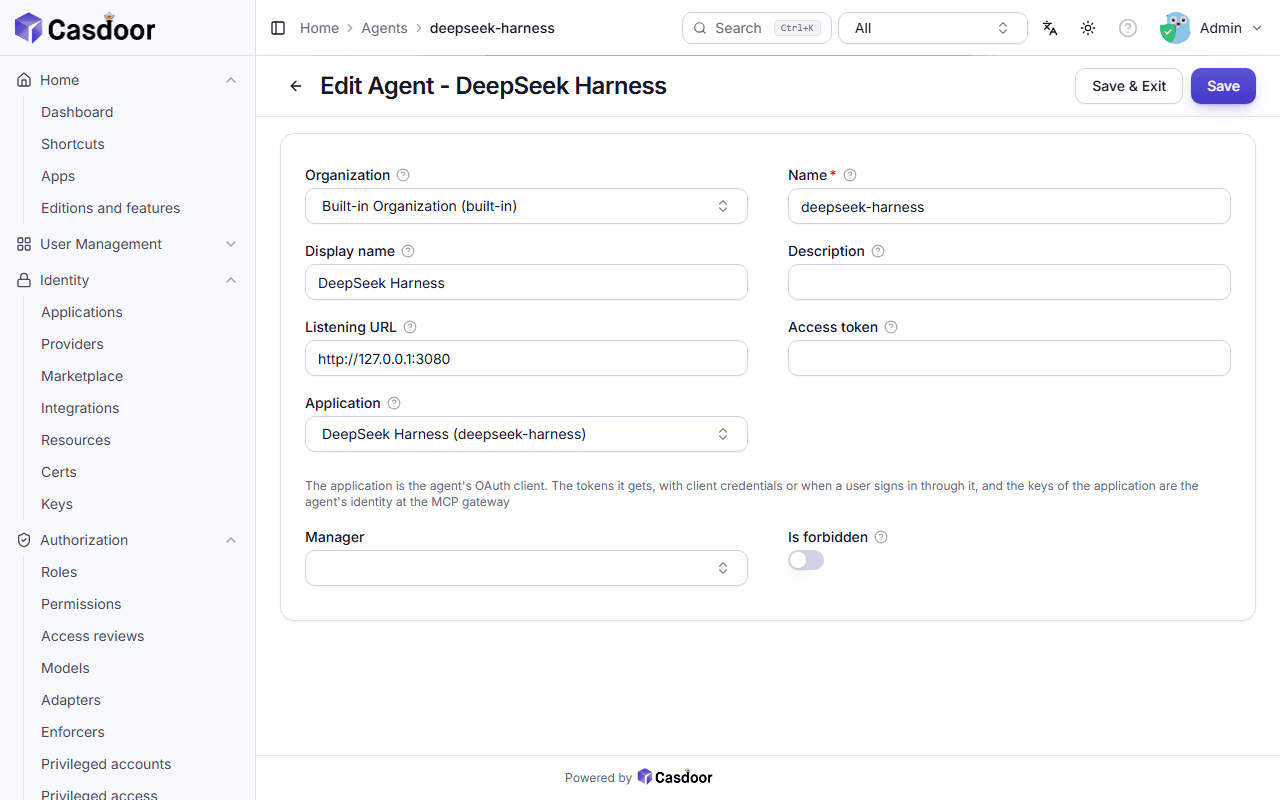
Go to LLM AI > Agents, open DeepSeek Harness and turn on Is forbidden. The gateway refuses the agent's next call. To stop one user only, forbid the user or delete their tokens under Auditing > Tokens.
Where the plugin keeps its data
The plugin keeps the connection (Casdoor address, client ID, client secret), the session (access and refresh tokens and the signed-in user) and the servers you turned off as records of the dsh credentials file, .credentials.yaml in the dsh home directory (~/.dsh by default). Nothing goes into the dsh configuration. Disconnect on the Casdoor page removes the connection and the session.
The plugin asks Casdoor for its license and the list of MCP servers every 10 minutes, and renews the token with the refresh token before it expires.
卸载
- In dsh, turn the Casdoor plugin off or remove it on the Plugins page. Its MCP servers leave dsh.
- In Casdoor, uninstall the integration under Identity > Integrations. Casdoor deletes the application and the agent. To cut off tokens that dsh already has, delete them under Auditing > Tokens.
故障排除
The license shows Community
The Casdoor that dsh connects to has no Commercial or Enterprise edition license, or the license has expired. Add a license to Casdoor, then click Refresh on the Casdoor page of dsh.
Casdoor says the redirect URI is not allowed
dsh runs on an address that the application doesn't list, for example behind a reverse proxy or on another host name. Add <that address>/casdoor/callback to Redirect URLs of the application deepseek-harness. Loopback addresses (127.0.0.1, localhost) on any port need no change.
The Casdoor page of dsh answers 401
The browser hasn't signed in to dsh yet. Open dsh with the address that dsh web prints, including its ?token= part, then open the Casdoor page again.
A server stays at Connecting
dsh couldn't list the tools through the gateway. Check that the server has tools whose Is allowed is on, and that Casdoor can reach the upstream MCP server. The gateway only reaches public addresses unless mcpGatewayAllowIntranet = true is set in conf/app.conf of a private deployment.