Apache DolphinScheduler
Casdoor是Apache DolphinScheduler支持的登录方式之一。
步骤1:部署Casdoor
部署 Casdoor. 见 服务器安装。 Ensure the server is running (e.g. http://localhost:8000) and you can open the login page (e.g. http://localhost:7001) and sign in as built-in/admin with the password that you set. See Sign in to the admin console.
步骤2:配置Casdoor应用
- 创建一个新的Casdoor应用或使用现有的一个。
- 添加你的回调地址(获取方法见下一节)。
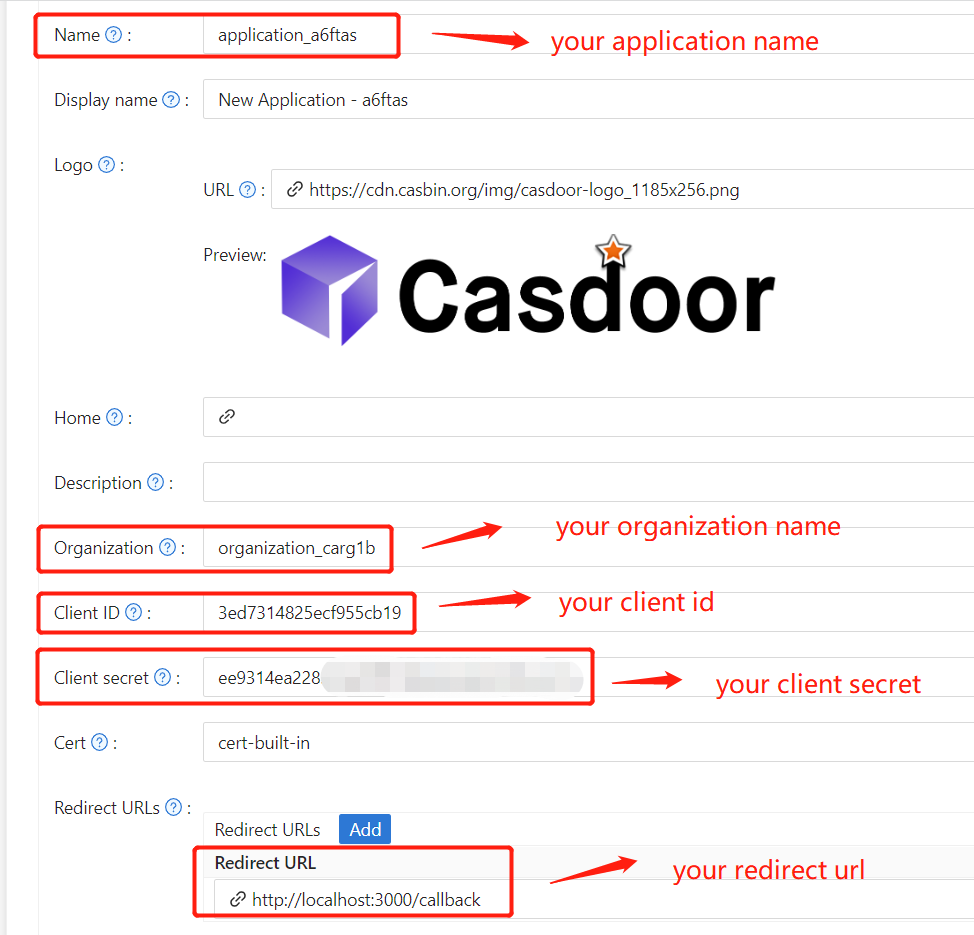
- 添加所需的提供商并填写其他必要的设置。
在应用页面记下 Client ID 和 Client secret,下一步要用。
打开您喜欢的浏览器并访问http://CASDOOR_HOSTNAME/.well-known/openid-configuration以查看Casdoor的OIDC配置。
步骤3:配置DolphinScheduler
dolphinscheduler-api/src/main/resources/application.yaml
security:
  authentication:
    # Authentication types (supported types: PASSWORD, LDAP, CASDOOR_SSO)
    type: CASDOOR_SSO
    casdoor:
      user:
        # The Casdoor user name that becomes the DolphinScheduler administrator
        admin:
casdoor:
  # The URL of your Casdoor server
  endpoint:
  client-id:
  client-secret:
  # Use `|-` for multi-line certificate
  certificate:
  # The organization name you added in Casdoor
  organization-name:
  # The application name you added in Casdoor
  application-name:
  # The DolphinScheduler login URL
  redirect-url: http://localhost:5173/login
现在,DolphinScheduler将自动将您重定向到Casdoor进行身份验证。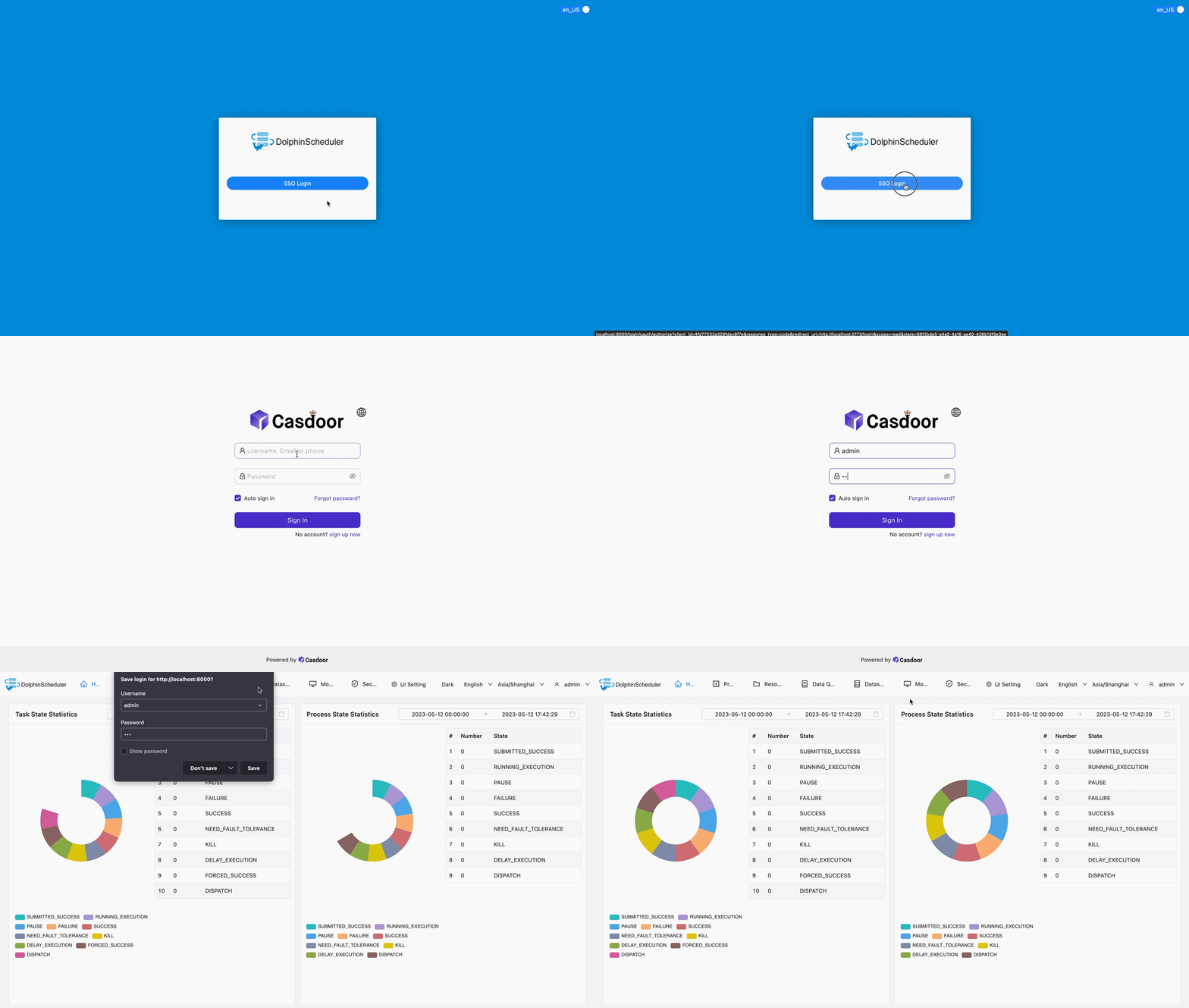
DolphinScheduler 3.4.0 and later also support a generic OIDC authentication type. Instead of CASDOOR_SSO, you can set type: OIDC and add Casdoor under security.authentication.oidc.providers with issuer-uri: http://CASDOOR_HOSTNAME; the redirect URL to add in Casdoor is then <api.base-url>/login/oauth2/code/<provider id>, for example http://localhost:12345/dolphinscheduler/login/oauth2/code/casdoor. See the DolphinScheduler authentication docs.