Add Sign in with Apple
This guide explains how to let users sign in to Casdoor with their Apple ID.
Learning outcomes
- Configure an App ID, a Services ID, and a key at Apple.
- Add Apple as an OAuth provider in Casdoor.
What you need
- An Apple Developer account with a membership of the Apple Developer Program
- Administrator access to the Casdoor admin console
Configure Apple
-
Create an App ID, or open an existing one, and turn on Sign in with Apple for it.
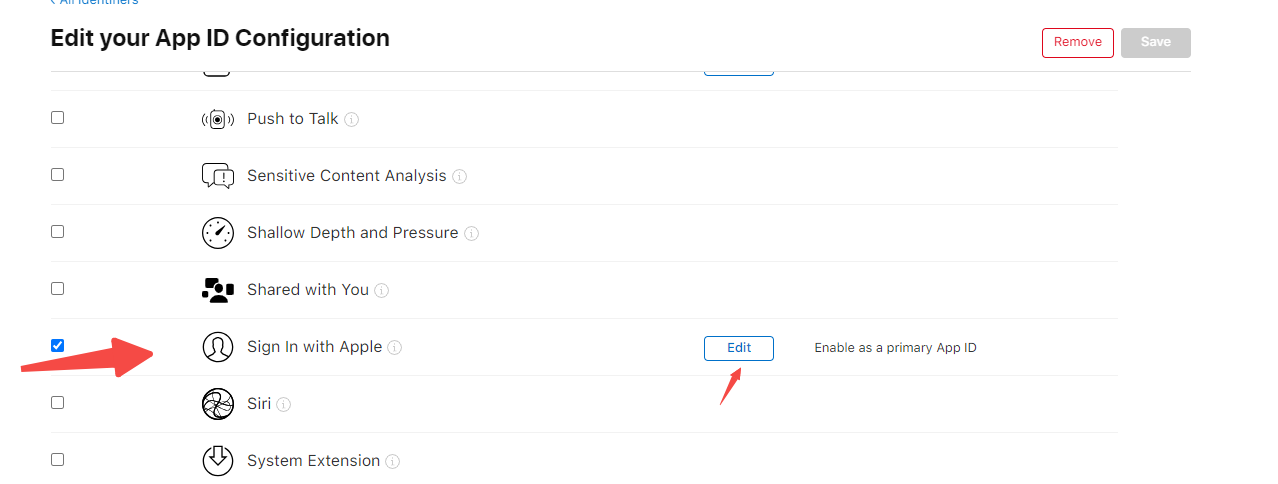
-
Create an identifier of the type Services IDs. Its identifier becomes the Client ID in Casdoor.
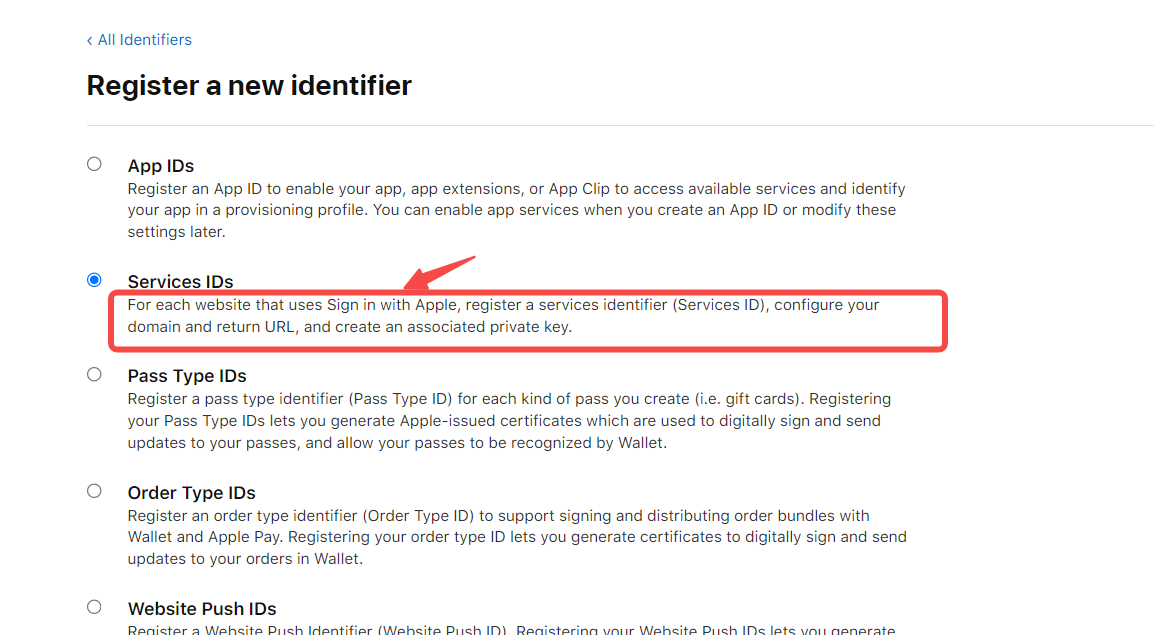
-
Open the Services ID, turn on Sign in with Apple, and click Configure.
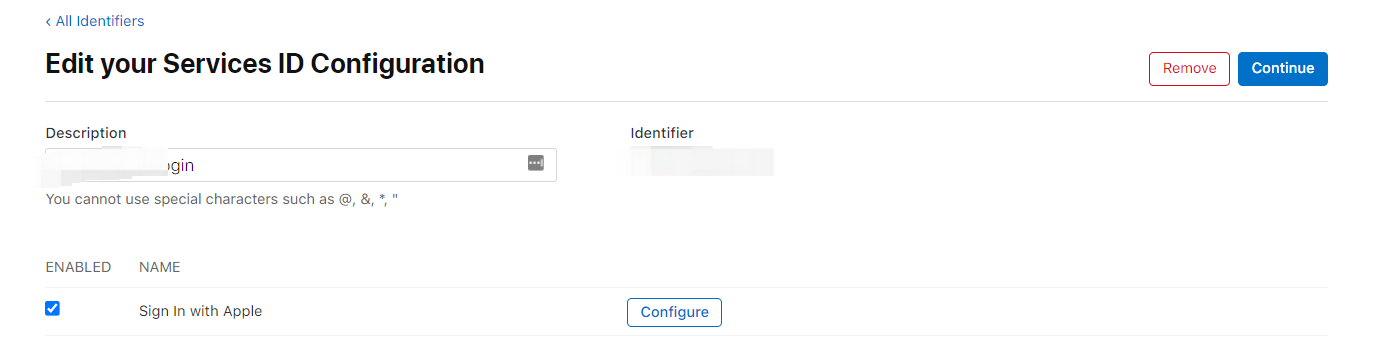
-
In Return URLs, enter the redirect URL that the Apple provider page in Casdoor shows, for example
https://your-casdoor-domain.com/callback. The two values must match exactly.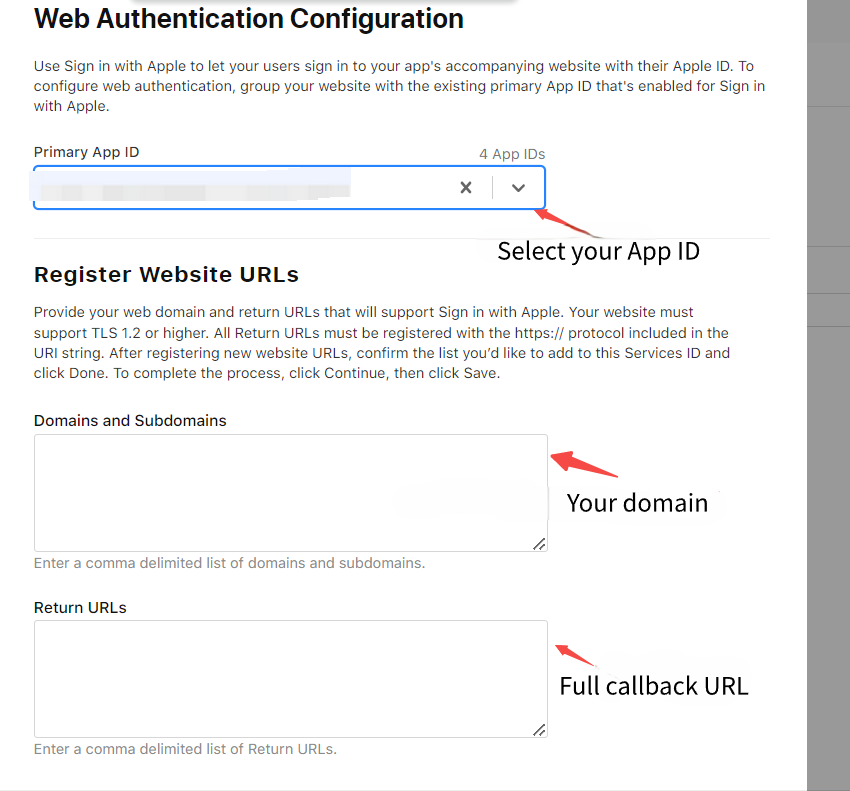
-
Create a key, turn on Sign in with Apple for it, and associate it with your App ID.
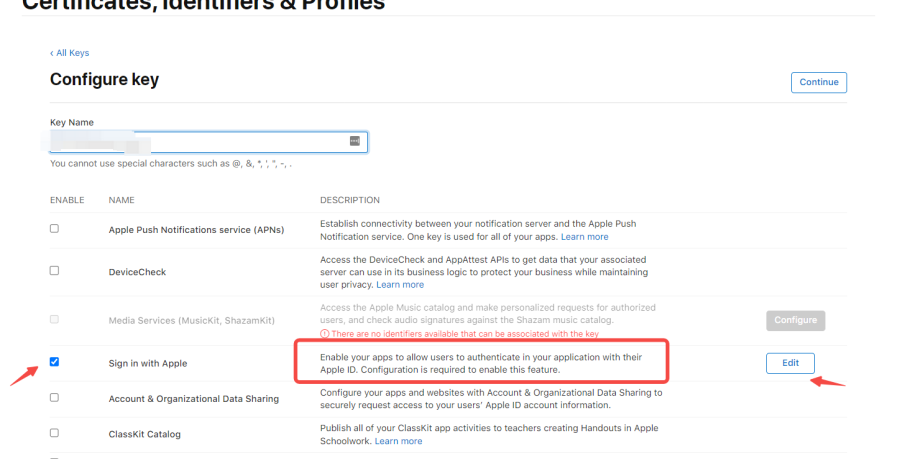
-
Register the key. Note the Key ID and download the
.p8file at once. Apple lets you download the file only once, so store it securely.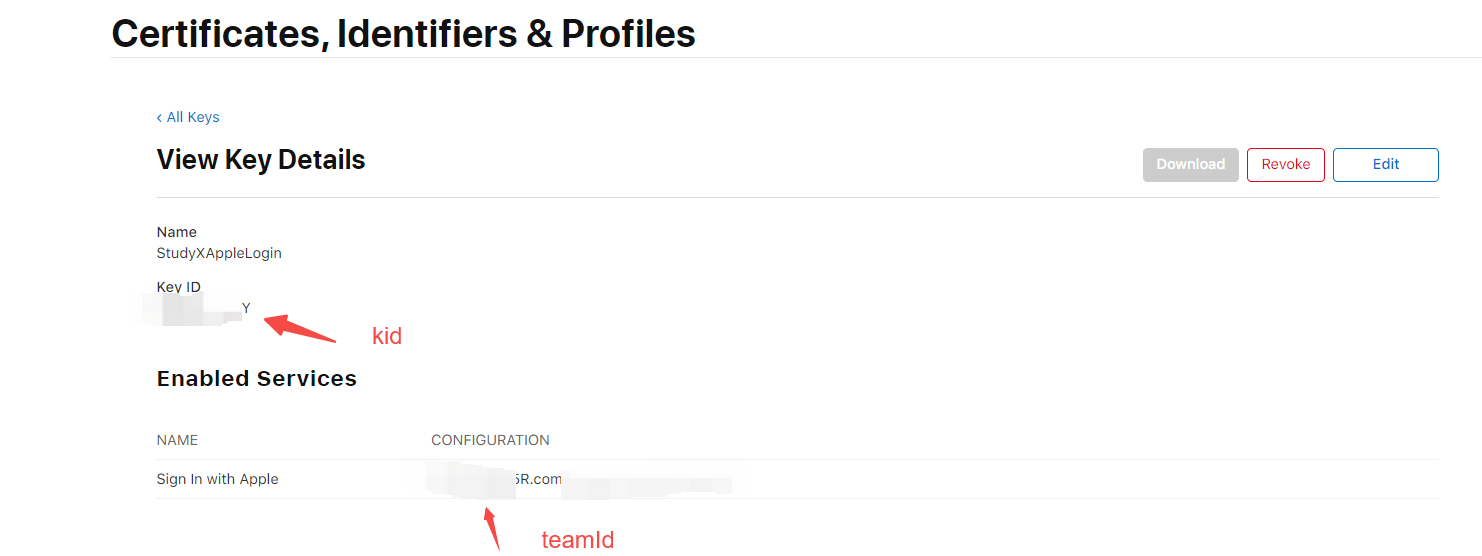
-
On the Membership page of the Apple Developer portal, note your Team ID.
Add the provider in Casdoor
-
In the Casdoor admin console, go to Identity > Providers and add a provider.
-
Set Category to
OAuthand Type toApple. -
Fill in the fields:
Field Value Client ID The identifier of the Services ID Team ID Your Apple Team ID Key ID The ID of the key Key text The complete content of the .p8file, including the-----BEGINand-----ENDlines -
Check that the redirect URL that Casdoor shows is in the Return URLs of the Services ID.

-
Save the provider.
Next steps
Add the provider to an application. See Add providers to an application.