Account customization
You can customize account items per organization: whether each field is visible and who can view or modify it. These settings apply to every member’s profile/home page in that organization.
Account menu layout
The Account menu setting on the organization controls how the user edit page navigation is rendered:
- Horizontal (default) — Fields grouped into tabs displayed across the top of the page.
- Vertical — Fields grouped into a sidebar menu on the left side of the page, useful for organizations with many account item tabs.
Set this in the organization edit page under Account menu.
Configuring account items
Each account item has five settings:
| Column Name | Selectable Value | Description |
|---|---|---|
| Name | - | Account item name. |
| Visible | True / False | Select whether this account item is visible on the user home page. |
| ViewRule | Rule Items | Select a rule to use when viewing the account item. Controls who can view this field. |
| ModifyRule | Regel-Elemente | Wählen Sie eine Regel für die Änderung des Kontenelements. Controls who can edit this field. |
| Tab | - | Tab label to group this item under on the user edit page. Items with the same tab value are shown together; items with no tab value appear in the default (un-tabbed) section. |
Grouping fields into tabs
Setting a Tab value on account items splits the user edit page into labelled tabs. All items that share the same tab string are grouped under one tab. Items with an empty tab value always appear first, outside any tab group.
For example, to create a "Contact" tab containing Email, Phone, and Location:
- Open your organization and scroll to Account items.
- Set the Tab column to
Contactfor the Email, Phone, and Location rows. - Save. The user edit page will show a "Contact" tab containing those three fields.
View rule and modify rule
- View rule — Who can see this field (e.g. email, phone).
- Modify rule — Who can edit this field.
This is separate from Permissions, which control access to applications and resources; view/modify rules apply to individual profile fields.
Steps
-
Navigate to Organizations in the Casdoor sidebar
-
Click on your organization to open the Edit Organization page
-
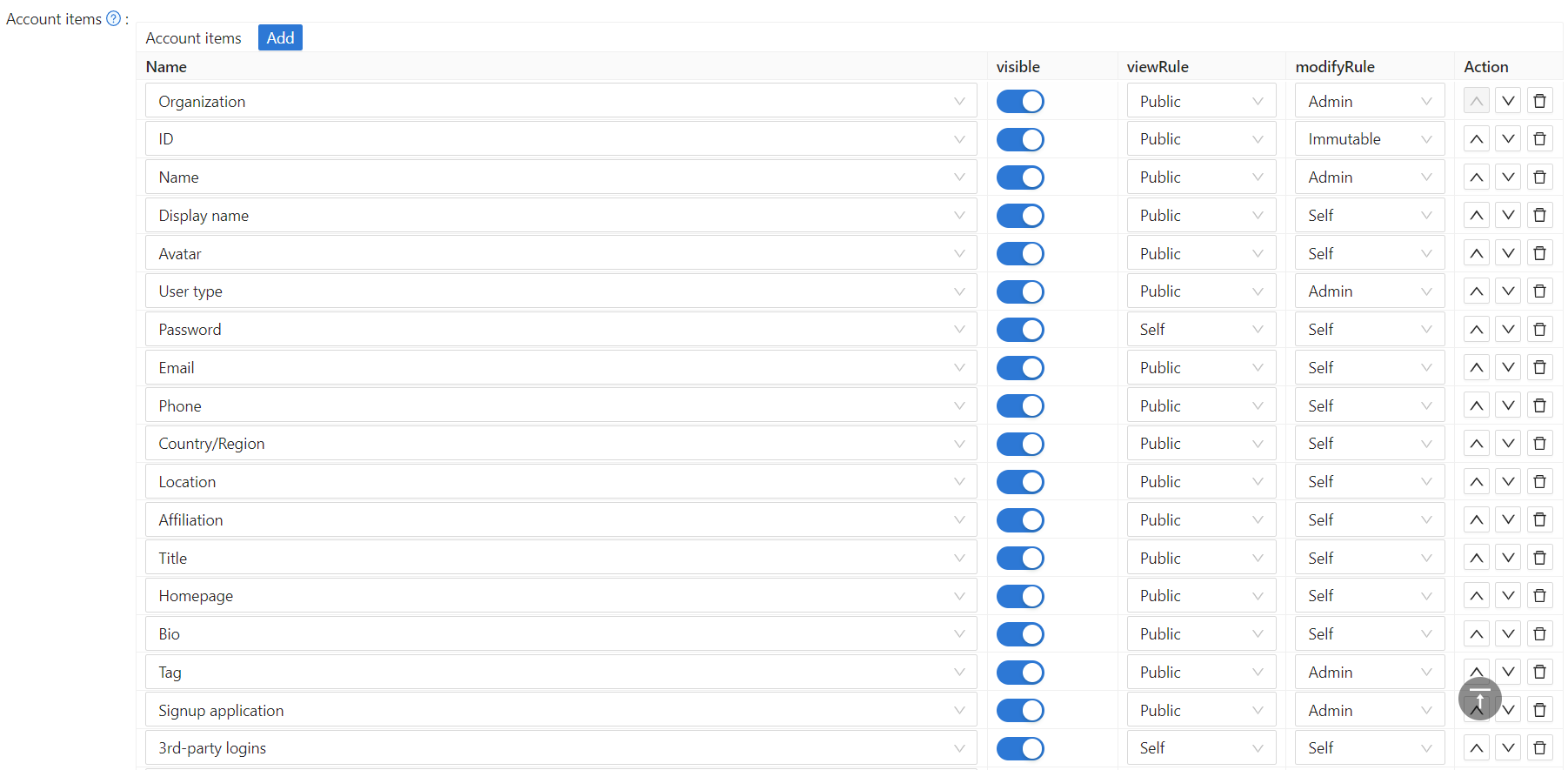
Scroll down to the Account items section
-
For each item you can:
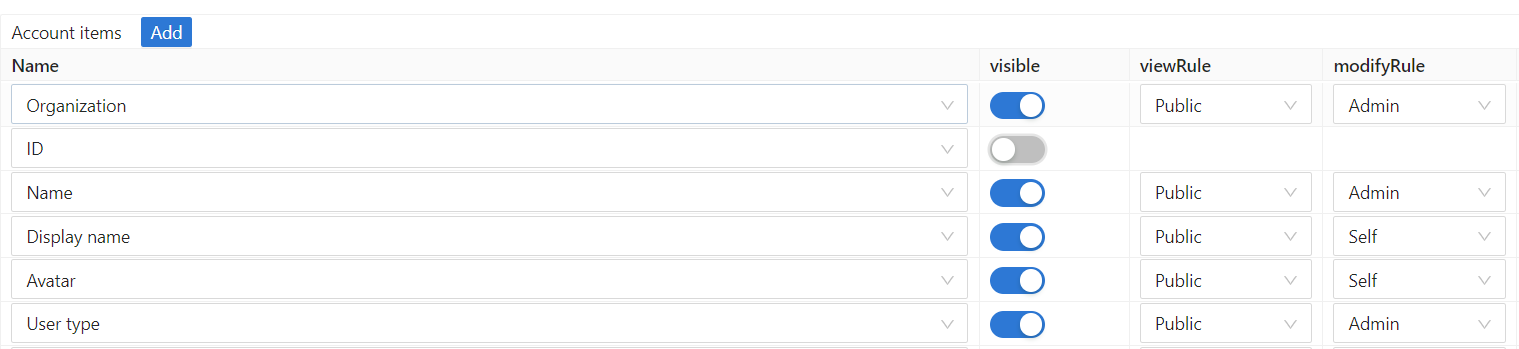
- Set visibility — Show or hide the field on the user home page.
- Set view and modify rules — Who can view or edit the field.
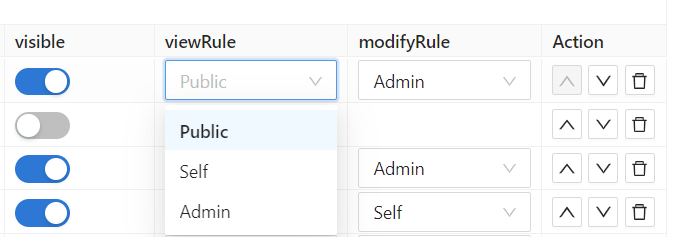
Rule options
- Public — Anyone can view or modify this field for any user.
- Self — Users can only view or modify their own value (matched by user ID, or by org + username if ID is missing).
- Admin — Only organization admins can view or modify this field.
Example patterns
Here are some common configuration patterns:
| Field | View Rule | Modify Rule | Use Case |
|---|---|---|---|
| Name | Public | Self | Everyone can see names, but users can only change their own |
| Self | Self | Users can only see and change their own email | |
| Telefon | Admin | Admin | Only admins can see and change phone numbers (for privacy) |
| Anzeigename | Public | Self | Public profile name visible to all |
| Passwort | Self | Self | Users can only change their own password |
Use Admin rules for sensitive fields like phone numbers, addresses, or internal identifiers that should only be managed by administrators.
These field-level permissions work in conjunction with the broader Permission system in Casdoor. The Permission system controls access to applications and API resources, while View rule and Modify rule control access to specific user profile fields within the Edit Organization page configuration.
Kontentabelle
Below are all the fields available as account items. Each field can be independently shown/hidden and assigned view/modify rules.
| Field | Description |
|---|---|
Organisation | The organization this user belongs to. |
ID | The user's globally unique identifier (UUID). |
Name | The user's unique login username within the organization. |
Display name | The name shown publicly on the user's profile. |
First name | The user's given name. |
Last name | The user's family name. |
Avatar | The user's profile picture. |
Benutzertyp | The category of the user account (e.g. normal user, service account). |
Password | The user's login password. |
Email | The user's email address, used for login and notifications. |
Phone | The user's phone number, used for login and SMS verification. |
Country code | The phone country/calling code (e.g. +1 for the US), used together with Phone. |
Land/Region | The user's country or region. |
Standort | The user's city or address. |
Zugehörigkeit | The user's company, school, or other organizational affiliation. |
Titel | The user's job title or position. |
ID card type | The type of government-issued identity document (e.g. passport, national ID card, driver's license). |
ID card | The document number of the user's identity document. |
ID card info | Additional identity document details (e.g. issue date, expiry). Only visible to the user themselves. |
Real name | The user's verified legal name. Locked and cannot be changed after identity verification is completed. |
ID verification | Controls visibility of and access to the Verify identity button on the profile page. |
Homepage | The URL of the user's personal website or online profile. |
Bio | A short biography or personal description. |
Tag | One or more custom labels attached to the user, used for filtering or grouping. |
Anmeldeanwendung | The application the user originally signed up through. |
Register type | The method used to register the account (e.g. email, phone, OAuth). |
Register source | The channel or provider through which the user registered (e.g. Google, GitHub, invite link). |
Roles | The roles assigned to this user, which determine access within Casdoor. |
Permissions | The permissions explicitly granted to this user. |
Groups | The user groups this user belongs to. |
Drittanbieter-Logins | Linked third-party OAuth accounts (e.g. Google, GitHub, WeChat) used for social login. |
Eigenschaften | Custom key-value pairs for storing additional application-specific data about the user. |
Balance | The user's account balance, used for built-in payment or credit features. |
Balance credit | Minimum balance floor for the user's account. Must be ≤ 0. Set to 0 (default) to prevent the balance from going negative. Set to a negative value (e.g. -50) to allow the balance to drop as low as that amount before transactions are blocked. |
Balance currency | The currency unit for the user's balance (e.g. USD, CNY). |
Cart | Items added to the user's shopping cart (for e-commerce integrations). |
Score | A point score assigned to the user, typically by application logic. |
Karma | A reputation score reflecting the user's activity or community standing. |
Ranking | The user's rank among all users, derived from score or other metrics. |
Language | The user's preferred display language for the Casdoor UI. |
Ist Admin | Whether the user has organization administrator privileges. |
Ist gesperrt | Whether the user account is banned; forbidden users cannot log in. |
Ist gelöscht | Whether the user account has been soft-deleted (marked as deleted but retained in the database). |
Multi-factor authentication | The user's MFA settings and enrolled second-factor methods (e.g. TOTP app, SMS). |
MFA items | The list of individual MFA methods enrolled by the user. |
WebAuthn credentials | Registered passkeys or hardware security keys (WebAuthn/FIDO2) for passwordless login. |
Last change password time | Timestamp of the user's most recent password change. Admin-only. |
Managed accounts | Sub-accounts or delegated accounts that this user can manage on behalf of others. |
Face ID | Enrolled face recognition data used for biometric login. |
MFA accounts | External accounts linked specifically for multi-factor authentication purposes. |
Need update password | Whether the user is required to change their password at next login. Admin-only. When set, the user is redirected to their Account page after sign-in and cannot navigate elsewhere until the password is updated. |
IP whitelist | IP addresses or CIDR ranges from which this user is allowed to sign in. Admin-only. |