登录界面自定义
本指南将指导您如何自定义应用程序的登录页面:背景图片、登录面板样式、位置以及可选的侧边面板。
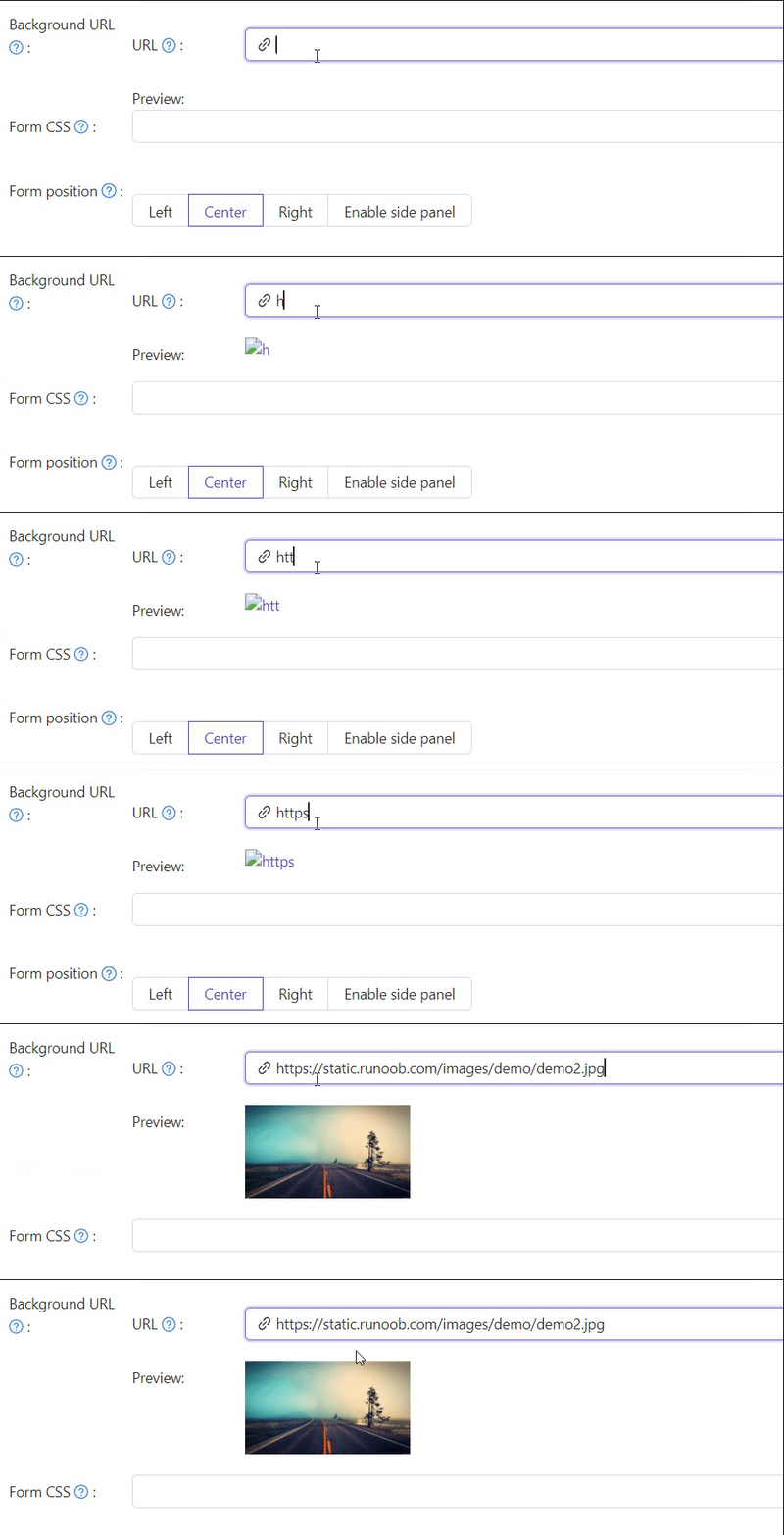
1. 背景图片
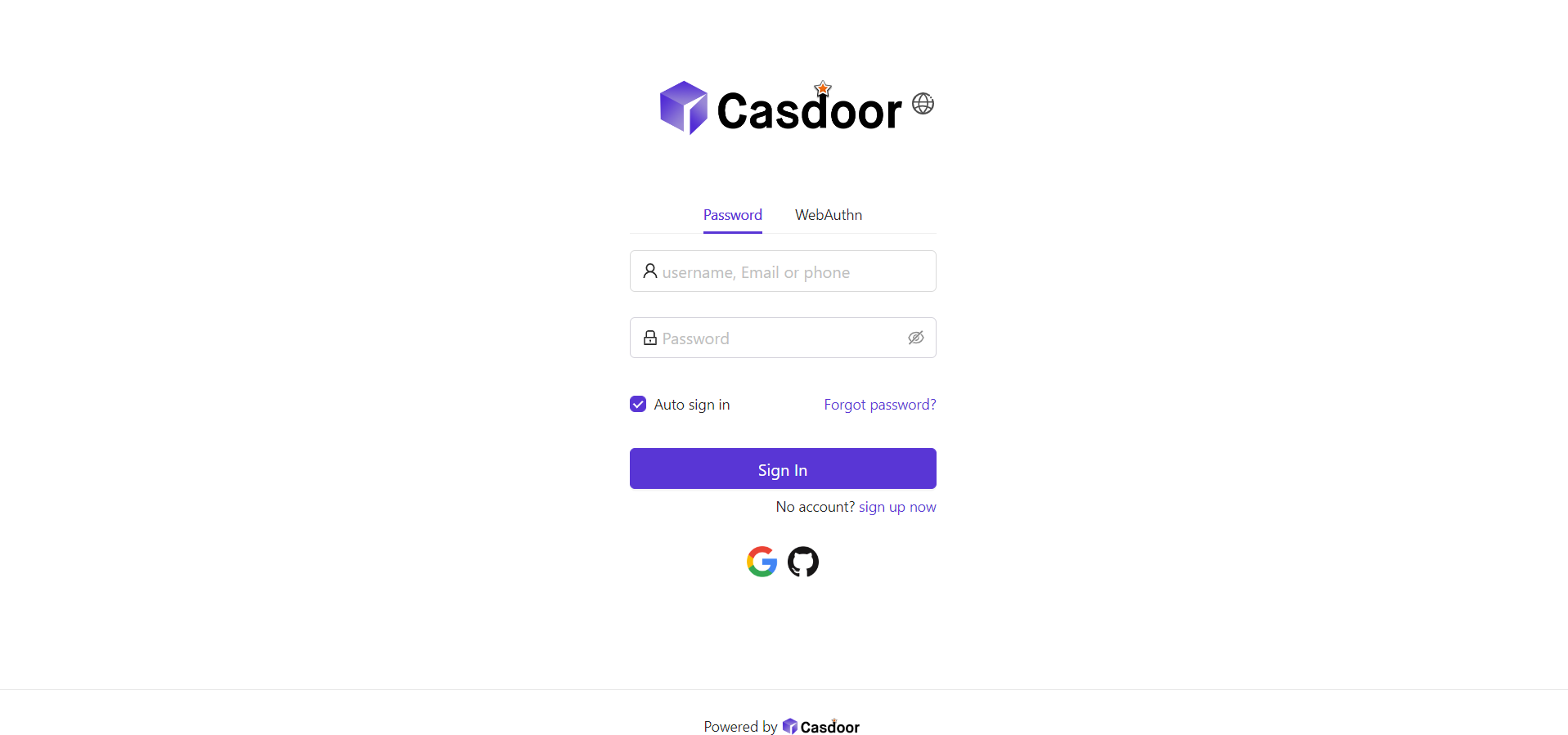
默认背景为白色。 将背景 URL 设置为图片 URL;当 URL 有效时,预览会更新。
2. 登录面板样式
使用表单CSS为登录面板设置样式。 Enter raw CSS — Casdoor wraps the field in a <style> tag for you, so do not add a <style> wrapper yourself. 示例:
.login-panel{
    padding: 40px 30px 0 30px;
    border-radius: 10px;
    background-color: #ffffff;
    box-shadow: 0 0 30px 20px rgba(0, 0, 0, 0.20);
}
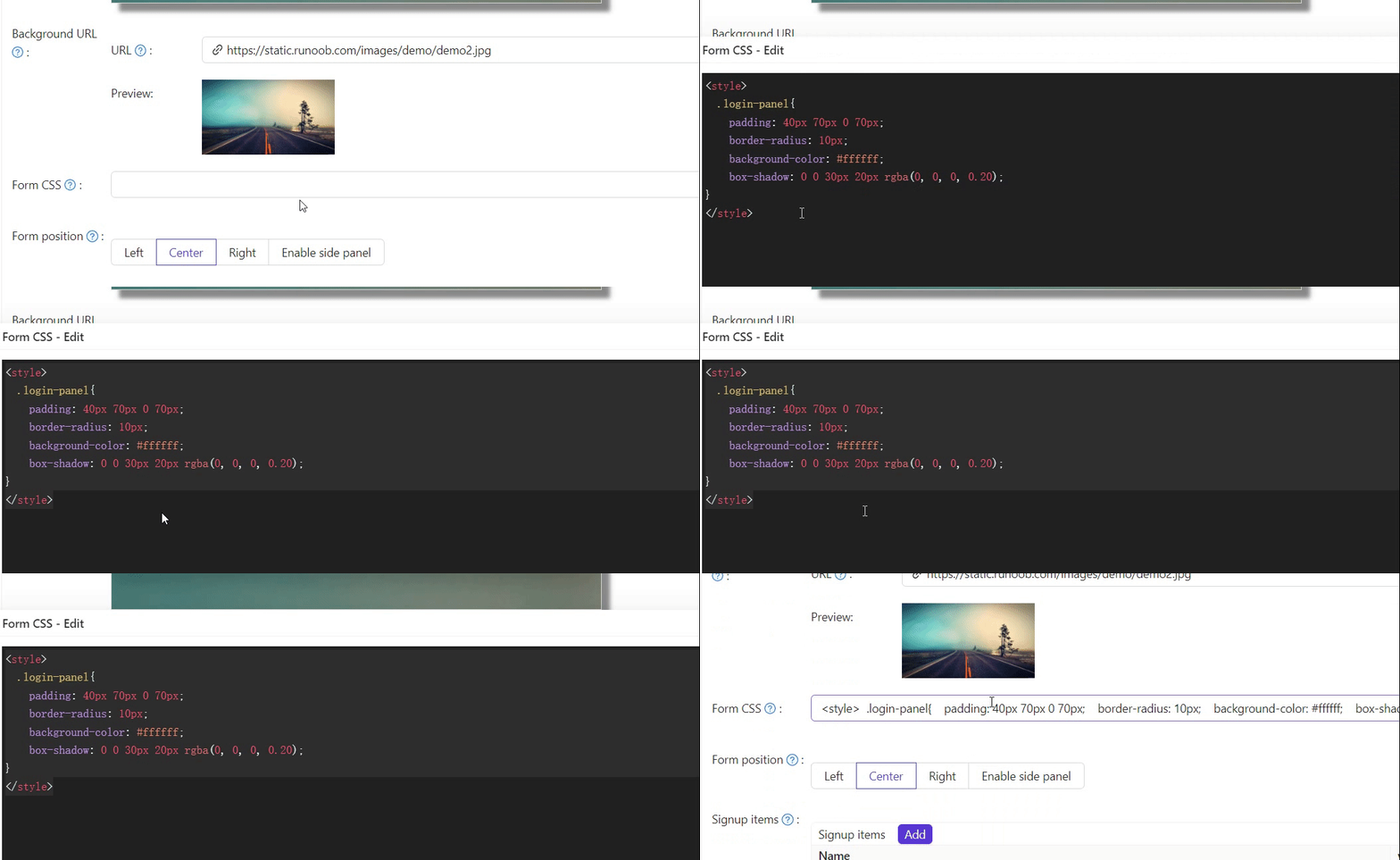
:::提示 如果表单CSS为空,编辑器可能会显示默认值;请复制内容并粘贴到该字段中,然后保存。 :::
Enter plain CSS rules only. Casdoor renders Form CSS (and its mobile variant) inside a <style> tag automatically, so wrapping your rules in <style>...</style> would break them. This applies only to Form CSS; the Side panel HTML field below is still raw HTML and keeps its own <style> tag.
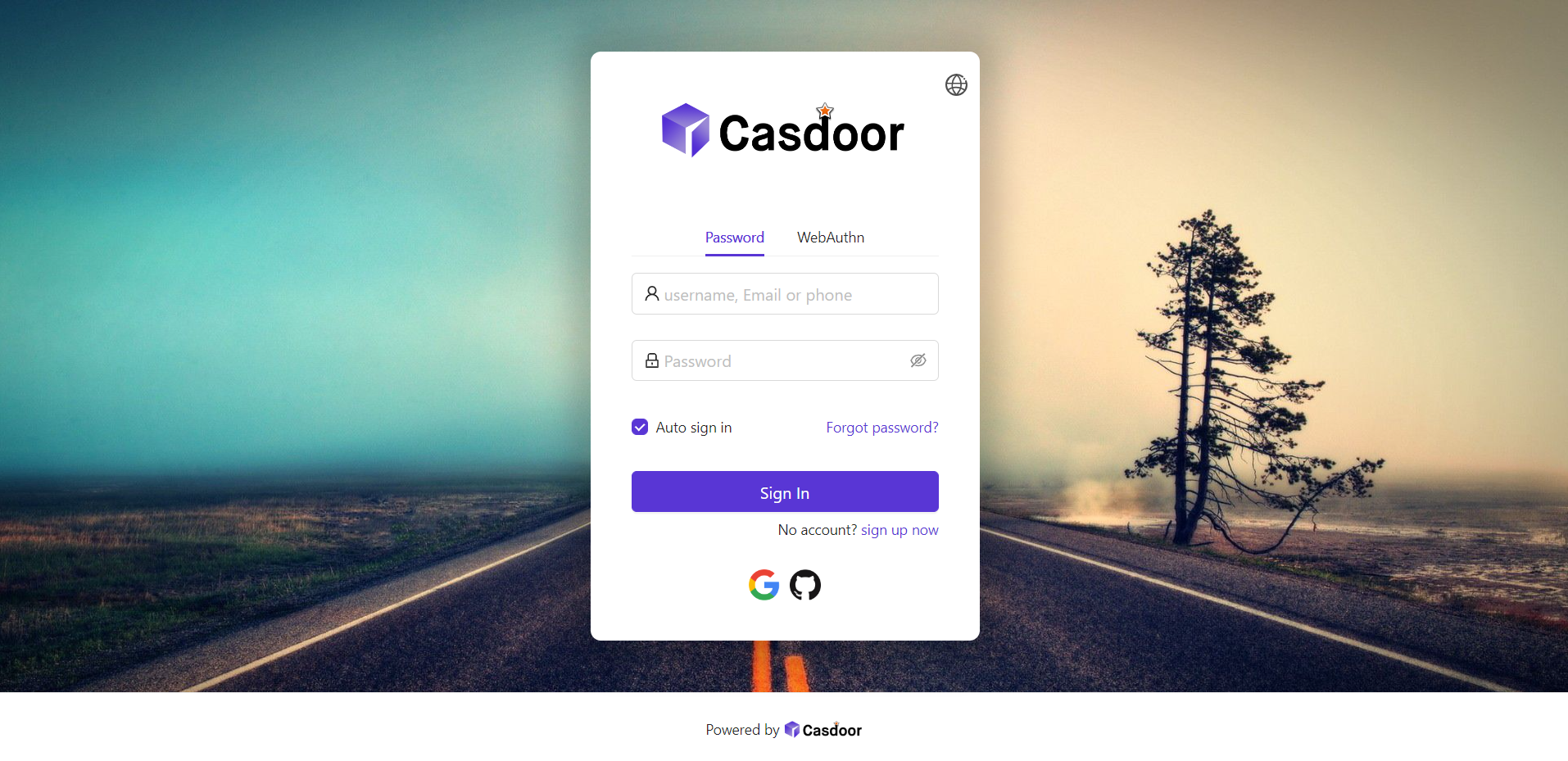
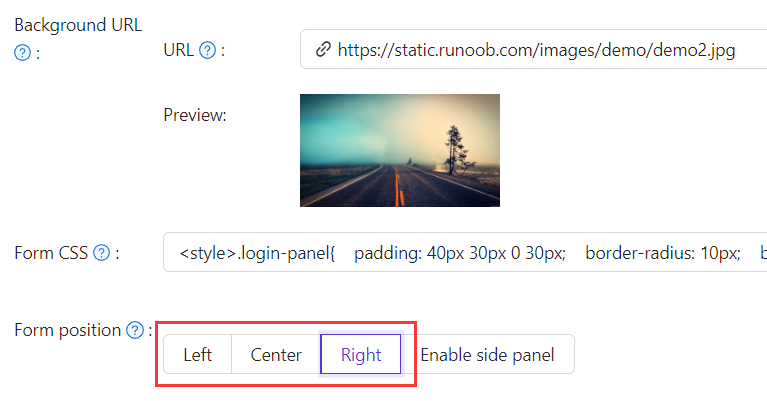
3. 面板位置
使用位置按钮将面板放置在左侧, 居中或右侧。
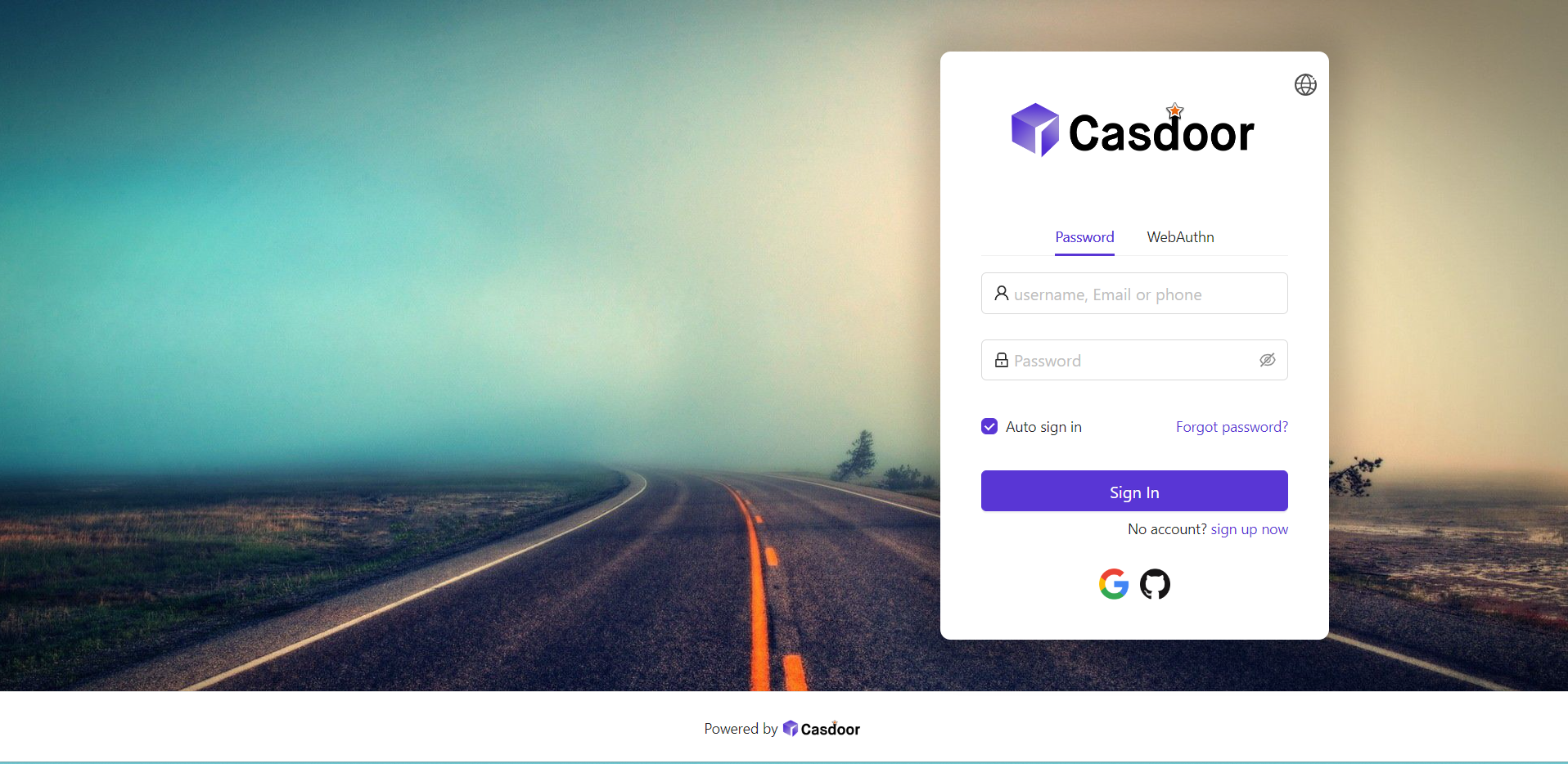
4. 侧边面板
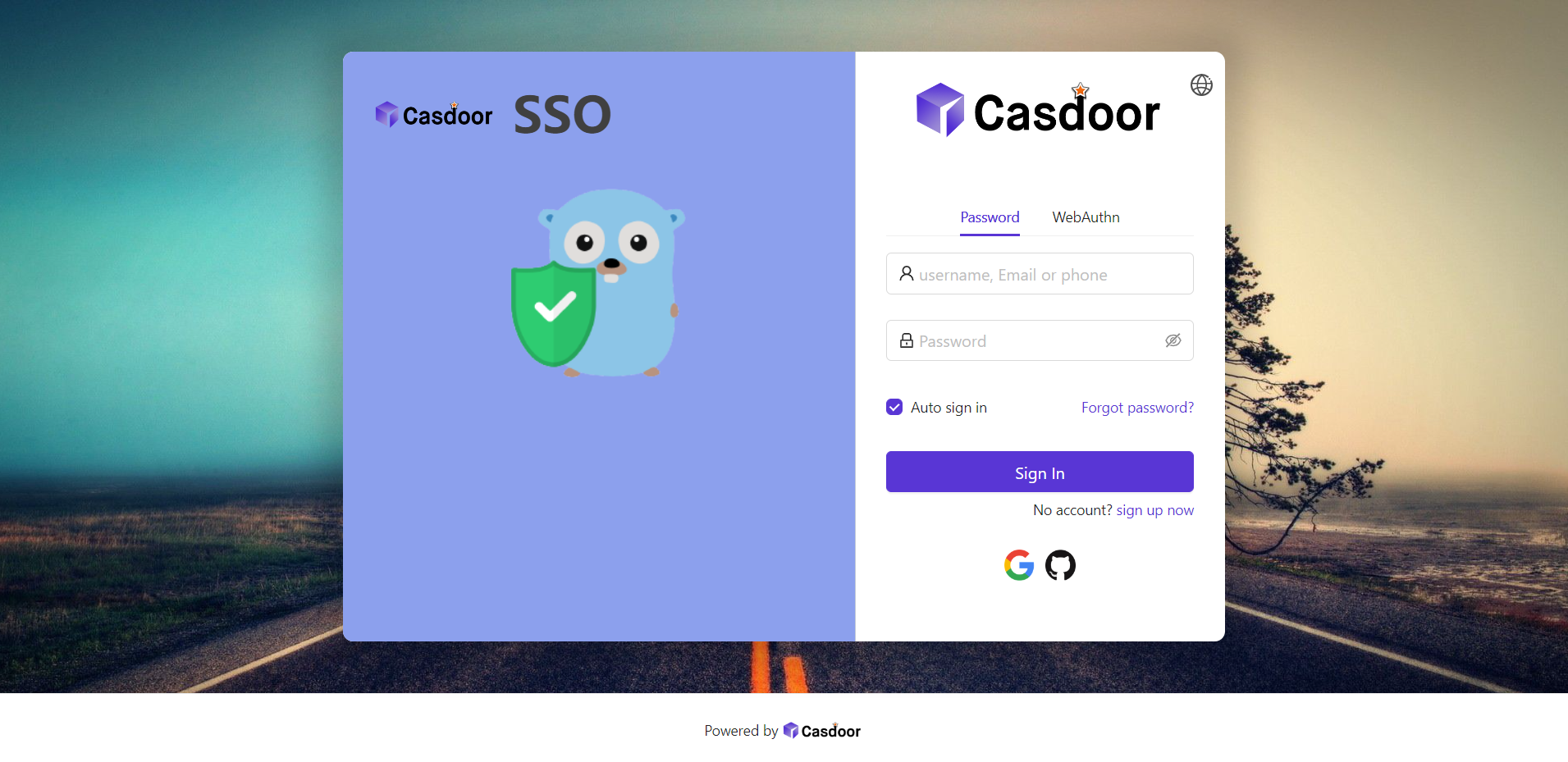
启用启用侧边面板以便表单居中并带有侧边区域。 编辑侧边栏 HTML用于侧边内容;可从默认模板开始,也可进行自定义。

示例侧面面板 HTML:
<style>
  .left-model{
    text-align: center;
    padding: 30px;
    background-color: #8ca0ed;
    position: absolute;
    transform: none;
    width: 100%;
    height: 100%;
  }
  .side-logo{
    display: flex;
    align-items: center;
  }
  .side-logo span {
    font-family: Montserrat, sans-serif;
    font-weight: 900;
    font-size: 2.4rem;
    line-height: 1.3;
    margin-left: 16px;
    color: #404040;
  }
  .img{
    max-width: none;
    margin: 41px 0 13px;
  }
</style>
<div class="left-model">
  <span class="side-logo"> <img src="https://cdn.casbin.org/img/casdoor-logo_1185x256.png" alt="Casdoor" style="width: 120px">
    <span>SSO</span>
  </span>
  <div class="img">
    <img src="https://cdn.casbin.org/img/casbin.svg" alt="Casdoor"/>
  </div>
</div>
Refine the layout with Form CSS (e.g. .login-panel, .login-form). As above, enter raw CSS without a <style> wrapper:
.login-panel{
  border-radius: 10px;
  background-color: #ffffff;
  box-shadow: 0 0 30px 20px rgba(0, 0, 0, 0.20);
}
.login-form {
  padding: 30px;
}
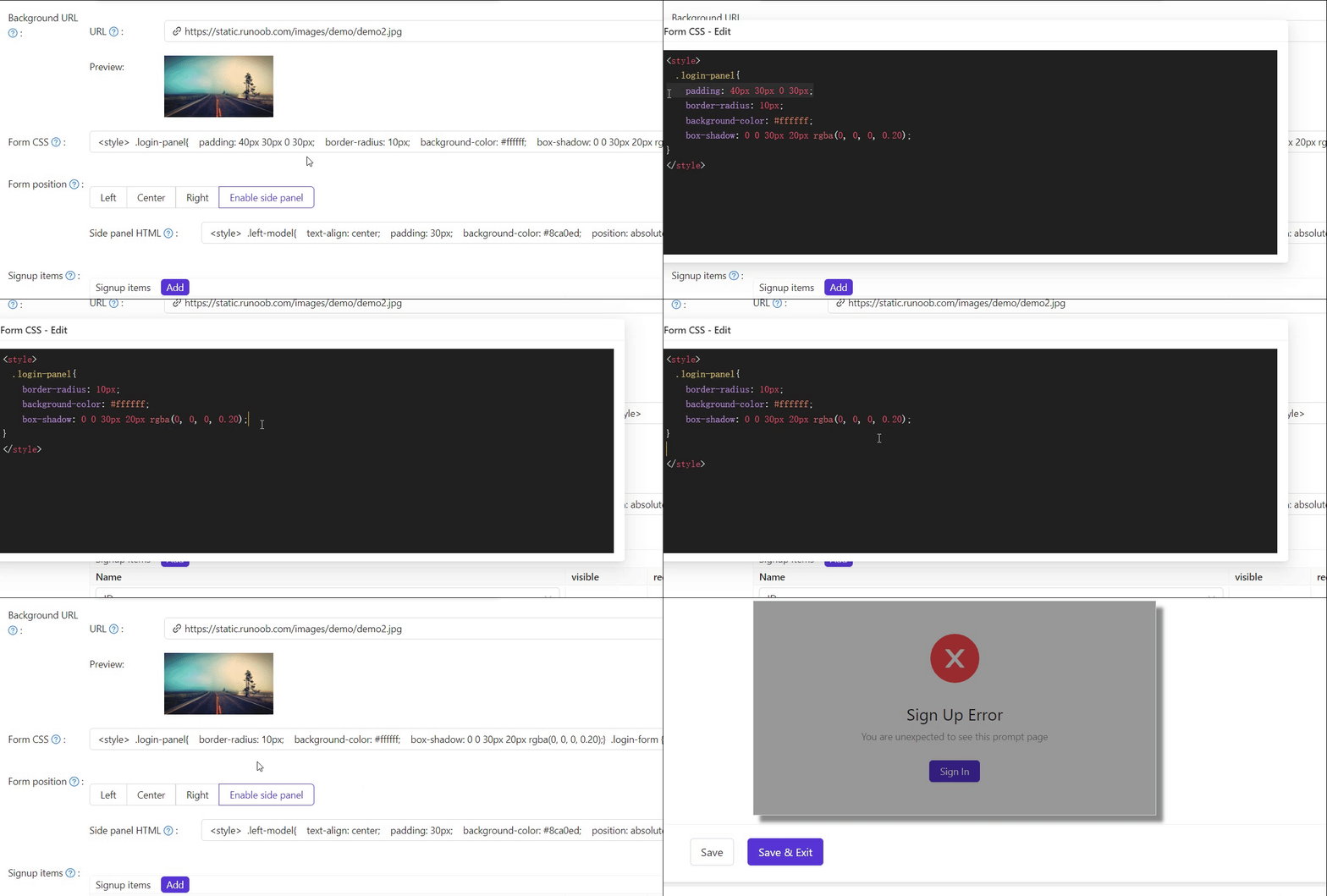
.login-panel和.login-form是主要的容器类;请在表单CSS中针对它们进行进一步自定义。
Export and import the UI customization
Once you have styled an application, you can move its look-and-feel to the same application on another Casdoor instance (for example from a staging to a production deployment) using the Export JSON and Import JSON buttons at the bottom of the application edit page. They appear only when editing an existing application, not when adding a new one.
Only the login-UI and theme customization fields are transferred — Logo, Favicon, Background URL (and its mobile variant), Form CSS (and its mobile variant), panel position/offset, Side panel HTML, theme data, and the header, footer, sign-up, and sign-in HTML snippets. Secrets, providers, and other application settings are not included.
- Export JSON copies a JSON document with these fields (plus the application's
nameandorganization) to your clipboard. - Import JSON opens a dialog where you paste that JSON. Click OK to apply the fields to the form, then Save to persist the change.
The name and organization in the pasted JSON must match the application you are importing into, otherwise the import is rejected. This is why import targets the same application across instances rather than copying a design into a different application.
摘要
设置背景 URL, 样式表单 CSS, 选择面板位置, 并可选地启用和设置侧边面板 HTML。 Reuse a finished design on another instance with Export JSON / Import JSON. 另请参阅: