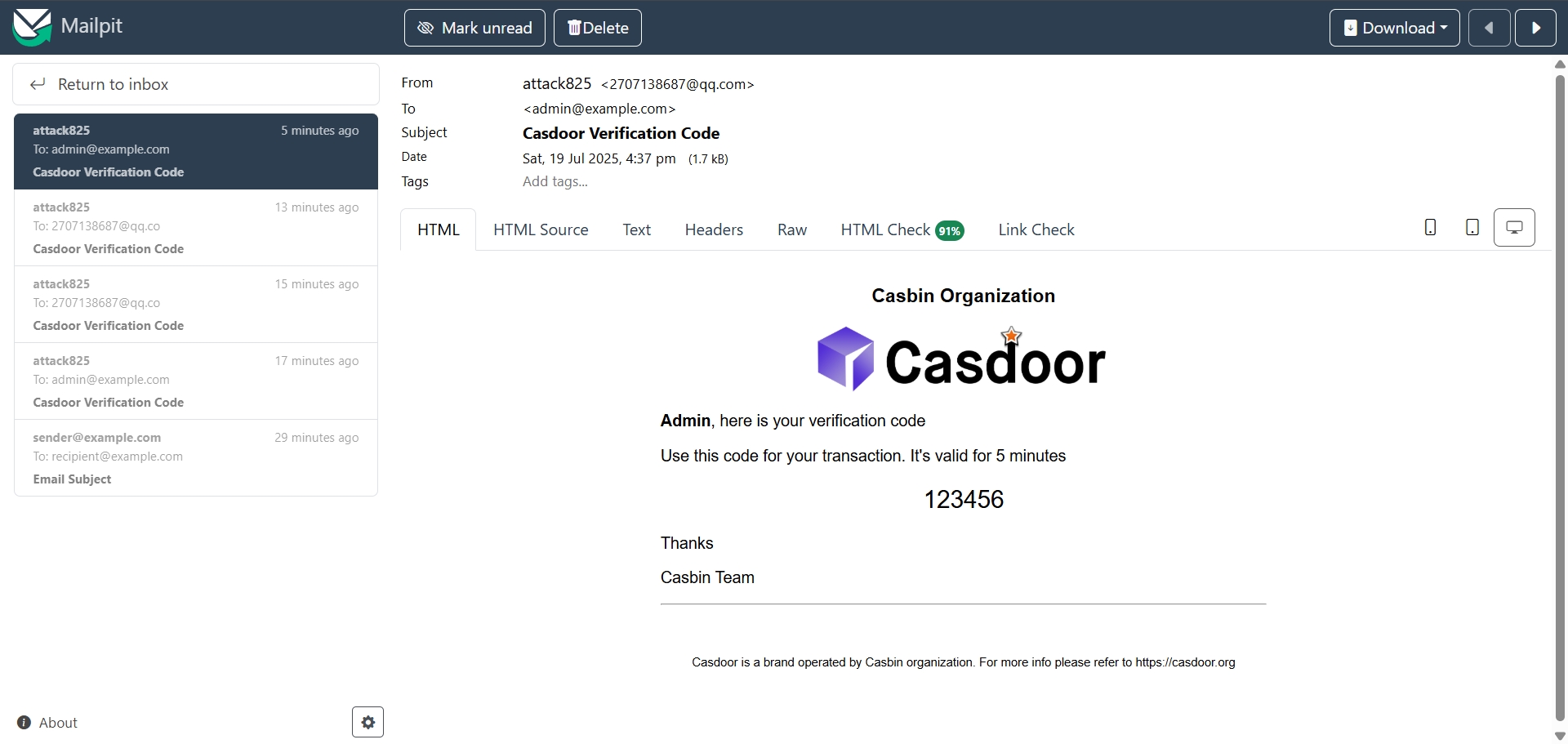
Test email with Mailpit
This guide explains how to send the emails of Casdoor to Mailpit, an SMTP server for testing that catches all messages and shows them in a web UI.
Learning outcomes
- Point an email provider at Mailpit.
- Send a test email and read it in Mailpit.
What you need
- Mailpit running where Casdoor can reach it. By default, Mailpit listens on
127.0.0.1:1025without TLS or authentication. - Administrator access to the Casdoor admin console
Run Mailpit
Start Mailpit, so that its SMTP server is reachable at 127.0.0.1:1025, or at the host and port that you configured.

Add the provider in Casdoor
-
In the Casdoor admin console, go to Identity > Providers and add a provider.
-
Set Category to
Emailand Type toDefault. -
Set Host and Port to the address of Mailpit, for example
127.0.0.1and1025. Leave Username and Password empty if Mailpit has no authentication.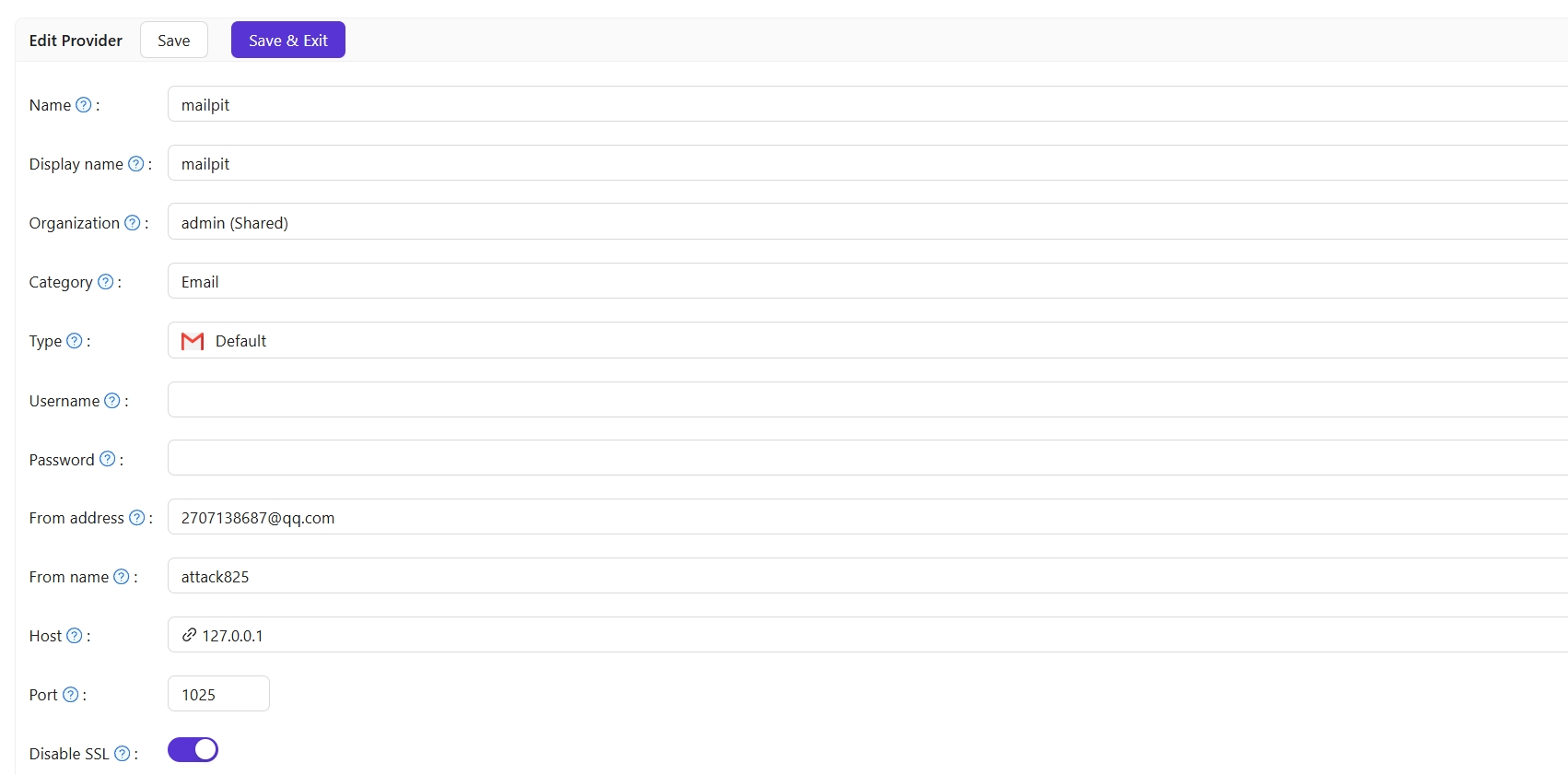
-
Save the provider.
Verify the result
-
Click Test SMTP Connection. Casdoor reports
SMTP connected successfully. -
Click Send Testing Email. Casdoor reports
Email sent successfully.
-
Open the web UI of Mailpit. The message is there.