Providers
A provider connects Casdoor to an external service, such as an identity provider for sign-in, an email service, or a cloud storage. You create a provider once and then add it to the applications that use it.
Provider categories
| Category | Purpose |
|---|---|
| Audit | Send audit events to an external system |
| Captcha | Protect sign-in and sign-up with a captcha. See Captcha providers |
| Send email, such as verification codes and notifications. See Email providers | |
| Face ID | Recognize faces for Face ID sign-in. See Face ID providers |
| ID Verification | Verify the identity of users from ID documents. See Identity verification providers |
| Log | Forward permission audit events to a logging backend, or store them as entries. See Log providers |
| MFA | Provide a second factor, such as RADIUS. See MFA providers |
| Notification | Send messages to chat services, such as Slack and Telegram. See Notification providers |
| OAuth | Let users sign in with external identity providers, such as GitHub and Google. See OAuth providers |
| Payment | Take payments for products and subscriptions. See Payment providers |
| SAML | Let users sign in with external SAML identity providers. See SAML providers |
| Scan | Scan servers for security issues and MCP endpoints. See Scan providers |
| SMS | Send SMS verification codes. See SMS providers |
| Storage | Store files on the local file system or in cloud object storage. See Storage providers |
Who can use a provider
Only administrators create providers. Where a provider is available depends on who created it:
| Created by | Available to |
|---|---|
A global administrator: a user of the built-in organization, or a user with IsGlobalAdmin | All applications |
An organization administrator: a user with IsAdmin | Applications of the same organization |
Create a provider
- In the Casdoor admin console, go to Identity > Providers and add a provider.
- Select the Category and the Type. Casdoor fills in Name and Display name: the name follows the pattern
provider_<category>_<type>, and the display name is<Category> <Type>. Casdoor stops updating a field once you edit it yourself. - Fill in the fields of the type. The page of each provider type lists them.
- Save the provider.
Add a provider to an application
A provider takes effect only in the applications that you add it to.
-
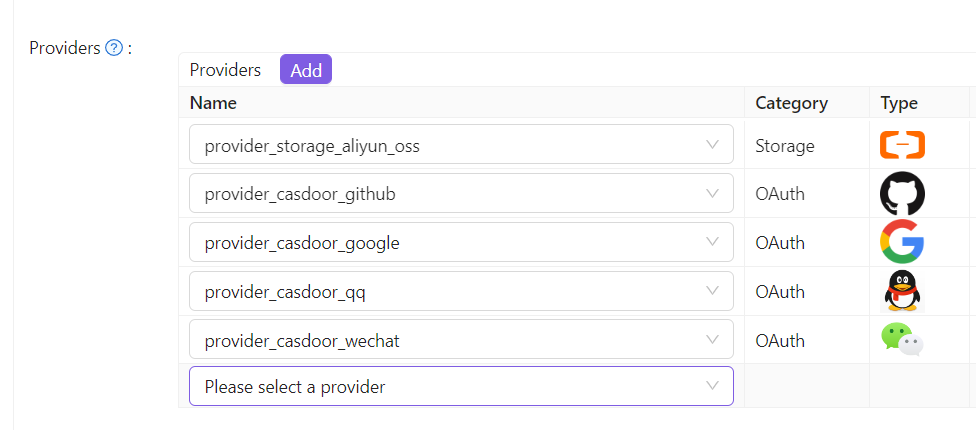
Open the edit page of the application, go to the Providers tab, and add a row.
-
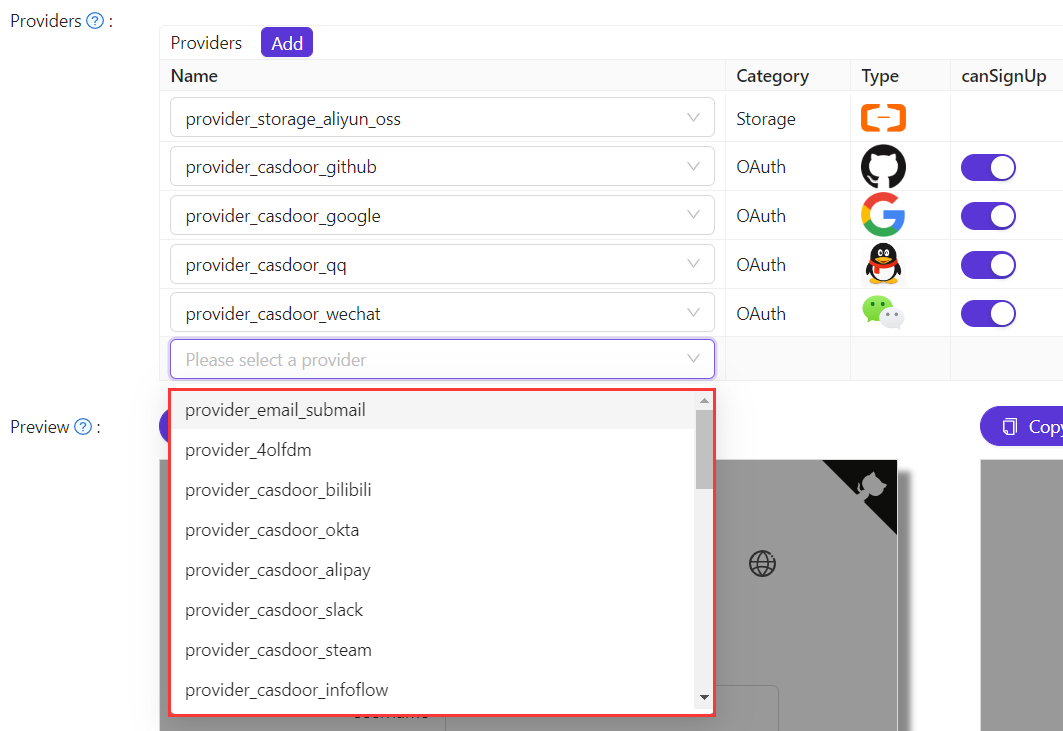
Select the provider. The list shows all providers that are available to the application.
-
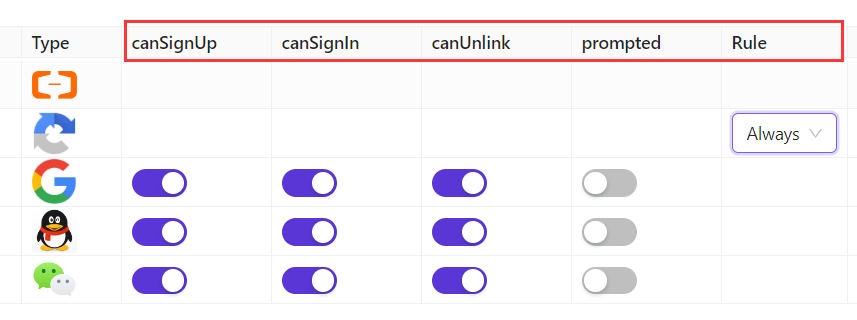
For OAuth and captcha providers, set how the application uses them. See Add providers to an application and Configure the default captcha.
-
Save the application.