Add DingTalk as an OAuth provider
This guide explains how to let users sign in to Casdoor with their DingTalk account.
Learning outcomes
- Configure a DingTalk application for Casdoor.
- Add DingTalk as an OAuth provider in Casdoor.
What you need
- An application on the DingTalk Open Platform
- Administrator access to the Casdoor admin console
Configure the DingTalk application
-
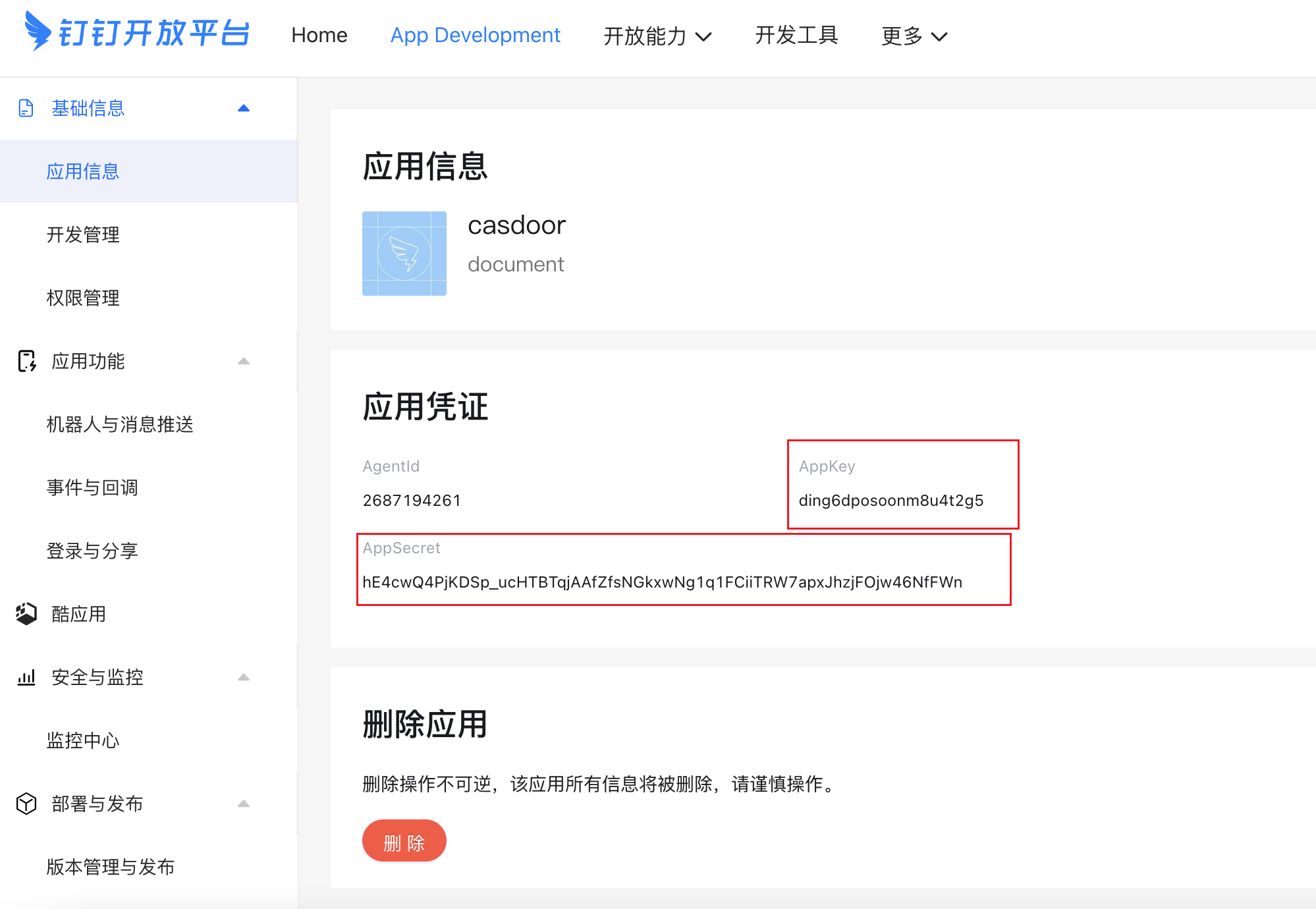
Open your application on the DingTalk Open Platform and note its AppKey and AppSecret.
-
Add the domain of Casdoor, for example
https://your-casdoor.com, as the redirect domain.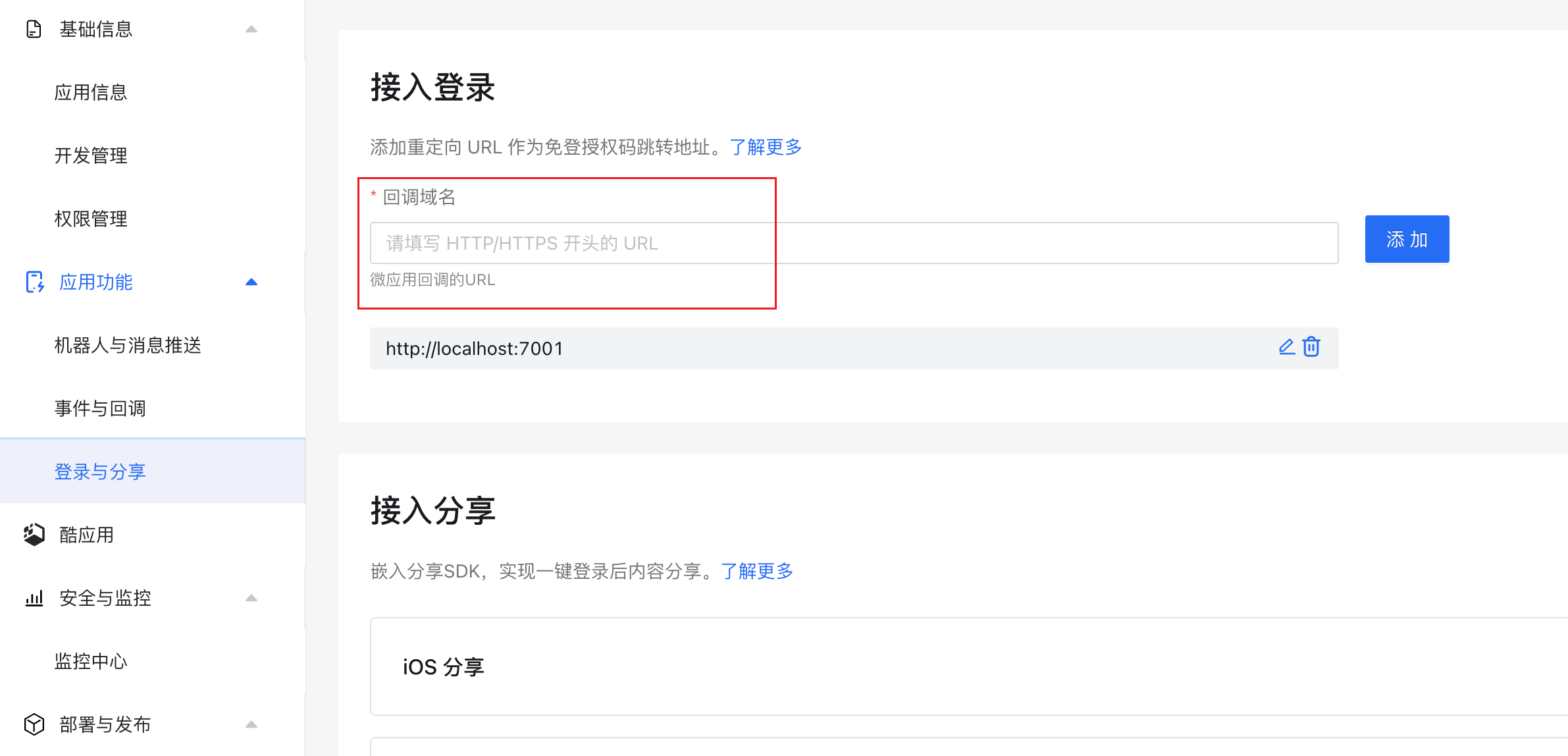
-
Under Permissions Management, turn on Contact.User.Read. Casdoor needs it to read the user from
/v1.0/contact/users/me. Without it, sign-in fails.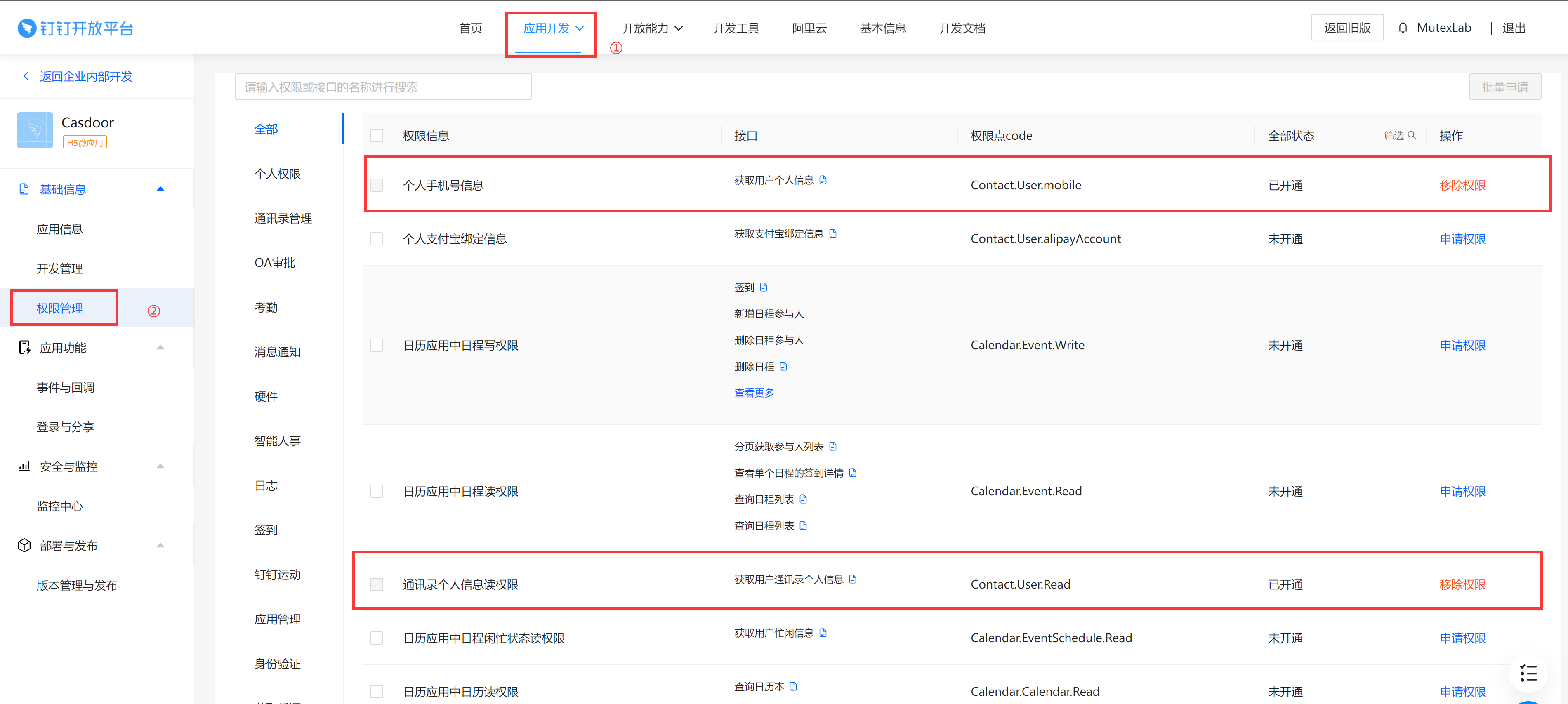
Add the provider in Casdoor
-
In the Casdoor admin console, go to Identity > Providers and add a provider.
-
Set Category to
OAuthand Type toDingTalk. -
Fill in the fields:
Casdoor DingTalk Client ID AppKey Client secret AppSecret 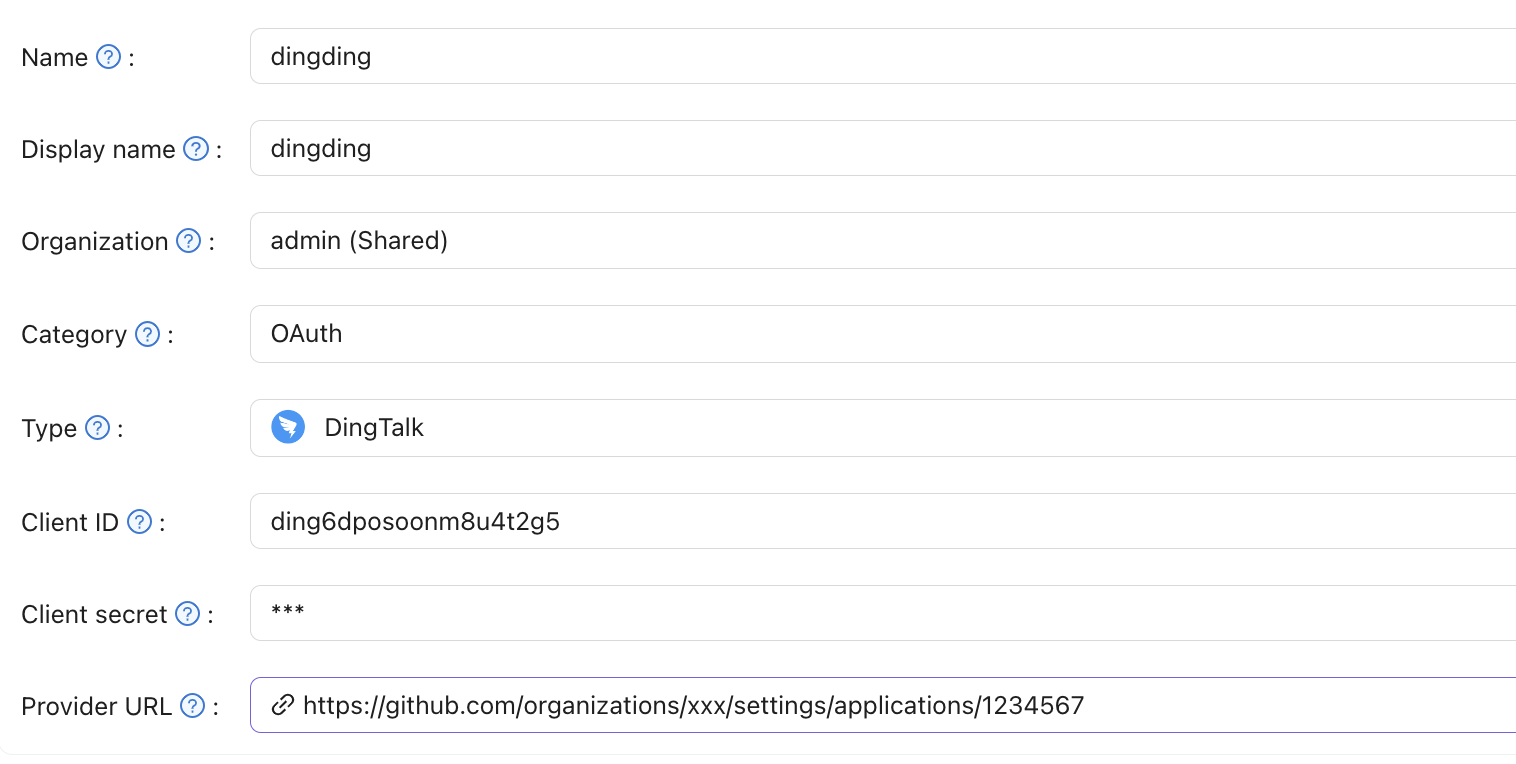
-
Save the provider.
Casdoor uses the unionid of DingTalk as the username, so that a user keeps the same account when other details change.
Next steps
Add the provider to an application. See Add providers to an application.
See also
- OAuth providers
- DingTalk syncer
- Obtain user personal information in the DingTalk documentation