Set up Face ID sign-in
This guide explains how to turn on Face ID sign-in. Users register facial data in their account and then sign in by scanning their face on the sign-in page. Casdoor recognizes faces in the browser with face-api.js.
Learning outcomes
- Show the Face ID field on the account page of an organization.
- Register facial data for a user.
- Offer Face ID as a sign-in method of an application.
What you need
- Administrator access to the Casdoor admin console
- A device with a camera
Add Face ID to the account page
-
In the Casdoor admin console, go to User Management > Organizations and open the organization.
-
In Account items, add Face ID.
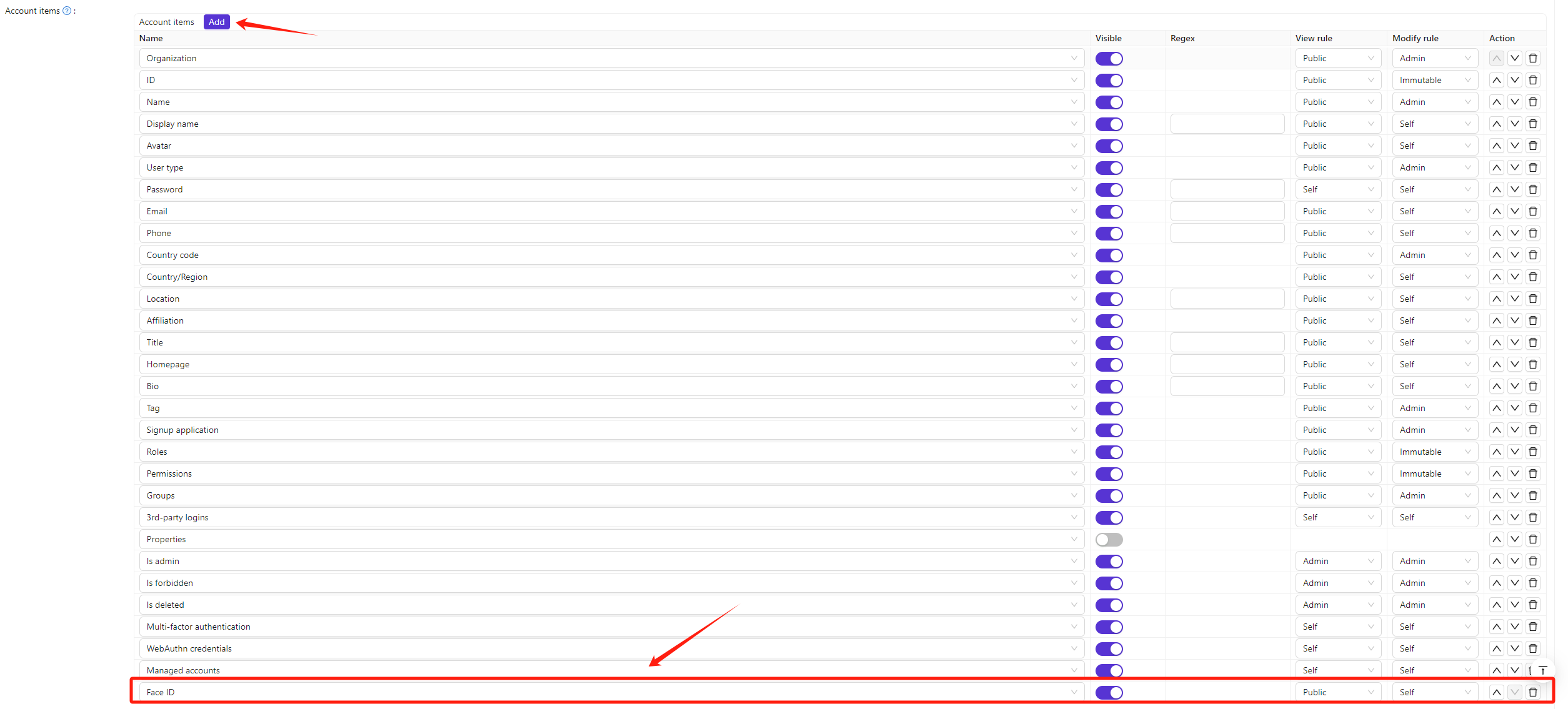
-
Save the organization.
Register facial data
-
Go to User Management > Users and open the user. Users can do the same on their own account page.
-
In Face IDs, add a face entry and give it a name. A user can have up to five entries.

-
Save the user.
Add Face ID to the sign-in methods
-
Go to Identity > Applications and open the application.
-
In Signin methods, add Face ID.

-
Save the application.
Verify the result
-
On the sign-in page of the application, select the Face ID method.
-
Enter the username and click Sign in with Face ID.
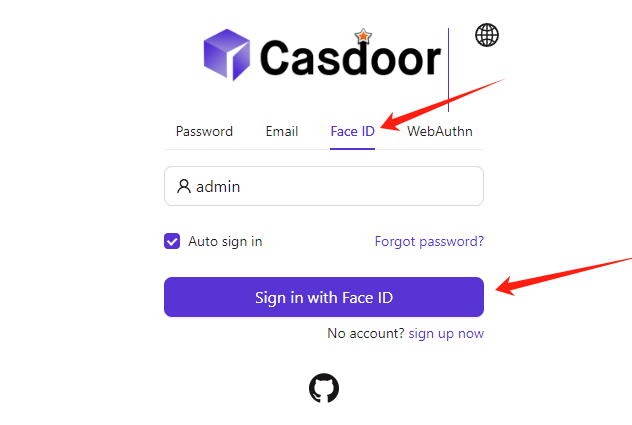
-
Allow the browser to use the camera, and look into the camera.
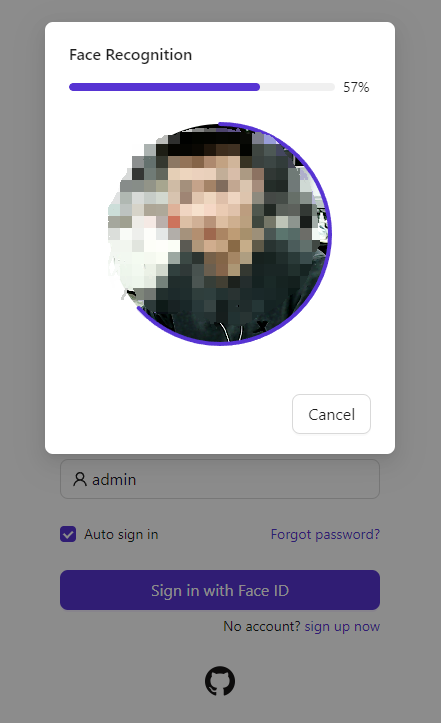
Casdoor signs you in when the face matches a registered entry.