Set up single sign-on
This guide explains how to set up single sign-on (SSO) between the applications of one organization, so that a user who has signed in to Casdoor opens the other applications without signing in again.
Learning outcomes
- Turn on automatic sign-in for an application.
- Implement silent sign-in on the home page of your application.
- Offer sign-in in a popup window or an iframe.
- Let users move between applications from the Casdoor home page.
What you need
- Two or more applications in the same organization
- An application frontend that you can change, with casdoor-js-sdk or casdoor-react-sdk
About SSO in Casdoor
When a user who is already signed in to Casdoor opens the sign-in page of another application, Casdoor shows a picker: continue as the current user or use another account. With automatic sign-in, Casdoor skips the picker and signs the current user in.
SSO between applications has three parts:
- Each application has a Home URL.
- Each application has Auto signin turned on.
- The home page of each application implements silent sign-in: when it is opened with the SSO link, it starts the sign-in on its own.
Configure the application
-
In the Casdoor admin console, open the edit page of the application.
-
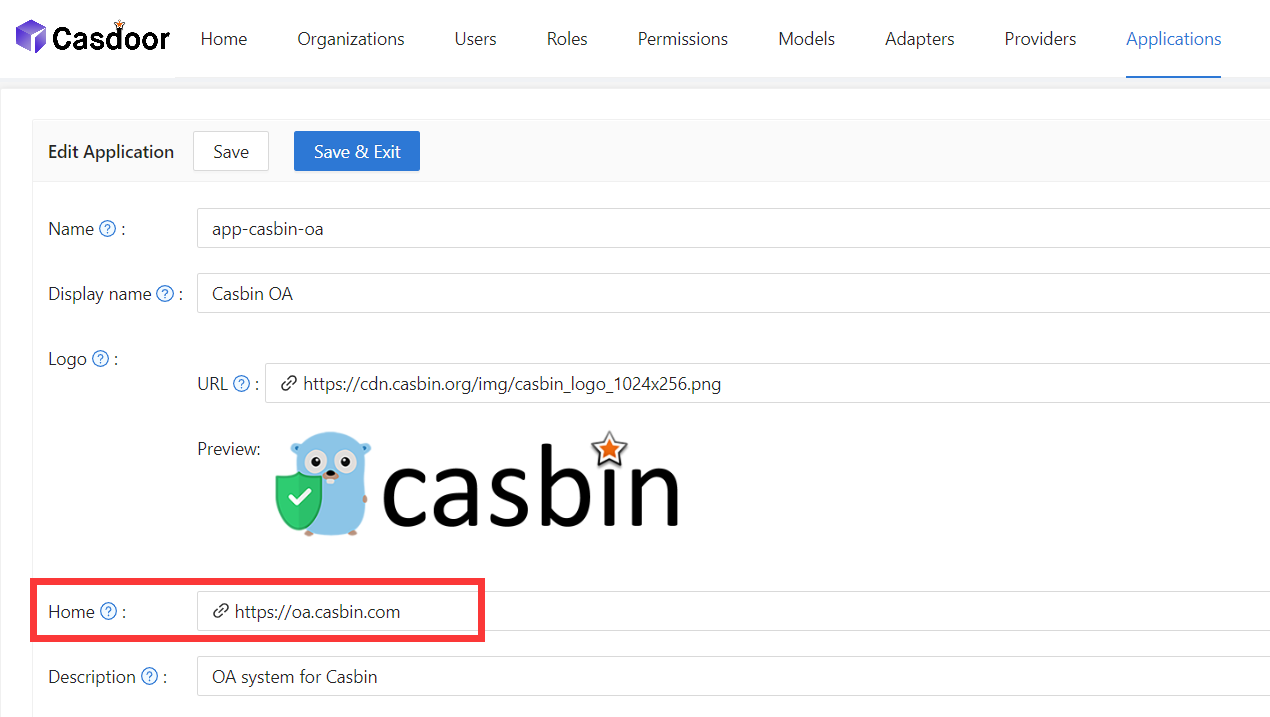
Set Home to the home page or the sign-in page of your application.
-
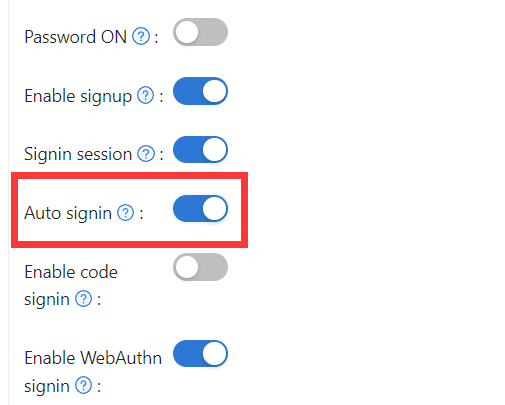
Turn on Signin session, and then turn on Auto signin. Casdoor requires Signin session before it lets you turn on Auto signin.
-
Save the application.
Implement silent sign-in
Casdoor opens your application at its Home URL with the query parameter silentSignin=1. Your home page detects the parameter and starts the sign-in. Because Auto signin is on, the user is signed in without a click.
In React, casdoor-react-sdk provides the SilentSignin component for this. Render it when silentSignin is 1. See Use in React.
Silent sign-in runs only when the organization of the user matches the organization of the application. This prevents duplicate sign-ins and sign-ins with the wrong account.
Offer sign-in in a popup or an iframe
With popup sign-in, the Casdoor sign-in page opens in a small window. After the user signs in, Casdoor posts the result to the window that opened the popup and closes the popup.
- Call
popupSignin()of casdoor-js-sdk. The SDK opens the sign-in page withpopup=1. - Casdoor sends
codeandstateto the opener. - In the main window, exchange the code for a token through the SDK.
For a demo, see casdoor-nodejs-react-example.
By default, Casdoor posts the result to window.opener, which is the same as popup_type=window. To embed the sign-in page in an iframe instead, add popup_type=iframe to the URL. Casdoor then posts the code and state message to window.parent, the page that embeds the iframe.
Let users switch between applications
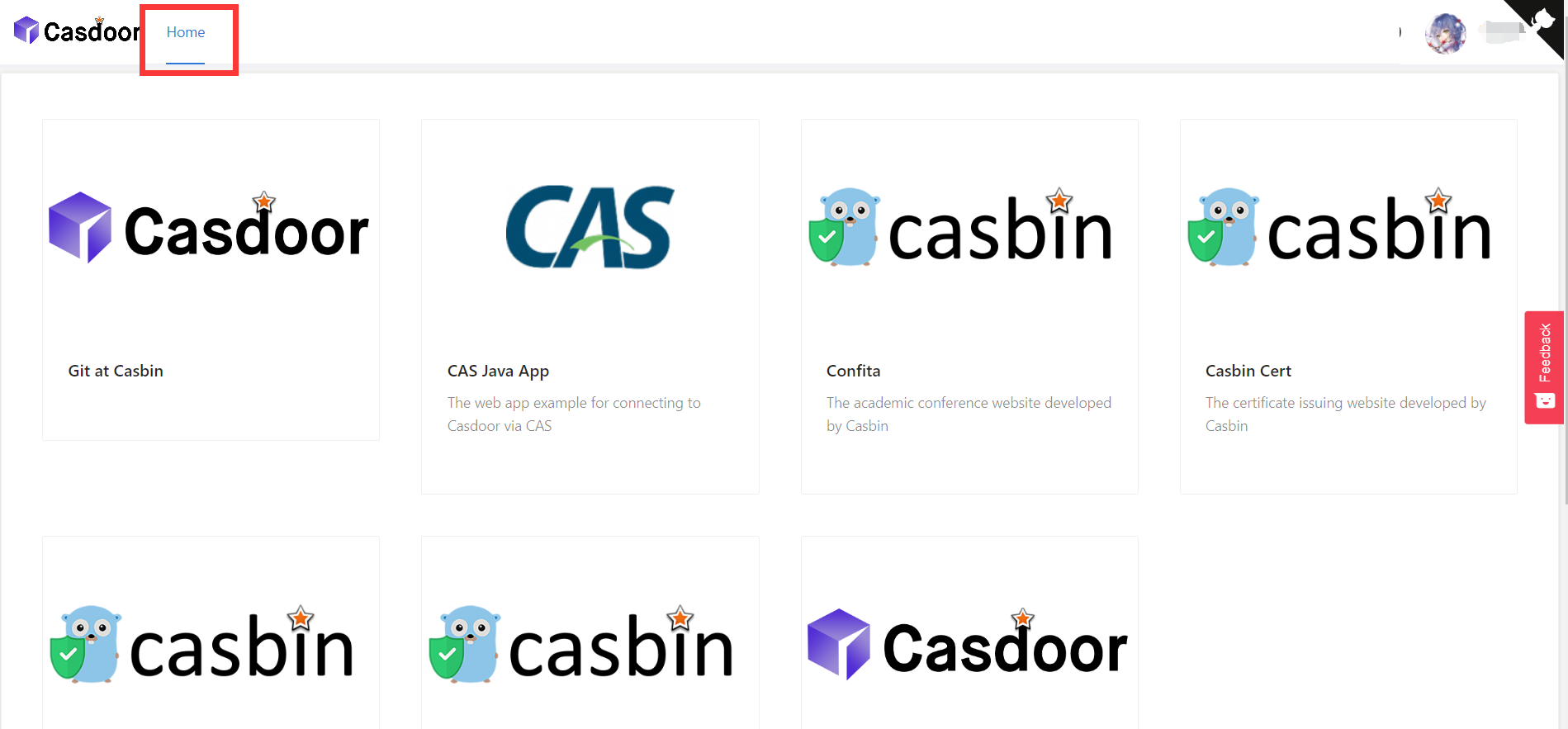
Users start from the Casdoor home page:
- Link from your application to the profile page of the user in Casdoor. The SDKs provide
getMyProfileUrl(account, returnUrl)for this. - On the profile page, the user opens Home (
/). The page lists the applications of the user's organization. Users of thebuilt-inorganization, who are global administrators, don't see this list. - The user clicks an application. Casdoor opens its Home URL with
?silentSignin=1, and the application signs the user in in the background.
Next steps
To sign a user out of all applications at once, call the /api/sso-logout endpoint. See Single sign-out.