Choose the sign-in methods
This guide explains how to choose the sign-in methods that the sign-in page of an application offers, in which order, and with which restrictions.
Learning outcomes
- Add, remove, and order sign-in methods.
- Restrict a method with a rule.
What you need
- An application
About sign-in methods
The Signin methods table of an application lists the methods on its sign-in page, in order. The available methods include Password, Verification code, Magic link, WebAuthn, LDAP, Face ID, Device login, and WeChat. All methods except LDAP are on by default. An application needs at least one method.

| Column | Description |
|---|---|
| Name | Method |
| Display name | Label that users see |
| Rule | Restriction of the method. See Method rules |
| Action | Move the row up or down, or delete it |
Configure the methods
- In the Casdoor admin console, open the edit page of the application.
- In Signin methods, add, remove, and order the methods.
- Optionally, change the display name of a method and select a rule.
- Save the application.
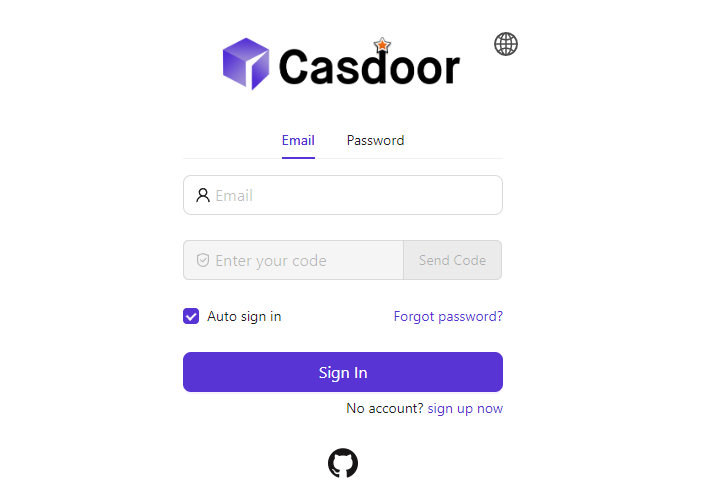
For example, to prefer sign-in with an email code and offer the password second:
- Put Verification code first and Password second.
- Set the rule of Verification code to
Email only, so that the code goes only by email. - Set the display name of Verification code to a clear label, such as
Email login.

The sign-in page then looks like this:
Method rules
| Method | Rules | Description |
|---|---|---|
| Password | All (default), Non-LDAP | All — LDAP users can sign in with password. Non-LDAP — LDAP users cannot use password sign-in. |
| Verification code | All (default), Email only, Phone only | Which channel to use for the code: both, email only, or phone only. |
| Device login | Tab (default), Login page | Tab shows the device login QR code in its own tab. Login page shows it next to the sign-in form, so users signed in to your mobile app can scan it to sign in to the website. |
A native app can sign users in with a verification code without opening the sign-in page. Turn on the verification code grant, which also signs up phone numbers and email addresses that have no account yet.