Connect Appgate SDP with SAML
This guide explains how to use Casdoor as the SAML identity provider (IdP) of Appgate SDP. Appgate receives the SAMLResponse in an HTTP POST request. The same steps apply to other service providers that use the POST binding.
Learning outcomes
- Configure a Casdoor application for the POST binding.
- Add Casdoor as a SAML identity provider in Appgate.
- Map the username attribute and allow administrators to sign in.
What you need
- An Appgate SDP deployment with administrator access
- An application in Casdoor
Configure the Casdoor application
-
In the Casdoor admin console, open the edit page of the application.
-
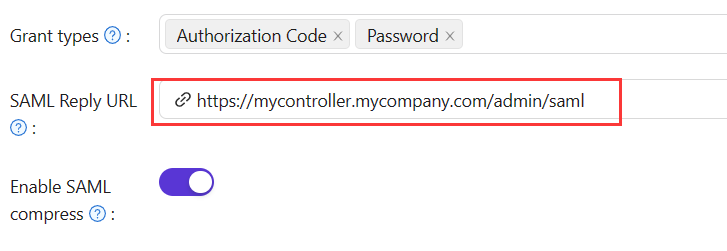
Set the following fields:
Field Wert Redirect URLs The identifier of the service provider, which Appgate calls the audience SAML reply URL The ACS URL, which receives and verifies the SAML response Use the values for your use case:
Use case Weiterleitungs-URL SAML Reply URL Administrator auth AppGatehttps://mycontroller.your-site-url.com/admin/samlUser auth AppGate Clienthttps://redirectserver.your-site-url.com/saml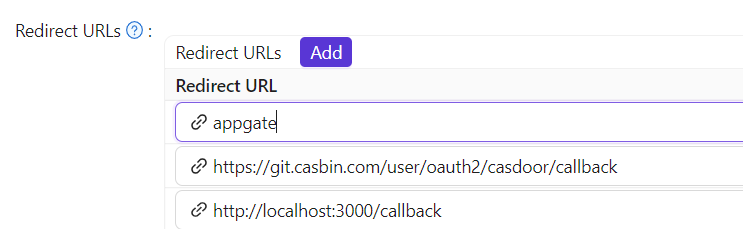
-
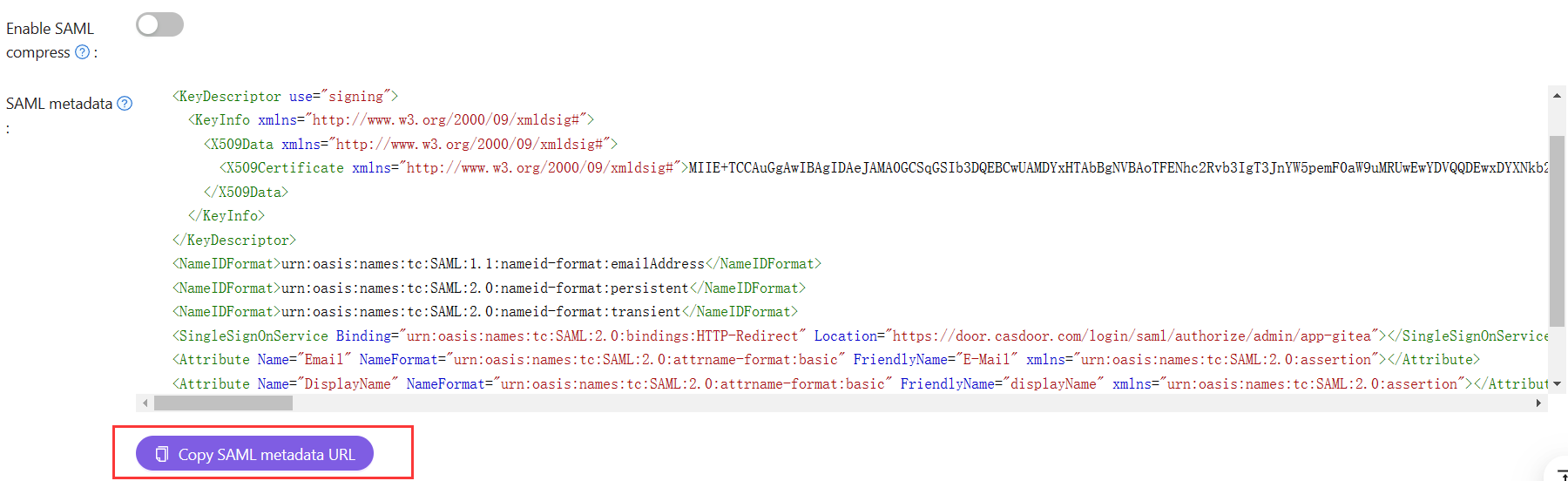
Download the SAML metadata: copy the metadata URL, open it in a browser, and save the XML file.
Add the SAML IdP in Appgate
- In the Appgate SDP console, go to System > Identity Providers and create a provider of type SAML.
- Enter a Name, for example
Casdoor SAML Admin. - Click Choose a file and upload the metadata file. Appgate fills in Single Sign-on URL, Issuer, and Public Certificate.
- Set Audience to the value that you entered in Redirect URLs in Casdoor.
Map attributes
Map the Name attribute to username.

Allow administrators to sign in
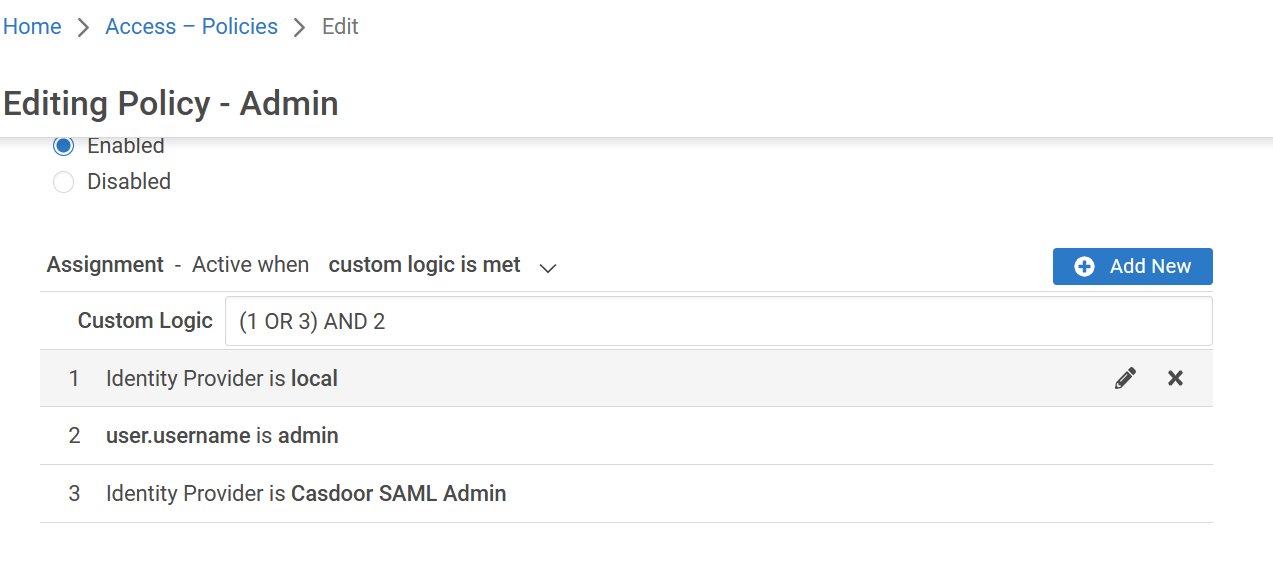
Update the Builtin Administrator Policy, or your own equivalent policy, so that administrators who sign in through the SAML IdP receive administration rights.
Verify the result
- Sign out of the Appgate admin UI.
- On the sign-in page, select your Casdoor IdP as the Identity Provider and click Sign in with browser.
- Sign in to Casdoor.
If Appgate shows a message such as "You don't have any administration rights", the IdP authenticated you, but the policy doesn't grant you rights yet. Adjust the roles and policies in Appgate.