Sign users in to a Qt desktop app
This guide explains how to run the Casdoor example for Qt and how to add the same sign-in flow to your own C++ app with casdoor-cpp-sdk. The example shows the Casdoor sign-in page in an embedded browser.
Learning outcomes
- Configure and run the example app.
- Create a Casdoor client in C++.
- Open the sign-in page, catch the callback, and verify the token.
What you need
- Qt 6 with the Qt WebEngine module. On Windows, use the MSVC build of Qt.
- CMake 3.16 or later and a C++17 compiler
- OpenSSL 1.1.1 or 3.x
- An application in Casdoor
CMake downloads casdoor-cpp-sdk when it configures the project. You don't install the SDK yourself.
Sample code
Run the example
-
In the Casdoor admin console, add
http://localhost:8080/callbackto the Redirect URLs of the application. Nothing has to listen on that port, because the example catches the redirect inside its embedded browser. -
Clone casdoor-cpp-qt-example and set the following values:
Назва Опис Файл kCasdoorEndpoint Your Casdoor server URL, like http://localhost:8000config.hkClientId Client ID вашого додатку Casdoor config.hkClientSecret Client Secret вашого додатку Casdoor config.hkCertificate The public certificate of the cert your application uses config.hkOrganizationName Назва вашої організації Casdoor config.hkApplicationName Назва вашого додатку Casdoor config.hkRedirectUri The redirect URL, http://localhost:8080/callbackconfig.h -
Build and start the app.
-
In Qt Creator: Open
CMakeLists.txtand pressCtrl + R. -
On the command line:
cmake -S . -B build -DCMAKE_PREFIX_PATH=/path/to/Qt/6.x/<compiler>
cmake --build build
./build/casdoor-cpp-qt-example
On Windows, if CMake can't find OpenSSL, add
-DOPENSSL_ROOT_DIR="C:/Program Files/OpenSSL-Win64".
-
-
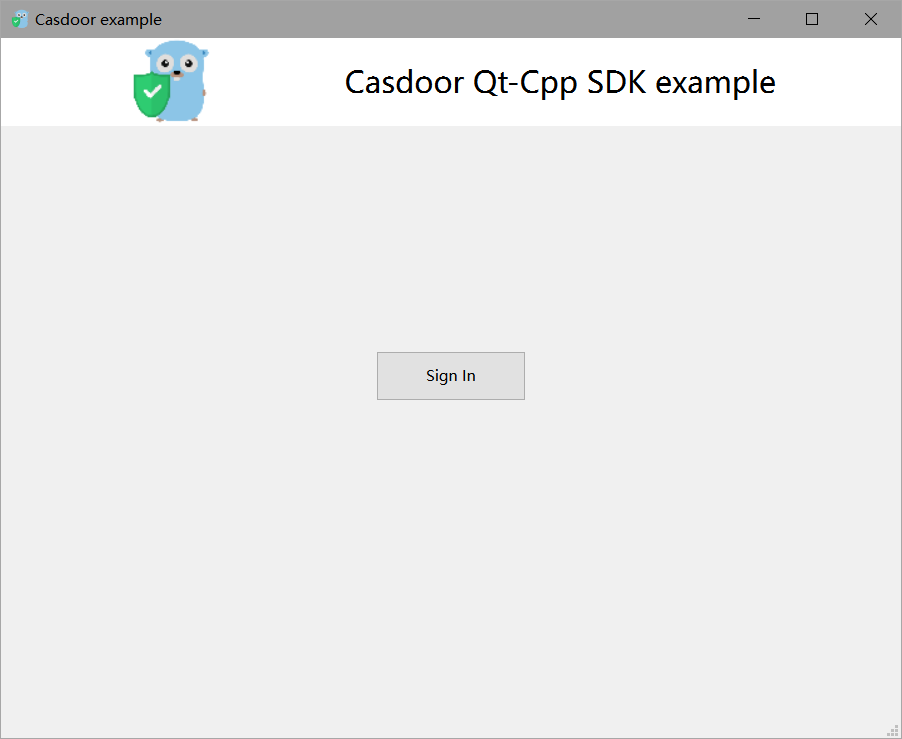
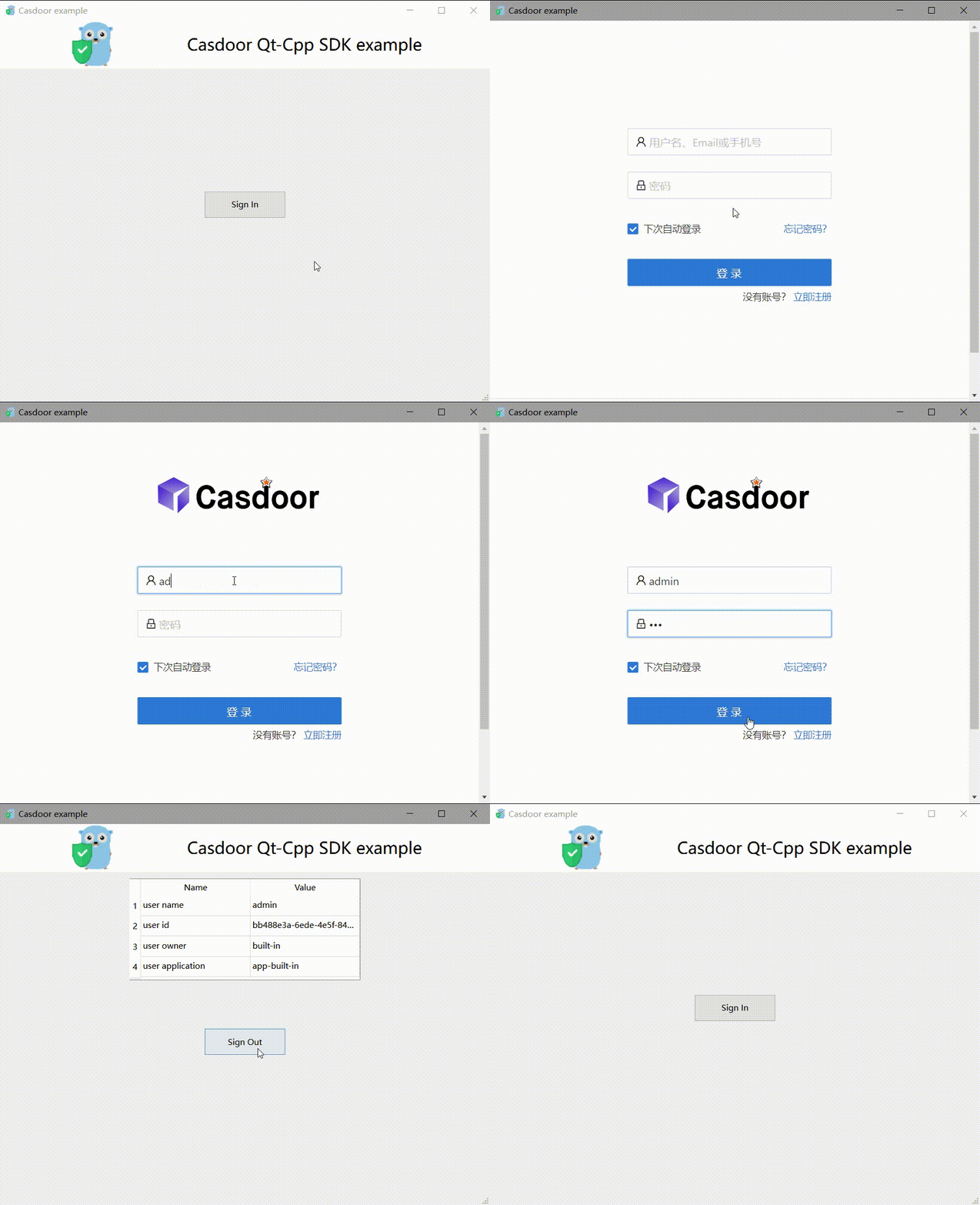
In the app window, click Sign In.
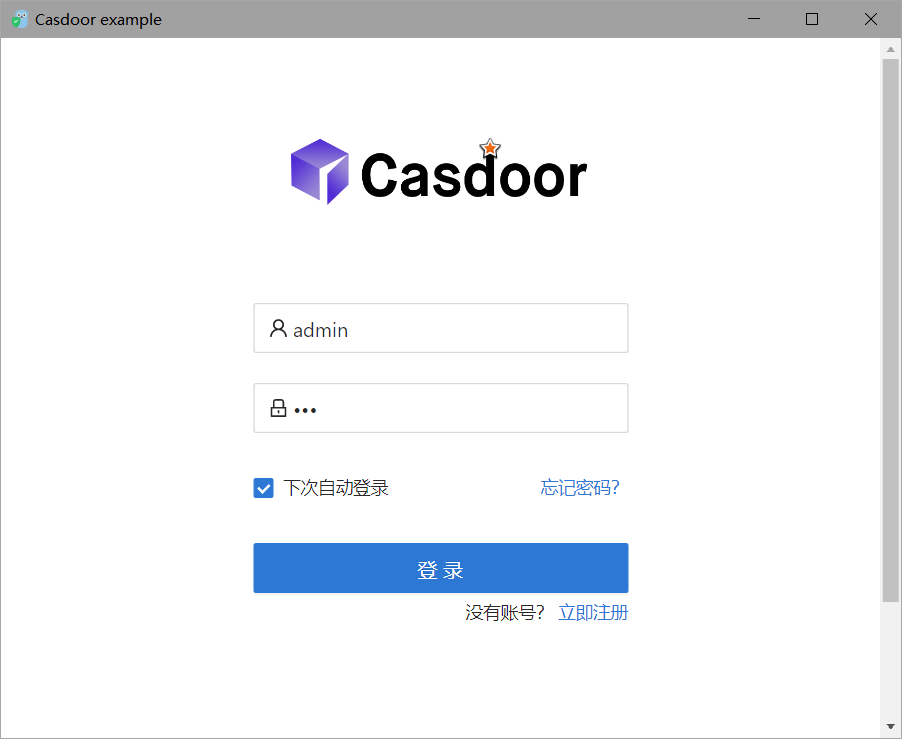
The Casdoor sign-in page opens in a window.
-
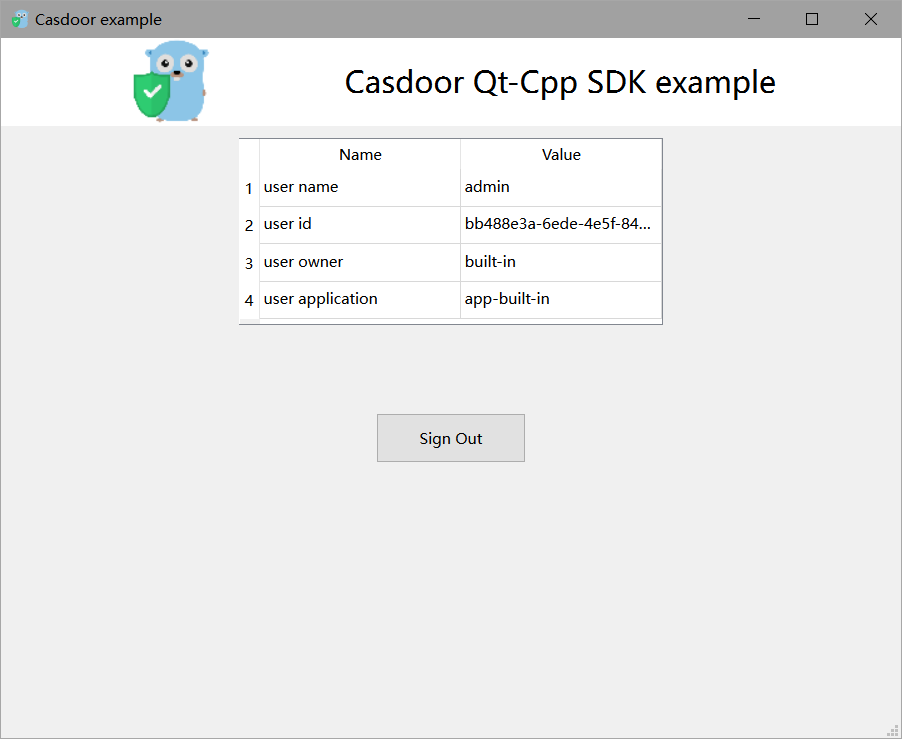
Sign in. The app shows the profile of the user.
Add sign-in to your app
Create the client
#include <casdoor/casdoor.h>

casdoor::Config config;
config.endpoint = kCasdoorEndpoint;
config.client_id = kClientId;
config.client_secret = kClientSecret;
config.certificate = kCertificate;
config.organization_name = kOrganizationName;
config.application_name = kApplicationName;

casdoor::Client casdoor(config);
Open the sign-in window
Generate a random state, build the sign-in URL, and load it in the embedded browser:
// A random state ties the callback to this sign-in attempt
m_state = QUuid::createUuid().toString(QUuid::WithoutBraces);
std::string signinUrl = m_casdoor.GetSigninUrl(kRedirectUri, m_state.toStdString());

m_webview->load(QUrl(QString::fromStdString(signinUrl)));
m_webview->show();
Catch the callback
After the user signs in, Casdoor redirects to the redirect URL with code and state. A subclass of QWebEnginePage stops the embedded browser from loading that URL and hands the URL to the app:
bool CallbackPage::acceptNavigationRequest(const QUrl& url, NavigationType type, bool isMainFrame)
{
    if (isMainFrame && url.adjusted(QUrl::RemoveQuery | QUrl::RemoveFragment) == m_redirectUri) {
        emit callbackReceived(url);
        return false;
    }
    return QWebEnginePage::acceptNavigationRequest(url, type, isMainFrame);
}
Get the user from the code
Check state, exchange the code for a token, and verify the token with the certificate:
QUrlQuery query(url);
QString code = query.queryItemValue("code", QUrl::FullyDecoded);
QString state = query.queryItemValue("state", QUrl::FullyDecoded);
if (code.isEmpty() || state != m_state) {
    return;
}

try {
    casdoor::Token token = m_casdoor.GetOAuthToken(code.toStdString());
    casdoor::Claims claims = m_casdoor.ParseJwtToken(token.access_token);
    // claims.name, claims.display_name, claims.email, claims.owner, claims.payload ...
} catch (const casdoor::Error& e) {
    QMessageBox::warning(this, "Sign in failed", e.what());
}
ParseJwtToken throws casdoor::Error if the signature, the expiry, or the audience of the token is invalid.
Next steps
casdoor-cpp-sdk also refreshes tokens and manages users. See the casdoor-cpp-sdk repository.