Set up WebAuthn sign-in
This guide explains how to turn on WebAuthn sign-in. Users then sign in with an authenticator that is built in to their device, such as a fingerprint reader, face recognition, or Windows Hello, or with a security key such as a YubiKey, instead of or in addition to a password.
Learning outcomes
- Configure Casdoor for WebAuthn.
- Offer WebAuthn as a sign-in method of an application.
- Register a WebAuthn credential for a user.
What you need
- Access to
conf/app.confof your Casdoor instance - Casdoor served over HTTPS. WebAuthn requires HTTPS, except on
localhost. - A device with a WebAuthn authenticator
About WebAuthn
Web Authentication (WebAuthn) is a standard of the W3C and the FIDO Alliance that signs users in with public-key cryptography. Casdoor stores a public key. The private key never leaves the device of the user. To sign in, the user proves possession of the private key, typically with a biometric check or a security key. A credential is bound to the user, the authenticator, and the origin of the site.
For an introduction, see webauthn.guide.
Configure Casdoor
-
In
conf/app.conf, setoriginto the exact URL under which users open Casdoor:origin = "http://localhost:8000" -
Restart Casdoor.
Add WebAuthn to the sign-in methods
- In the Casdoor admin console, go to Identity > Applications and open the application.
- In Signin methods, add WebAuthn.
- Save the application.
Register a credential
Each user registers their own credential:
-
Sign in and open My Account.
-
In WebAuthn credentials, add a credential and follow the prompt of your device.
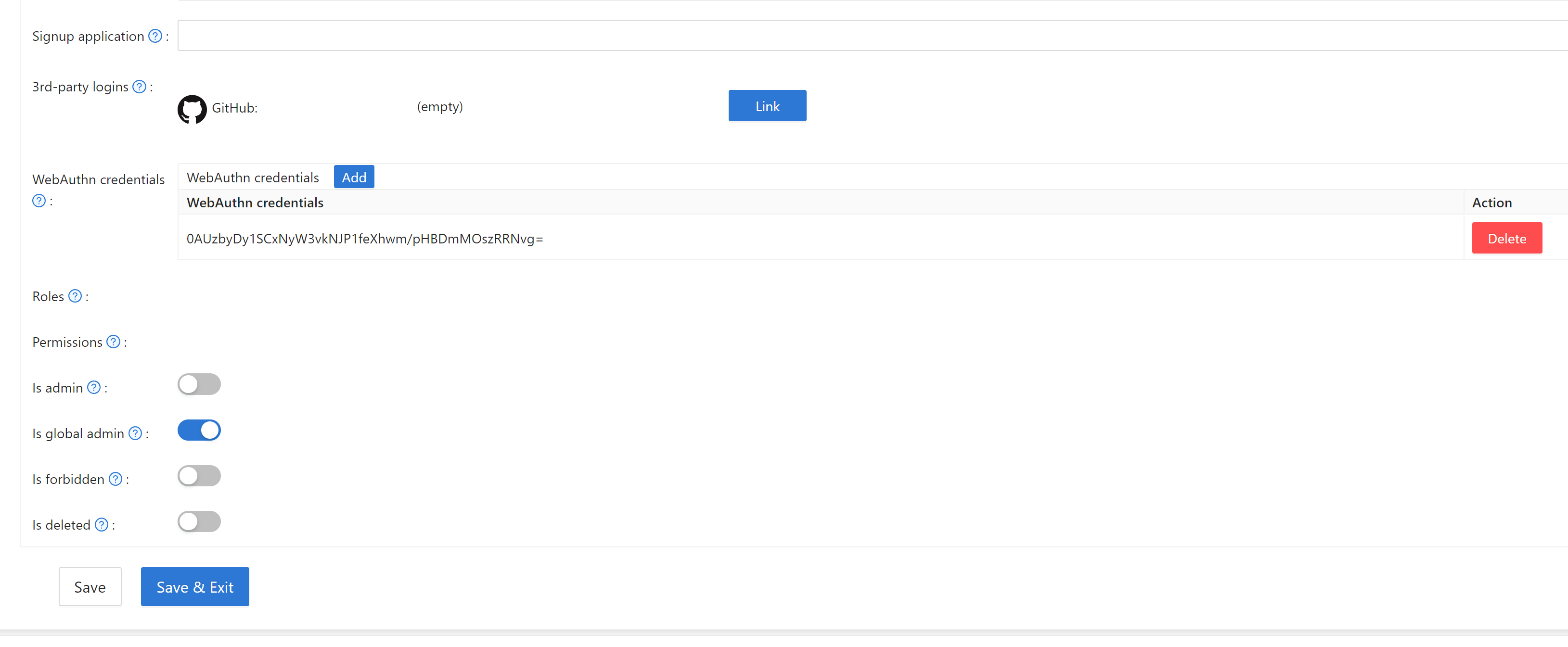
To remove a credential, delete it from the same list.
Verify the result
-
Sign out.
-
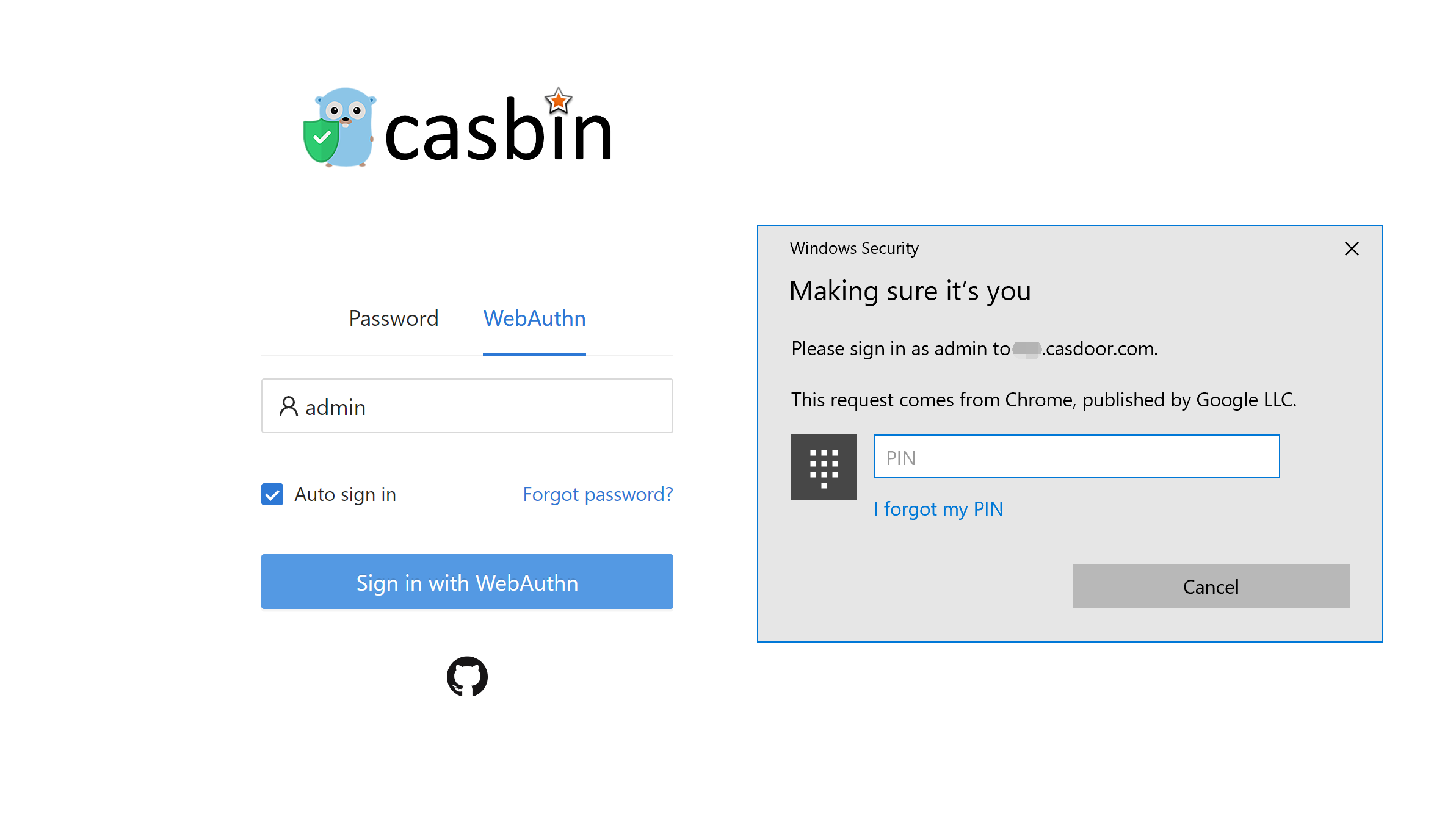
On the sign-in page, select the WebAuthn method.
-
Enter your username and click Sign in with WebAuthn.
-
Complete the prompt of your authenticator, for example with your fingerprint or Windows Hello.