Add Azure AD as an OAuth provider
This guide explains how to let users sign in to Casdoor with their Microsoft account in Azure Active Directory (Azure AD).
Learning outcomes
- Register an application in Azure AD.
- Add Azure AD as an OAuth provider in Casdoor.
What you need
- An Azure AD tenant with the rights to register applications
- Administrator access to the Casdoor admin console
Register an application in Azure AD
-
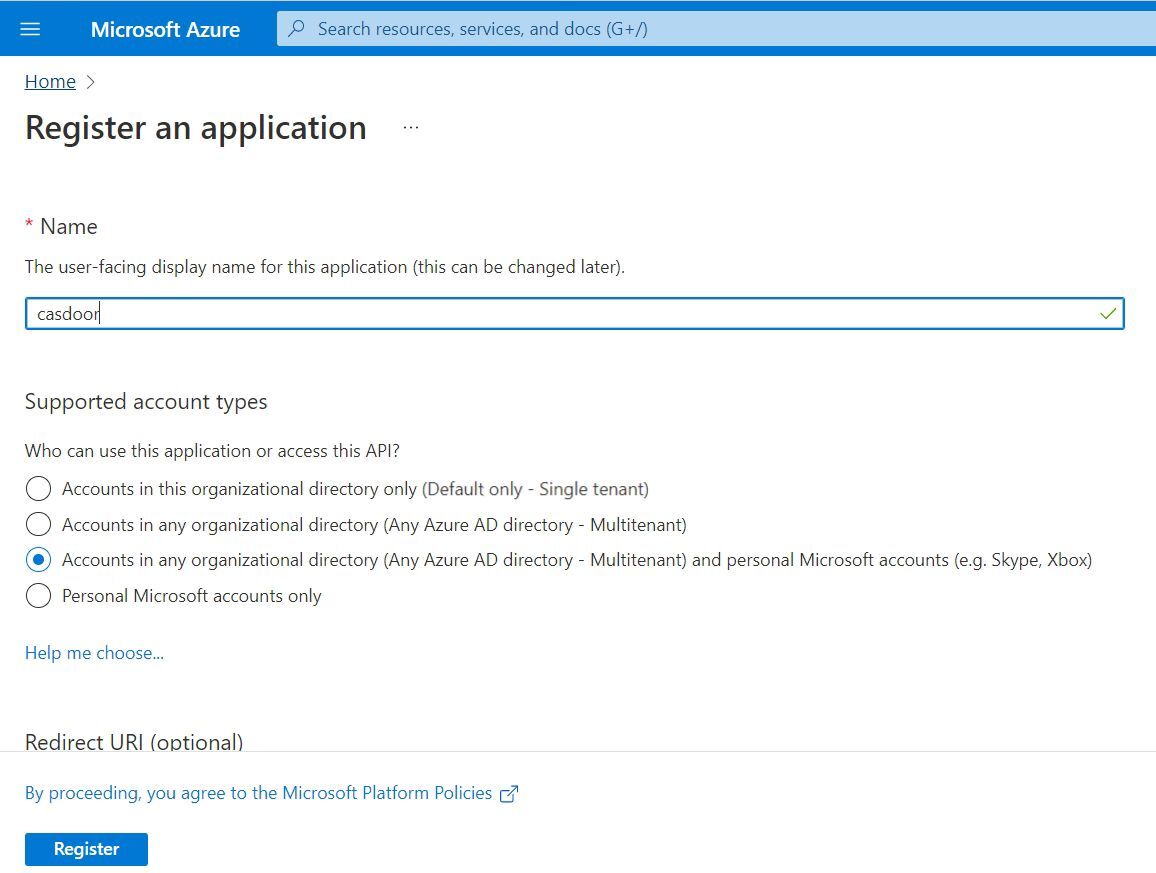
Register an application and choose the supported account types, for example single tenant.
-
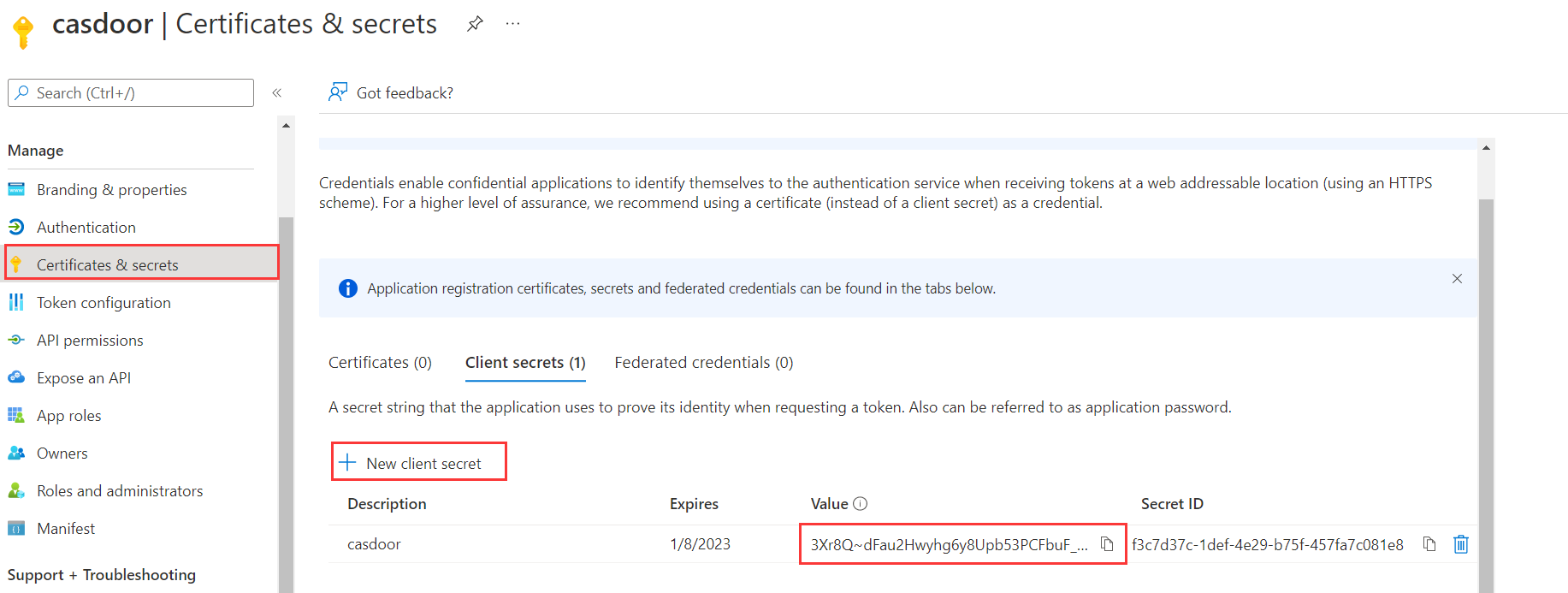
Create a client secret and copy its value. Azure shows the value only once.
-
Under Authentication, add the callback URL of Casdoor, for example
https://your-casdoor.com/callback, to Redirect URIs.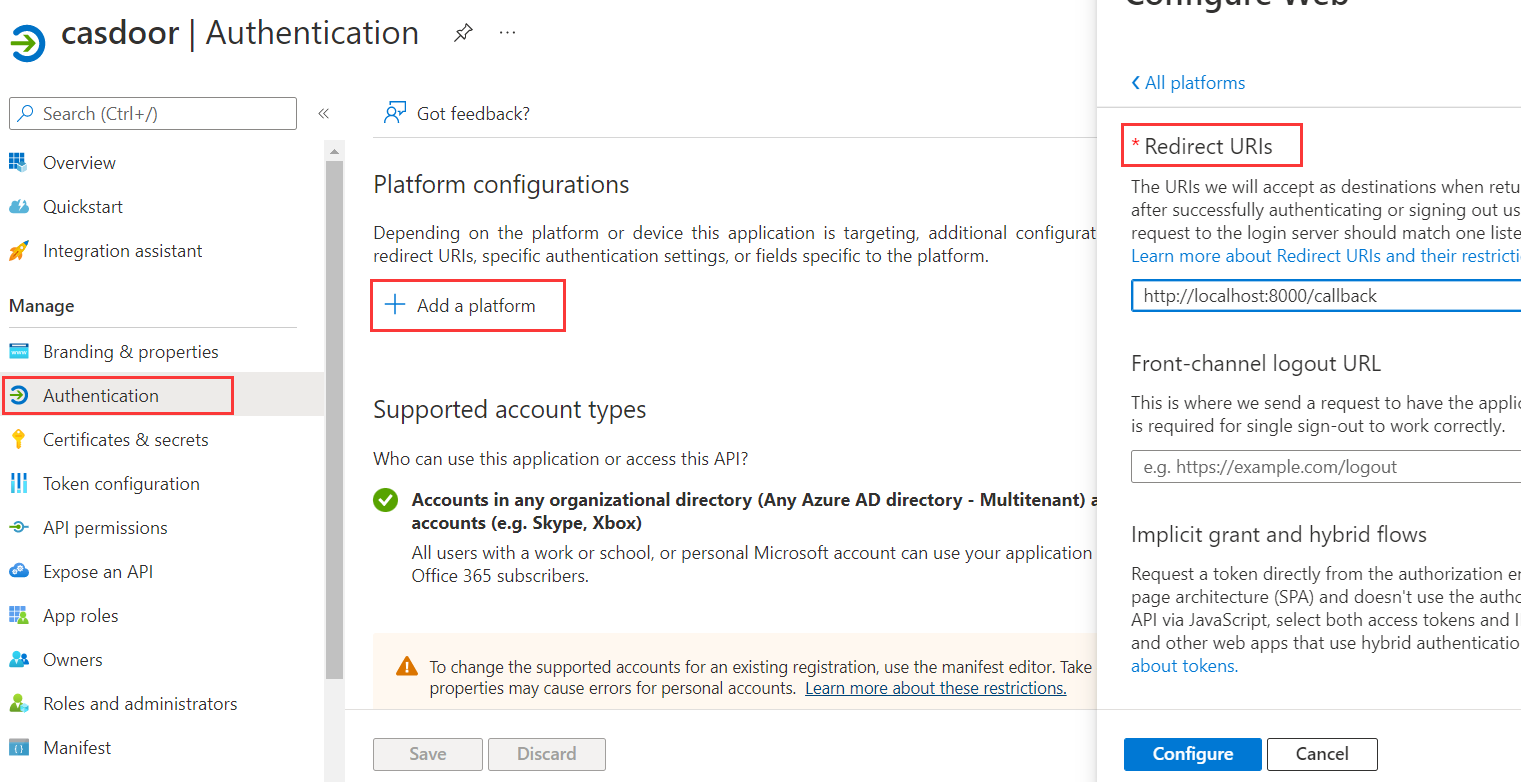
-
Under API permissions, add the permissions that you need, for example
User.Read, and click Grant admin consent.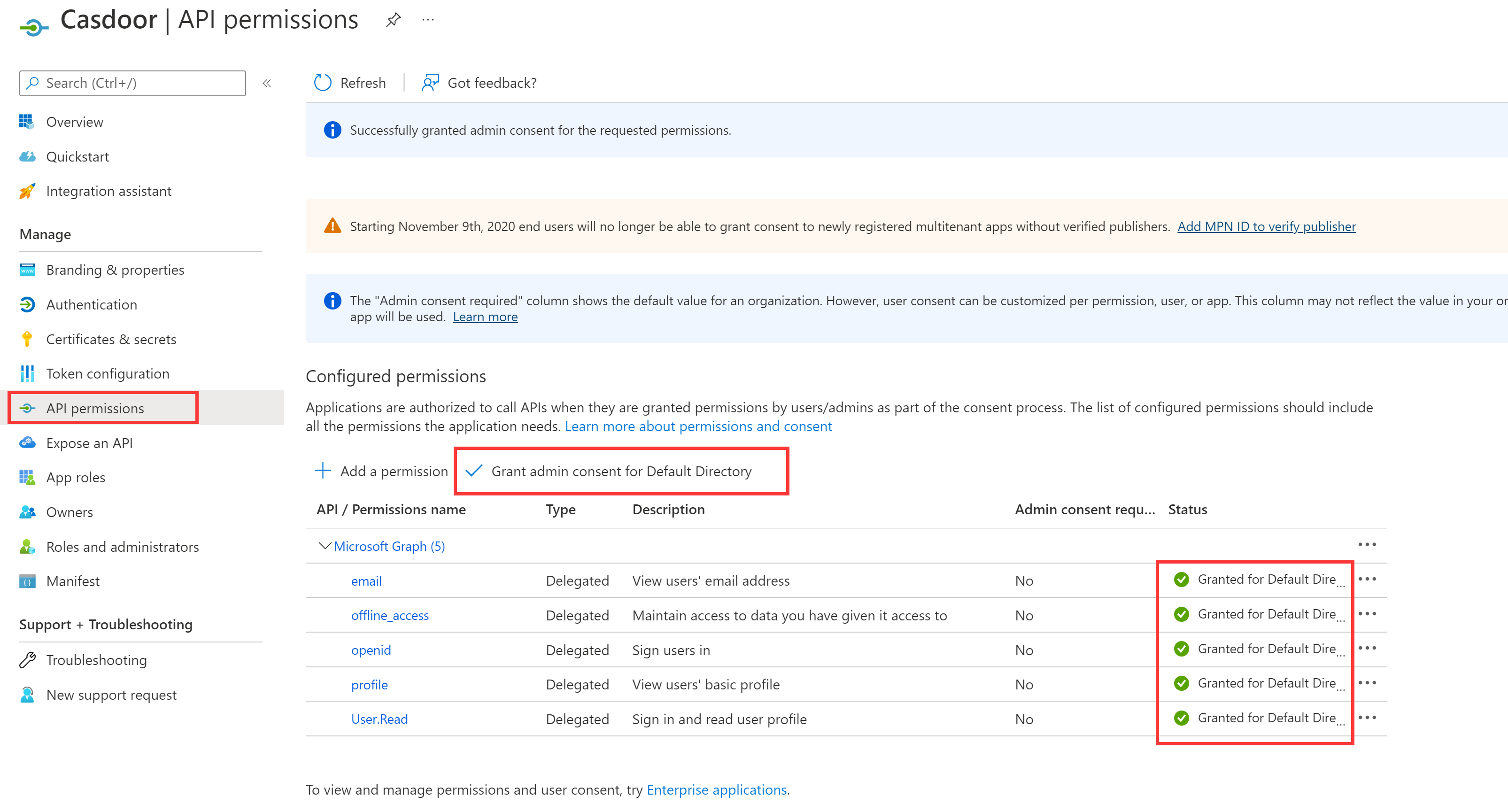
Add the provider in Casdoor
-
In the Casdoor admin console, go to Identity > Providers and add a provider.
-
Set Category to
OAuthand Type toAzure AD. -
Enter the application (client) ID as the Client ID and the secret value as the Client secret.
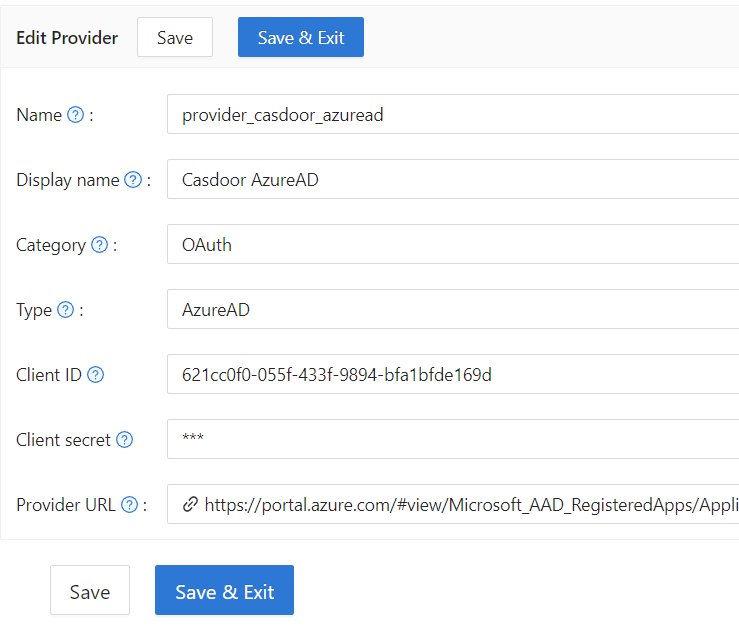
-
Save the provider.
Next steps
Add the provider to an application. See Add providers to an application.