Connect Keycloak with SAML
This guide explains how to add Casdoor to Keycloak as a SAML 2.0 identity provider (IdP).
Learning outcomes
- Import the Casdoor SAML metadata into Keycloak.
- Configure the Casdoor application for Keycloak.
- Sign in to Keycloak through Casdoor.
What you need
- A Keycloak server with administrator access
- An application in Casdoor and its SAML metadata URL
Add the SAML IdP in Keycloak
-
In the Keycloak admin console, go to Identity providers and add a provider of type SAML v2.0.
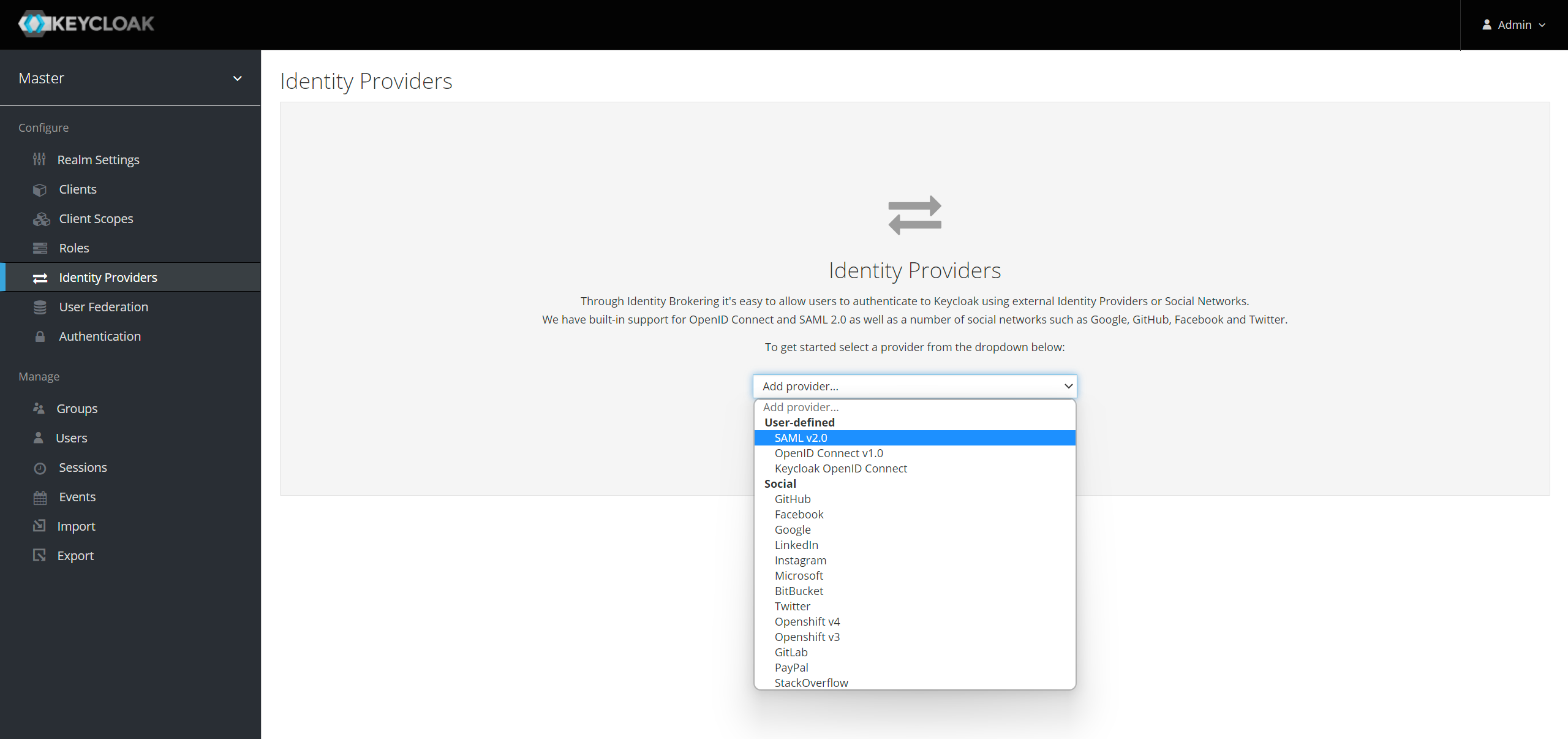
-
Set Alias.
-
Paste the SAML metadata URL of the Casdoor application into Import from URL and click Import. Keycloak fills in the SAML settings.
-
Note the value of Service Provider Entity ID, and save the provider.
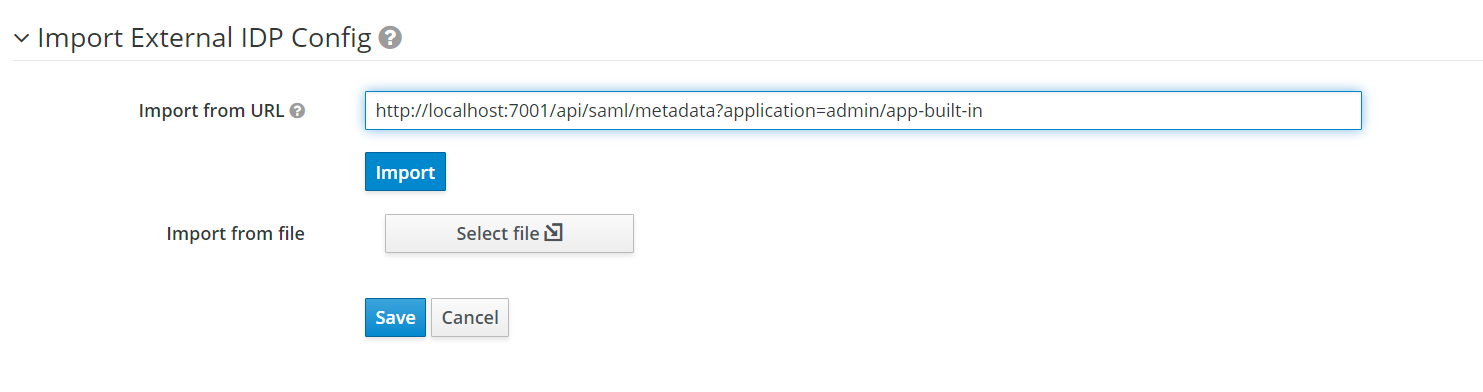
For all options, see SAML v2.0 identity providers in the Keycloak documentation.
Configure the Casdoor application
-
In the Casdoor admin console, open the edit page of the application.
-
Add the Service Provider Entity ID from Keycloak to Redirect URLs.
-
Turn on Enable SAML compression. Keycloak requires compressed responses.
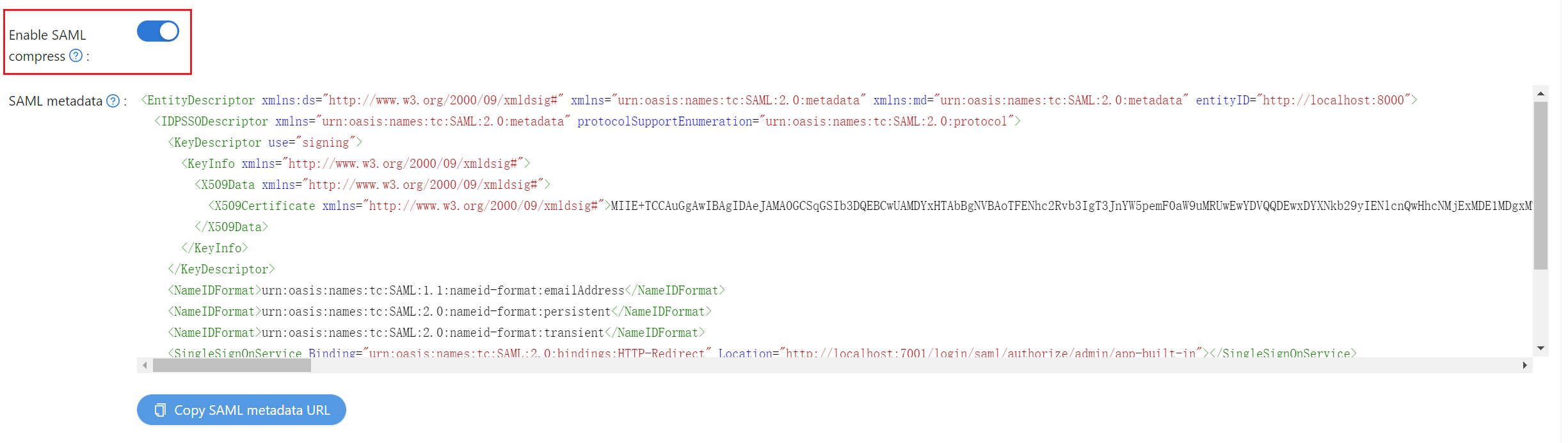
-
Save the application.
Verify the result
-
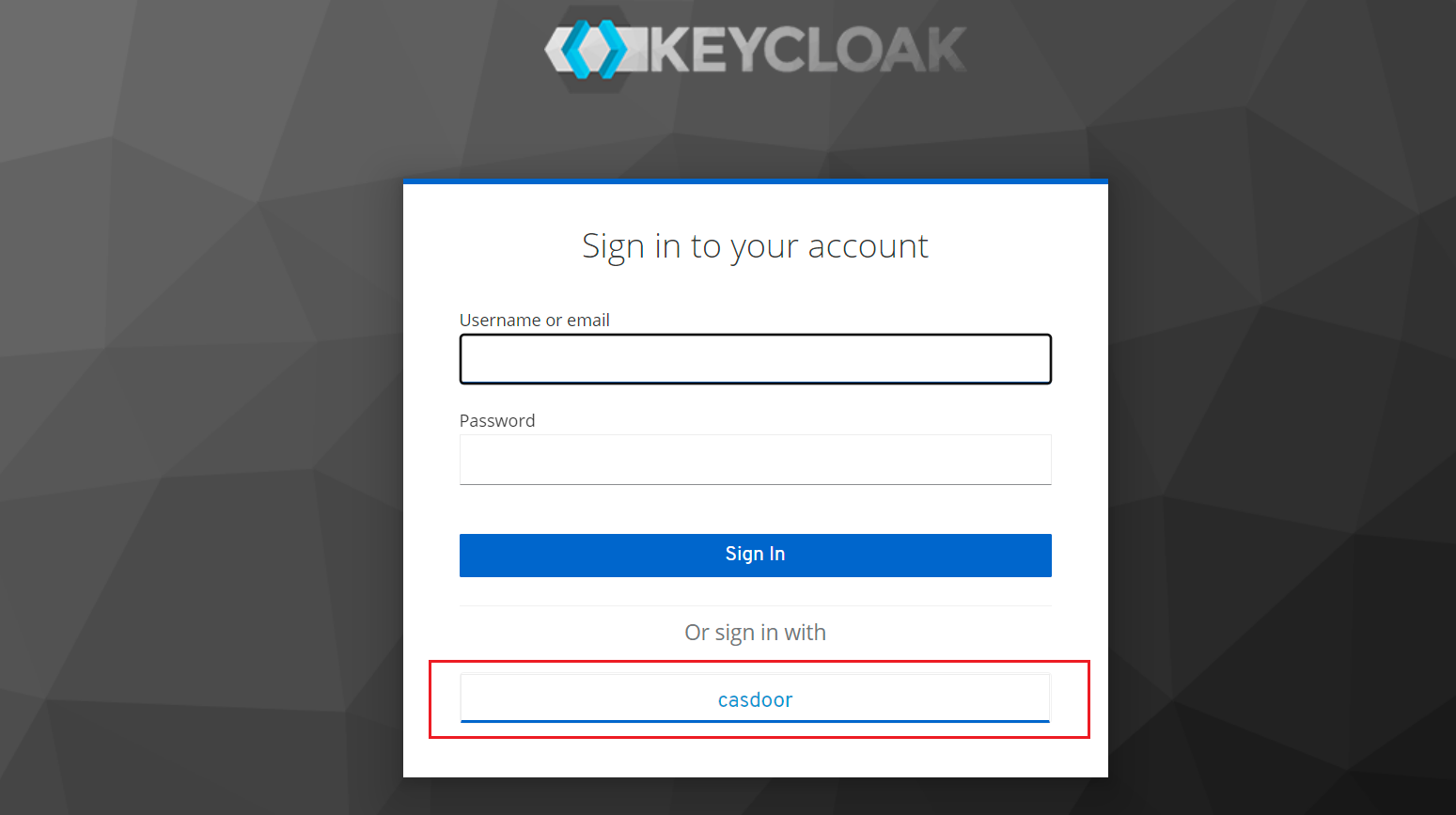
Open the Keycloak sign-in page and click the button of the Casdoor provider.
-
Sign in on the Casdoor sign-in page. Casdoor sends you back to Keycloak, signed in.