Send SMS with Azure Communication Services
This guide explains how to send the verification codes of Casdoor by SMS through Azure Communication Services (ACS).
Learning outcomes
- Get a token, a phone number, and the endpoint from Azure.
- Add Azure ACS as an SMS provider in Casdoor and test it.
What you need
- An Azure Communication Services resource with a phone number
- Administrator access to the Casdoor admin console
Get the credentials
-
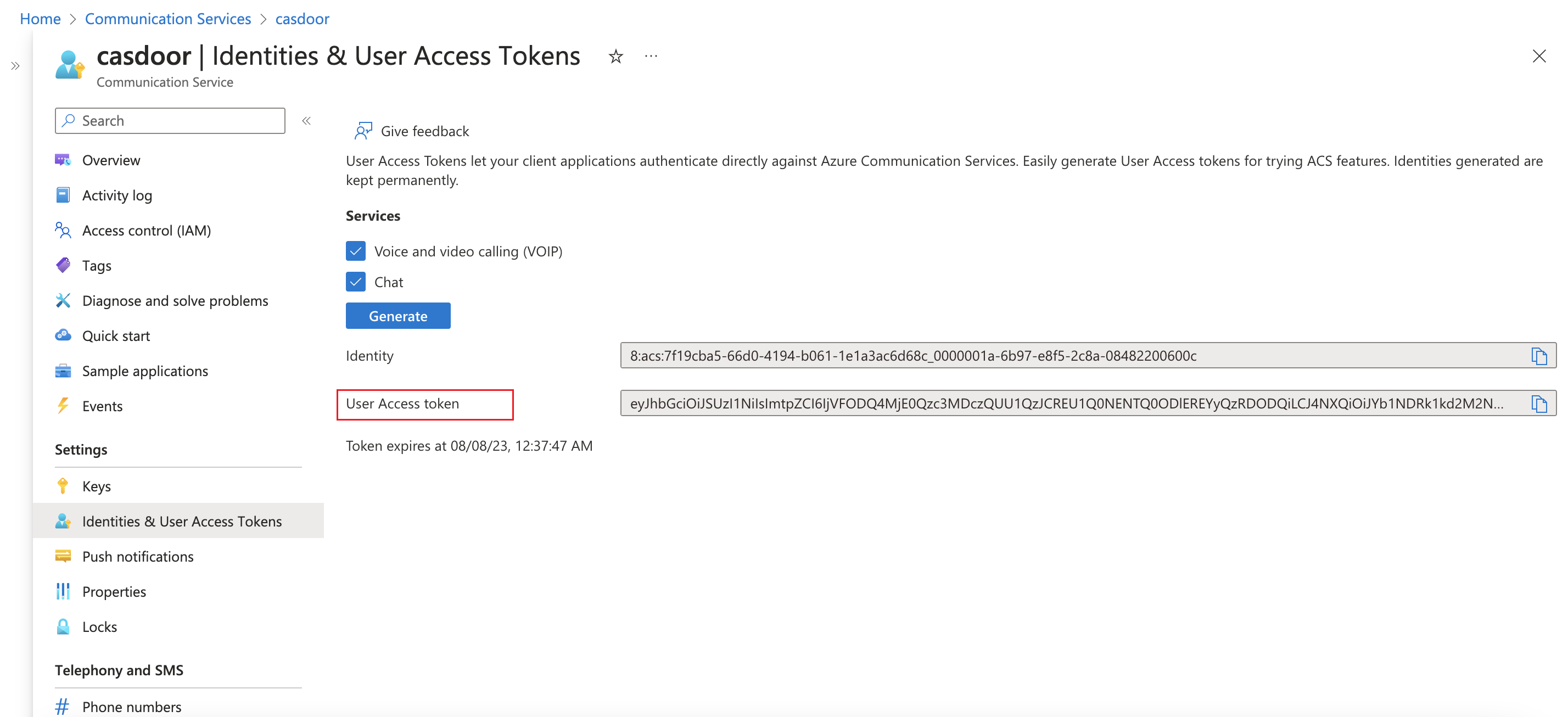
In your Communication Services resource, create a user access token.
-
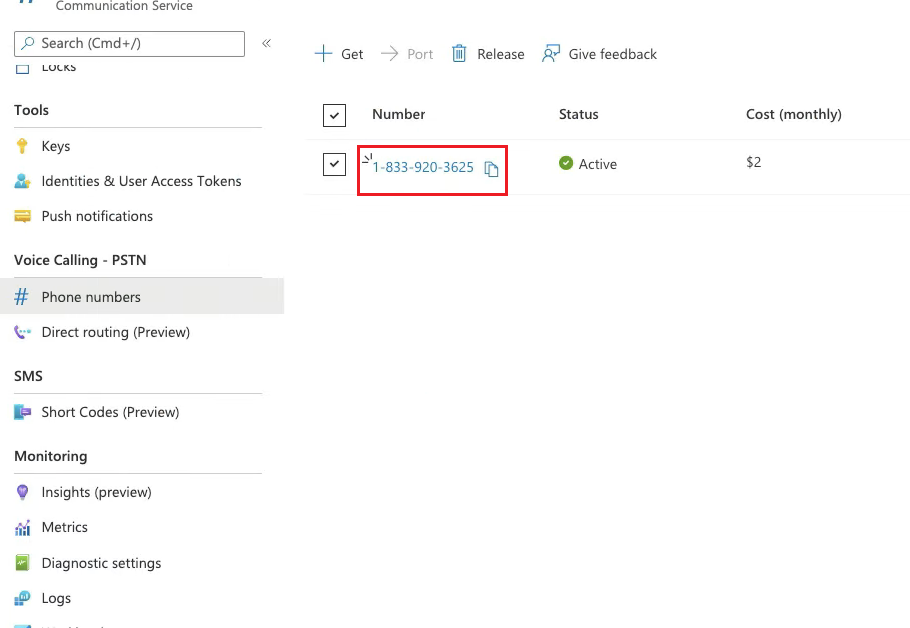
Note a phone number that is provisioned in the resource.
-
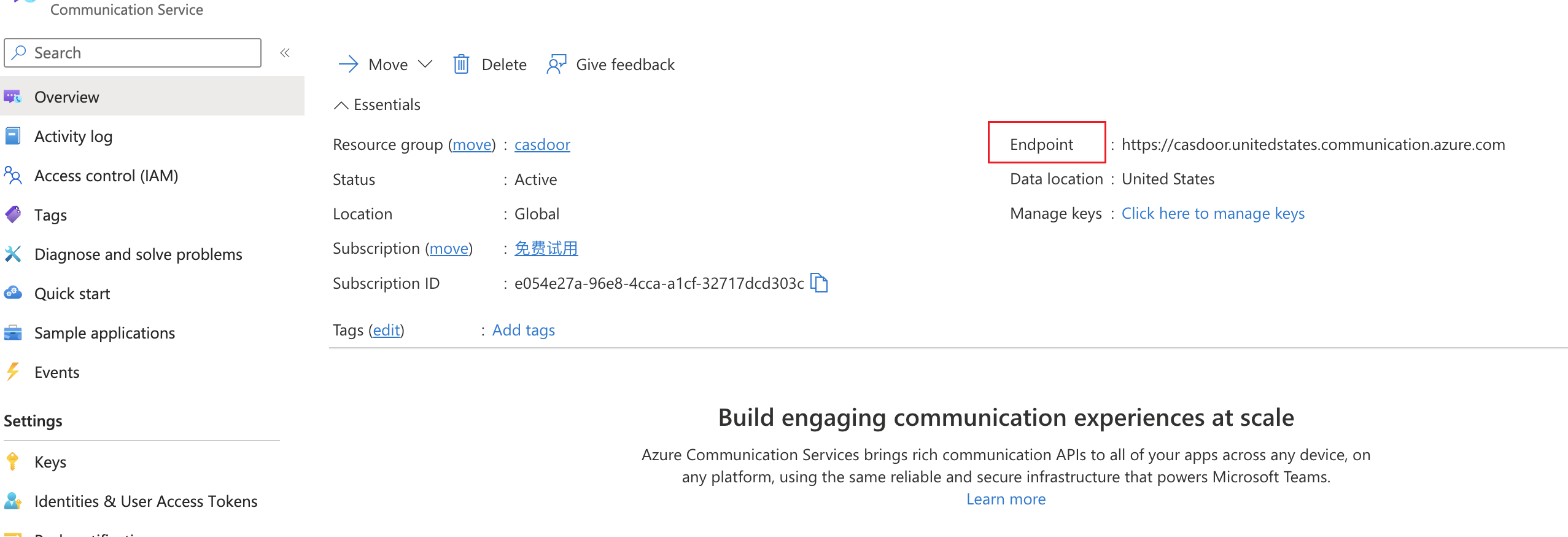
Copy the endpoint URL of the resource.
Add the provider in Casdoor
-
In the Casdoor admin console, go to Identity > Providers and add a provider.
-
Set Category to
SMSand Type toAzure ACS. -
Fill in the fields:
Casdoor field Azure ACS / meaning Required Client secret User Access Token (Communication Service) Yes Sender number Phone number from Communication Service Yes Provider Url Communication Service endpoint Yes Template code Message template / body Yes 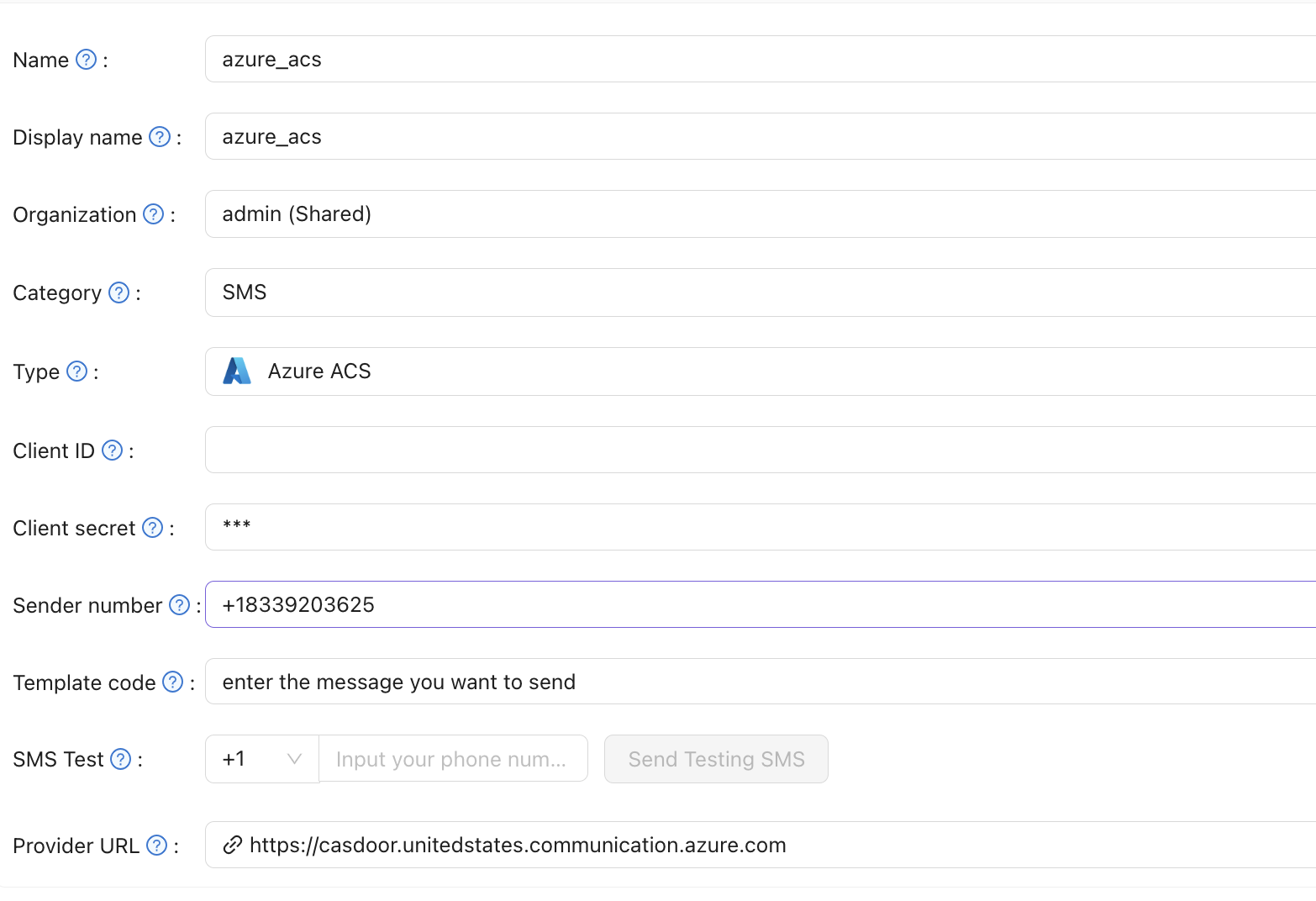
-
Save the provider.
Verify the result
Enter a phone number in SMS Test and send a test message.