Customize the sign-in page
This guide explains how to choose the elements of the sign-in page of an application with the Signin items table.
Learning outcomes
- Show, hide, and order the elements of the sign-in page.
- Turn off the forgot-password feature.
- Change how the language selector and the captcha appear.
What you need
- An application
About the sign-in items
Each row of Signin items is one element of the sign-in page.
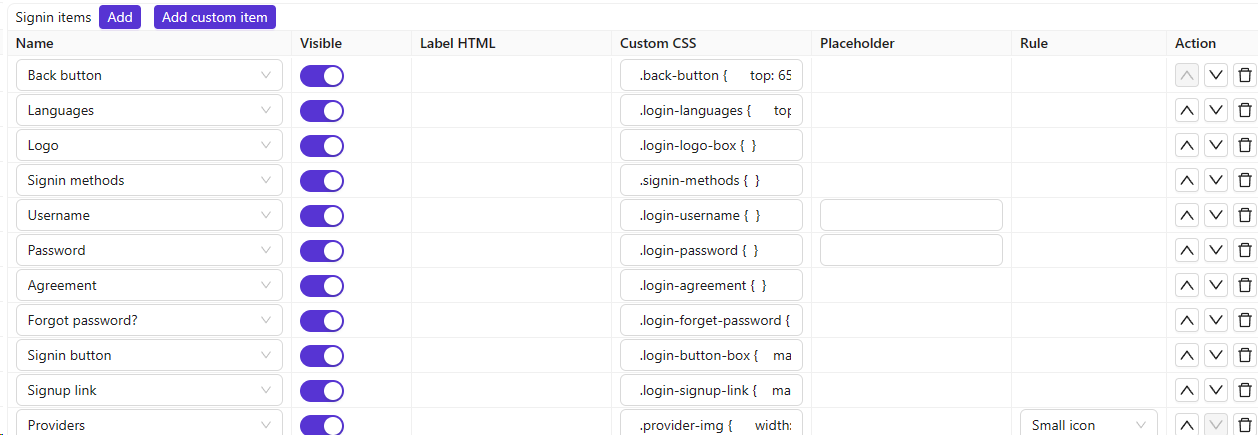
Columns
| Column | Values | Description |
|---|---|---|
| Name | — | Name of the signin item. |
| Visible | True / False | Show or hide on the sign-in page. |
| Label HTML | — | For custom items, HTML used as the field label. |
| Custom CSS | — | CSS for this signin item. |
| Placeholder | — | Placeholder text for the field. |
| Rule | Rule items | Rule that customizes this item (see below). |
| Action | — | Move up, move down, or delete. |
Configure the page
- In the Casdoor admin console, open the edit page of the application.
- In Signin items, add, remove, and order the items, and set Visible for each one.
- Set a rule for the items that support one.
- Save the application.
Turn off the forgot-password feature
Set Visible of the Forgot password? item to off. This turns off the feature in the UI and in the API: the /api/send-verification-code endpoint then rejects password reset requests, so that clients can't get around the hidden link by calling the API.
Change the language selector
The rule of the Languages item sets how the language selector appears on the sign-in and sign-up pages:
| Rule | Description |
|---|---|
| (empty) | Globe icon dropdown (default behavior). |
| Label | A labeled Select component is shown instead of the icon dropdown. |
Change the captcha
The rule of the Captcha item sets where the captcha appears:
| Rule | Description |
|---|---|
| Normal | Captcha is shown in a modal when sending verification codes. |
| Inline | Captcha is shown directly on the sign-in page. |