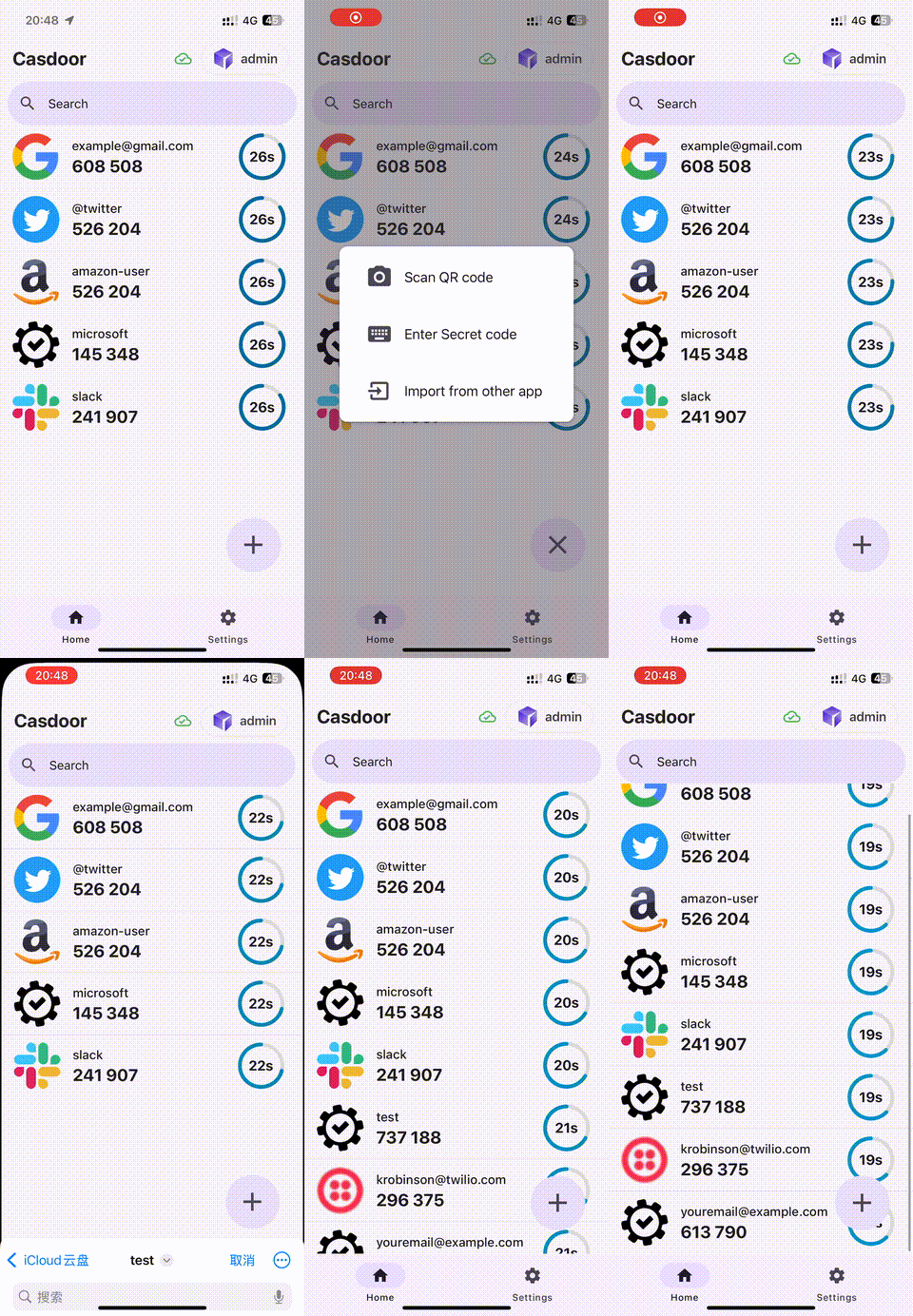
Use the Casdoor Authenticator app
This guide explains how to install Casdoor Authenticator, connect it to your Casdoor instance, and move accounts from other authenticator apps into it.
Learning outcomes
- Install the app on Android or build it for iOS.
- Connect the app to Casdoor and sync accounts.
- Import accounts from Google Authenticator and Microsoft Authenticator.
What you need
- An Android or iOS device
- To sync accounts: a Casdoor instance and an account on it
About Casdoor Authenticator
Casdoor Authenticator is an open-source app (source code) for time-based one-time passwords (TOTP), like Google Authenticator and Microsoft Authenticator. It is a second factor for multi-factor authentication (MFA).
A TOTP code is computed from a secret that the app shares with the service and from the current time (RFC 6238). A code is valid for 30 seconds, and the app needs no network connection to generate it.
| Feature | Description |
|---|---|
| MFA | Generates TOTP codes for any service that supports them |
| Offline use | Generates codes without an internet connection |
| Sync | Syncs accounts between devices through Casdoor |
| Privacy | Encrypts the stored data |
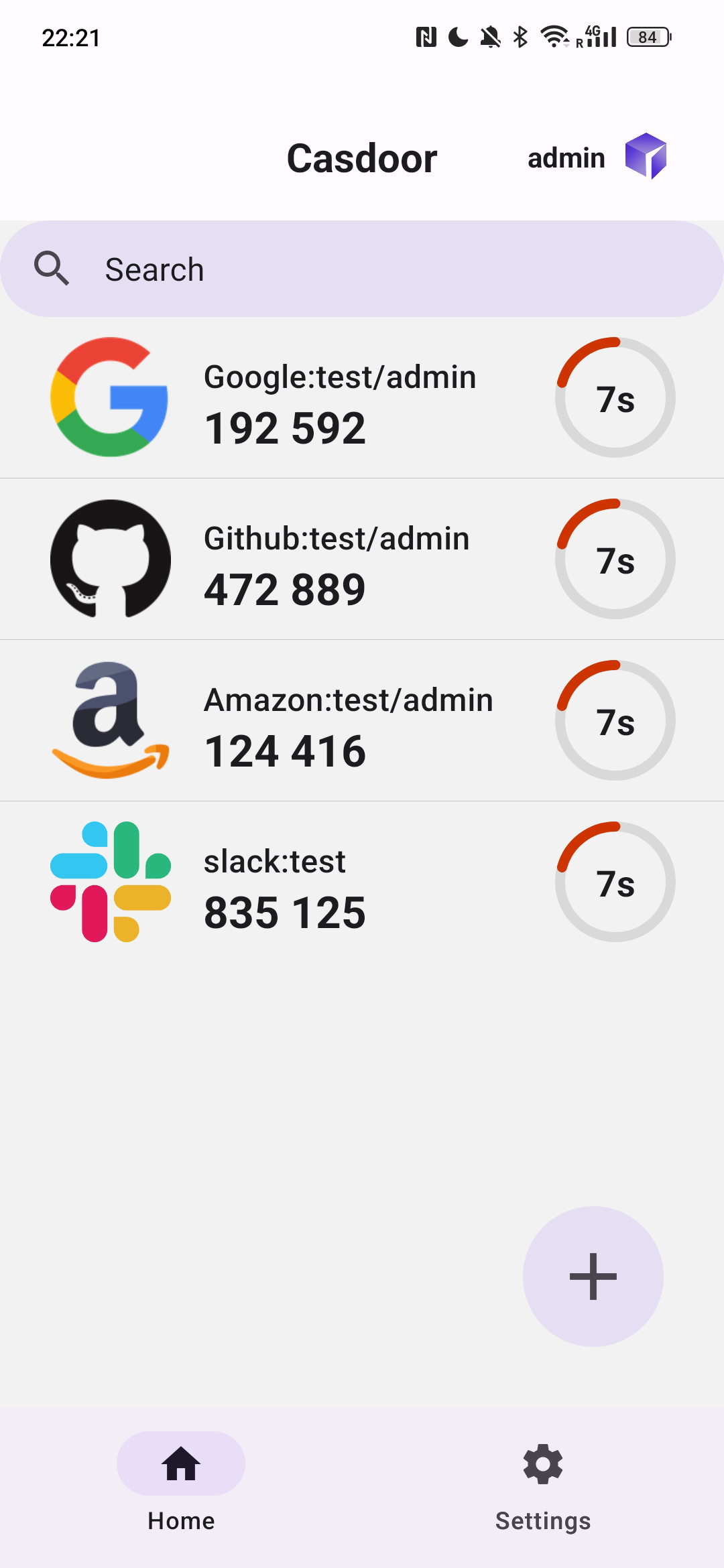
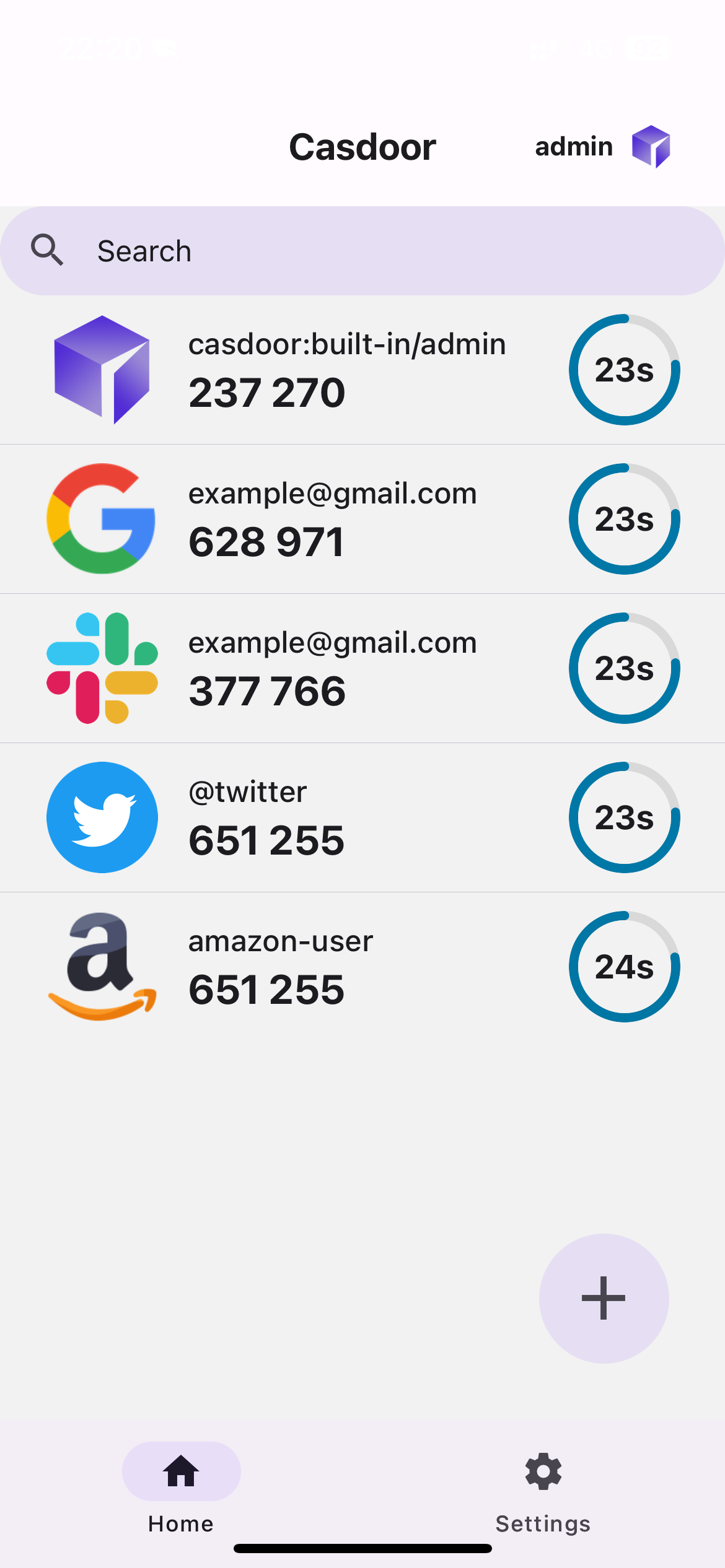
| Android | iOS |
|---|---|
 |  |
Install the app
- Android: Download the latest APK, or choose a version on the Releases page.
- iOS: The app isn't on the App Store yet. Build it from source.
Turn on account storage in Casdoor
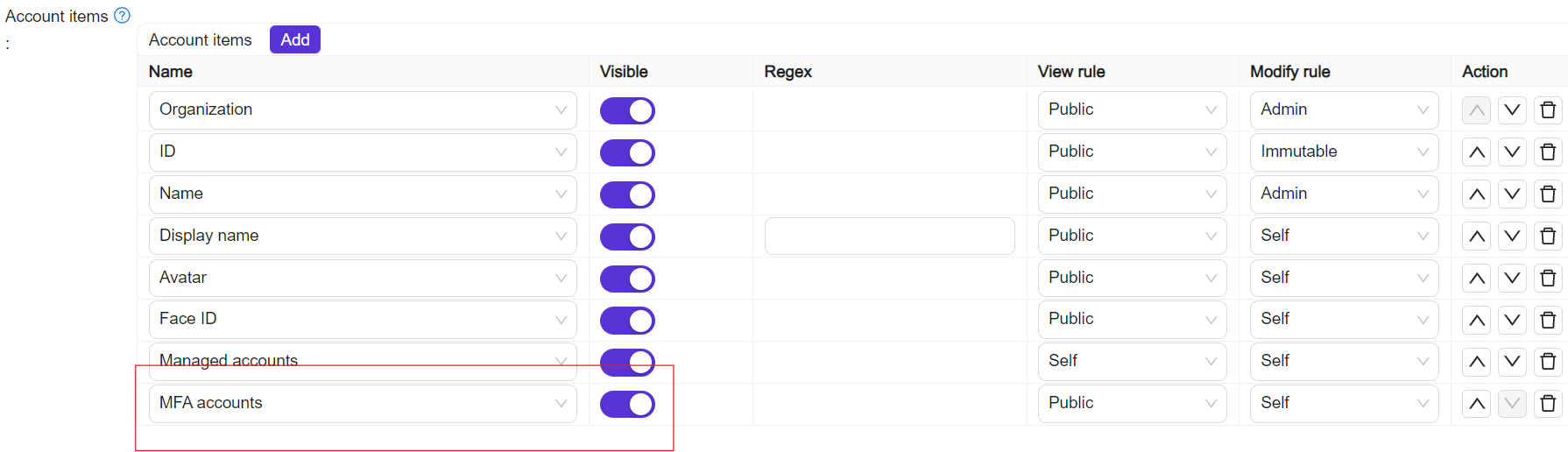
This step is optional. To store the TOTP accounts of the app in Casdoor, so that they sync between devices, add MFA accounts to the Account items of the organization in the Casdoor admin console.
Connect the app to Casdoor
Open the app and connect in one of three ways:
| Méthode | Steps |
|---|---|
| Manual | Tap Enter Server Manually, enter server URL, client ID, and organization name, then sign in. |
| QR code | Tap Scan QR Code, scan the QR from My Account → MFA accounts on the Casdoor server. |
| Demo | Tap Try Demo Server to use the preconfigured demo instance. |
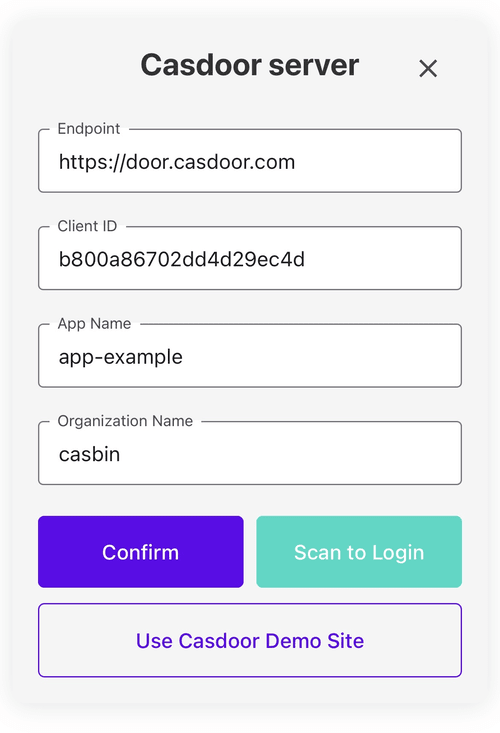
The app now shows your TOTP codes, and you can add and manage accounts.
Import accounts from another app
Import from Google Authenticator
-
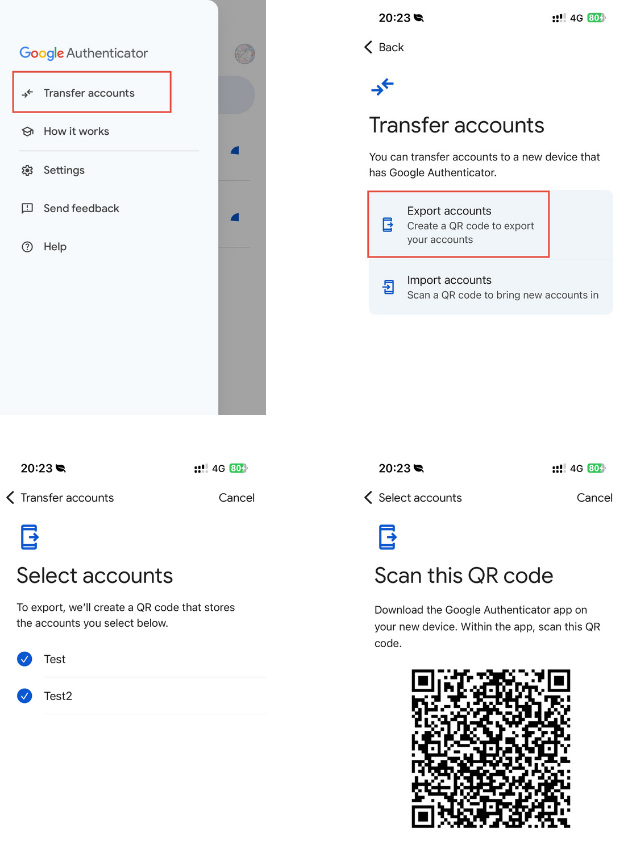
In Google Authenticator, open the menu and tap Transfer accounts.
-
Select the accounts and tap Export. Google Authenticator shows a QR code.
-
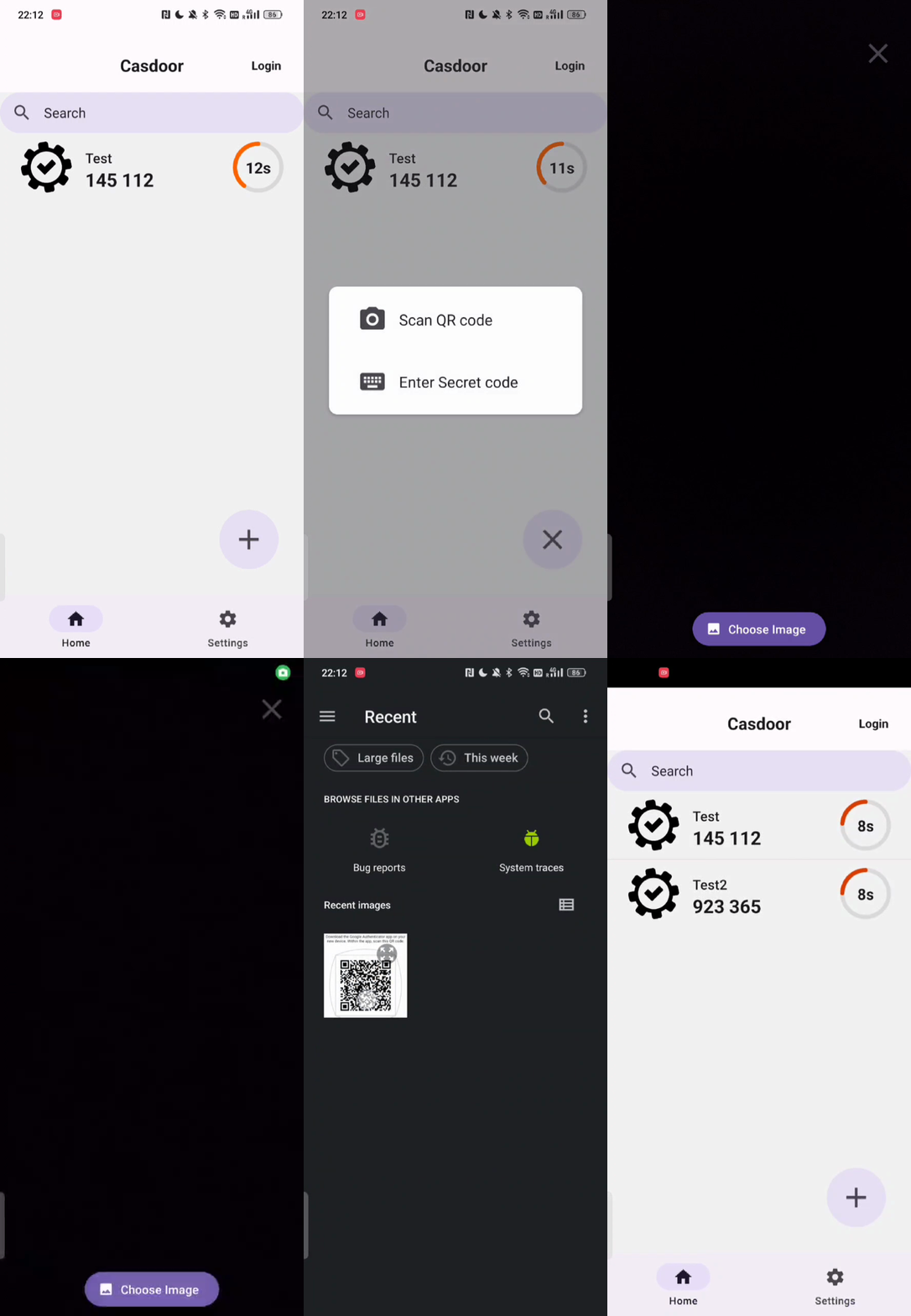
In Casdoor Authenticator, scan the QR code.
Import from Microsoft Authenticator
This import works on Android only and needs root access, because the data of Microsoft Authenticator is in the private directory /data/data/com.azure.authenticator/databases/.
-
On the device with Microsoft Authenticator, copy the
PhoneFactordatabase file from that directory. -
In Casdoor Authenticator, open the import menu and tap Import from Microsoft Authenticator.
-
Select the
PhoneFactorfile. The app imports the TOTP accounts.