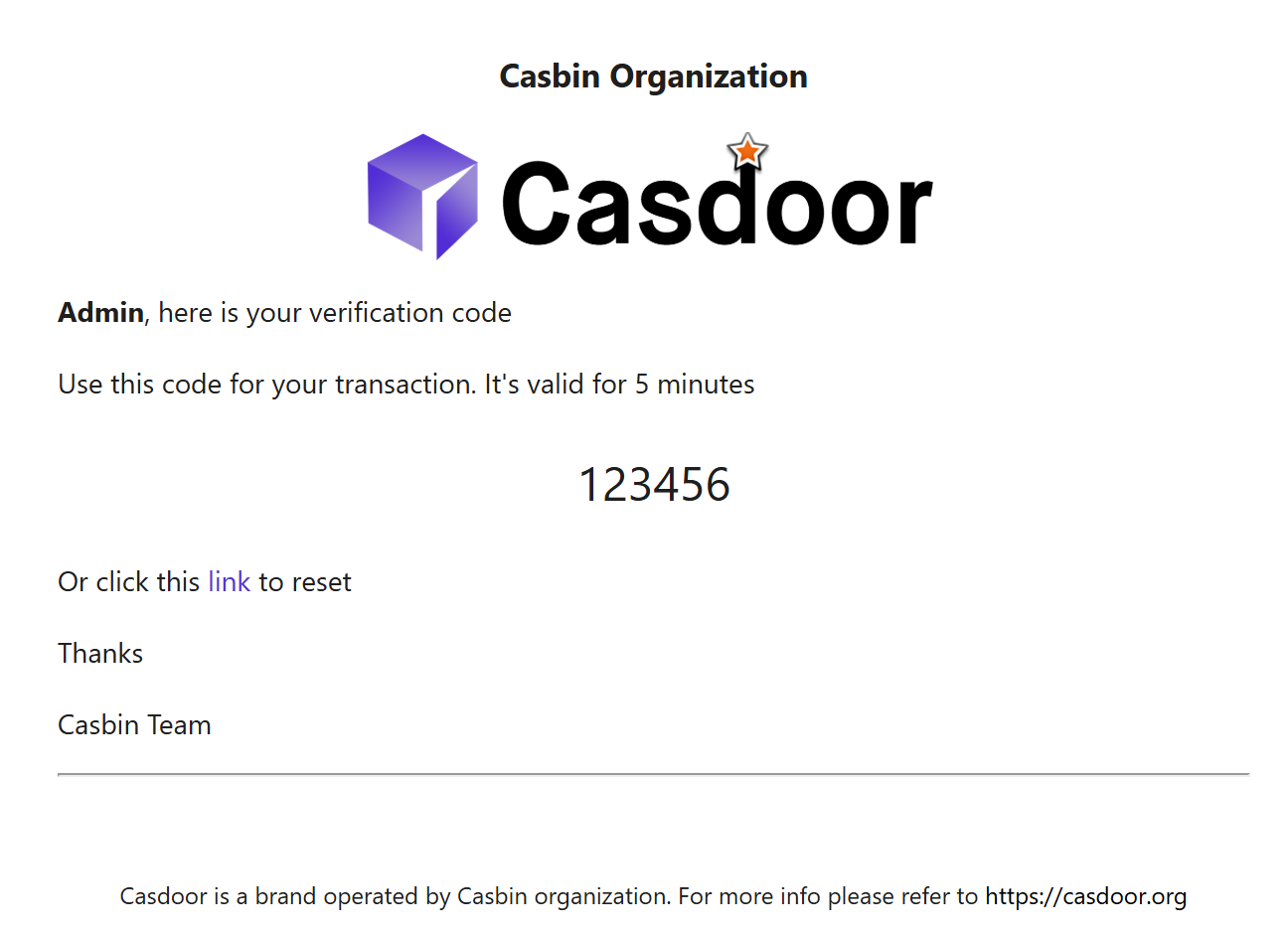
Email providers
An email provider sends the emails of Casdoor, such as verification codes at sign-up and sign-in, password reset links, and notifications. This page describes the settings of an SMTP provider and the email templates. Other pages of this section cover specific services.
Add an SMTP provider
-
In the Casdoor admin console, go to Identity > Providers and add a provider.
-
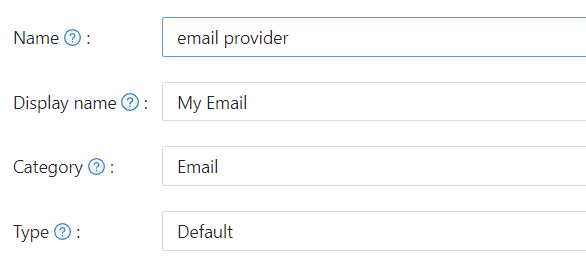
Set Category to
Emailand Type toDefault, which sends through SMTP. -
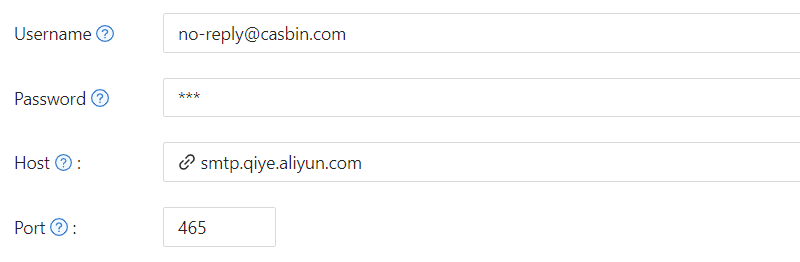
Enter the Host, Port, Username, and Password of your SMTP server, and the From address.
-
Write the Email title and the Email content. See Templates.
-
Click Test SMTP Connection to check the connection, and Send Testing Email to send a message to the Test Email address.
-
Save the provider and add it to your application. See Add providers to an application.
SSL mode
SSL mode controls how Casdoor negotiates TLS with the SMTP server:
| Value | Behavior |
|---|---|
Auto (default) | Decides by the port: implicit TLS on port 465, STARTTLS on other ports |
Enable | Always uses implicit TLS. Use it when the server requires implicit TLS on a non-standard port |
Disable | Doesn't use TLS. Use it only for servers on a trusted internal network |
Providers that had the former Disable SSL option turned on behave as Disable. You don't migrate them by hand.
Proxy
If Casdoor can't reach the SMTP server directly, for example Gmail from a restricted network, turn on Enable proxy. Casdoor then sends email through the SOCKS5 proxy that socks5Proxy in conf/app.conf sets.
Templates
Email title and Email content can contain the following placeholders:
| Placeholder | Replaced by |
|---|---|
%{user.friendlyName} | The display name or another friendly name of the user |
%s | The verification code |
%link | The password reset URL. Use it only inside a <reset-link> block |
Password reset link
To let users reset their password with a link in the email, put the link text and %link in a <reset-link> block. Casdoor shows the block only in password reset emails and removes it from all other emails, such as sign-up and sign-in codes.
Plain text:
You have requested a verification code at Casdoor. Here is your code: %s, please enter in 5 minutes. <reset-link>Or click %link to reset</reset-link>
HTML:
<!DOCTYPE html>
<html>
<body>
    <h2>Password Reset Request</h2>
    <p>Hello %{'{'}user.friendlyName{'}'},</p>
    <p>Your verification code is: <strong>%s</strong></p>
    <p>This code will expire in 5 minutes.</p>
    <reset-link>
        <p>Alternatively, you can <a href="%link">click here to reset your password</a> directly.</p>
    </reset-link>
    <p>If you didn't request this, please ignore this email.</p>
</body>
</html>