Add Alibaba Cloud IDaaS as a SAML provider
This guide explains how to let the users of Alibaba Cloud IDaaS (EIAM) sign in to Casdoor through SAML.
Learning outcomes
- Create a SAML application in IDaaS and associate its accounts with Casdoor users.
- Add Alibaba Cloud IDaaS as a SAML provider in Casdoor.
What you need
- An Alibaba Cloud account
- Administrator access to the Casdoor admin console
Create a SAML application in IDaaS
-
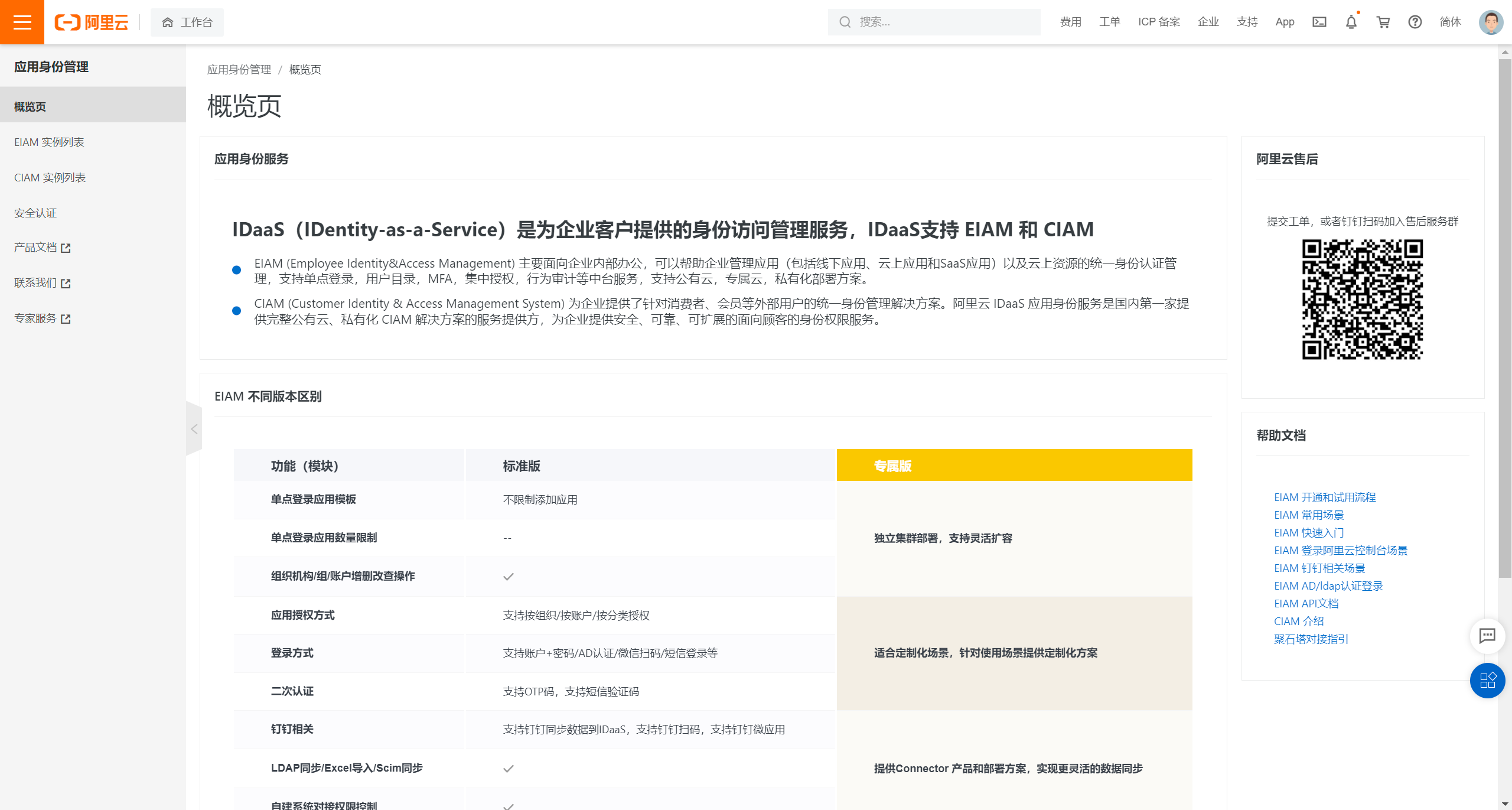
In the Alibaba Cloud console, open IDaaS (Identity as a Service).
-
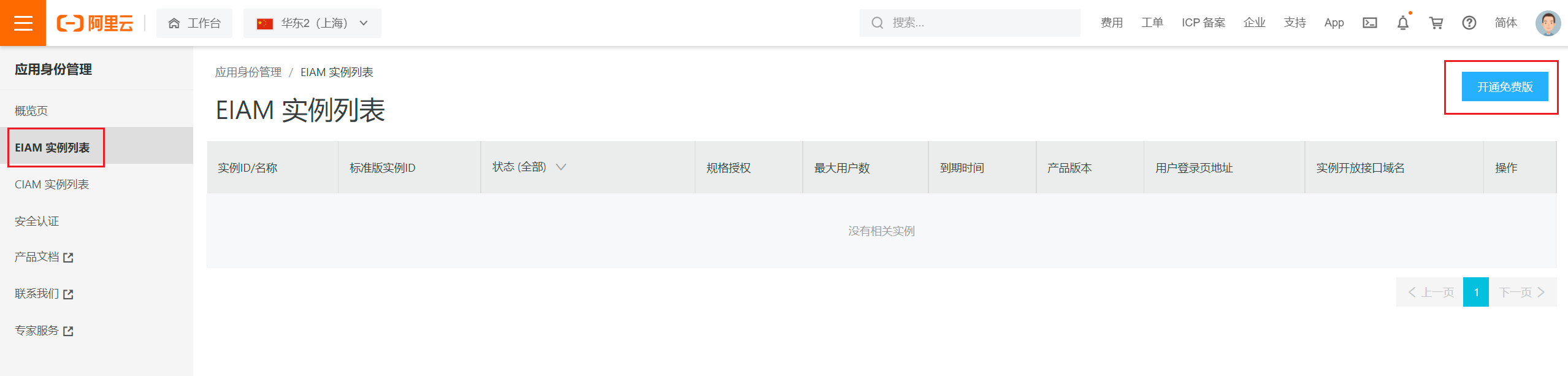
Click EIAM Instance List and open the free version. Alibaba Cloud creates and starts an instance.
-
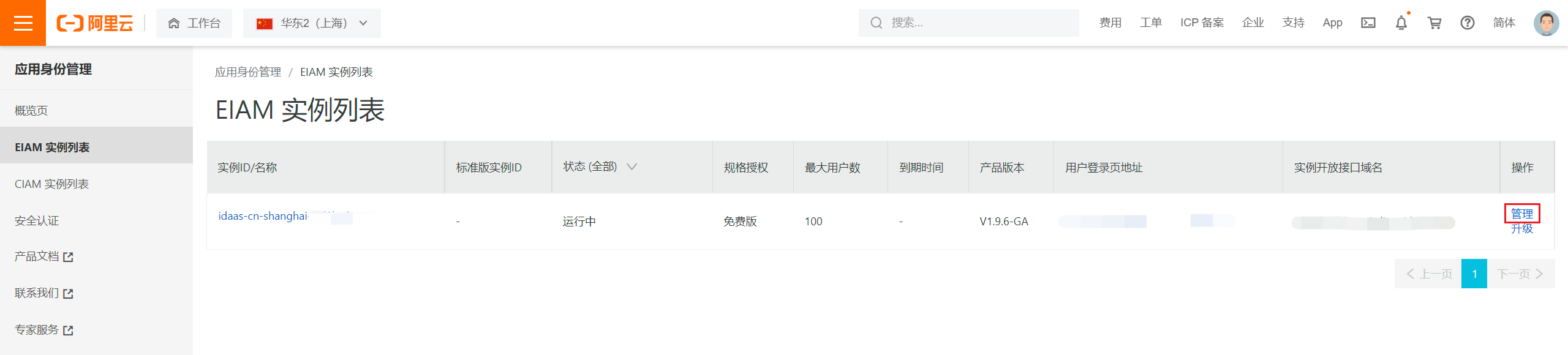
Click the name of the instance, or Manage, to open the IDaaS console.
-
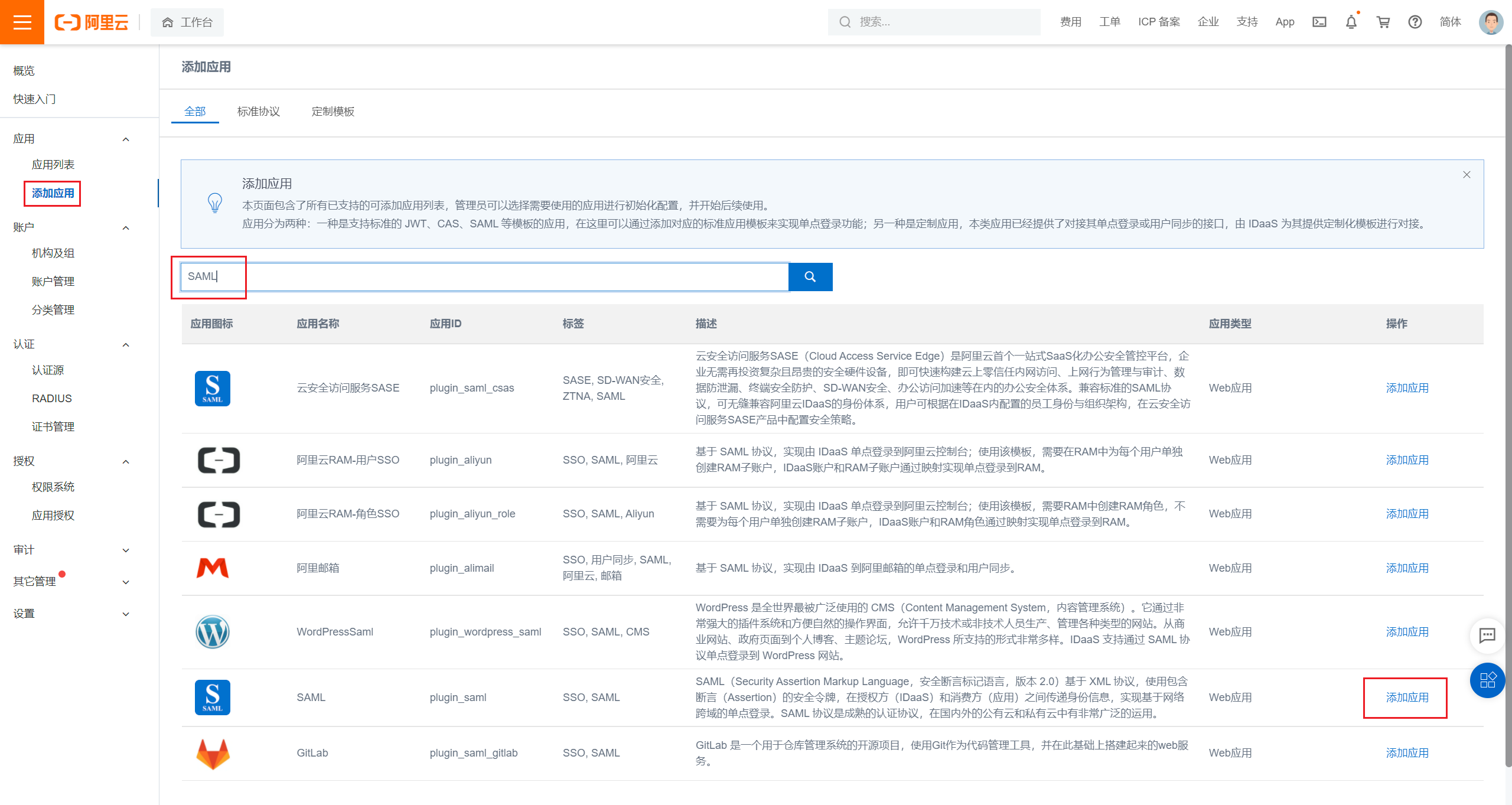
Click Add Application, search for SAML, and click Add Application.
-
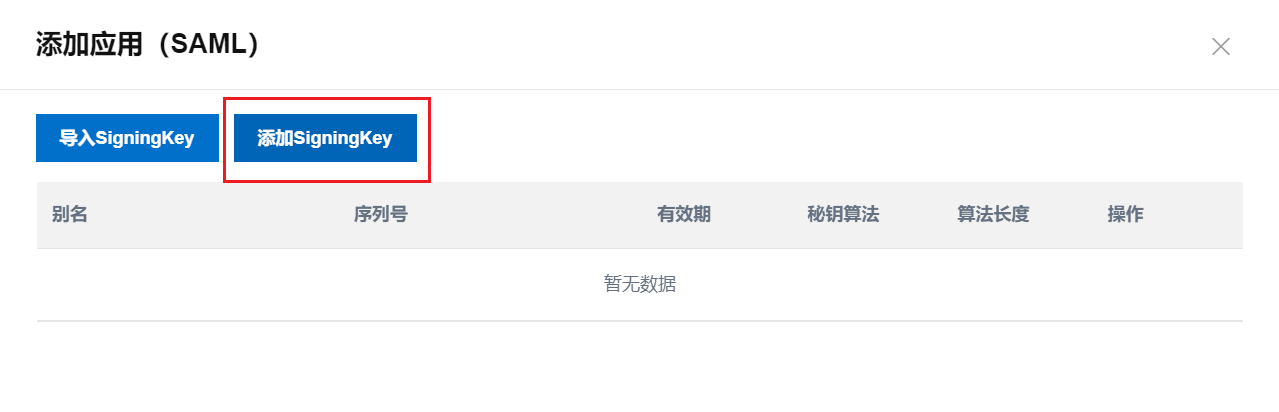
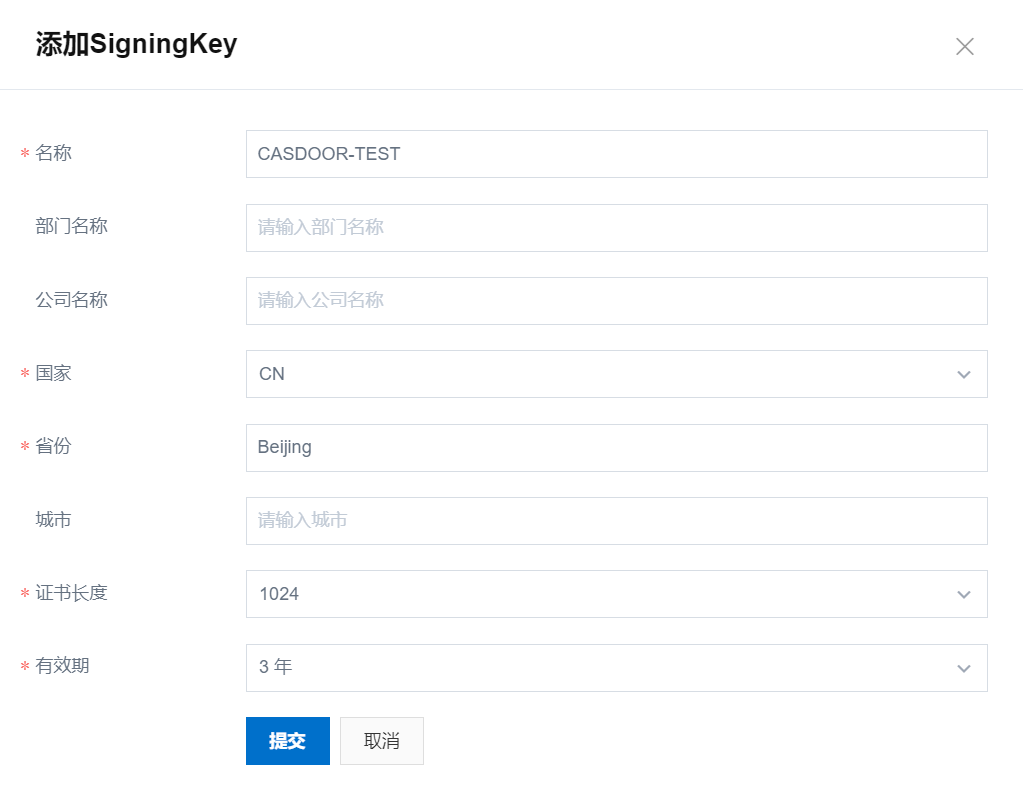
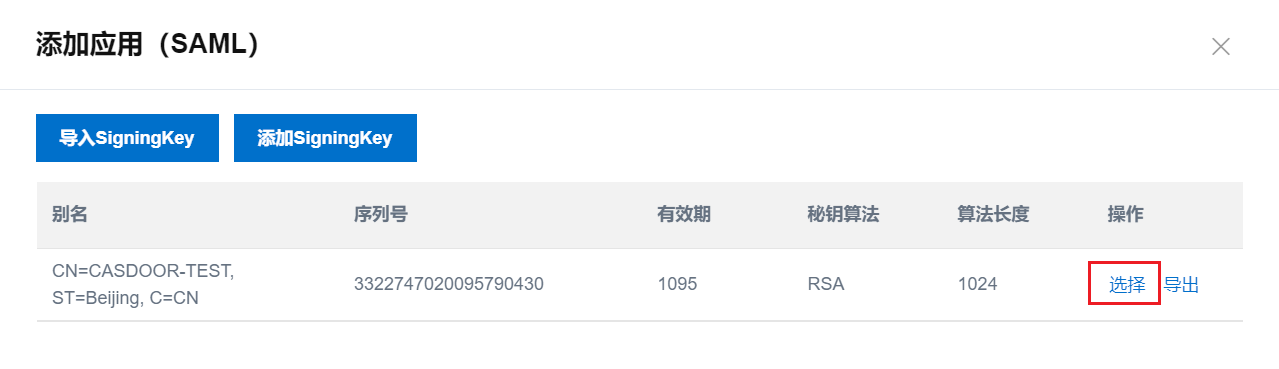
Click Add SigningKey, fill in the form, and submit. Then select the new signing key.
-
Fill in the application and submit:
Field Value IDP IdentityId The same value as Issuer URL in Casdoor SP Entity ID, SP ACS URL (SSO Location) Placeholders for now. You replace them after configuring Casdoor Assertion Attribute usernameAccount Association Mode Account Association 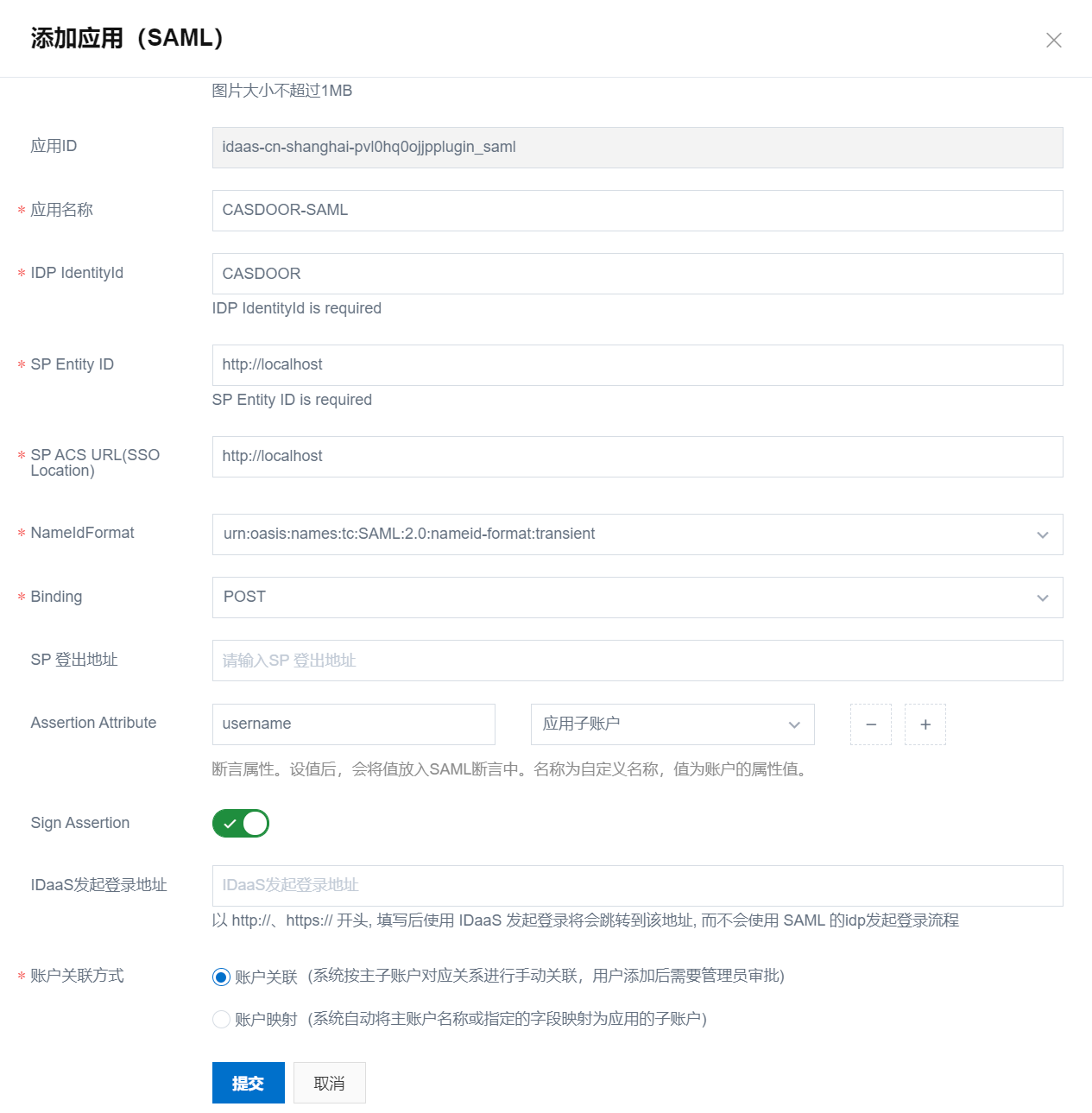
Associate accounts
After the application is added, IDaaS asks you to authorize it. Don't authorize it yet.
-
Go to Organizations and Groups, click New Account, fill in the form, and submit.
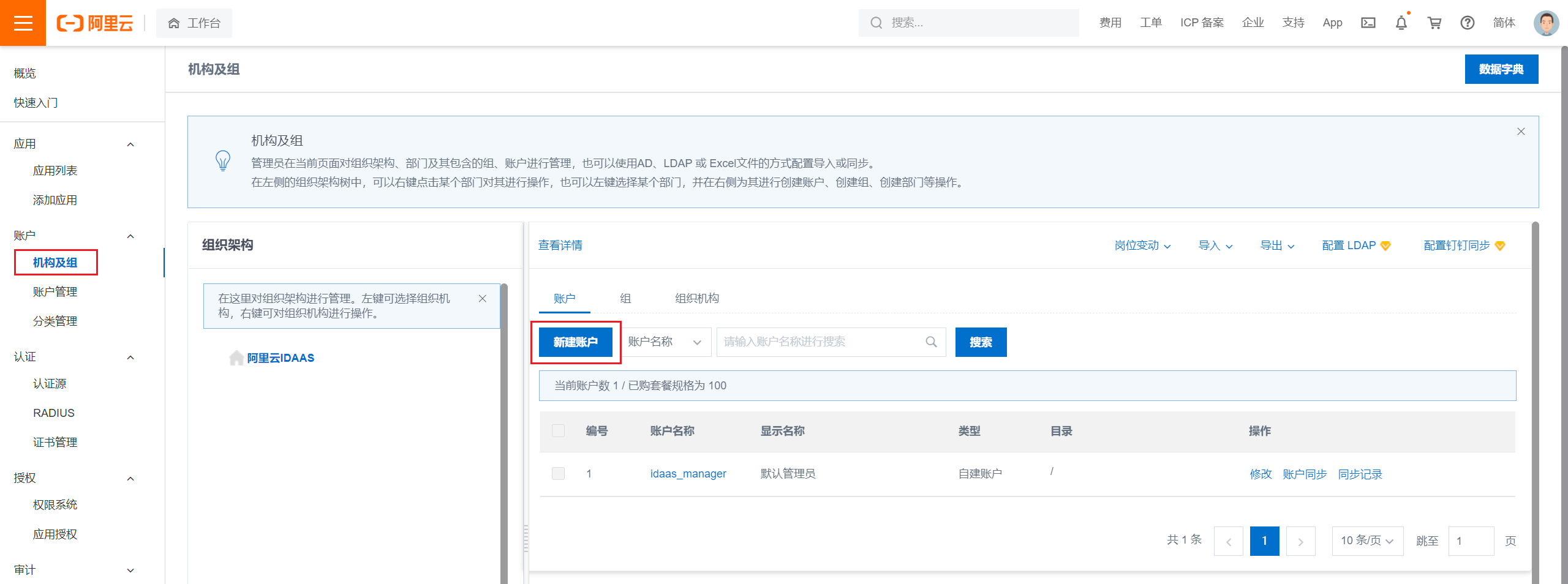
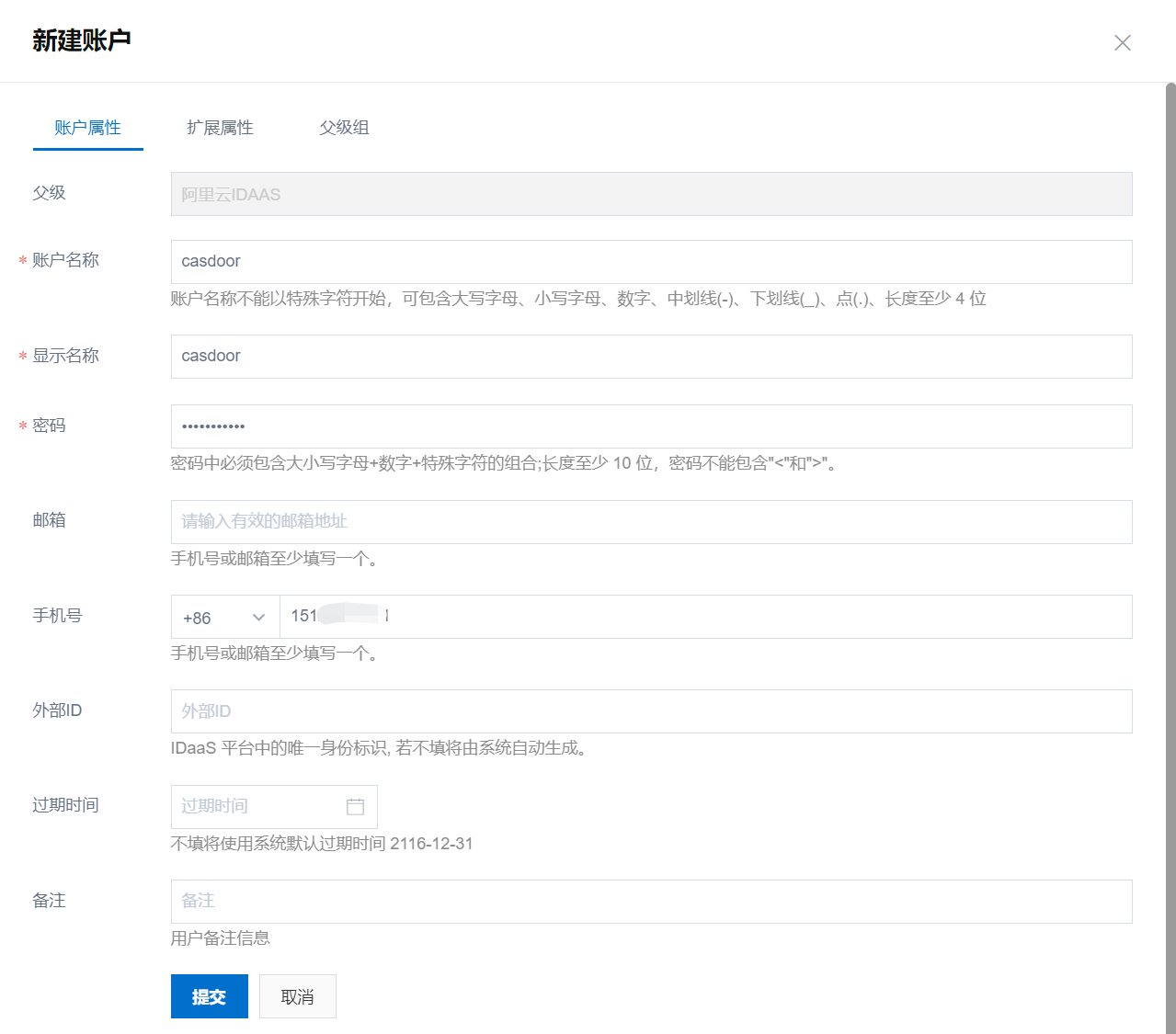
-
Go to Application Authorization, select the accounts to authorize, and click Save.
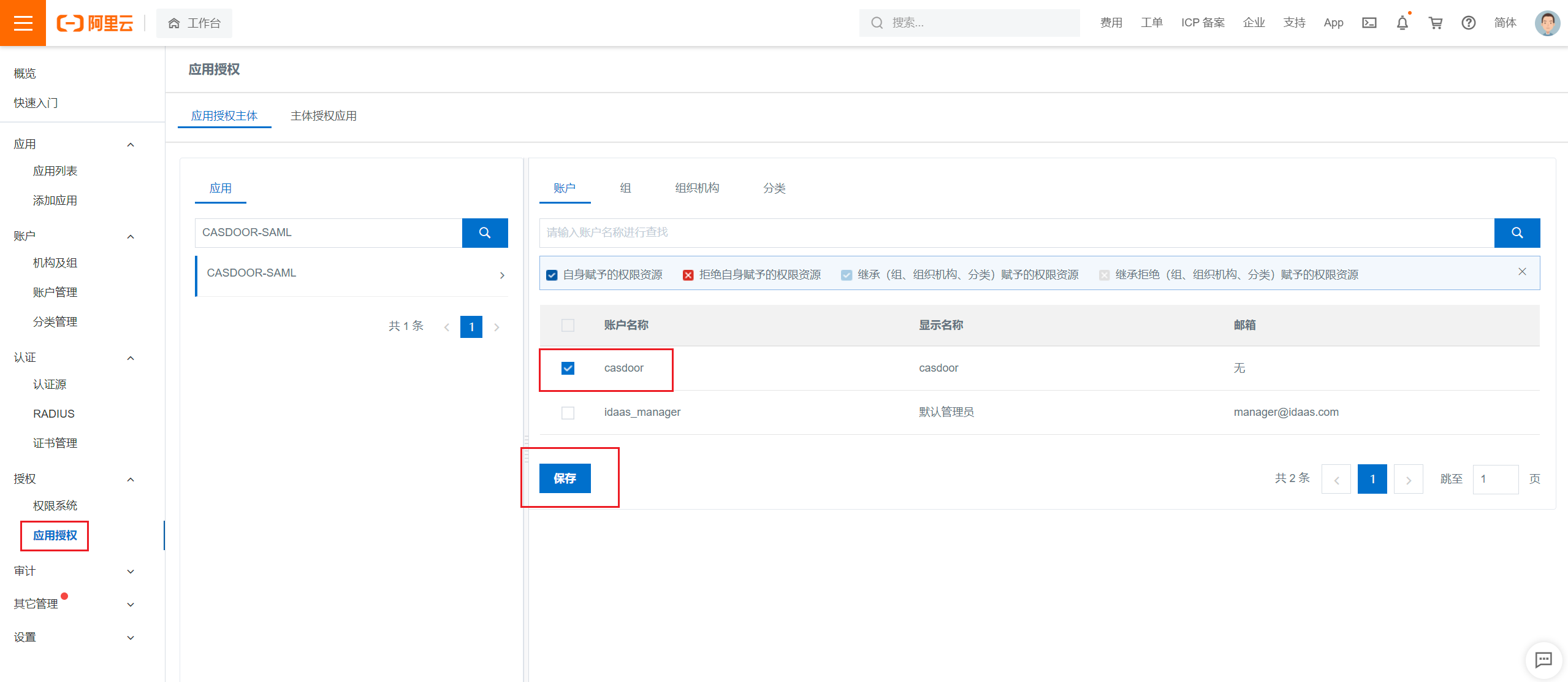
-
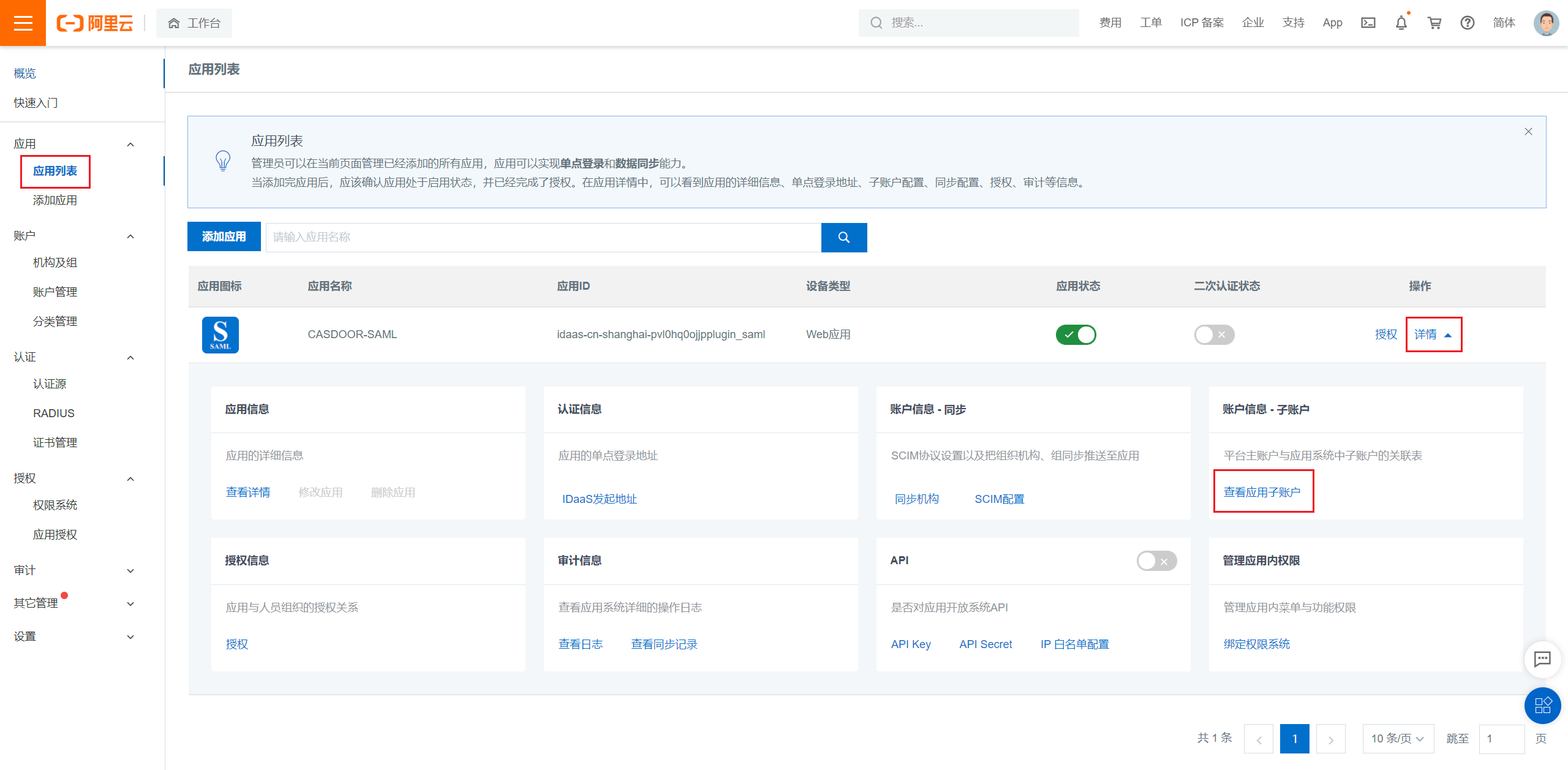
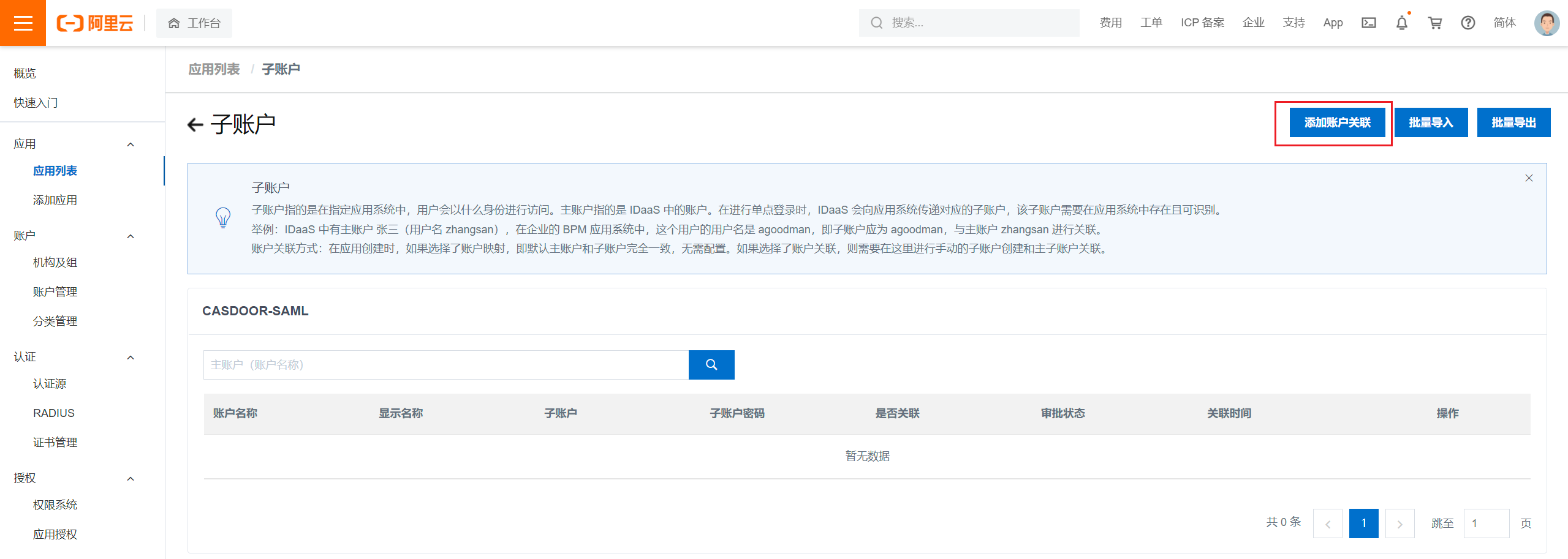
Go to the Application List, click View application sub-accounts, and then Add account association.
-
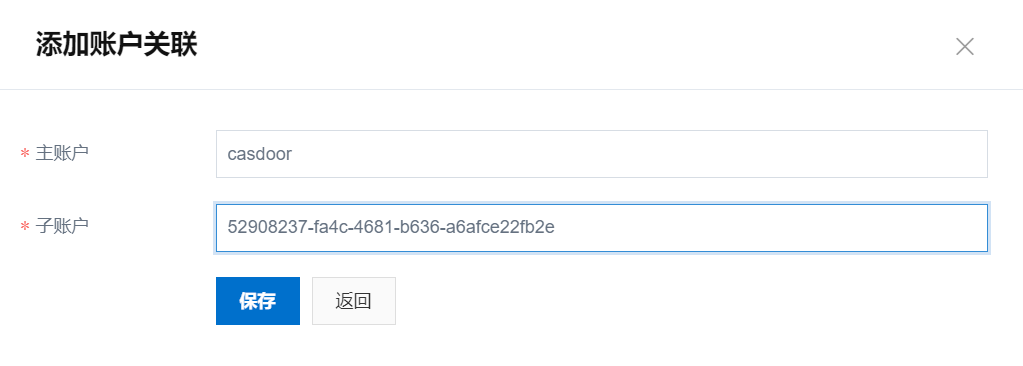
Enter the primary account, which exists in IDaaS, and the sub-account, which is the ID of the user in Casdoor. Click Save.
Export the metadata
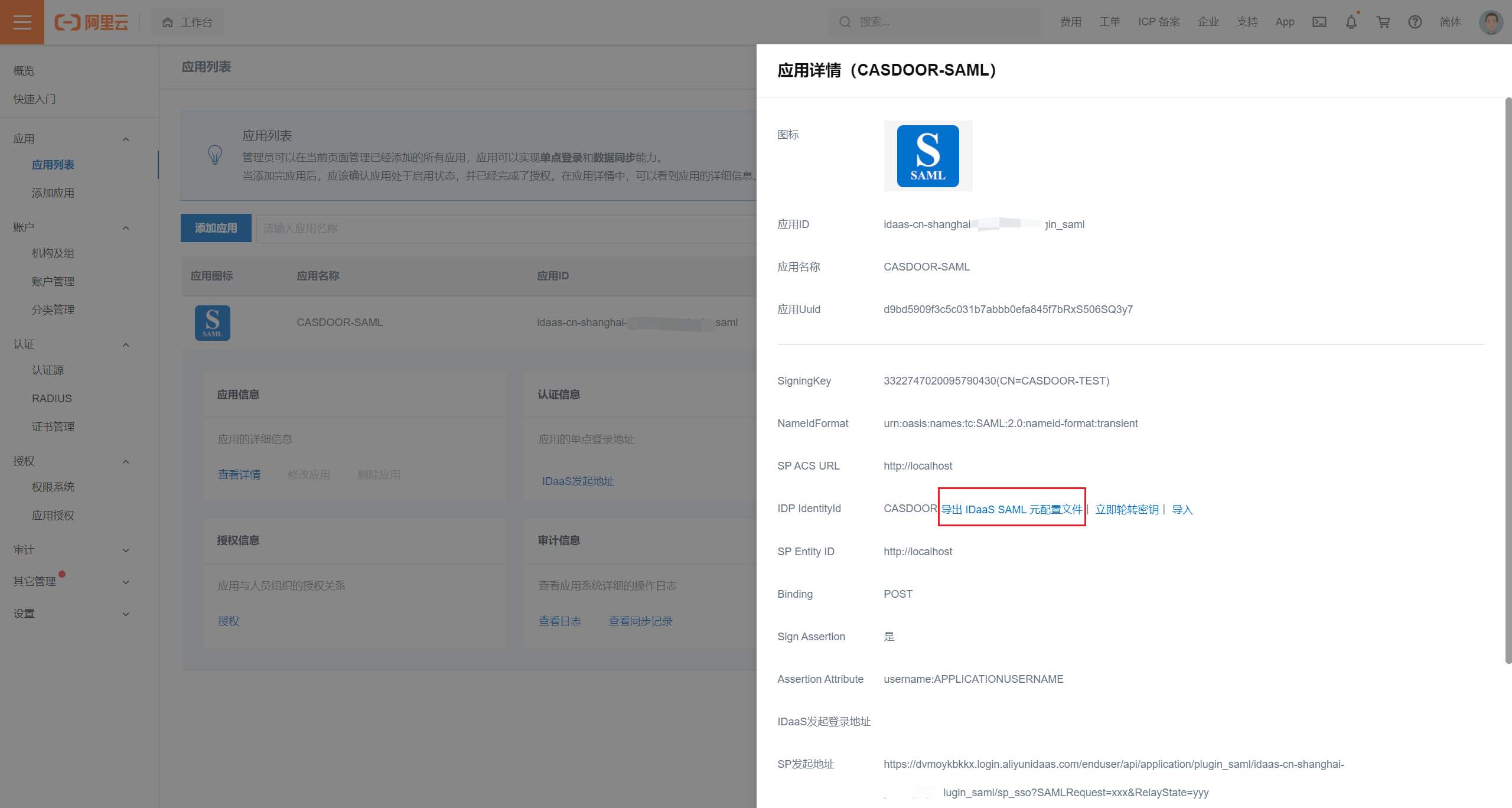
In the Application List, click View Application Details and Export IDaaS SAML Metadata.
Add the provider in Casdoor
-
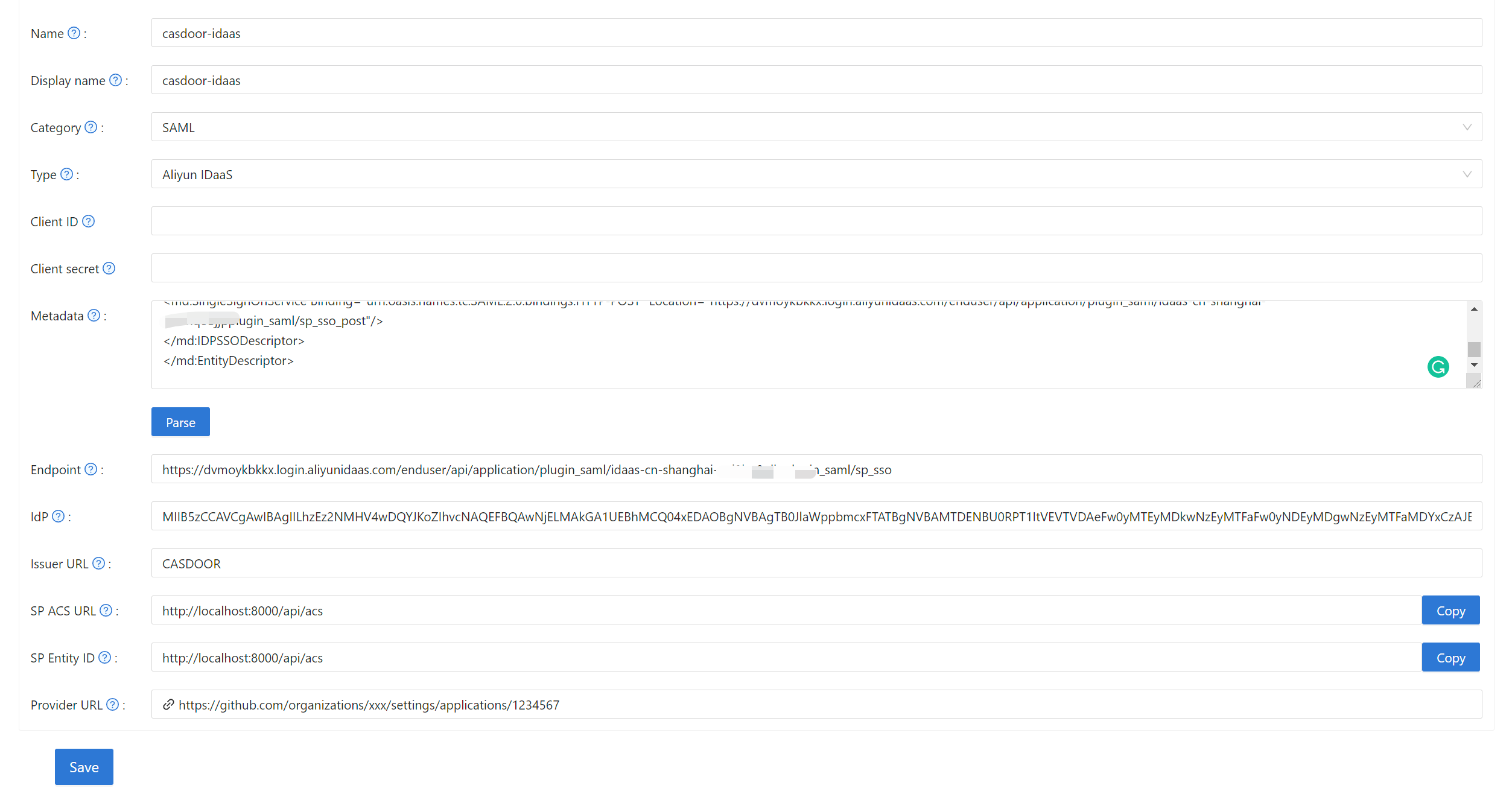
In the Casdoor admin console, go to Identity > Providers and add a provider.
-
Set Category to
SAMLand Type toAliyun IDaaS. -
Paste the metadata into Metadata and click Parse. Casdoor fills in Endpoint, IdP, and Issuer URL.
-
Copy the SP ACS URL and the SP Entity ID, and save the provider.
-
Open the edit page of your application, add the provider on the Providers tab, and save.

Complete the IDaaS application
-
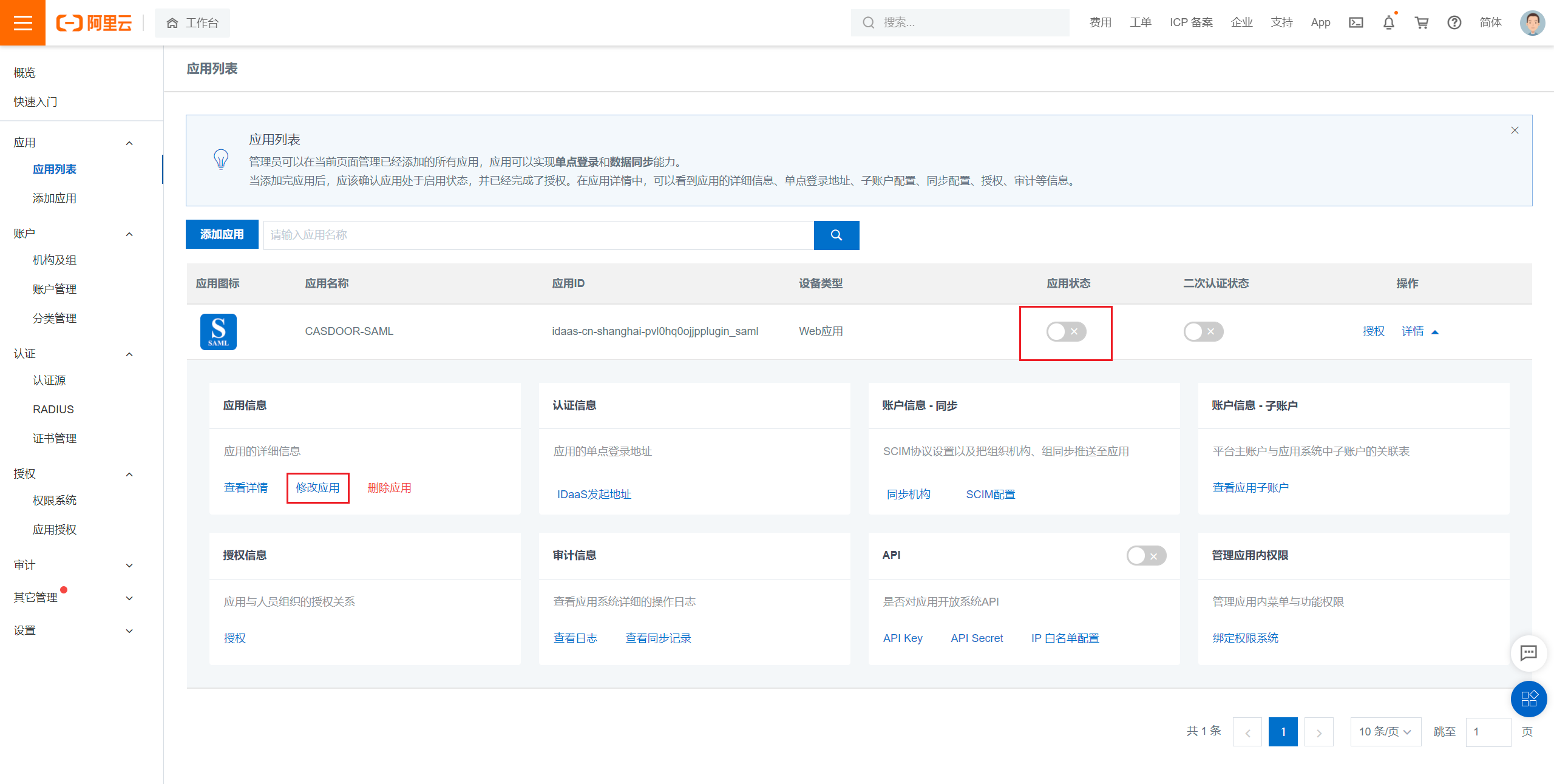
In IDaaS, disable the application and click Modify Application.
-
Enter the SP Entity ID and the SP ACS URL (SSO Location) that you copied from Casdoor. The ACS URL accepts only
POST.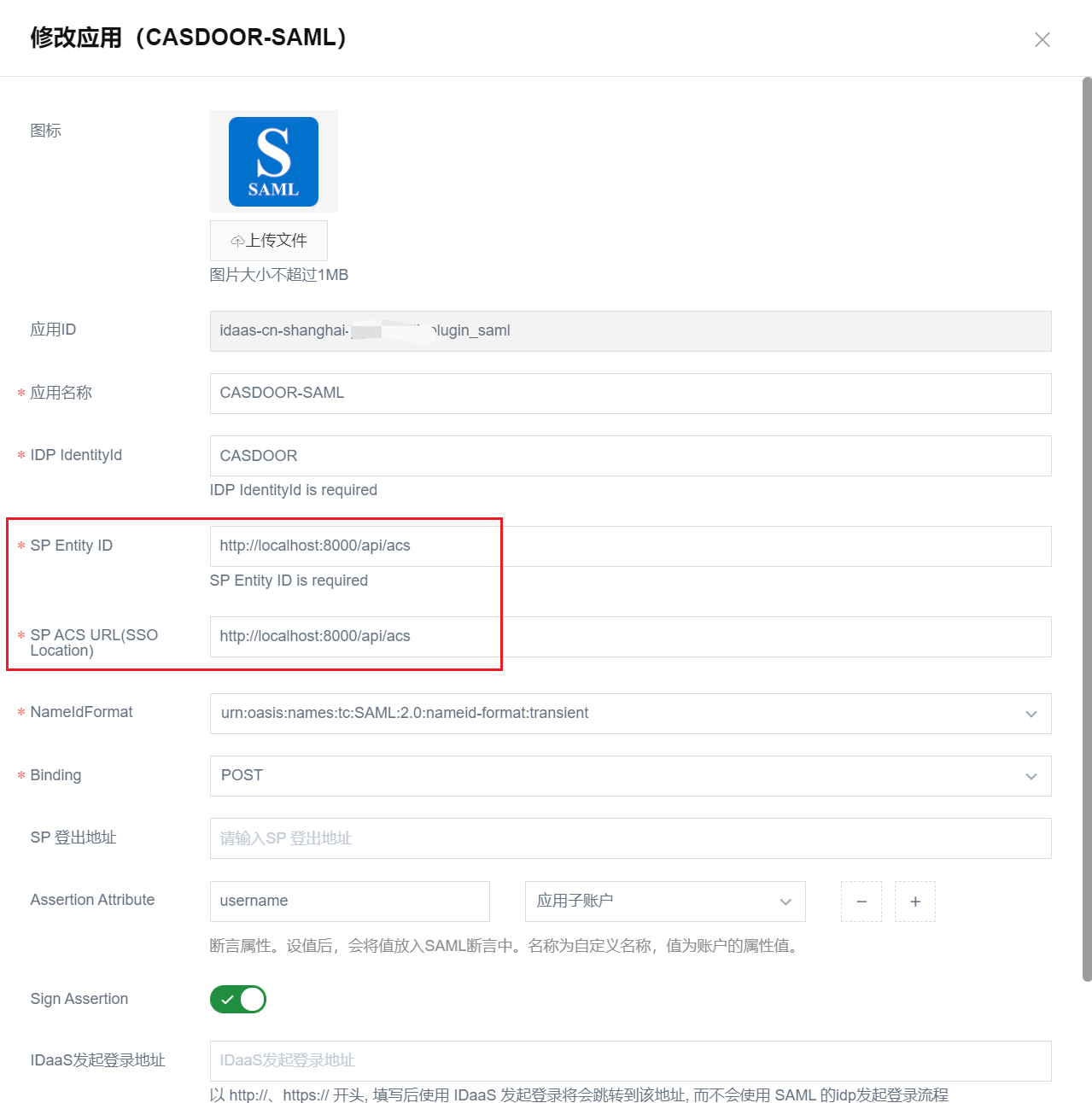
-
Submit and enable the application.
Verify the result
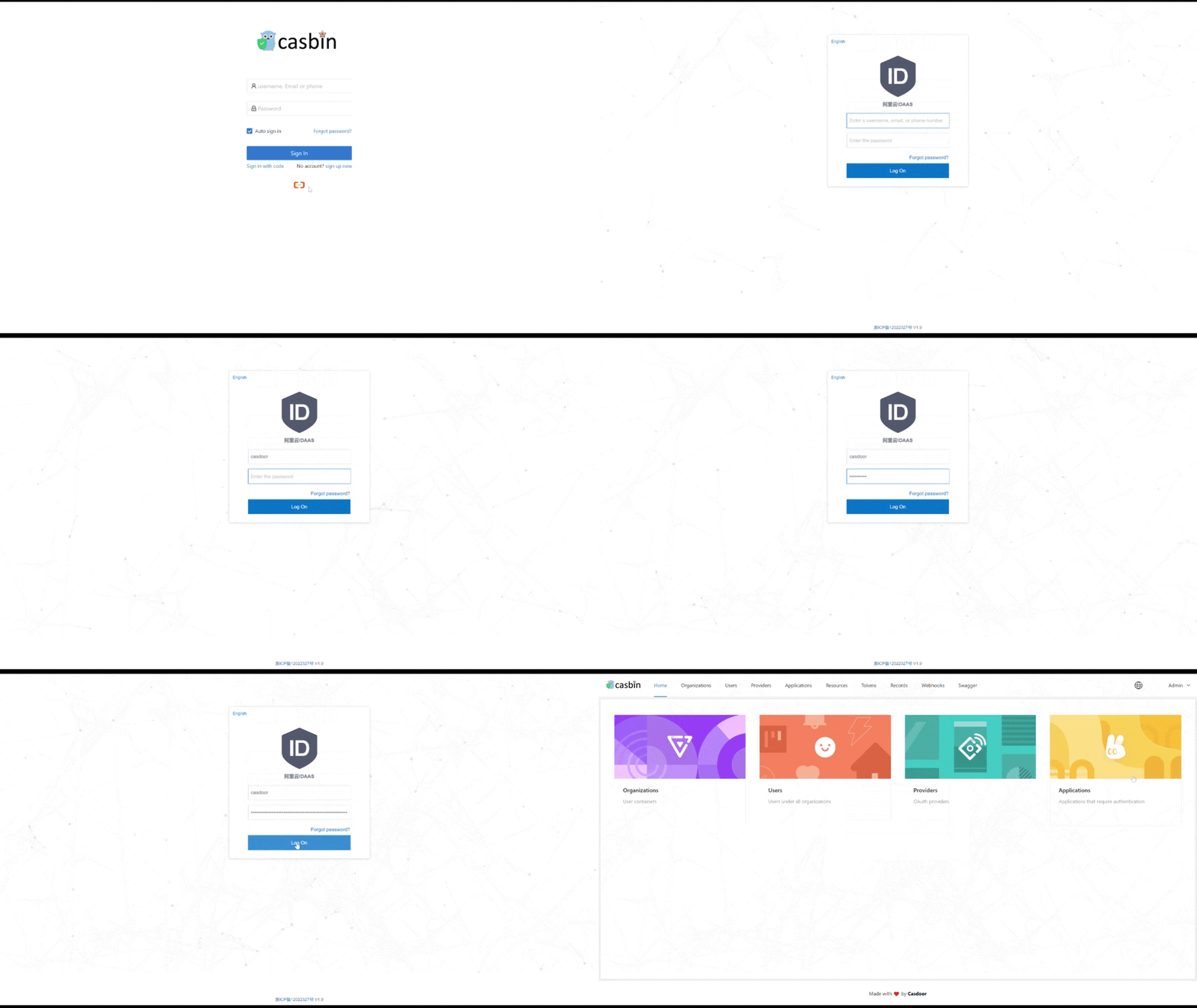
Open the sign-in page of the application and click the IDaaS button. After you sign in at IDaaS, you are signed in to Casdoor.