Connect Google Workspace with SAML
This guide explains how to use Casdoor as the SAML identity provider (IdP) for single sign-on (SSO) to Google Workspace.
Learning outcomes
- Create a certificate for the SAML responses.
- Configure a Casdoor application for Google Workspace.
- Add Casdoor as a third-party IdP in Google Workspace.
- Sign in to Google through Casdoor.
What you need
- A Google Workspace domain with administrator access
- An application in Casdoor
Create a certificate in Casdoor
-
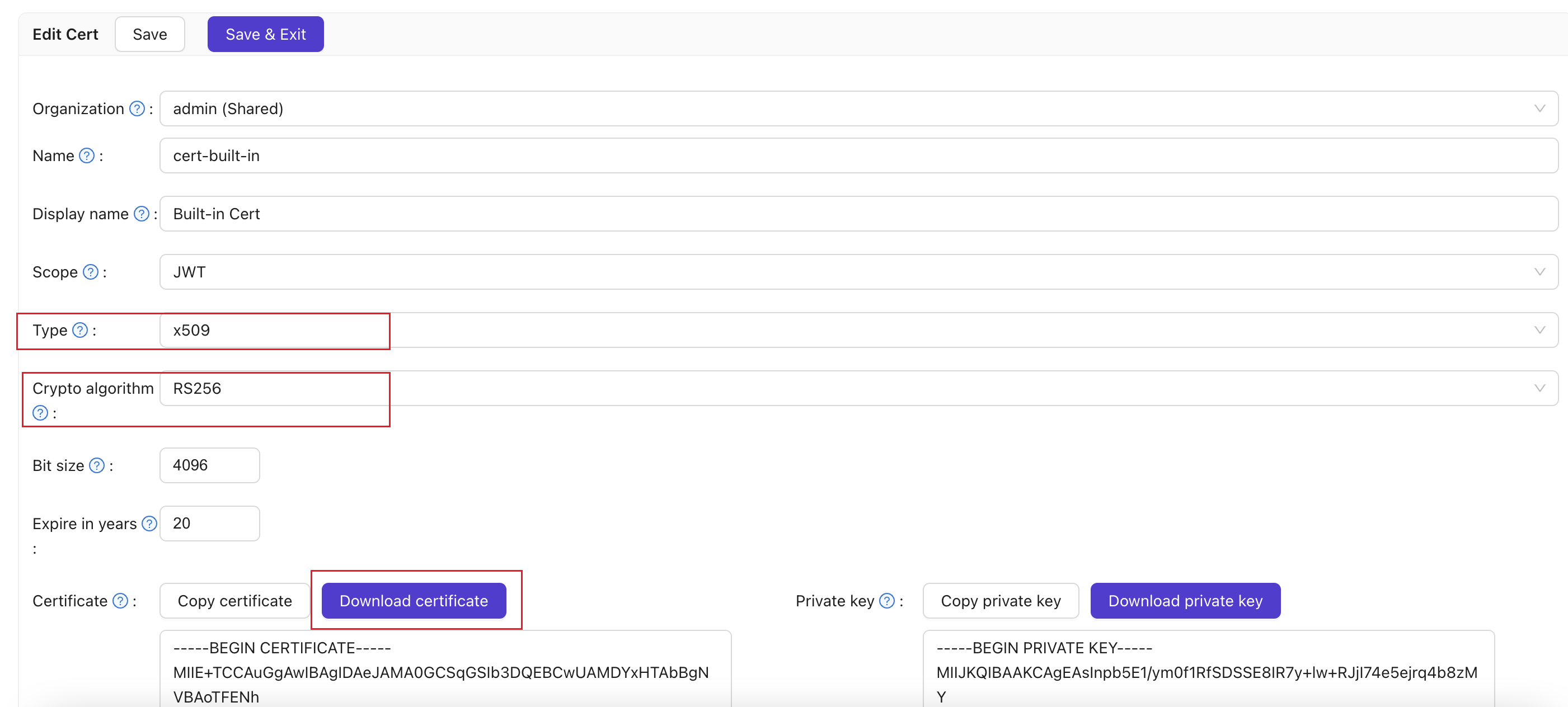
In the Casdoor admin console, add an X.509 certificate with the RSA algorithm. See Certificates.
-
Download the certificate.
Configure the Casdoor application
-
Open the edit page of the application.
-
In Cert, select the certificate, and add your Google domain, for example
google.com, to Redirect URLs.
-
Set SAML reply URL to
https://www.google.com/a/<your-domain>/acs. For the ACS URL, see SSO assertion requirements in the Google Workspace help.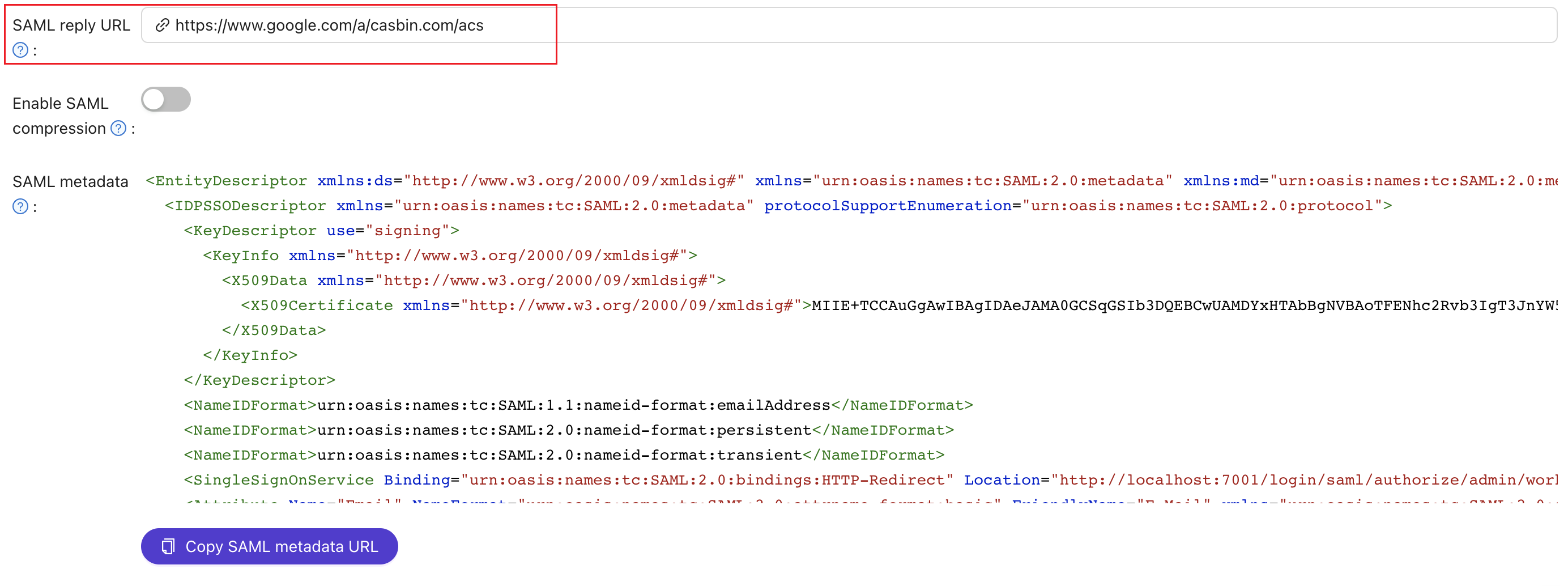
-
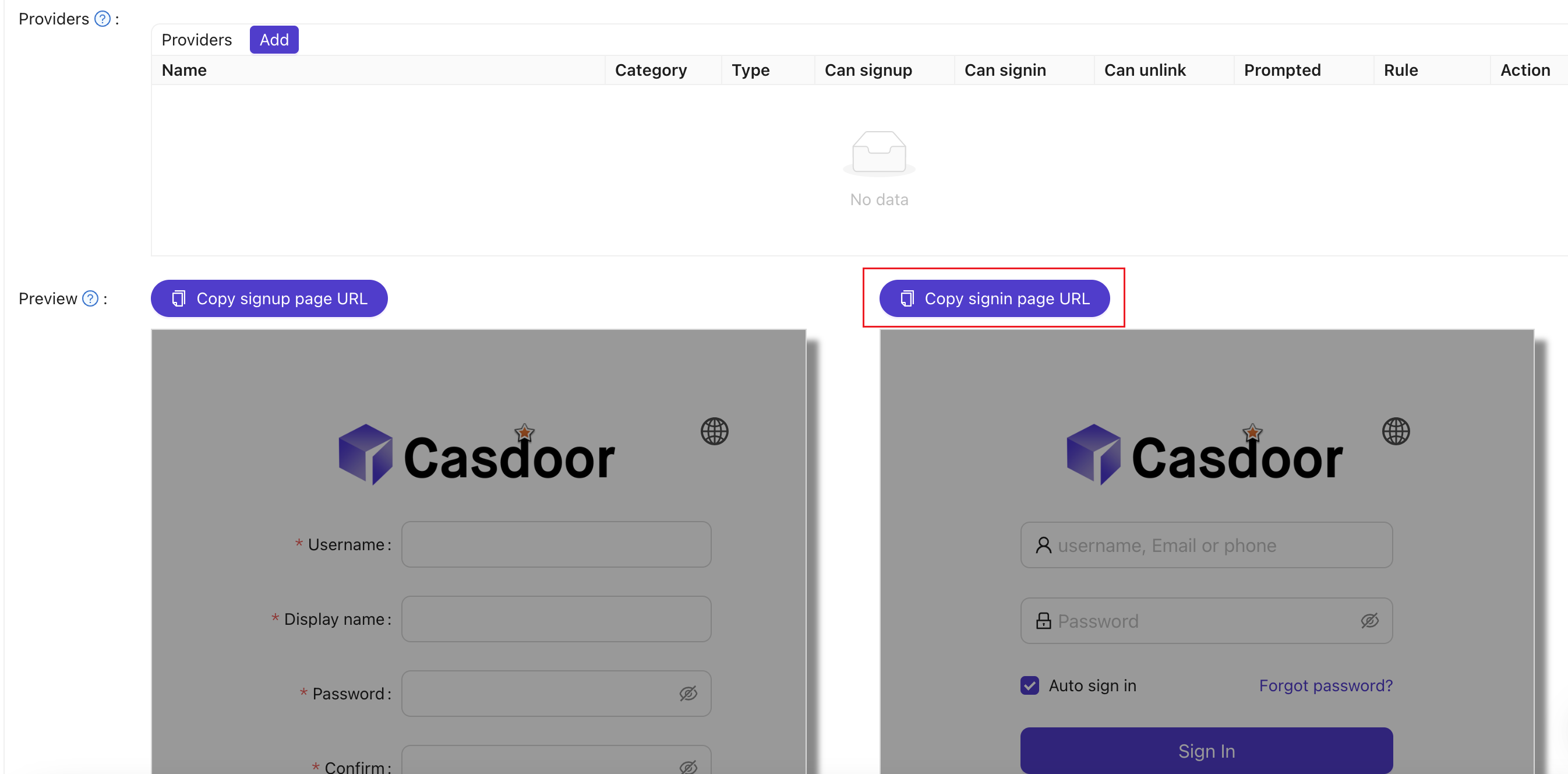
Copy the URL of the sign-in page of the application.
-
Save the application.
Add Casdoor as an IdP in Google Workspace
-
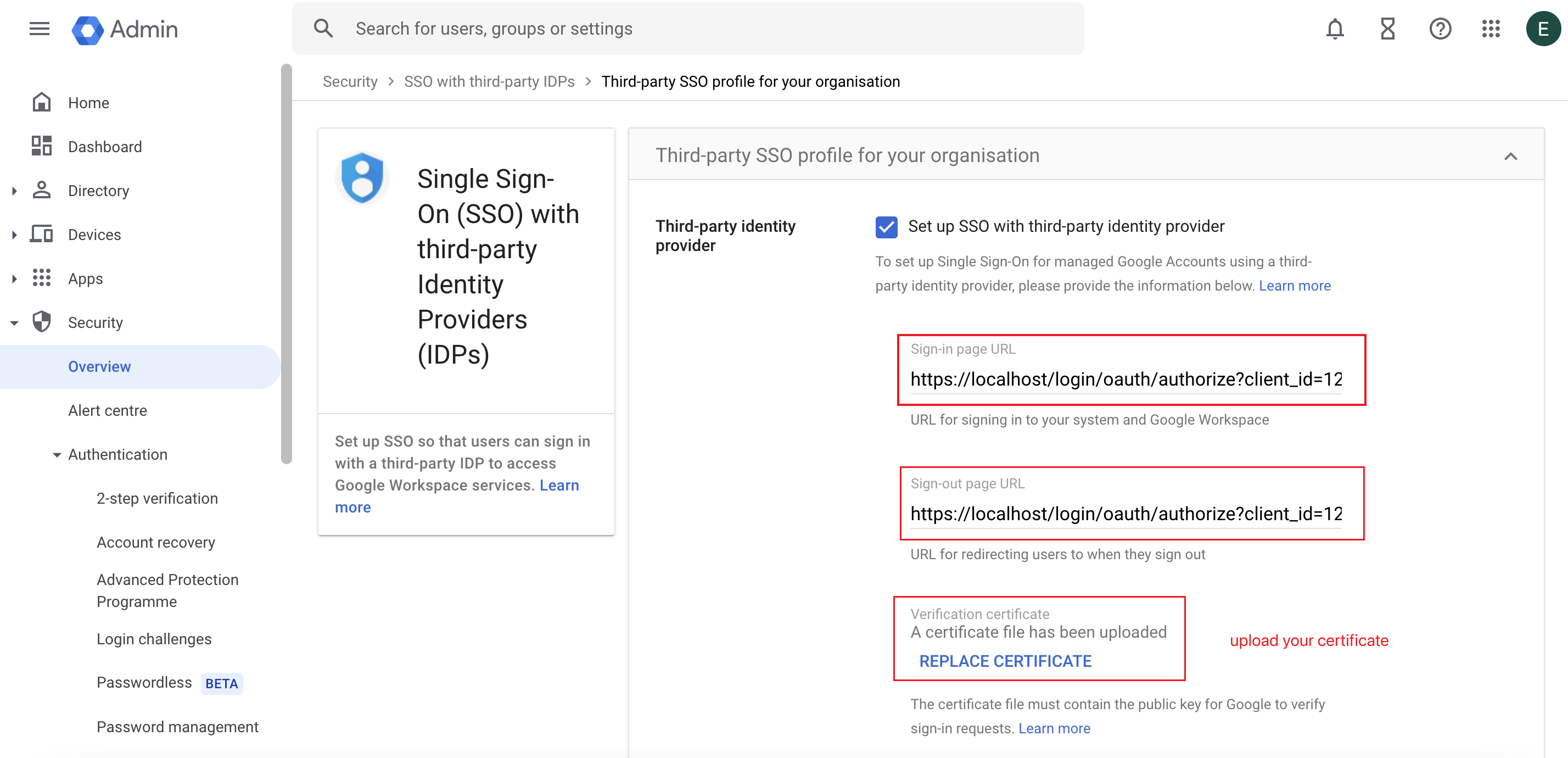
In the Google Workspace Admin console, go to Security > Overview and find SSO with third-party IdP.
-
Click Add SSO profile and turn on Set up SSO with third-party identity provider.
-
Paste the URL of the Casdoor sign-in page into Sign-in page URL and into Sign-out page URL.
-
Upload the certificate that you downloaded from Casdoor, and save.
Verify the result
-
In Google Workspace, create a user, for example with the username
test.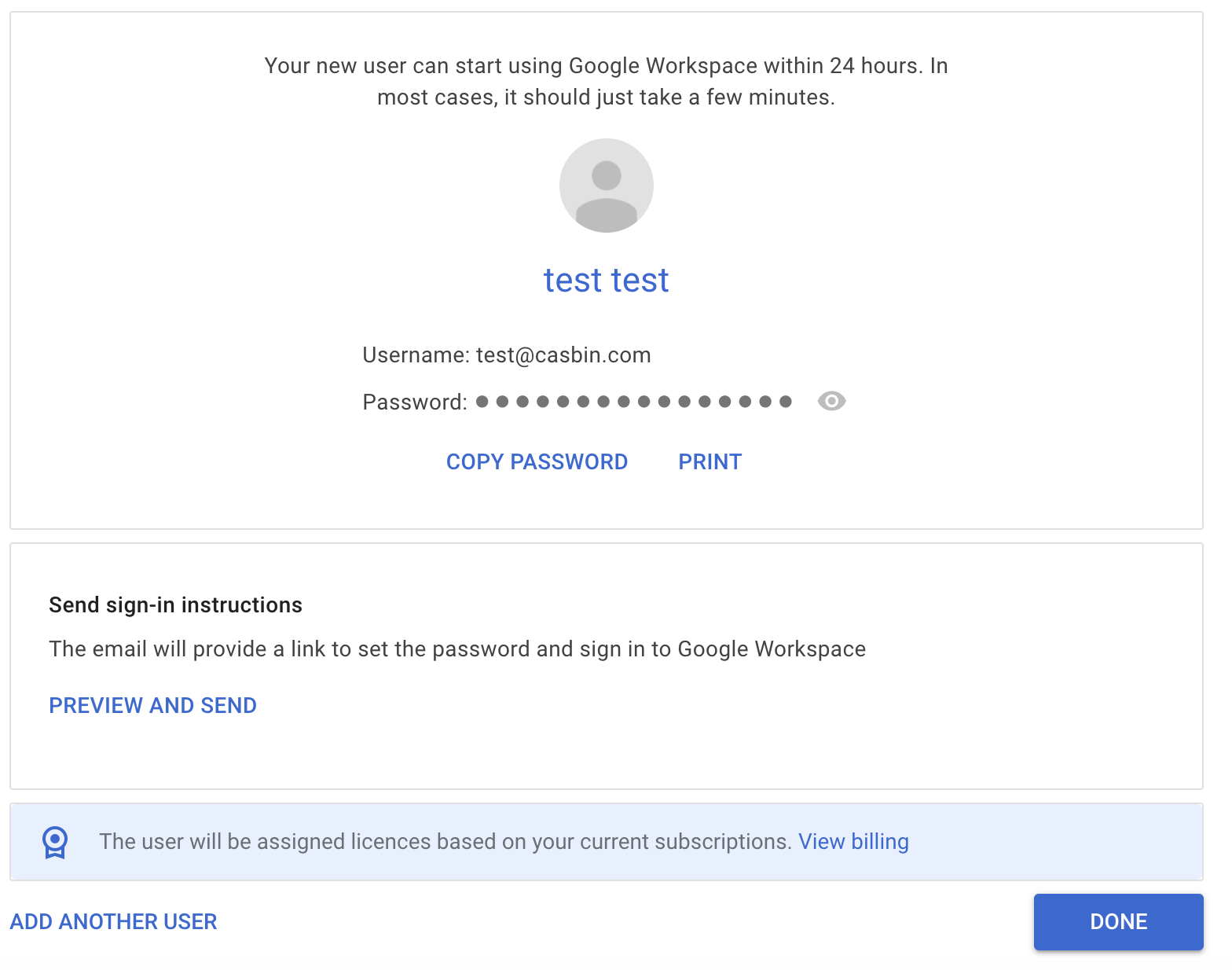
-
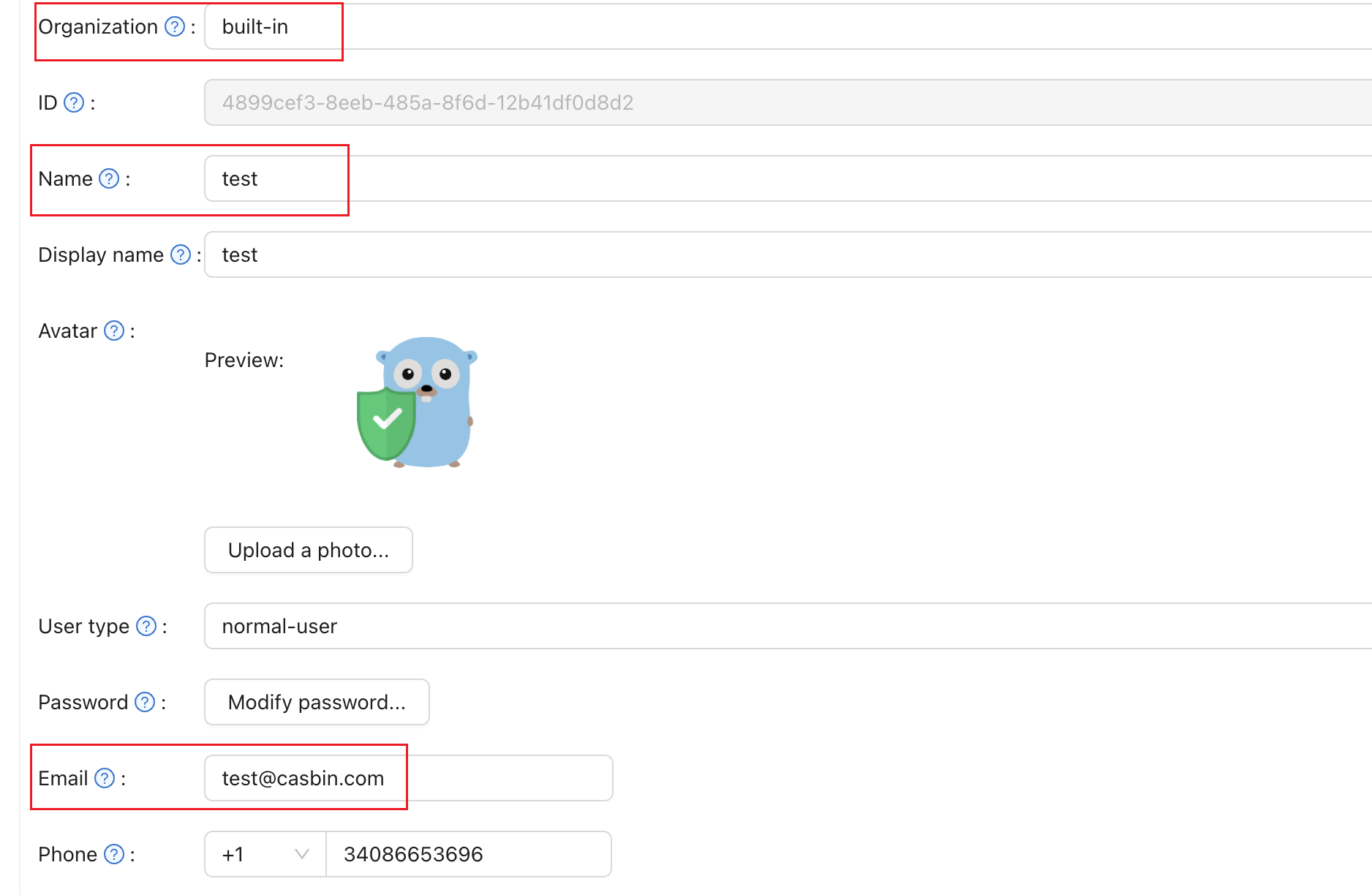
In Casdoor, create a user with the same username in the organization of the application, and set the email address of the user.
-
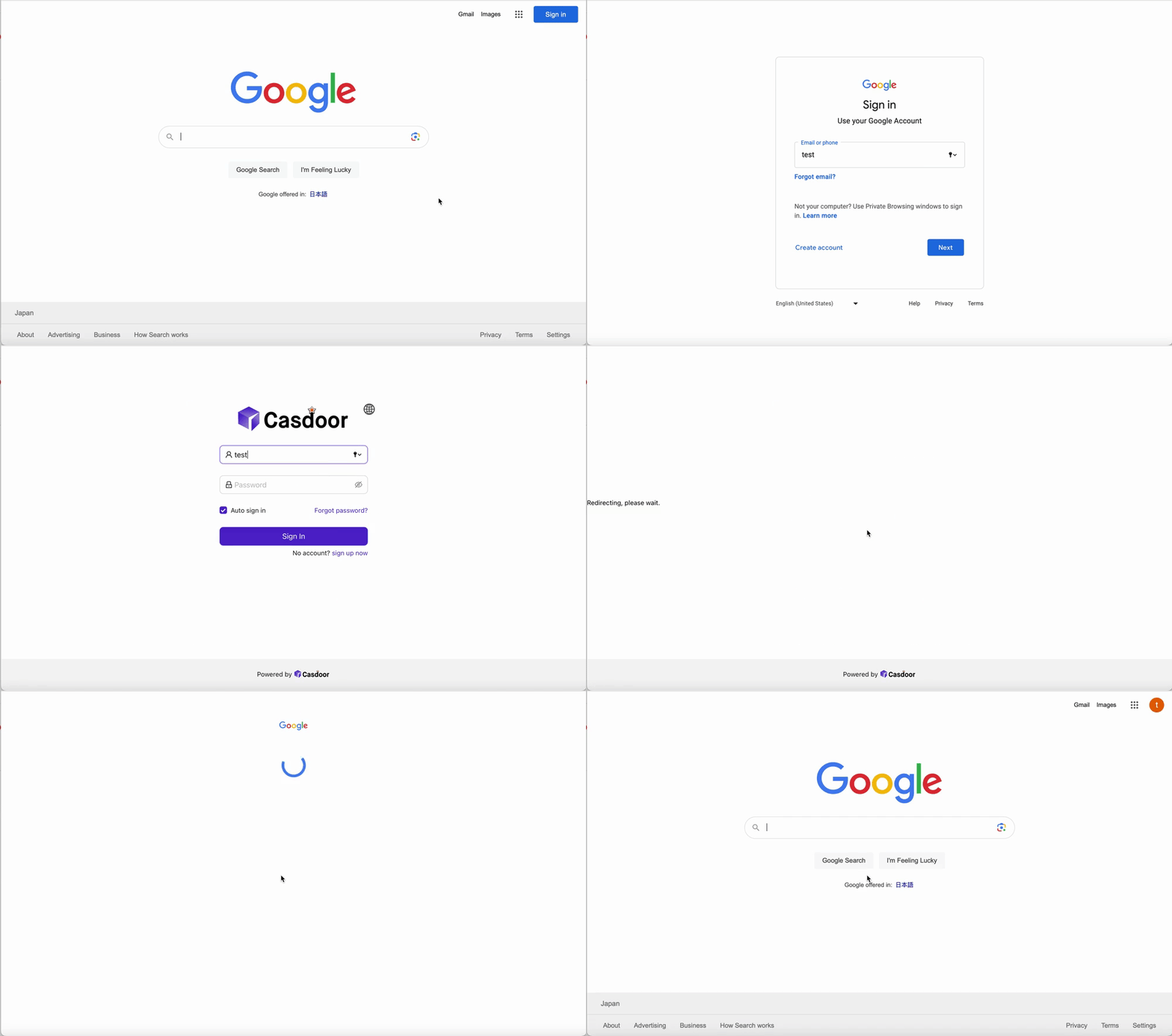
Open a Google application, such as google.com, and sign in with the email address of the user. Google redirects you to Casdoor.
-
Sign in to Casdoor. Casdoor sends you back to Google, signed in.