Add Google as an OAuth provider
This guide explains how to let users sign in to Casdoor with their Google account.
Learning outcomes
- Create an OAuth client in Google Cloud.
- Add Google as an OAuth provider in Casdoor.
- Read the phone number of users from Google.
What you need
- A Google Cloud project. See the Google API Console.
- Administrator access to the Casdoor admin console
Create an OAuth client in Google Cloud
-
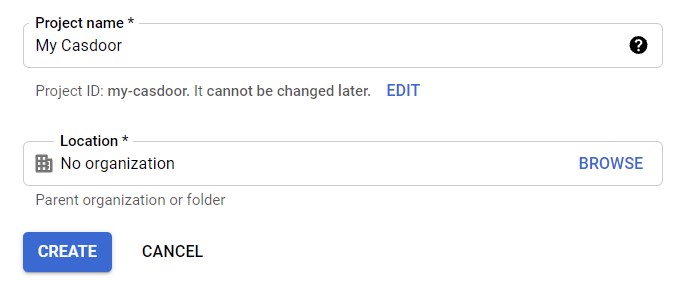
Create or select a project.
-
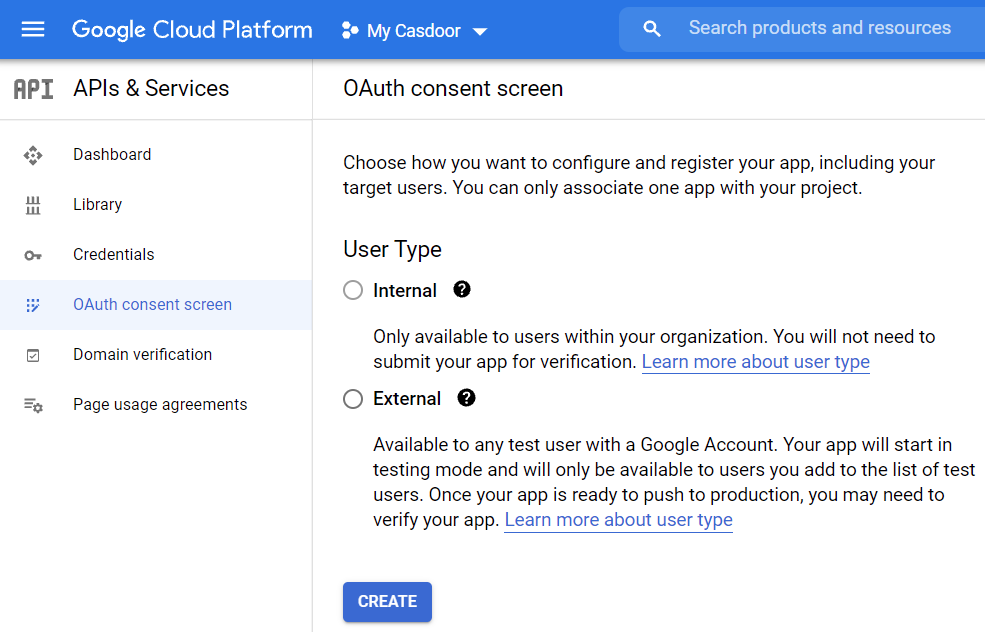
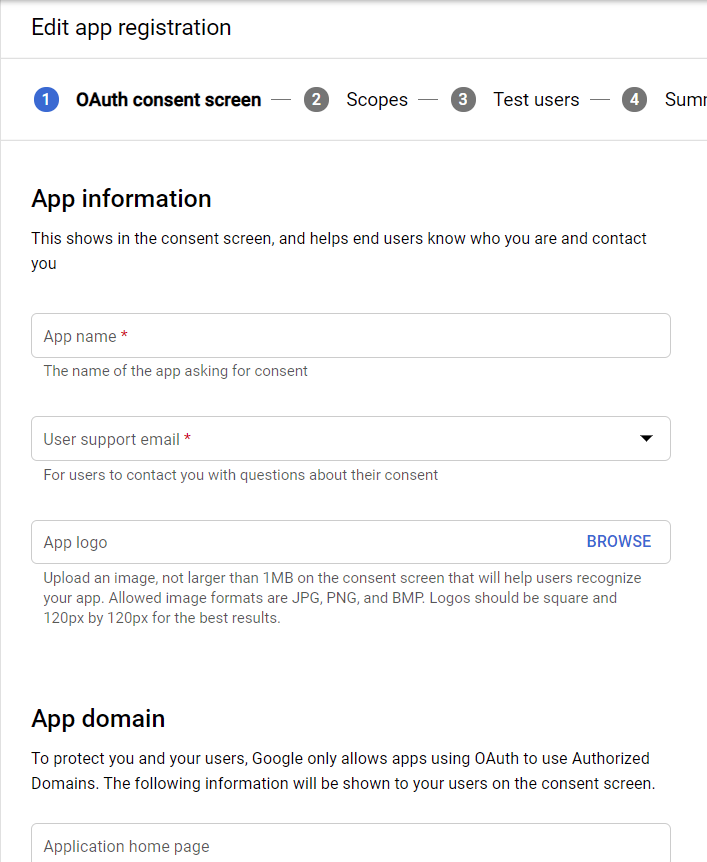
Go to APIs & Services > OAuth consent screen and configure the consent screen.
-
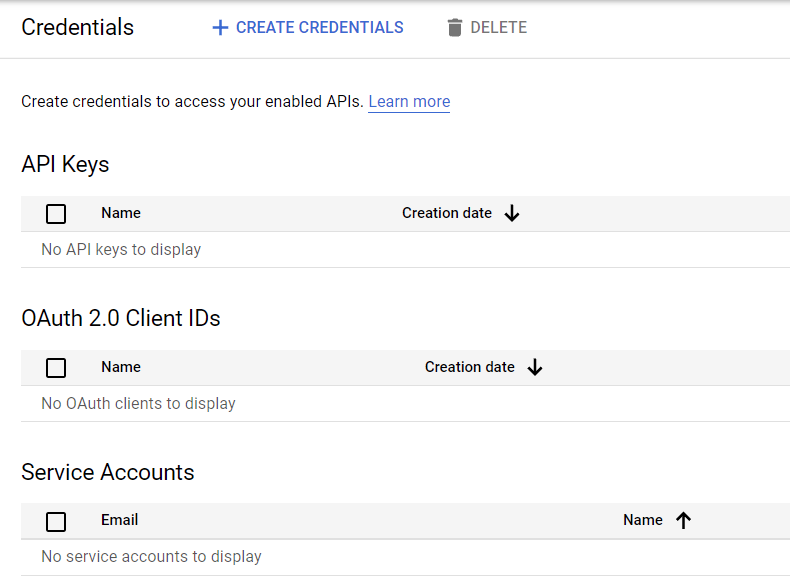
Go to Credentials, click Create credentials, and select OAuth client ID.
-
Select the application type, for example Web application, and add the callback URL of Casdoor,
https://<your-casdoor-host>/callback, to Authorized redirect URIs. This is the URL of Casdoor, not of your own application. See Redirect URL and callback URL.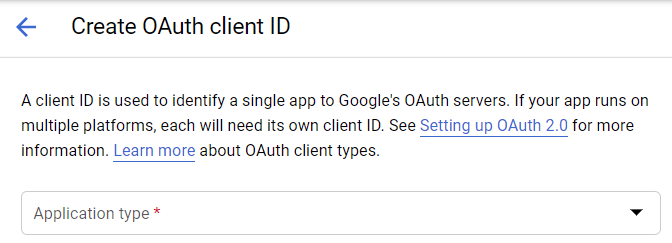
-
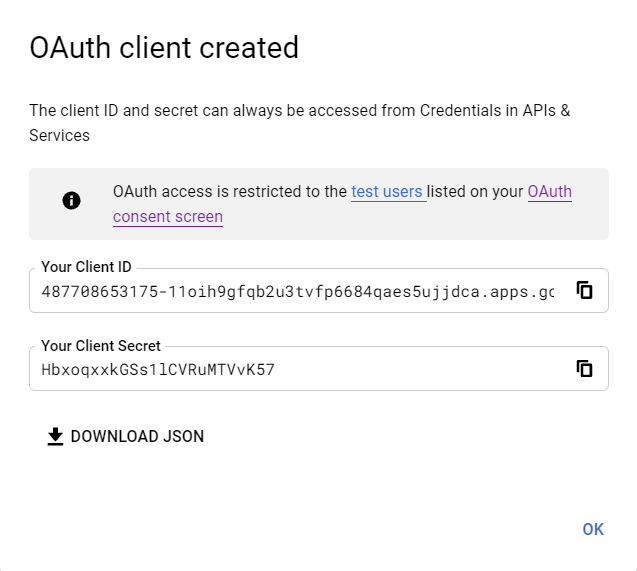
Create the client and copy the Client ID and the Client secret.
Add the provider in Casdoor
-
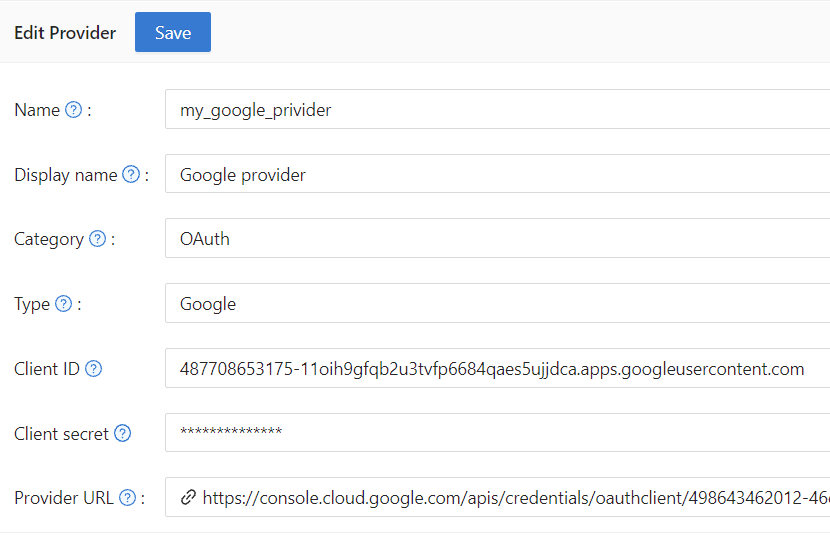
In the Casdoor admin console, go to Identity > Providers and add a provider.
-
Set Category to
OAuthand Type toGoogle. -
Enter the Client ID and the Client secret.
-
Save the provider.
Read the phone number of users
Google returns the phone number only with an additional scope. You need it, for example, when you turn on Get password.
-
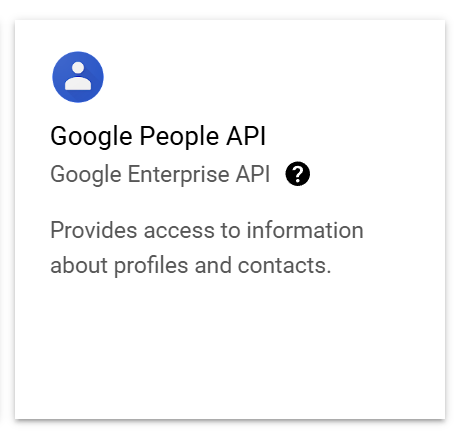
In Google Cloud, turn on the Google People API.
-
In Casdoor, add the scope
https://www.googleapis.com/auth/user.phonenumbers.readto the provider.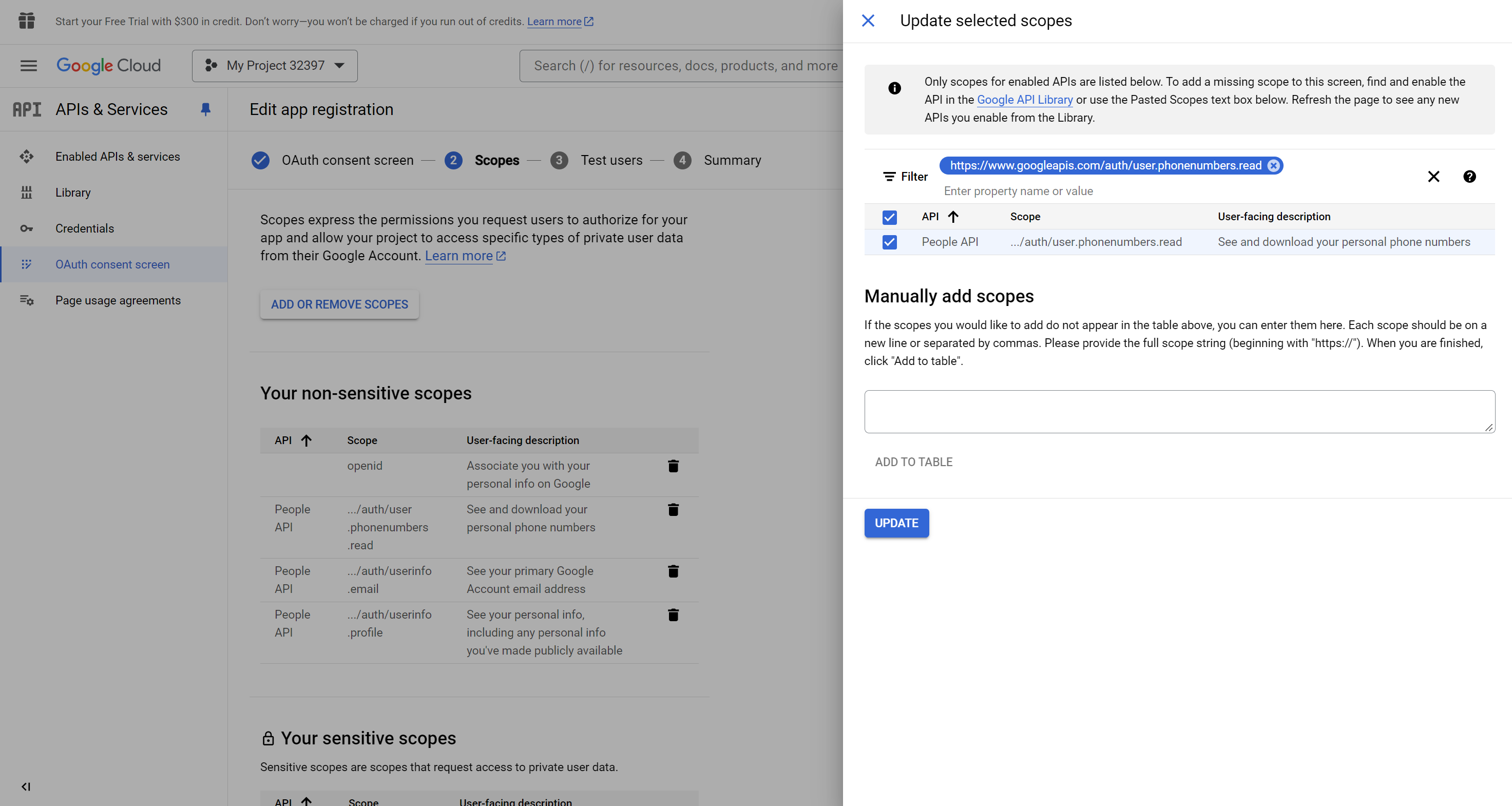
Next steps
- Add the provider to an application. See Add providers to an application.
- Offer Google One Tap on the sign-in page. See Google One Tap.