Add Telegram as a sign-in provider
This guide explains how to let users sign in to Casdoor with their Telegram account. Telegram doesn't use the OAuth 2.0 redirect flow: users sign in through the Telegram Login Widget, and Casdoor verifies the signed data that the widget returns.
Learning outcomes
- Create a Telegram bot and register your domain with it.
- Add Telegram as a provider in Casdoor.
- Understand which user data Casdoor receives.
What you need
- A Telegram account
- A domain under which users open Casdoor
- Administrator access to the Casdoor admin console
Create a Telegram bot
-
In Telegram, open @BotFather.
-
Send
/newbotand follow the prompts.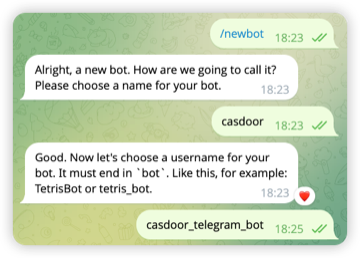
-
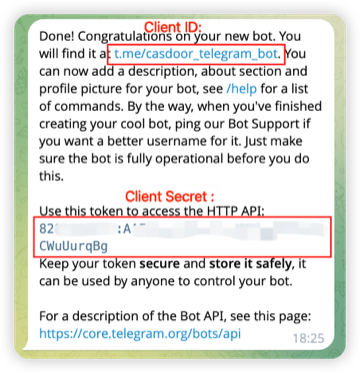
Save the bot token that BotFather sends. Keep it secret: don't share it or commit it to version control.
-
Send
/setdomainand enter the domain of your Casdoor instance, for exampleexample.com.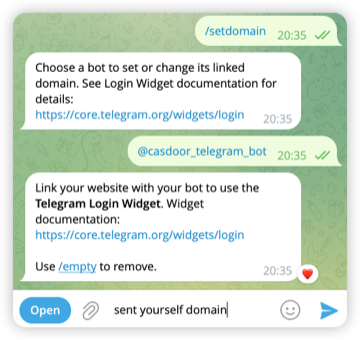
Add the provider in Casdoor
-
In the Casdoor admin console, go to Identity > Providers and add a provider.
-
Set Category to
OAuthand Type toTelegram. -
Fill in the fields:
Field Value Client ID The username of the bot, without @, for examplecasdoor_telegram_botClient secret The bot token 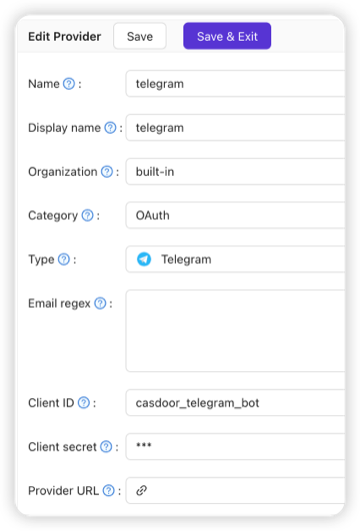
-
Save the provider and add it to an application. See Add providers to an application.
The widget works only on the domain that you registered with /setdomain. Users must open Casdoor under that domain.
Verify the result
Open the sign-in page of the application and sign in with Telegram.
User data
Casdoor verifies the HMAC-SHA256 signature and the timestamp of the data from the widget, as the Telegram specification describes. It receives the Telegram user ID, the name, the username, and, if available, the photo.
- Email: The widget doesn't provide the email address. Collect it separately if you need it.
- Username: The Telegram username is optional. For a user without one, Casdoor generates the username
telegram_<user-id>, for exampletelegram_123456789. The ID doesn't change, so the user keeps the same username at every sign-in.